- Document Solutions Data Viewer Overview
- Key Features
- Getting Started
- User Interface
- Load File
- Resize Rows and Columns
- Cell Range Selection
- Tables
- Pivot Tables
- Sorting and Filtering
- Grouping and Outlines
- Data Visualization
- Scroll Bars
- Notes
- Search Data
- Extract Data
- Hyperlinks
- Keyboard Shortcuts
- Samples
- Client-side API Reference
- Release Notes
Pivot Tables
Pivot tables provide a powerful way to summarize, analyze, and explore large datasets by rearranging and aggregating data dynamically. With a professional license, DsDataViewer supports displaying and interacting with pivot tables in XLSX and SpreadJS (SJS and SSJSON) files.
You can adjust the pivot table using the Filter button ( ) or the PivotTable Fields panel. If these changes result in a layout that cannot be accommodated by the currently displayed number of rows and columns, DsDataViewer will automatically expand the rows and columns to fit the new layout.
For the source file settings, DsDataViewer pivot table interactions follow these rules:
Protect Sheet disabled: pivot table operations are allowed.
Protect Sheet enabled and Use PivotTable option not selected: pivot table operations are not allowed.
Protect Sheet enabled and Use PivotTable option selected: pivot table operations are allowed.
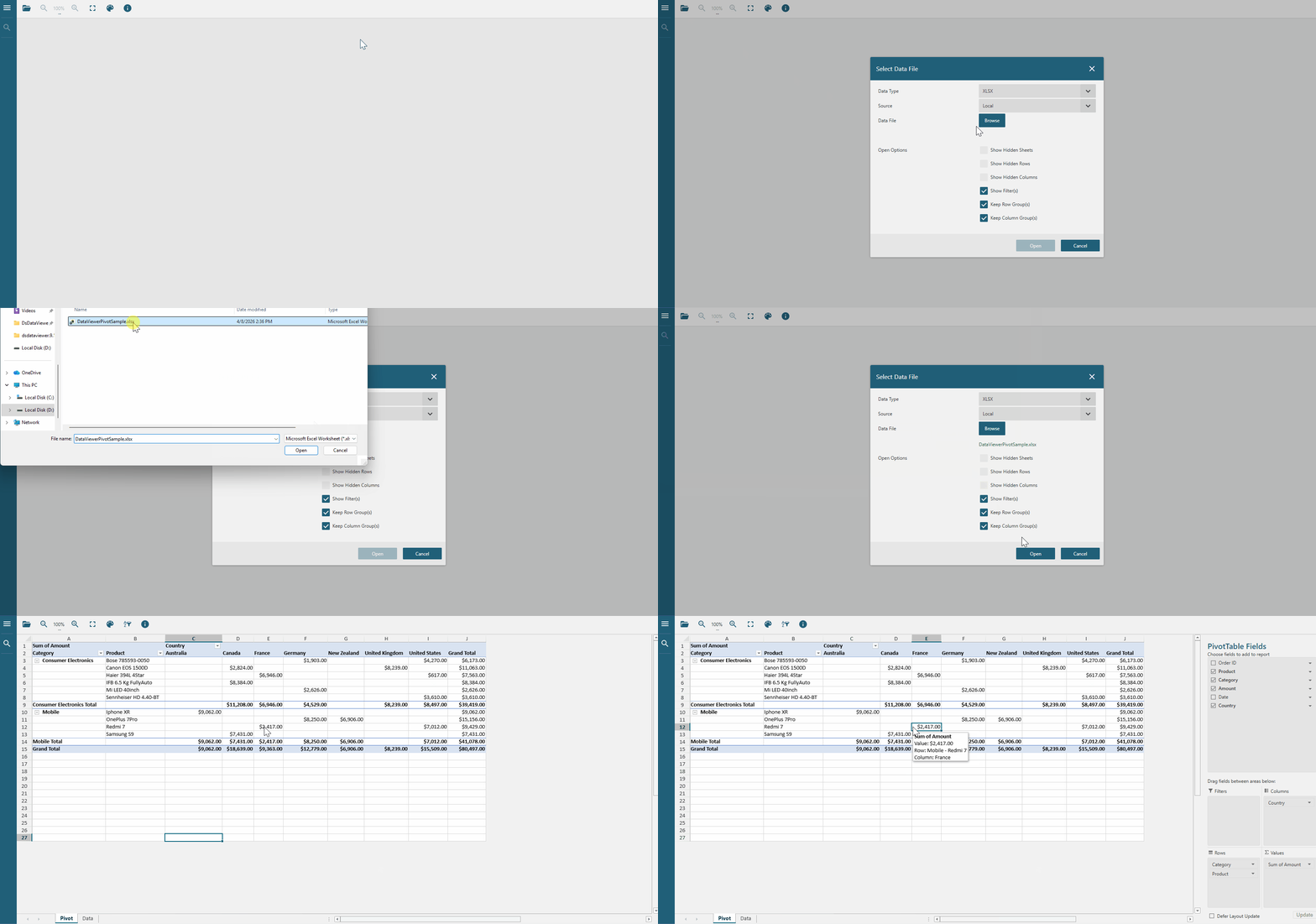
Open Pivot Table Fields Panel
The PivotTable Fields panel allows you to interact with pivot tables directly within the viewer. The panel’s visibility depends on whether the active cell is within the pivot table range. You can open the panel in the following ways:
When a new workbook is opened and the active cell is already within a pivot table area, the PivotTable Fields panel opens automatically.
Click any cell within a pivot table to open the PivotTable Fields panel, or click any cell outside the pivot table to close the panel.
Add Pivot Table Fields
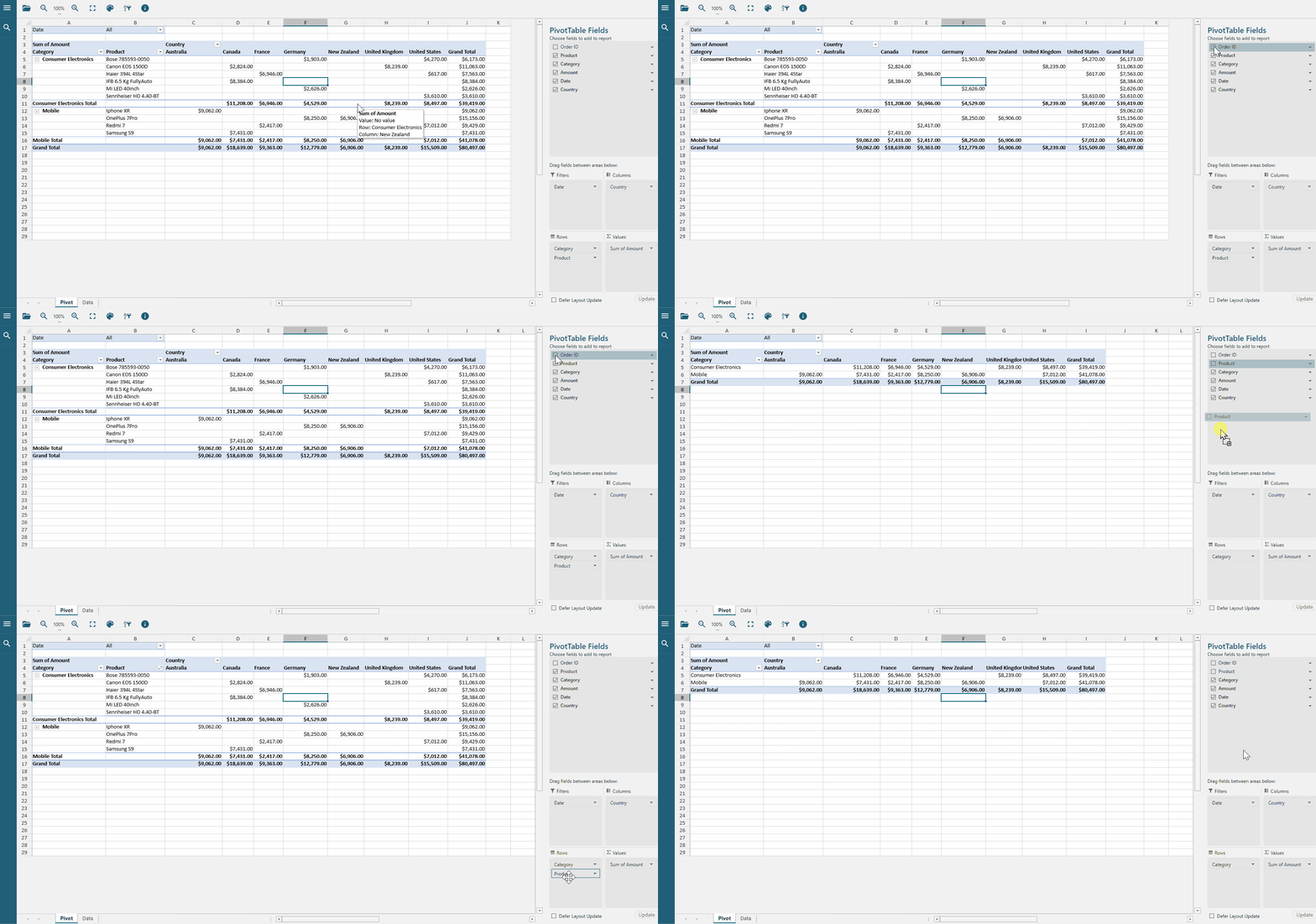
You can add fields to your pivot table by checking or dragging them in the pivot table fields panel.
Modify Pivot Table Layout
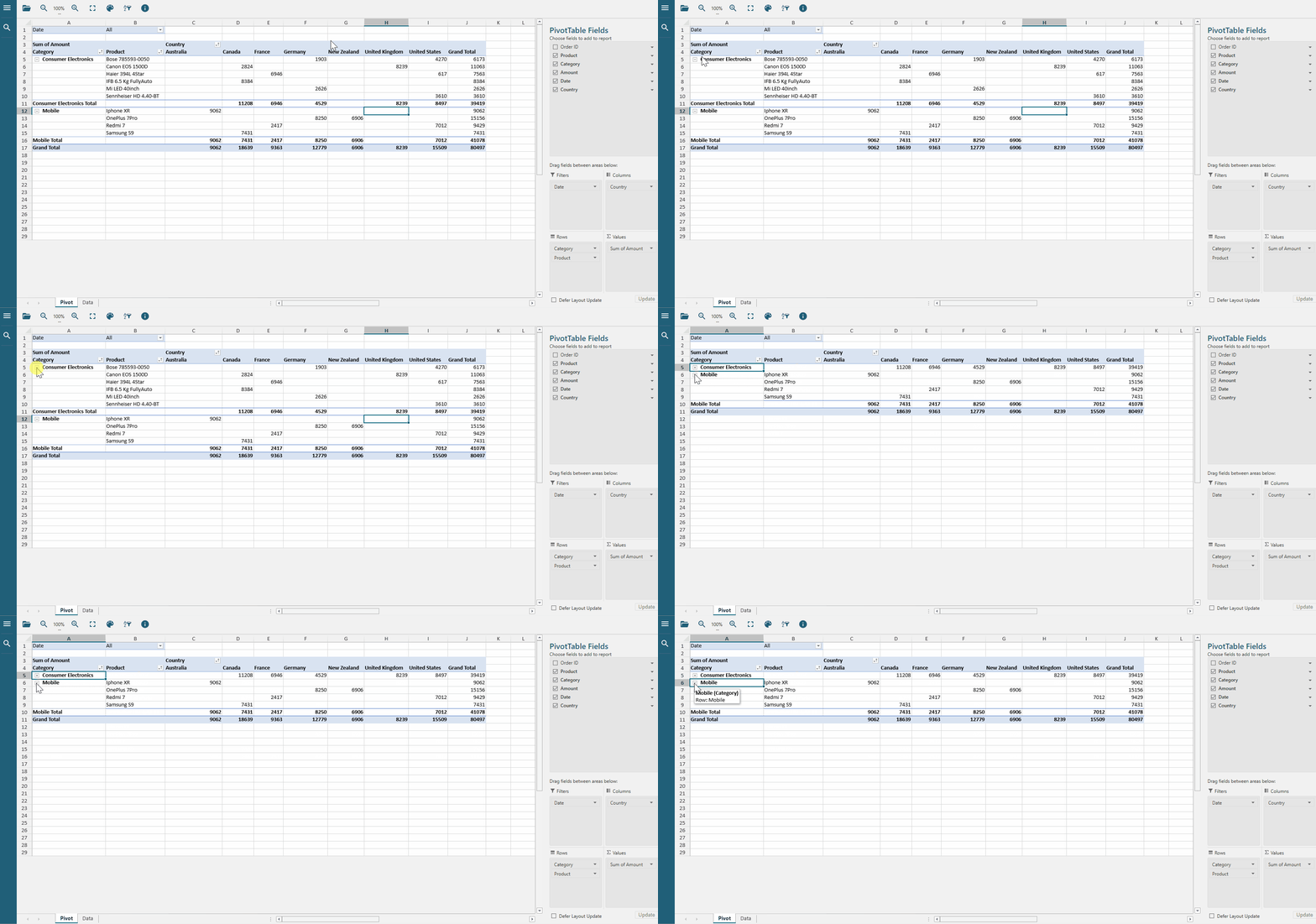
You can interact with the pivot table to modify its layout. For example, you can click the collapse button on a field to collapse its subfields as needed.
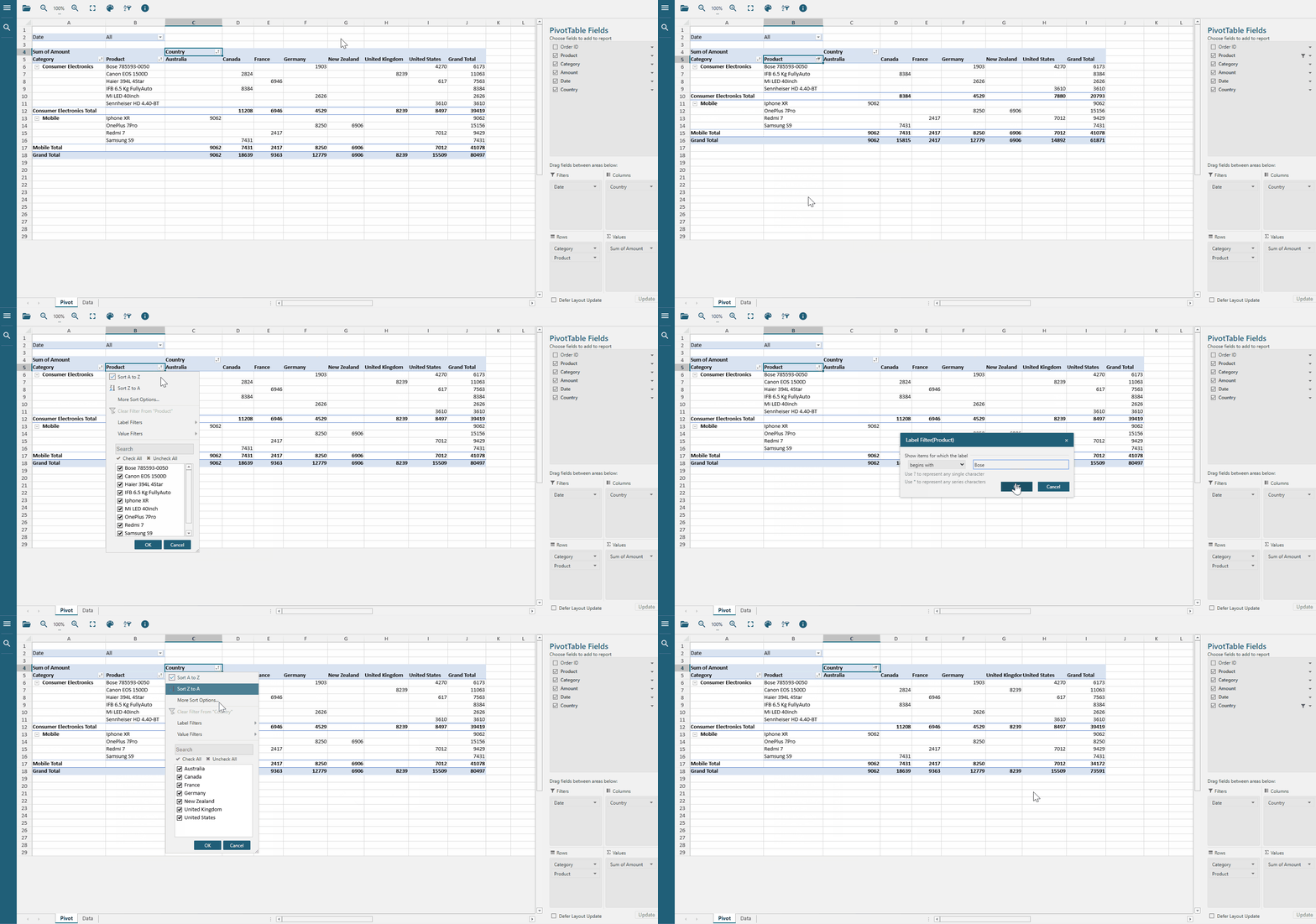
Filter the Pivot Table
You can apply filters to a pivot table to display only the relevant information and exclude unnecessary data.
Value filters allow you to filter value-based fields based on summary values such as sum, count, maximum, minimum, or average.
Label filters enable you to filter row label items, offering different options depending on the data type of the field. For example, for string or numeric data types, available options include equals, does not equal, begins with, contains, greater than, and more.
Configure Value Field Settings
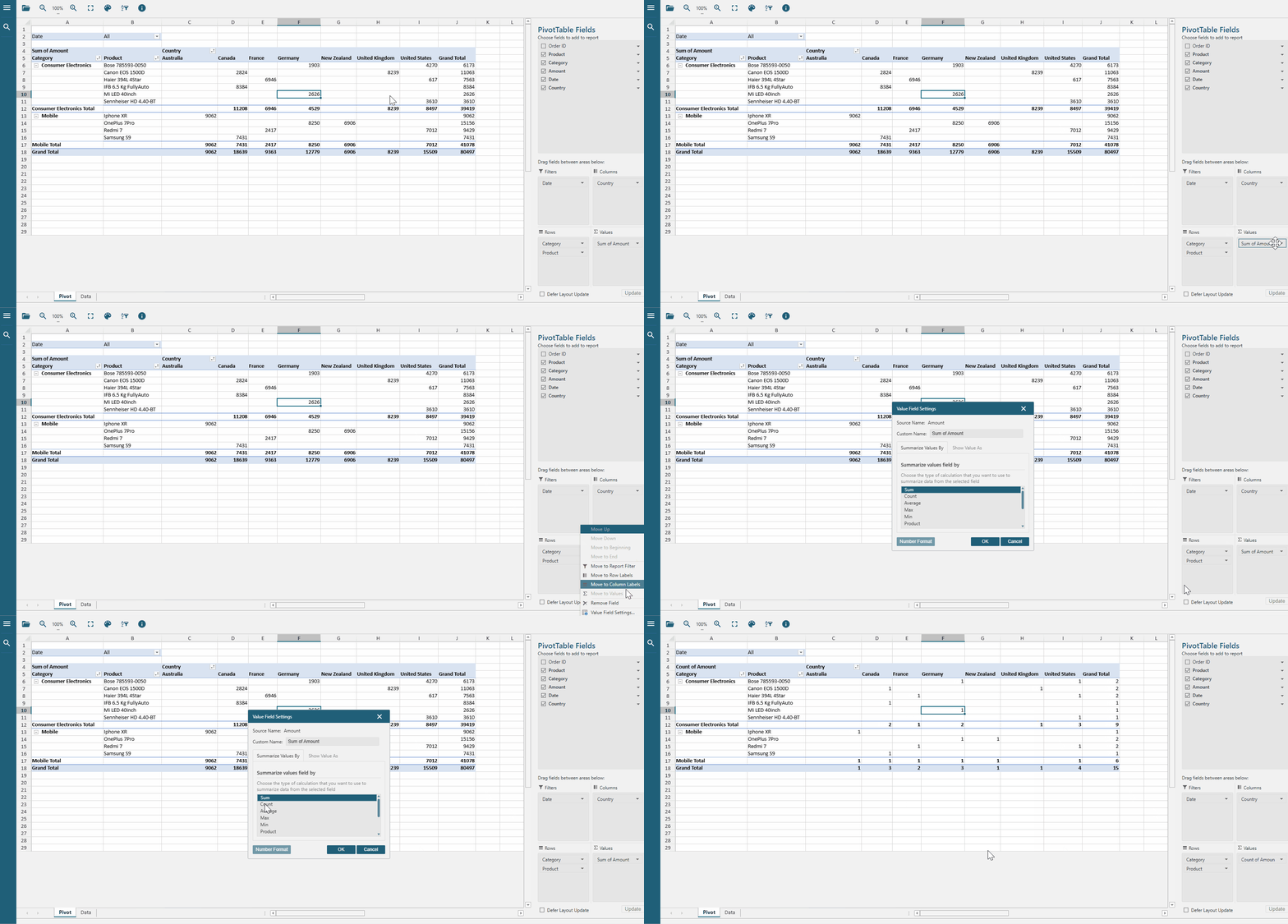
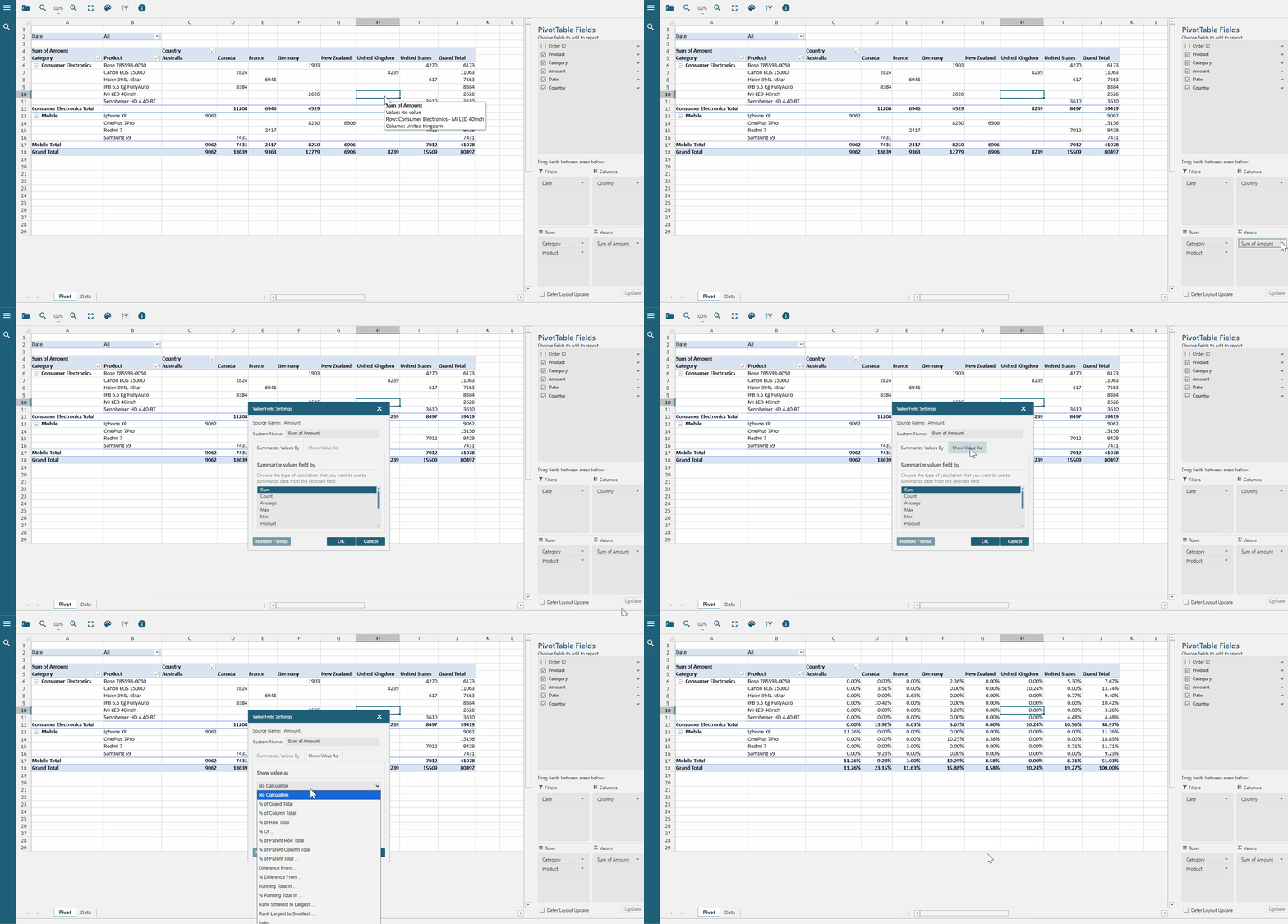
Value Field Settings focuses on how data values are calculated and shown (including summary methods and value display formats).
Summarize value field by
Show Value As
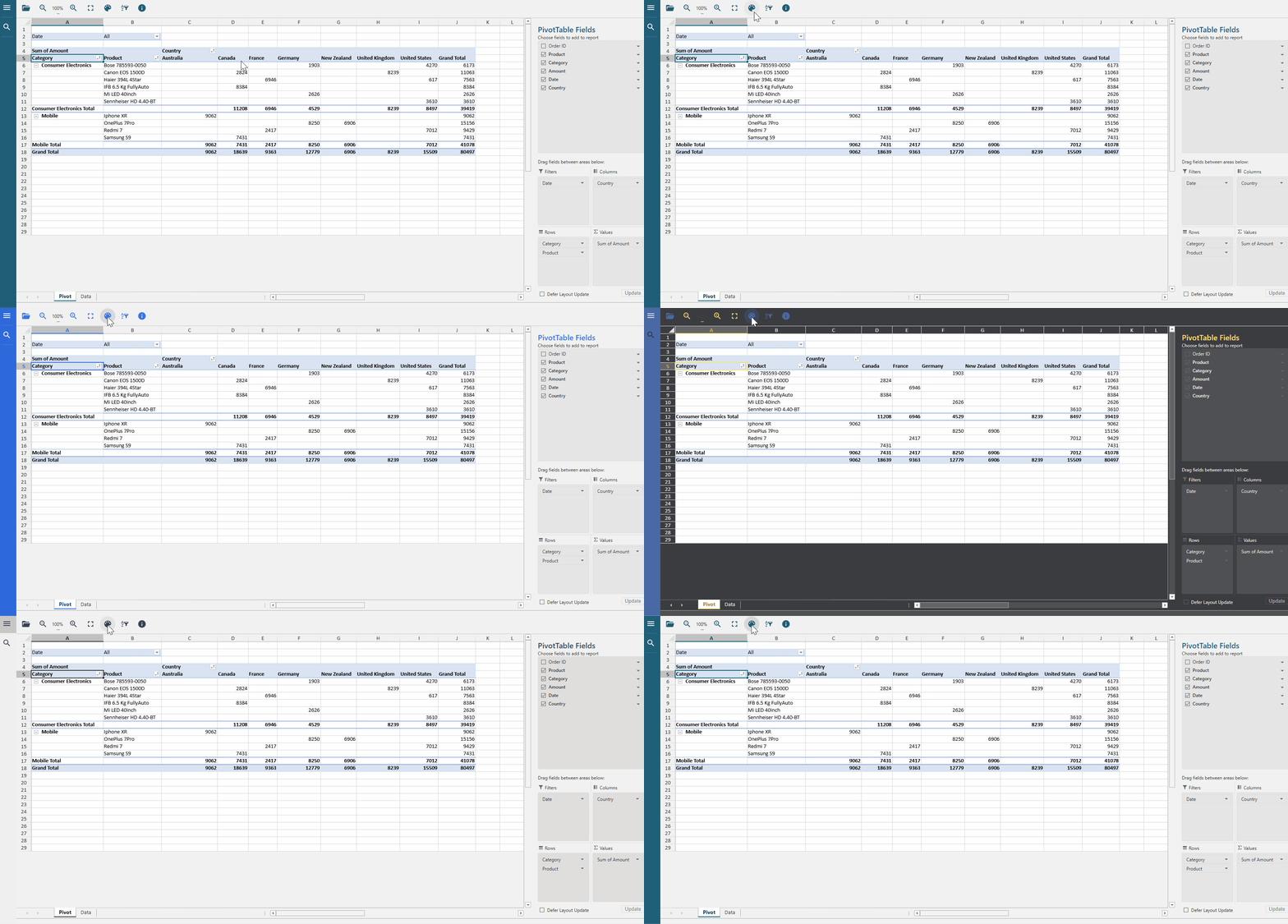
Switch Theme Colors
You can click the Theme button( ) to customize the appearance of your pivot table by switching between different theme colors.