


- Document Solutions for Excel Java Overview
- Key Features
- Getting Started
- Features
- Templates
- Formula Reference
- File Operations
- Tutorials
- Use JDK 8 Date Time API
- Document Solutions Data Viewer
- API Reference
- Release Notes
PDF Export Options
DsExcel provides the PdfSaveOptions class for customizing PDF files exported from Excel workbooks and worksheets. You can use these options to control the appearance, layout, metadata, security, and export behavior of the generated PDF document.
Class | Option | Description |
|---|---|---|
Specifies the border width and dash pattern for specific line styles in the exported PDF. | ||
Specifies PDF properties such as the title, author, subject, keywords, dates, and PDF version. | ||
Specifies the custom rendering engine used for PDF export. If unset, the default engine is used. | ||
Indicates whether supported Excel form controls are exported as interactive PDF form fields. The default value is false. Not all controls and properties are supported. | ||
Specifies the JavaScript that runs when the exported PDF is opened. | ||
Indicates whether to print the sheet's background image on the page. | ||
Indicates whether to print the transparency of the cell's background color on the page. | ||
Specifies PDF passwords and permissions, such as whether users can print, modify, or extract content. | ||
Specifies how wrapped text shrinks to fit within cells, including the minimum font size and ellipsis text. | ||
Indicates whether cell regions created by automatic merging are included in the exported PDF. The default value is false. | ||
Occurs before a page is exported to PDF. Use this event to track export progress or skip the current page by setting the setSkipThisPage method of PagePrintingEventArgs. | ||
Occurs after a page is exported to PDF. Use this event to track export progress or stop the export by setting the setHasMorePages method of PagePrintedEventArgs. |
Customize Border Style
DsExcel enables you to export PDF documents with a custom border style using getBorderOptions method of PdfSaveOptions class. This method uses setBorderWidth and setDashes of CustomBorderStyle class and BorderLineStyle enumeration to set the border width, dash length, and line style.
setBorderWidth: Sets the width of the border when exporting a PDF document.
setDashes: Sets the length of each segment in a dashed line.
BorderLineStyle: Specifies the line style of the border.
The following table lists the default values of all the border styles:
Border Type | Default Line Width (point) | Dashes (point) | Comment |
|---|---|---|---|
Hair | 0.2 | None | - |
DashDotDot | 1 | 9,3,3,3,3,3 | - |
DashDot | 1 | 8,2,2,2 | - |
Dotted | 1 | 1,1 | - |
Dashed | 1 | 3,1 | - |
Thin | 1 | None | - |
MediumDashDotDot | 2 | 4.5,1.5,1.5,1.5,1.5,1.5 | - |
SlantDashDot | 1 | 11, 1,5,1 | This border type comprises two lines, each with a width of 1 point. |
MediumDashDot | 2 | 4.5,1.5,1.5,1.5 | - |
MediumDashed | 2 | 4.5,1.5 | - |
Medium | 2 | None | - |
Thick | 3 | None | This border type comprises three lines, each with a width of 1 point. |
Double | 1 | None | This border type comprises two lines, each with a width of 1 point. |
Refer to the following example code to adjust the border width, dash length, and line style when exporting to a PDF document:
// Create a new workbook.
Workbook workbook = new Workbook();

// Open template file.
workbook.open("CustomBorderStyle.xlsx");

// Customize the border style for PDF export.
// Initialize PdfSaveOptions.
PdfSaveOptions pdfSaveOptions = new PdfSaveOptions();

// Set outer border width to 0.4.
CustomBorderStyle thinBorderSetting = new CustomBorderStyle();
thinBorderSetting.setBorderWidth(0.4);

// Set middle border width to 1.5.
CustomBorderStyle middleBorderSetting = new CustomBorderStyle();
middleBorderSetting.setBorderWidth(1.5);

// Set inner horizontal border width to 0.4 in dash style.
CustomBorderStyle dashBorderSetting = new CustomBorderStyle();
dashBorderSetting.setBorderWidth(0.4);
dashBorderSetting.setDashes(new ArrayList<>(Arrays.asList(0.8, 0.8)));

// Add borders with custom border styles.
pdfSaveOptions.getBorderOptions().put(BorderLineStyle.Thin, thinBorderSetting);
pdfSaveOptions.getBorderOptions().put(BorderLineStyle.Medium, middleBorderSetting);
pdfSaveOptions.getBorderOptions().put(workbook.getActiveSheet().getRange("B13").getBorders().get(BordersIndex.EdgeTop).getLineStyle(), dashBorderSetting);

// Save workbook to PDF file.
workbook.save("CustomBorder.pdf", pdfSaveOptions);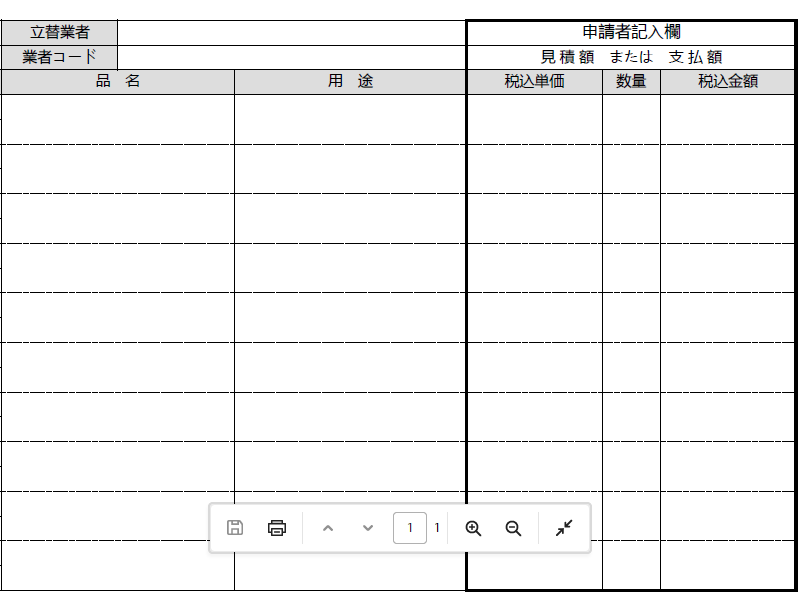
Shrink To Fit With Text Wrap
DsExcel supports applying the Shrink to Fit feature to cells with wrapped text when exporting Excel files to PDF. This feature automatically reduces the font size so that the wrapped text can fit within the cell without requiring changes to row height or column width.
This is useful for worksheets with limited vertical space or tightly controlled layouts, especially when you do not want to use Auto Fit row height or column width.
The following methods control how Shrink to Fit is applied to wrapped text during PDF export:
Methods | Description |
|---|---|
Gets the settings for applying Shrink to Fit to wrapped text during PDF export. | |
Gets or sets whether Shrink to Fit is applied to wrapped text. If set to true, the font size may be reduced so that the wrapped text can be fully displayed. | |
Gets or sets the minimum font size allowed when Shrink to Fit is applied. | |
Gets or sets the omitted string to display when the wrapped text still cannot be fully displayed. This can be used together with the getMinimumFont() and setMinimumFont() methods. |
Refer to the following example code in order to allow users to use the shrink to fit feature with text wrap.
// Initialize workbook.
Workbook workbook = new Workbook();

// Fetch default worksheet.
IWorksheet worksheet = workbook.getWorksheets().get(0);
worksheet.getPageSetup().setPrintGridlines(true);
worksheet.getRange("A1").setRowHeightInPixel(20);
worksheet.getRange("A1").setColumnWidthInPixel(90);
worksheet.getRange("A1").setWrapText(true);
worksheet.getRange("A1").setShrinkToFit(true);
worksheet.getRange("A1").setValue("Document Solutions For Excel");

// Setting PdfSaveOptions.
PdfSaveOptions pdfSaveOptions = new PdfSaveOptions();
pdfSaveOptions.getShrinkToFitSettings().setCanShrinkToFitWrappedText(true);
pdfSaveOptions.getShrinkToFitSettings().setMinimumFont(10);
pdfSaveOptions.getShrinkToFitSettings().setEllipsis("~");

// Saving the workbook to pdf.
workbook.save("ShrinkToFitWrappedText.pdf", pdfSaveOptions);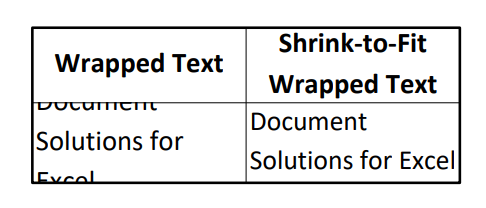
Support Security Options
PDF is a common format for sharing professional documents and often requires security controls such as user/owner passwords and permissions for printing, content copying, and annotations. When converting Excel spreadsheets to PDF, DsExcel supports these controls through the PdfSecurityOptions class, allowing you to restrict PDF access and operations based on specified security settings.
With DsExcel's PdfSecurityOptions class, you can restrict access to your PDF document, while converting Excel spreadsheet to PDF document. You can choose through the following security methods in the PdfSecurityOptions class:
Methods | Description |
|---|---|
Gets or sets the user password of the PDF document. | |
Gets or sets the owner password of the PDF document. This password is required to change the permissions for the PDF document. | |
Gets or sets the permission to print the PDF document. The default value is true. | |
getFullQualityPrintPermission / setFullQualityPrintPermission | Gets or sets the permission to print in high quality. The default value is true, and it only works when setPrintPermission method is set to true. |
Gets or sets the permission to copy or extract content. The default value is true. | |
Gets or sets the permission to modify the PDF document. The default value is true. | |
getAssembleDocumentPermission / setAssembleDocumentPermission | Gets or sets the permission to insert, rotate or delete pages, and create bookmarks/thumbnail images. The default value is true. If you want to prevent a user from inserting, rotating or deleting pages, you need to set setModifyDocumentPermission method to false as well. |
getModifyAnnotationsPermission / setModifyAnnotationsPermission | Gets or sets the permission to modify text annotations and fill the form fields. The default value is true. |
Gets or sets the permission to fill the form fields even if the getModifyAnnotationsPermission method returns false. The default value is true. Note that if you want to prevent a user from filling interactive form fields, you need to set the setModifyAnnotationsPermission method to false. |
Refer to the following example to add security options while exporting Excel spreadsheets to PDF documents.
// Initialize workbook
Workbook workbook = new Workbook();
// Fetch default worksheet
IWorksheet worksheet = workbook.getWorksheets().get(0);
Object data = new Object[][] { { "Name", "City", "Sex", "Weight", "Height", "Age" },
        { "Bob", "NewYork", "male", 80, 180, 56 }, { "Betty", "NewYork", "female", 72, 168, 45 },
        { "Gary", "NewYork", "male", 71, 179, 50 }, { "Hunk", "Washington", "male", 80, 171, 59 },
        { "Cherry", "Washington", "female", 58, 161, 34 }, { "Coco", "Virginia", "female", 58, 181, 45 },
        { "Lance", "Chicago", "female", 49, 160, 57 }, { "Eva", "Washington", "female", 71, 180, 81 } };

worksheet.setName("Listing");
// Set data
worksheet.getRange("A1:G9").setValue(data);

// The security settings of pdf when converting excel to pdf
PdfSecurityOptions securityOptions = new PdfSecurityOptions();
// Sets the user password
securityOptions.setUserPassword("user");
// Sets the owner password
securityOptions.setOwnerPassword("owner");
// Printing the pdf document is not allowed
securityOptions.setPrintPermission(false);
// Filling the form fields of the pdf document is not allowed
securityOptions.setFillFormsPermission(false);

PdfSaveOptions pdfSaveOptions = new PdfSaveOptions();
// Sets the security settings of the pdf
pdfSaveOptions.setSecurityOptions(securityOptions);

// Saving workbook to PDF
workbook.save("4-SavePDFPdfSecurityOptions.pdf", pdfSaveOptions);
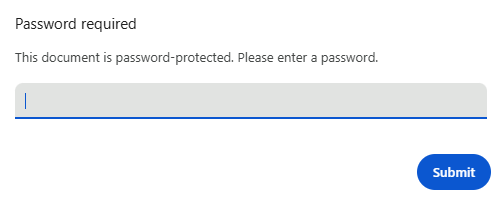
After setting security options for the PDF, a password is required to open the PDF file.
Note: DsExcel uses RC4 encryption with key from 40 to 128 bit length and allows to define additional permission flags.
Support Document Properties
DsExcel provides support for document properties while saving Excel spreadsheets to PDF documents. The document properties contain the basic information about a document, such as title, author, creation date, subject, creator, version etc. You can store such useful information in the exported PDF document.
The DocumentProperties class contains the methods such as setPdfVersion, setTitle, setAuthor, setSubject, setKeywords, setCreator, setProducer, setCreationDate and setModifyDate.
Refer to the following example code to add document properties in the exported PDF document.
//create to a pdf file stream
FileOutputStream outputStream = null;
try {
    outputStream = new FileOutputStream("SetDocumentPropertiesToPDF.pdf");
} catch (FileNotFoundException e) {
    e.printStackTrace();
}
//create a new workbook
Workbook workbook = new Workbook();

IWorksheet worksheet = workbook.getWorksheets().get(0);
worksheet.getRange("A1").setValue("Document Solutions for Excel");
worksheet.getRange("A1").getFont().setSize(25);

DocumentProperties documentProperties = new DocumentProperties();
//Sets the name of the person that created the PDF document.
documentProperties.setAuthor("Jaime Smith");
//Sets the title of thePDF document.
documentProperties.setTitle("DsPdf Document Info Sample");
//Set the PDF version.
documentProperties.setPdfVersion(1.5f);
//Set the subject of the PDF document.
documentProperties.setSubject("DsPdfDocument.DocumentInfo");
//Set the keyword associated with the PDF document.
documentProperties.setKeywords("Keyword1");
//Set the creation date and time of the PDF document.
documentProperties.setCreationDate(new GregorianCalendar(2019,5,24));
//Set the date and time the PDF document was most recently modified.
documentProperties.setModifyDate(new GregorianCalendar(2020,5,24));
//Set the name of the application that created the original PDF document.
documentProperties.setCreator("DsPdfWeb Creator");
//Set the name of the application that created the PDF document.
documentProperties.setProducer("DsPdfWeb Producer");


PdfSaveOptions pdfSaveOptions = new PdfSaveOptions();
//Sets the document properties of the pdf.
pdfSaveOptions.setDocumentProperties(documentProperties);
Support Sheet Background Image
DsExcel supports sheet background image which can be included while exporting the worksheet to a PDF file. This is very useful for displaying company logos and watermarks in PDF documents.
Render Background Image
In a worksheet, you can set a background image using the setBackgroundPicture method of the IWorksheet interface.
DsExcel provides the setPrintBackgroundPicture method in PdfSaveOptions class to render the background image in the center of the page while exporting worksheet to PDF file.
Refer to the following example code to include sheet background image while exporting to PDF document.
Workbook workbook = new Workbook();
// Fetch default worksheet
IWorksheet worksheet = workbook.getWorksheets().get(0);
worksheet.getRange("A1").setValue("Document Solutions for Excel");
worksheet.getRange("A1").getFont().setSize(25);

// Load an image from a specific file in input stream
InputStream inputStream = ClassLoader.getSystemResourceAsStream("background-picture.png");
try {
    byte[] bytes = new byte[inputStream.available()];
    // Read an image from input stream
    inputStream.read(bytes, 0, bytes.length);

    // Add background image of the worksheet
    worksheet.setBackgroundPicture(bytes);
} catch (IOException ioe) {
    ioe.printStackTrace();
}

PdfSaveOptions pdfSaveOptions = new PdfSaveOptions();
// Print the background picture in the centre of exported pdf file
pdfSaveOptions.setPrintBackgroundPicture(true);

// Saving workbook to pdf
workbook.save("12-PrintBackgroundPicture.pdf", pdfSaveOptions);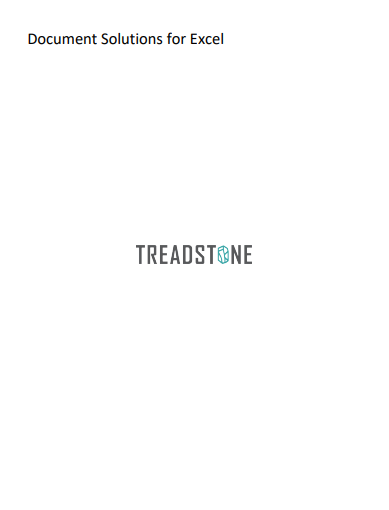
Render Multiple Background Images
Multiple background images can be rendered in DsExcel using the getBackgroundPictures method of the IWorksheet interface. These images can be included while exporting the worksheet to PDF documents. The background images in PDF are drawn based on the gridlines and can be positioned anywhere in the document by specifying the coordinates of the destination rectangle.
Further, the image transparency, border, corner radius and other formatting options can also be applied. For setting the corner radius, the minimum value is 0 and the maximum value is the height or width (whichever is smaller) of the destination rectangle divided by two. The ImageLayout enum can be used to specify the way the image should be placed to fill the destination rectangle in PDF.
Refer to the following example code to include multiple background images while exporting to PDF document.
Workbook workbook = new Workbook();
IWorksheet worksheet = workbook.getWorksheets().get(0);

//Add a background picture in the worksheet
IBackgroundPicture picture1 = worksheet.getBackgroundPictures().addPictureInPixel("image.png", 10, 10, 250, 150);
IBackgroundPicture picture2 = worksheet.getBackgroundPictures().addPictureInPixel("ConvertShapeToImage.png", 180, 10, 150, 100);

//Set the border style of the destination rectangle.
picture1.getLine().getColor().setRGB(Color.GetGray());
picture1.getLine().setWeight(1);

//The background picture will be resized to fill the destination dimensions.The aspect ratio is not preserved.
picture1.setBackgroundImageLayout(ImageLayout.Stretch);

//Sets the rounded corner of the destination rectangle.
picture1.setCornerRadius(50);
//Sets the transparency of the background picture.
picture1.setTransparency(0.5);
picture2.setTransparency(0.5);

//Save to PDF file
workbook.save("ExportBackgroundImageToPDF.pdf");
Support Background Color Transparency
When backcolor is applied on a cell or range, any background image or data gets hidden behind it while exporting to PDF.
DsExcel allows you to make the cell's backcolor transparent when exported to PDF by using the setPrintTransparentCell method of the PdfSaveOptions class. The default value is false. When set to true, it prints the transparency of the cell's background color which makes any background image or data visible.
Refer to the following example code to make cell's backcolor transparent to view the background image in PDF document.
// Initialize workbook.
Workbook workbook = new Workbook();

// Fetch default worksheet.
IWorksheet worksheet = workbook.getWorksheets().get(0);

worksheet.getRange("A1:K20").getInterior().setColor(Color.FromArgb(50, 0, 255, 255));

// Add a background picture.
IBackgroundPicture picture = worksheet.getBackgroundPictures().addPictureInPixel("image.png", 0, 0, 300, 200);

// Set the transparency of cell's background color, so the background picture will come out to the front.
PdfSaveOptions pdfSaveOptions = new PdfSaveOptions();
pdfSaveOptions.setPrintTransparentCell(true);

// Save to pdf file.
workbook.save("PrintTransparentCell.pdf", pdfSaveOptions);
Track Export Progress
DsExcel provides getPagePrintingEvent and getPagePrintedEvent events in PdfSaveOptions class to track the export progress of a workbook to PDF. The getPagePrintingEvent occurs before printing a page and provides setSkipThisPage method to skip pages while exporting. Similarly, the getPagePrintedEvent event occurs after printing a page and provides setHasMorePages method to exit PDF exporting.
Display Export Progress
Refer to the following example code to display the export progress of a workbook to PDF.
// Create to a pdf file stream
FileOutputStream outputStream = null;
try {
    outputStream = new FileOutputStream("PagePrintEventsTrackProgress.pdf");
} catch (FileNotFoundException e) {
    e.printStackTrace();
}
// Create a new workbook
Workbook workbook = new Workbook();
IWorksheet activeSheet = workbook.getActiveSheet();
activeSheet.getRange("A1").setValue(1);
activeSheet.getRange("A2:A100").setFormulaR1C1("=R[-1]C+1");
PdfSaveOptions options = new PdfSaveOptions();
options.getPagePrintingEvent().addListener(
(sender, e) -> System.out.println(String.format("Printing page %1$s of %2$s", e.getPageNumber(), e.getPageCount())));
activeSheet.getPageSetup().setCenterHeader("Page &P of &N");
workbook.save(outputStream, options);

// Close the file stream
try {
    outputStream.close();
} catch (IOException e) {
    e.printStackTrace();
}
Skip a Page while Exporting
Refer to the following example code to skip second page while exporting a workbook to PDF.
// Create to a pdf file stream
FileOutputStream outputStream = null;
try {
    outputStream = new FileOutputStream("PagePrintEventsSkipPage.pdf");
} catch (FileNotFoundException e) {
    e.printStackTrace();
}
// Create a new workbook
Workbook workbook = new Workbook();
IWorksheet activeSheet = workbook.getActiveSheet();
activeSheet.getRange("A1").setValue(1);
activeSheet.getRange("A2:A100").setFormulaR1C1("=R[-1]C+1");
PdfSaveOptions options = new PdfSaveOptions();
options.getPagePrintingEvent().addListener((sender, e) -> {
if (e.getPageNumber() == 2) {
e.setSkipThisPage(true);
}
});
activeSheet.getPageSetup().setCenterHeader("Page &P of &N");
workbook.save(outputStream, options);

// Close the file stream
try {
    outputStream.close();
} catch (IOException e) {
    e.printStackTrace();
}
Exit Exporting
Refer to the following example code to exit PDF exporting after second page.
// Create to a pdf file stream
FileOutputStream outputStream = null;
try {
    outputStream = new FileOutputStream("PagePrintEventsExitPrinting.pdf");
} catch (FileNotFoundException e) {
    e.printStackTrace();
}
// Create a new workbook
Workbook workbook = new Workbook();
IWorksheet activeSheet = workbook.getActiveSheet();
activeSheet.getRange("A1").setValue(1);
activeSheet.getRange("A2:A100").setFormulaR1C1("=R[-1]C+1");
PdfSaveOptions options = new PdfSaveOptions();
options.getPagePrintedEvent().addListener((sender, e) -> {
if (e.getPageNumber() == 2) {
e.setHasMorePages(false);
}
});
activeSheet.getPageSetup().setCenterHeader("Page &P of &N");
workbook.save(outputStream, options);

// Close the file stream
try {
    outputStream.close();
} catch (IOException e) {
    e.printStackTrace();
}
Add JavaScript to PDF Documents
DsExcel also supports setting JavaScript in PDF documents by using setOpenActionScript method of PdfSaveOptions class. The JavaScript is executed when the saved PDF document is opened.
Refer to the following example code to set JavaScript in an Excel template which is processed to create a PDF form.
Workbook workbook = new Workbook();
workbook.open("D:\\SampleTemplate.xlsx");

workbook.processTemplate();

PdfSaveOptions options = new PdfSaveOptions();
options.setOpenActionScript("var fld1 = this.getField(\"num\");" +
"fld1.value = fld1.value;" +
"this.dirty = false;");

workbook.save("SampleTemplate_java.pdf", options);
Configure Fonts and Set Style
DsExcel enables users to configure custom fonts and set styles while saving worksheets in PDF format.
Before executing the export operation, users need to make sure they specify the font path that should be used while saving the PDF. If the folder path to the font is not specified and the user is working on Windows OS, the path "C:\Windows\Fonts" will be used by default. However, if the folder path to the font is not specified and the user is working on any other operating system, it is necessary that the user sets the font folder path and copies the used font files to it from the folder "C:\Windows\Fonts".
The getUsedFonts method of the Workbook class can be used to get the collection of all the fonts used in the workbook.
While exporting to a PDF file, DsExcel uses the fonts specified in the Workbook.FontsFolderPath in order to render the PDF. However, if the used font doesn't exist, it will make use of some fallback fonts. In case, fallback fonts don't exist in the file, DsExcel will throw the exception :"There are no available fonts. Please set a valid path to the FontsFolderPath method of the Workbook!"
In order to configure fonts and set style while saving to a PDF, refer to the following example code.
// Create a new workbook and add worksheets
Workbook workbook = new Workbook();
IWorksheet sheet1 = workbook.getWorksheets().get(0);
IWorksheet sheet2 = workbook.getWorksheets().add();

// Set style.
sheet1.getRange("A1").setValue("Sheet1");
sheet1.getRange("A1").getFont().setName("Wide Latin");
sheet1.getRange("A1").getFont().setColor(Color.GetRed());
sheet1.getRange("A1").getInterior().setColor(Color.GetGreen());

// Add Table
ITable table = sheet1.getTables().add(sheet1.getRange("C1:E5"), true);
sheet2.getRange("A1").setValue("Sheet2");

// Specify font path
Workbook.FontsFolderPath = "C:\\Users\\GPCTAdmin\\Documents\\Fonts";

// Get the used fonts list in workbook, the list are:"Wide Latin", "Calibri"
List<FontInfo> fonts = workbook.getUsedFonts();

// Save to a pdf file
workbook.save("configureFontsAndSetStyle.pdf", SaveFileFormat.Pdf);

// Just export sheet1 to pdf file.
sheet1.save("configureFontsAndSetStyle_sheet.pdf",SaveFileFormat.Pdf);
DsExcel can also use font streams for PDF export if the user cannot store fonts directly on the disk. DsExcel provides FontProvider field in Workbook class that enables the user to provide font streams for PDF export. The font streams are implemented using IFontProvider interface and its methods getFontFilePaths and getFont.
getFontFilePaths method returns all the font file paths for Auto Fit, PDF export, and image export, whereas getFont returns the font stream by the font file path. DsExcel will search the font path only in the font streams if the user implements FontProvider; otherwise, DsExcel will search in FontsFolderPath.
Refer to the following example code to provide fonts using font streams:
// Create a new workbook.
Workbook workbook = new Workbook();
IWorksheet sheet = workbook.getWorksheets().get(0);

// Set style of the font.
sheet.getRange("A1").setValue("Sheet1");
sheet.getRange("A1").getFont().setName("Arial");
sheet.getRange("A1").getFont().setColor(Color.GetRed());
sheet.getRange("A1").getInterior().setColor(Color.GetGreen());

// Implement FontProvider.
Workbook.FontProvider = new IFontProvider() {
    @Override
    public List<String> getFontFilePaths() {
        return new ArrayList<>(Arrays.asList(
                "fonts\\arial.ttf",
                "fonts\\arialbd.ttf",
                "fonts\\ariali.ttf"
        ));
    }

    @Override
    public InputStream getFont(String fontFilePath) {
        return getClass().getClassLoader().getResourceAsStream(fontFilePath);
    }
};

// Save the workbook.
workbook.save("FontStreaming.pdf", SaveFileFormat.Pdf);Note: DsExcel also supports custom fonts through font streams for image export using the similar code above.
Limitations
The Export to PDF feature doesn't support the following styles:
SingleAccounting and DoubleAccounting underline styles
Superscript and subscript
Alignment settings such as Fill, Orientation, and text reading order