


- Document Solutions for Excel Java Overview
- Key Features
- Getting Started
-
Features
- Worksheet
- Workbook
- Comments
- Hyperlinks
- Sort
- Filter
- Group
- Conditional Formatting
- Data Validations
- Data Binding
- Import Data
- Digital Signatures
- Formulas
- Custom Functions
- Shapes
- Document Properties
- Styles
- Form Controls
- Barcodes
- Themes and Colors
- Chart
- Table
- Pivot Table
- Pivot Chart
- Sparkline
- Slicer
- Print Settings
- Logging
- Defined Names
- AI Assistant
- Templates
- Formula Reference
- File Operations
- Tutorials
- Use JDK 8 Date Time API
- Document Solutions Data Viewer
- API Reference
- Release Notes
Group Shapes
DsExcel allows you to group or ungroup shapes in a worksheet. Shapes can be grouped together when there is a need to perform certain action on the bunch of shapes together. For example: adding similar style to shapes, aligning, rotating, copying or pasting the grouped shapes together. It does not only saves a considerable amount of time and efforts but also helps in ensuring that the desired consistency is maintained in all the shapes.
Group Shapes
Several shapes can be grouped together using the Group method of the IShapeRange interface. The IShapeRange interface represents the range of the shapes which needs to be grouped together. The grouped shapes behave as a single shape.
Refer to the following example code to group shapes.
// Initialize workbook
Workbook workbook = new Workbook();
// Fetch default worksheet
IWorksheet worksheet = workbook.getWorksheets().get(0);
// Creating shapes collection for activeSheet
IShapes shapes = worksheet.getShapes();

// Adding Shapes to shapes collection
IShape ShapeBegin = shapes.addShape(AutoShapeType.Wave, 10, 10, 100, 100);
IShape EndBegin = shapes.addShape(AutoShapeType.RoundedRectangle, 200, 200, 100, 100);
// Adding Connector Shape to shapes collection
IShape ConnectorShape = shapes.addConnector(ConnectorType.Straight, 10, 10, 101, 101);

// Connecting ShapeBegin & EndBegin shapes by connector shape
ConnectorShape.getConnectorFormat().beginConnect(ShapeBegin, 3);
ConnectorShape.getConnectorFormat().endConnect(EndBegin, 0);

// Adding IsoscelesTriangle shape to shapes collection
shapes.addShape(AutoShapeType.IsoscelesTriangle, 370.8, 50.8, 81.6, 102.0);

// Creating shpRange collection to group certain shapes as given in array
IShapeRange shpRange = shapes.getRange(new String[] { shapes.get(0).getName(), shapes.get(1).getName(), shapes.get(2).getName() });

// Grouping Shapes
IShape grouped = shpRange.group();
// Setting Style for Grouped shape together
grouped.getLine().getColor().setRGB(Color.GetDarkOrange());
grouped.getFill().getColor().setRGB(Color.GetLightGreen());
System.out.println("Group Name is: " + grouped.getName());

// Saving workbook to Xlsx
workbook.save("9-GroupedShapes.xlsx", SaveFileFormat.Xlsx);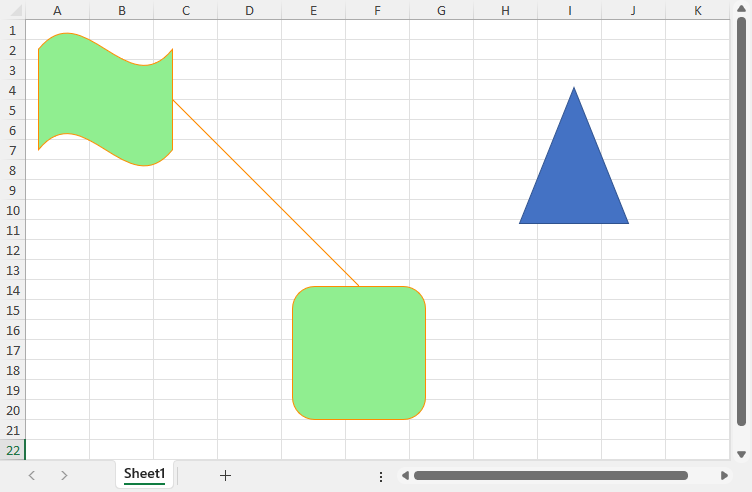
Access Group Items
Use the getGroupItems method of the IShape interface to access the individual shapes in a group. You can retrieve a group item by its index or name.
Refer to the following example code to access group shapes.
// Get all shapes in the group.
IGroupShapes groupItems = grouped.getGroupItems();

// Get a shape by index.
IShape firstShape = groupItems.get(0);

// Get a shape by name.
IShape specifiedShape = groupItems.get(ShapeBegin.getName());
Duplicate Group Shapes
Use the duplicate method of the IShape interface to duplicate a group shape. The duplicated group contains copies of all the shapes in the original group.
Refer to the following example code to duplicate group shapes.
// Duplicate the group and all its members.
IShape duplicatedGroup = grouped.duplicate();

// Set the position of the duplicated group.
duplicatedGroup.setLeft(350);
duplicatedGroup.setTop(200);
Delete Group Shapes
Use the delete method of the IShape interface to delete a group or an individual shape in the group.
When you call the delete method on an IShape object that represents a form control inside a group, the form control is removed from both the group’s getGroupItems collection and the worksheet’s getControls collection.
Refer to the following example code to delete group shapes.
// Delete an individual shape from the group.
grouped.getGroupItems().get(0).delete();

// Delete the group and all its remaining members.
grouped.delete();
Ungroup Shapes
A group of shapes in a specified range can be ungrouped using the Ungroup method of the IShape interface.
Refer to the following example code to ungroup shapes.
// Initialize workbook
Workbook workbook = new Workbook();
// Open workbook
workbook.open("9-GroupedShapes.xlsx");
IShapes shapes = workbook.getWorksheets().get(0).getShapes();

// UnGroup Shapes
for (int i = 0; i < shapes.getCount(); i++) {
    if (shapes.get(i).getType() == ShapeType.Group) // Or, if (shapes[i].Name == "Group 1")
        shapes.get(i).ungroup();
}

// Or, we can just pass GroupName to Ungroup it
// shapes["Group 1"].Ungroup();

// Saving workbook to Xlsx
workbook.save("10-UnGroupedShapes.xlsx", SaveFileFormat.Xlsx);