


-
Spread Windows Forms Product Documentation
- Getting Started
- Developer's Guide
- Spread Designer Guide
- Assembly Reference
- Import and Export Reference
- Version Comparison Reference
Pivot Table Options
You can set various properties for a pivot table using the PivotTable Options dialog. To open this dialog, right-click on the pivot table and select PivotTable Options. Each tab in the dialog groups related settings. To change a setting, simply click in the appropriate field or checkbox. After making changes, click OK to apply them.
Layout and Format Tab
Options | Description |
|---|---|
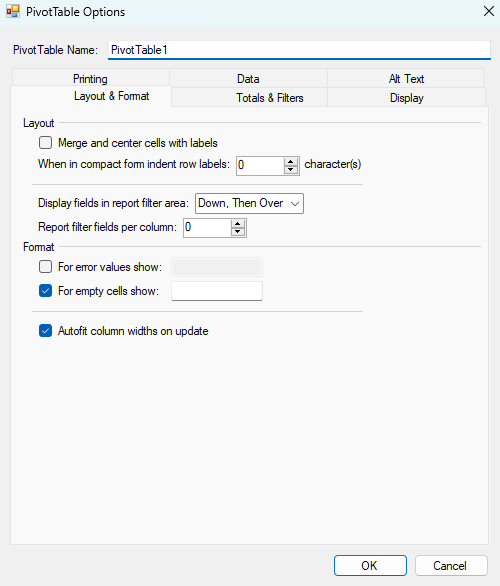
Merge and center cells with labels | Select to merge cells for outer row and column items so that you can center the items horizontally and vertically. Clear to left-justify items in outer row and column fields at the top of the item group. |
When in compact form indent row labels | To indent rows in the row labels area when the pivot table is in compact format, select an indentation level of 0 to 127. |
Display fields in report filter area | Select Down, Then Over to first display fields in the report filter area from the top to the bottom, as fields are added to it, before taking up another column. Select Over, Then Down to first display fields in the report filter area from left to right, as fields are added to it, before taking up another row. |
Report filter fields per column | Type or select the number of fields to display before taking up another column or row based on the setting of Display fields in report filter area. |
For error values show | Select this check box, and then type text, such as "Invalid", that you want to display in the cell instead of an error message. Clear this check box to display the error message. |
For empty cells show | Select this check box, and then type text, such as "Empty", that you want to display in the cell instead of a blank cell. |
Autofit column widths on update | Select to adjust the pivot table columns to automatically fit to the size of the widest text or number value. Clear to keep the current pivot table column width. |
Totals and Filters Tab
Options | Description |
|---|---|
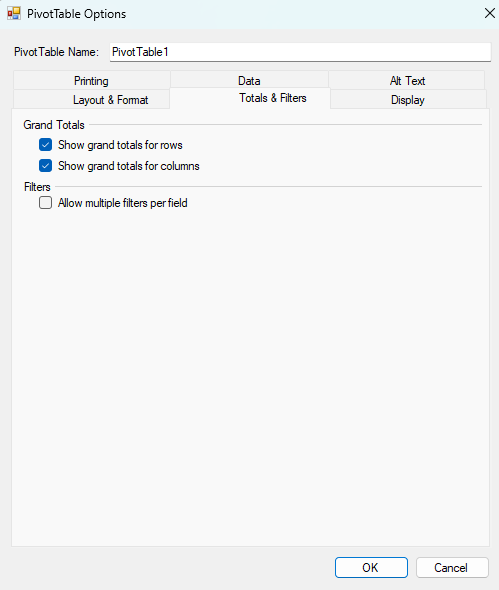
Show grand totals for rows | Select or clear to display or hide the Grand Total column next to the last column. |
Show grand totals for columns | Select or clear to display or hide the Grand Total row at the bottom of the pivot table. |
Allow multiple filters per field | Select to include all values, including those hidden by filtering, when Microsoft Office Excel calculates subtotals and the grand total. Clear to include only displayed items when Excel calculates subtotals and the grand total. |
Display Tab
Options | Description |
|---|---|
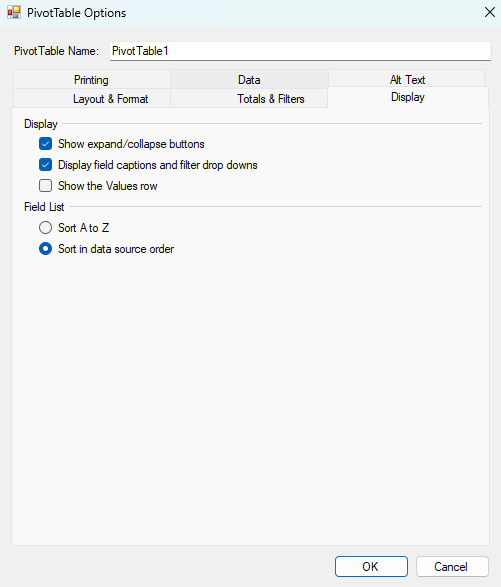
Show expand/collapse buttons | Select to display the plus or minus buttons that you use to expand or collapse row or column labels. |
Display field captions and filter drop downs | Select or clear to display or hide pivot table captions at the top of the pivot table and filter drop-down arrows on column and row labels. |
Show the Values row | Select to display a dedicated Values area in the field list for managing calculation fields. |
Sort A to Z | Select to sort the fields in the pivot table field list in ascending alphabetical sort order. |
Sort in data source order | Select to sort the fields in the pivot table field list in the order that is specified by the external data source. |
Printing Tab
Options | Description |
|---|---|
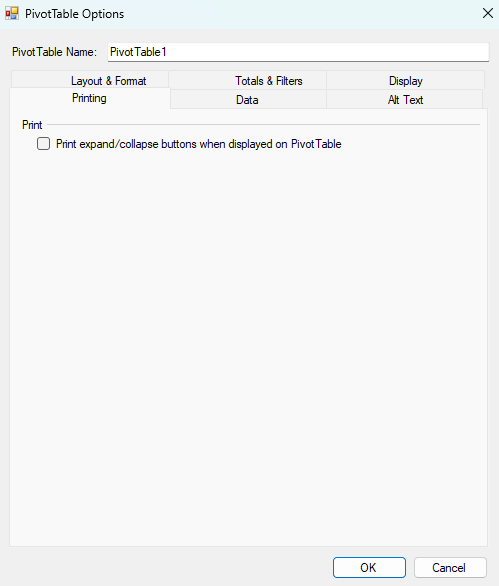
Print expand/collapse buttons when displayed on PivotTable | Select or clear to display or hide expand and collapse buttons when you print a pivot table. This check box is not available if the Show drill buttons check box is cleared in the Display tab of this dialog box. |
Data Tab
Options | Description |
|---|---|
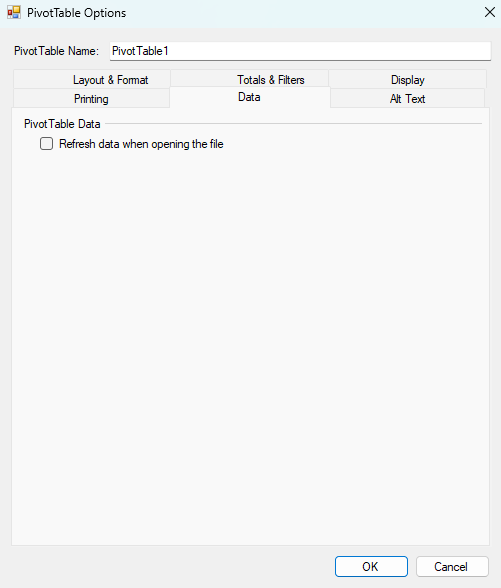
Refresh data when opening the file | Select or clear to refresh or not refresh the data when you open the Excel workbook that contains this pivot table. |
Alt Text Tab
Options | Description |
|---|---|
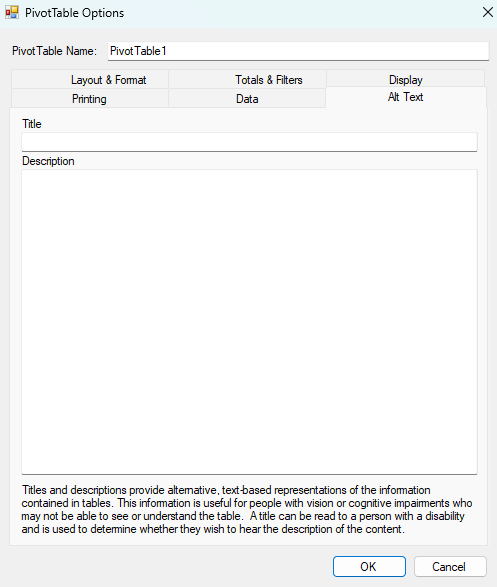
Title | Provide an alternative text title for the pivot table to help identify its contents. |
Description | Supply a detailed text description of the pivot table for improved accessibility and understanding. |