


-
Spread Windows Forms Product Documentation
- Getting Started
- Developer's Guide
- Spread Designer Guide
- Assembly Reference
- Import and Export Reference
- Version Comparison Reference
Applying and Customizing Styles
If you don’t like the look of your pivot table after you create it, you can pick a different style. For example, when you have a lot of data in your pivot table, it may help to show banded rows or columns for easy scanning or to highlight important data to make it stand out.
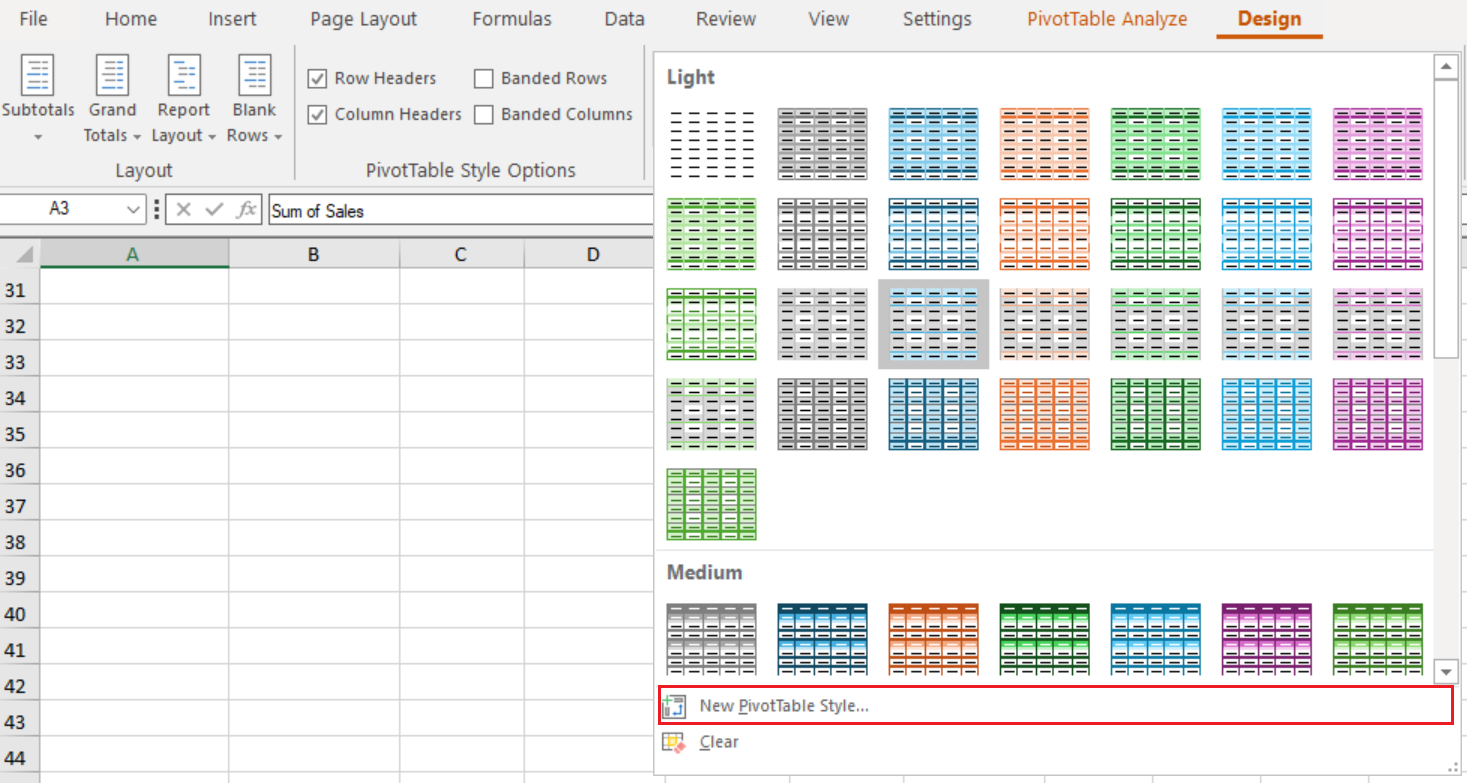
In the PivotTable Styles section under the Design menu, you can click the More button to see all available styles.

Custom Styles
If you don’t see a style you like, you can create your own. Click New PivotTable Style at the bottom of the gallery, provide a name for your custom style, and then pick the options you want.
Clear Styles
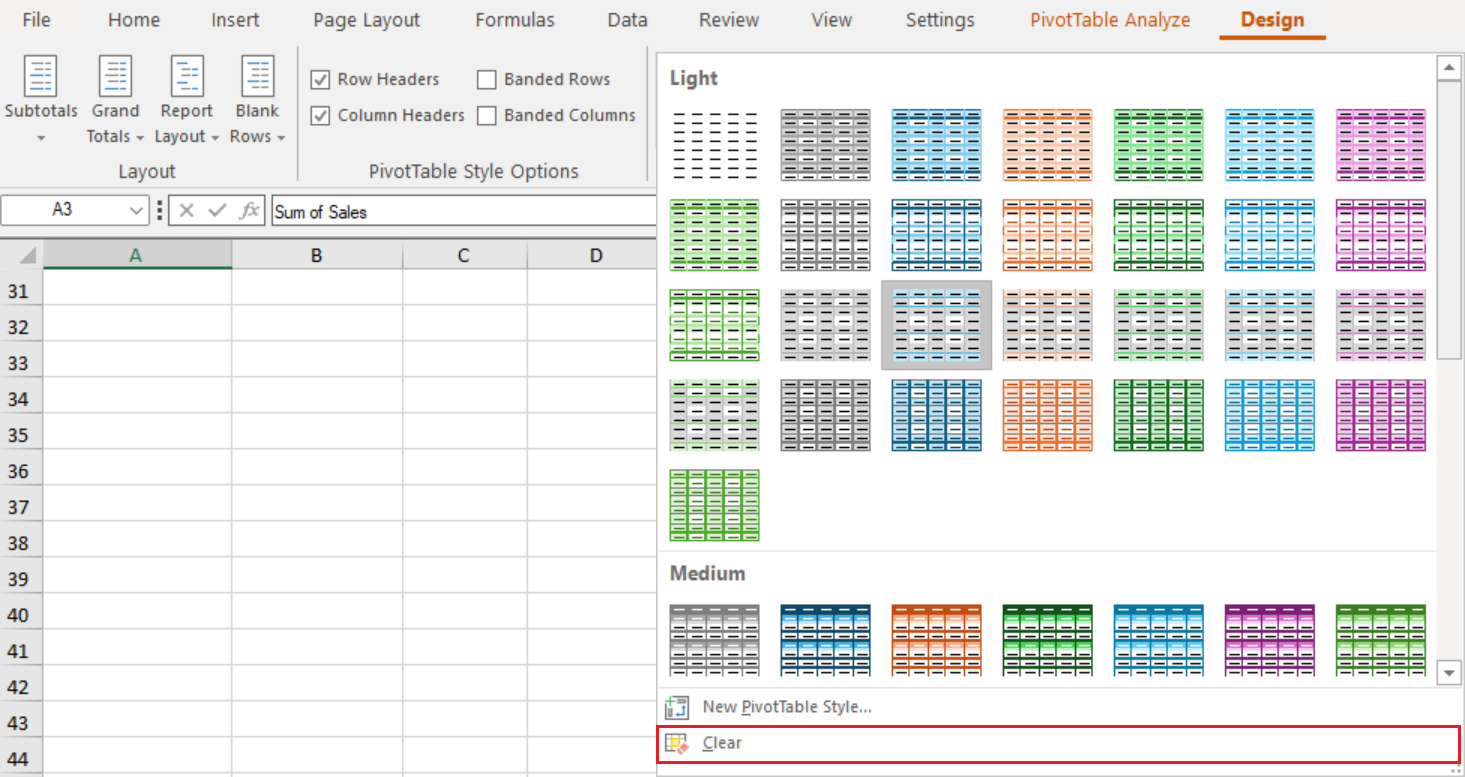
You can also clear the PivotTable style at the bottom of the gallery to remove all formatting.
Style Options
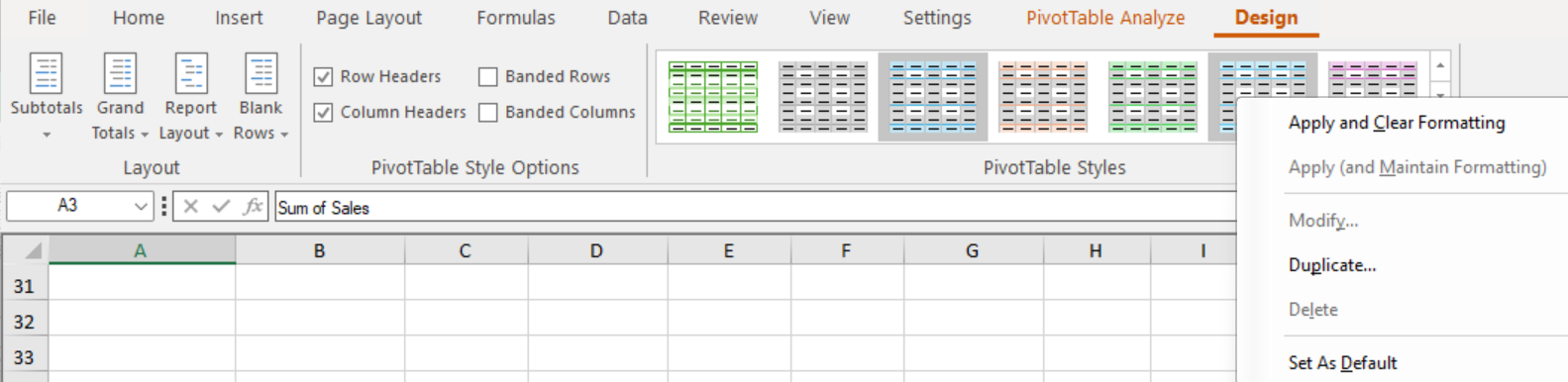
When you right-click on any style, the following options are available:
Options | Description |
|---|---|
Apply and Clear Formatting | Apply the selected PivotTable style and remove any previously applied formatting. |
Apply (and Maintain Formatting) | Apply the selected PivotTable style while preserving any existing cell formatting. |
Modify | Edit the selected PivotTable style. |
Duplicate | Create a copy of the selected PivotTable style. |
Delete | Delete the selected custom PivotTable style. |
Set As Default | Set the selected style as the default for new pivot tables. |