-
Spread Windows Forms Product Documentation
- Getting Started
- Developer's Guide
- Spread Designer Guide
- Assembly Reference
- Import and Export Reference
- Version Comparison Reference
Customizing Layout for Pivot Table
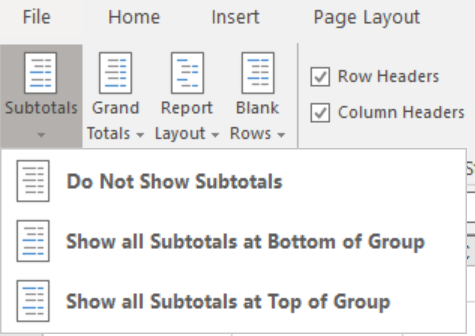
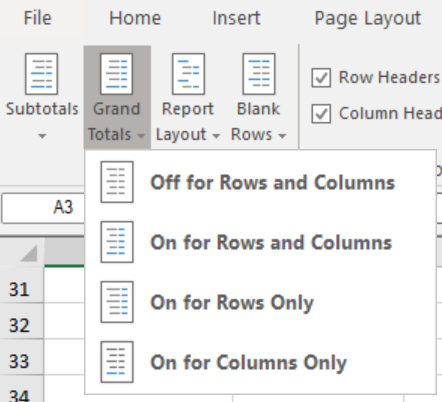
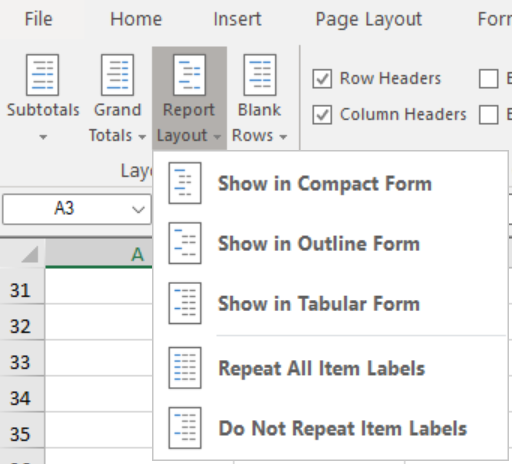
In the Layout section under the Design menu, you can customize the pivot table layout, including options for Subtotals, Grand Totals, Report Layout, and Blank Rows.

Set Subtotals
Options | Description |
|---|---|
Do Not Show Subtotals | Do not display subtotals for this field. |
Show all Subtotals at Bottom of Group | Show all subtotals at the bottom of each group. |
Show all Subtotals at Top of Group | Show all subtotals at the top of each group. |
Set Grand Totals
Options | Description |
|---|---|
Off for Rows and Columns | Do not show grand totals for rows and columns. |
On for Rows and Columns | Show grand totals for both rows and columns. |
On for Rows Only | Show grand totals for rows only. |
On for Columns Only | Show grand totals for columns only. |
Set Report Layout
Options | Description |
|---|---|
Show in Compact Form | Display fields in a compact layout to save space and make the pivot table easier to read. |
Show in Outline Form | Display fields in an outline layout with each field in its own column. |
Show in Tabular Form | Display fields in a tabular layout with each item in its own row and each field in its own column. |
Repeat All Item Labels | Repeat all item labels for each row. |
Do Not Repeat Item Labels | Do not repeat item labels for each row. |
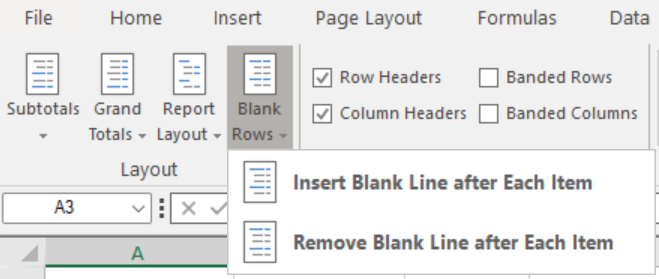
Show/Hide Blank Rows
Options | Description |
|---|---|
Insert Blank Line after Each Item | Insert a blank row after each item in the pivot table for easier reading and separation of data groups. |
Remove Blank Line after Each Item | Remove the blank row after each item to display the pivot table without extra spacing. |
Defer Layout Update
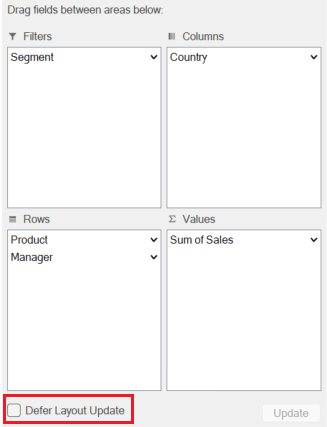
When you want to make multiple changes in batch and temporarily delay the automatic layout refresh, you can check Defer Layout Update at the bottom of the PivotTable Fields pane. After completing all your changes, click the Update button to apply them all at once. Once the changes are applied, the Defer Layout Update option will automatically reset.