


-
Spread for ASP.NET Product Documentation
-
Developer's Guide
- Getting Started
- Understanding the Product
- Namespaces Overview
- Working with the Spread Designer
- Customizing User Interaction
- Customizing the Appearance
- Customizing with Cell Types
- Managing Data Binding
- Managing Data in the Component
- Managing Formulas
- Managing File Operations
- Using Sheet Models
- Maintaining State
- Working with the Chart Control
-
Using Touch Support with the Component
- Understanding Touch Support
-
Using Touch Support
- Using the Touch Menu Bar
- Using Touch Support with AutoFit
- Using Touch Support with Charts
- Using Touch Support with Editable Cells
- Using Touch Support with Filtering
- Using Touch Support with Grouping
- Using Touch Support when Moving Columns
- Using Touch Support when Moving Rows
- Using Touch Support when Resizing Columns or Rows
- Using Touch Support with Scrolling
- Using Touch Support with Selections
- Using Touch Support with Sorting
- Assembly Reference
- Client-Side Scripting Reference
- Import and Export Reference
-
Developer's Guide
Using Touch Support with Selections
You can select columns, rows, cell ranges, and the entire control using touch gestures.
The selection gripper is displayed when touching the cell, column, or row. The gripper is not displayed when using the mouse or keyboard. The selection grippers are displayed on the outside edge of the range (top-left and bottom-right edges, by default). The border is displayed around the selected cell range when using touch operations.
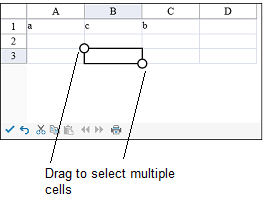
Tap a cell to select the cell and display the selection gripper. Press the cell selection gripper and slide. Release to select a cell range.
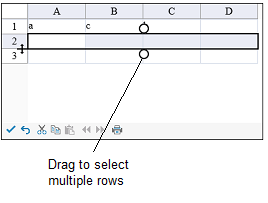
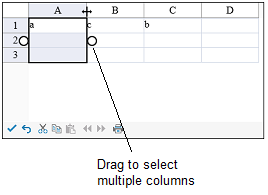
Tap a column header (or row header) to select a column (or row). You can then press the selection gripper and slide to select a column range (or row range). Release to complete the selection.
You can select the entire control by tapping the corner header.
You can change the size of the cell range selection by pressing the selection gripper and sliding in any direction. Release to complete the action.
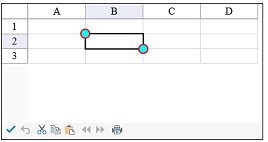
You can customize the gripper appearance using the SelectionGripperThickness, SelectionGripperLineColor, and SelectionGripperBackColor properties as in the following image.
Using Code
Set the SelectionGripperThickness, SelectionGripperLineColor, and SelectionGripperBackColor properties.
Example
This example sets the selection gripper appearance.
FpSpread1.TouchInfo.SelectionGripperBackColor = System.Drawing.Color.Aqua;
FpSpread1.TouchInfo.SelectionGripperLineColor = System.Drawing.Color.Red;
FpSpread1.TouchInfo.SelectionGripperThickness = 2;
FpSpread1.TouchInfo.SelectionGripperBackColor = System.Drawing.Color.Aqua
FpSpread1.TouchInfo.SelectionGripperLineColor = System.Drawing.Color.Red
FpSpread1.TouchInfo.SelectionGripperThickness = 2