- SpreadJS Overview
- Getting Started
- JavaScript Frameworks
- Best Practices
-
Features
- Workbook
- Worksheet
- Rows and Columns
- Headers
- Cells
- Data Binding
- Data Manager
- TableSheet
- GanttSheet
- ReportSheet
- Data Charts
- JSON Schema with SpreadJS
- SpreadJS File Format
- Data Validation
- Conditional Formatting
- Sort
- Group
-
Formulas
- Built-In Formulas
- Allow Users to Enter Formulas
- Allow Invalid Formulas
- Set Formulas
- Calculation Mode
- Show Cell Formulas
- Create Custom Names
- Create Custom Formulas
- Formula Text Box
- Use Formula Text Box as a Control
- Formula Editor Panel
- Formula Auditing
- Array Formulas
- Dynamic Array Formulas
- Incremental Calculations
- Asynchronous Functions
- Calculating Formulas Outside Worksheets
- East Asian Full-Width Formula Input
- Language Package
- What-If Analysis
- Serialization
- Keyboard Actions
- Shapes
- Floating Objects
- Barcodes
- Charts
- Sparklines
- Tables
- Pivot Table
- Slicer
- Theme
- User Management
- Culture
- AI Assistant
- SpreadJS Designer
- SpreadJS Designer VSCode Plugin
- Tutorials
- SpreadJS Designer Component
- SpreadJS Collaboration Server
- Touch Support
- Formula Reference
- Import and Export Reference
- Events
- API Documentation
- Release Notes
Incremental Calculations
SpreadJS provides support for incremental calculation that divides the entire calculation into segments during execution by setting the incrementalCalculation option of the Workbook class to true. This allows for responsiveness to user actions when the calculation task is huge.
You can calculate the cells incrementally and respond to UI events. It prevents the UI from freezing when the workbook contains many formulas. When cells are updated while there are cells pending for calculation, the updated cells along with their dependent cells are added to the calculation tasks. However, the pending calculations are discarded if you insert or delete rows/columns or sheets and the following calculation uses the adjusted formulas.
The incrementalCalculation option, when set to true allows you to track progress updates using the CalculationProgress event.
The following code sample shows how to track progress in the CalculationProgress event.
// This example uses the CalculationProgress event, to log the calculation progress.
spread.options.incrementalCalculation = true;
spread.bind(GC.Spread.Sheets.Events.CalculationProgress, function (e, info) {
    var msg = "Calculate ";
    if (info.pendingCells === 0) {
        msg += "finished";
    } else if (info.iterate >= 0) {
        msg += info.pendingCells + " cells in iterative calculation round " + info.iterate;
    } else {
        msg += (info.totalCells - info.pendingCells) + "/" + info.totalCells + "cells";
    }
    console.log(msg);
});
Add Status Bar Item
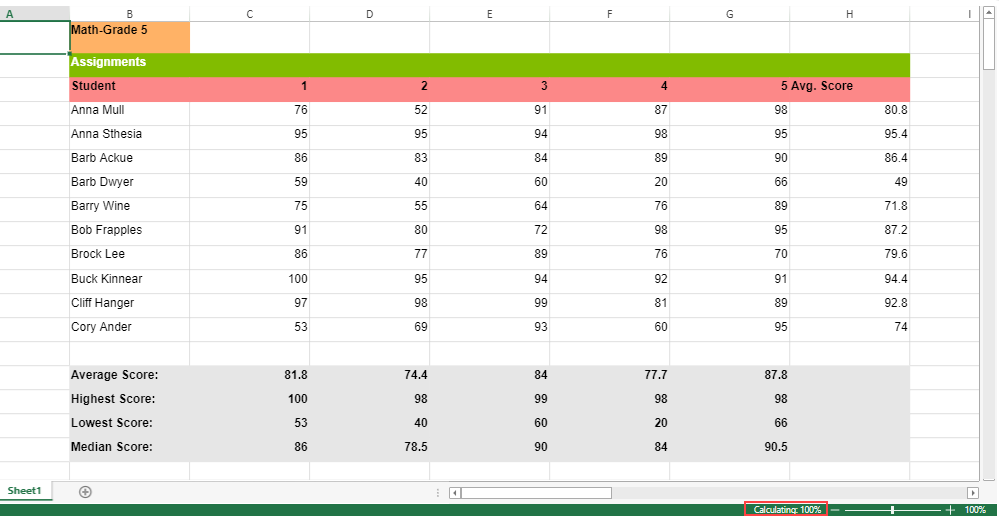
Incremental calculation is also displayed in the status bar to depict the calculation progress when incrementalCalculation option is set to true.
The following code sample shows how to bind the spread to the status bar, which will automatically display the calculation progress.
// Initialize the status bar and bind it to spread.
var statusBar = new GC.Spread.Sheets.StatusBar.StatusBar(document.getElementById('statusBar'));
statusBar.bind(spread);
For Non-Circular Reference Cells: The progress of calculation is displayed in the percentage format as displayed in the following image:
For Circular Reference Cells: Iterative calculation is implemented by setting iterativeCalculation to true and the progress of calculation is displayed in the iterative rounds as shown in the following GIF.
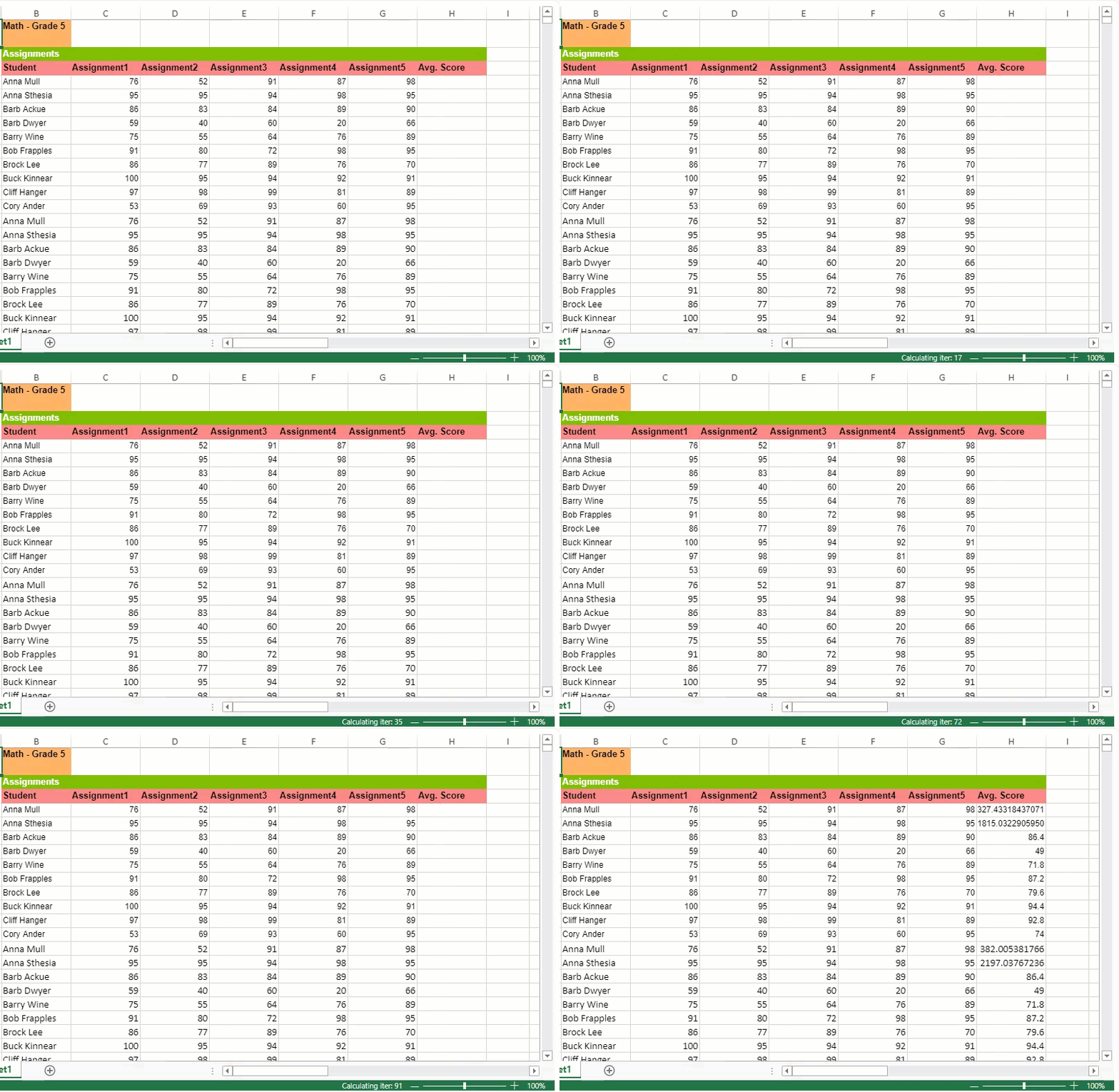
The following code sample shows how to set iterativeCalculation for Circular Reference.
// Enable IterativeCalculation.
spread.options.iterativeCalculation = true;
spread.options.iterativeCalculationMaximumIterations = 24;
Running Incremental Calculation in a Web Worker (calcWorker Plugin)
The calcWorker Plugin offloads spreadsheet calculations to a Web Worker, keeping the main thread responsive during intensive recalculation.
Enable this plugin to improve performance and avoid UI freezing when working with large or formula‑heavy workbooks.
Available since version 19.
Enable Options:
Option 1 – Using Script Files
Import the plugin in your HTML file.
Set the
incrementalCalculationoption totrue.<script src="gc.spread.sheets.all.xx.x.x.min.js"></script> <script src="plugins/gc.spread.sheets.calcworker.xx.x.x.min.js"></script> <script> window.onload = function () { var spread = new GC.Spread.Sheets.Workbook(document.getElementById('ss'), { sheetCount: 1 }); spread.options.incrementalCalculation = true; }; </script>
Option 2 – Using NPM Packages
Install the plugin:
npm install @mescius/spread-sheets-calc-workerImport and enable it in your code:
import '@mescius/spread-sheets-calc-worker';
spread.options.incrementalCalculation = true;
Verification
When enabled successfully, calculation tasks will run asynchronously in the browser’s background thread. You can confirm the worker is active by checking for a calcWorker.js thread in your browser’s DevTools.
Feature
When
incrementalCalculationis enabled, SpreadJS performs formula recalculation inside a Web Worker instead of the main thread.This allows incremental cell updates to occur smoothly during ongoing user interactions.
Calculations run asynchronously, and the results are returned to the main thread once completed.
When
incrementalCalculationis disabled, all calculations run directly on the main thread.
Note:
You can use the
waitForAllCalculations()method to wait until all pending calculations are completed. This API returns a Promise and also works for main threadincrementalCalculation.
Behavior and Limitations
Calculation Priority -
calcOnDemandhas lower priority thanincrementalCalculation. WhenincrementalCalculationis enabled, thecalcOnDemandoption is automatically disabled.Suspending Calculations - Use
spread.suspendCalcService()to temporarily pause all worker‑based calculations.Manual Calculation Mode - When the calculation mode is set to “manual,” CalcWorker does not run automatic recalculations.
Data Transfer Limits - Values passed to a worker must be serializable. Functions or complex objects (e.g., closures) are not supported as cell values.
sheet.setValue(1,1,{a:1,f:()=>{return 2;}}); // invalid in worker modeAPIs Dependent on Calculated Values - Before running operations that depend on up‑to‑date calculation results (e.g., sorting, exporting, summarizing), call await
waitForAllCalculations()to ensure all worker tasks are completed.
sheet.suspendPaint();
for (let i = 0; i < 100; i++) {
    sheet.setFormula(i, 0, `=${100 - i}`);
}
sheet.resumePaint();
await spread.waitForAllCalculations();
sheet.sortRange(0, 0, 100, 1, true, [{ index: 0, ascending: true }]);
Custom Functions - Custom functions run on the main thread. When a formula in CalcWorker encounters a custom function, the evaluation is delegated to the UI thread and the result returned to the worker.
Conditional Formatting and Visual Elements - Conditional formatting, shapes, and charts are always processed and refreshed in the main thread using the latest results from CalcWorker.
Example: Performance Comparison
The following example demonstrates how the calcWorker plugin improves responsiveness during heavy recalculations.
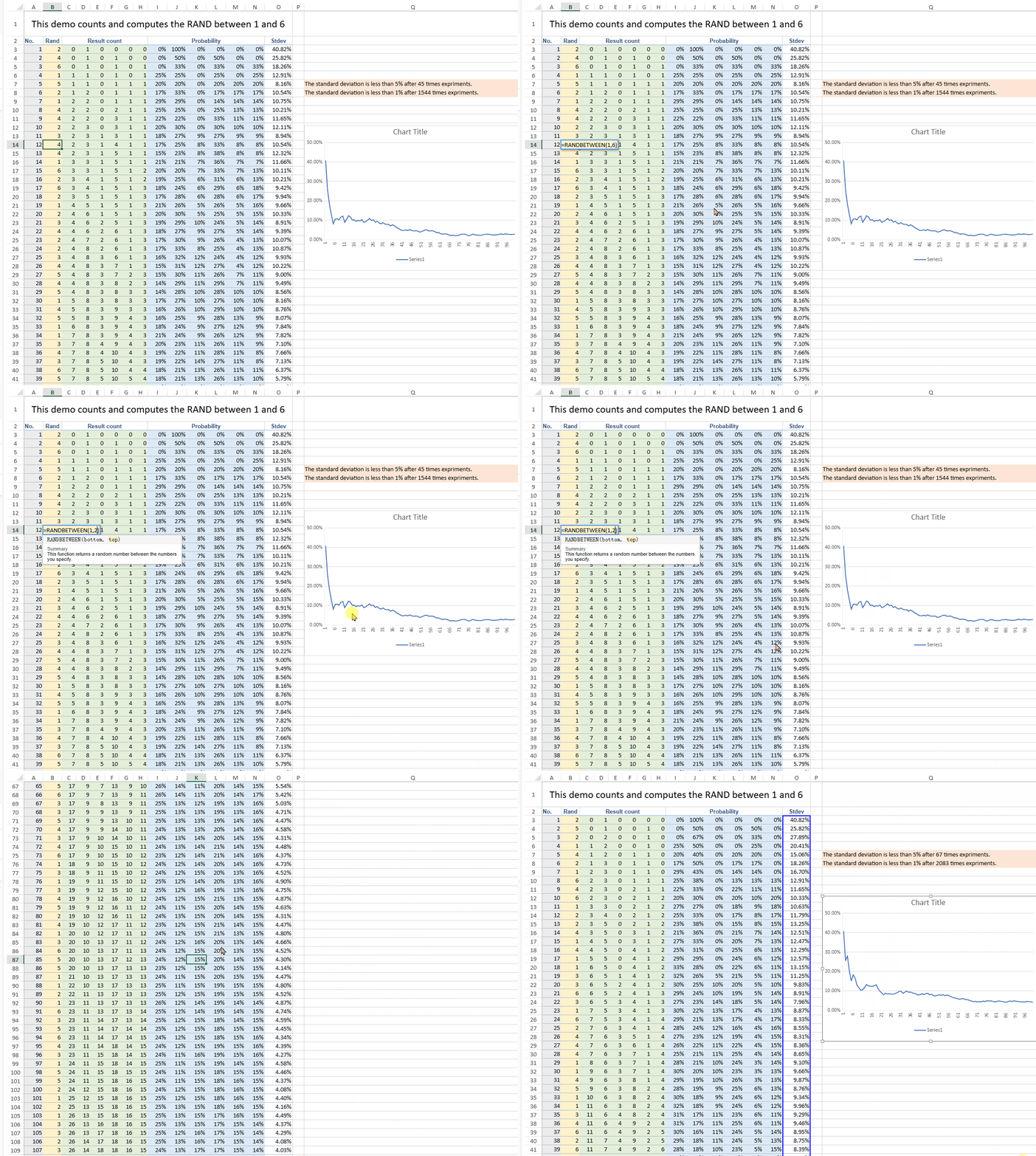
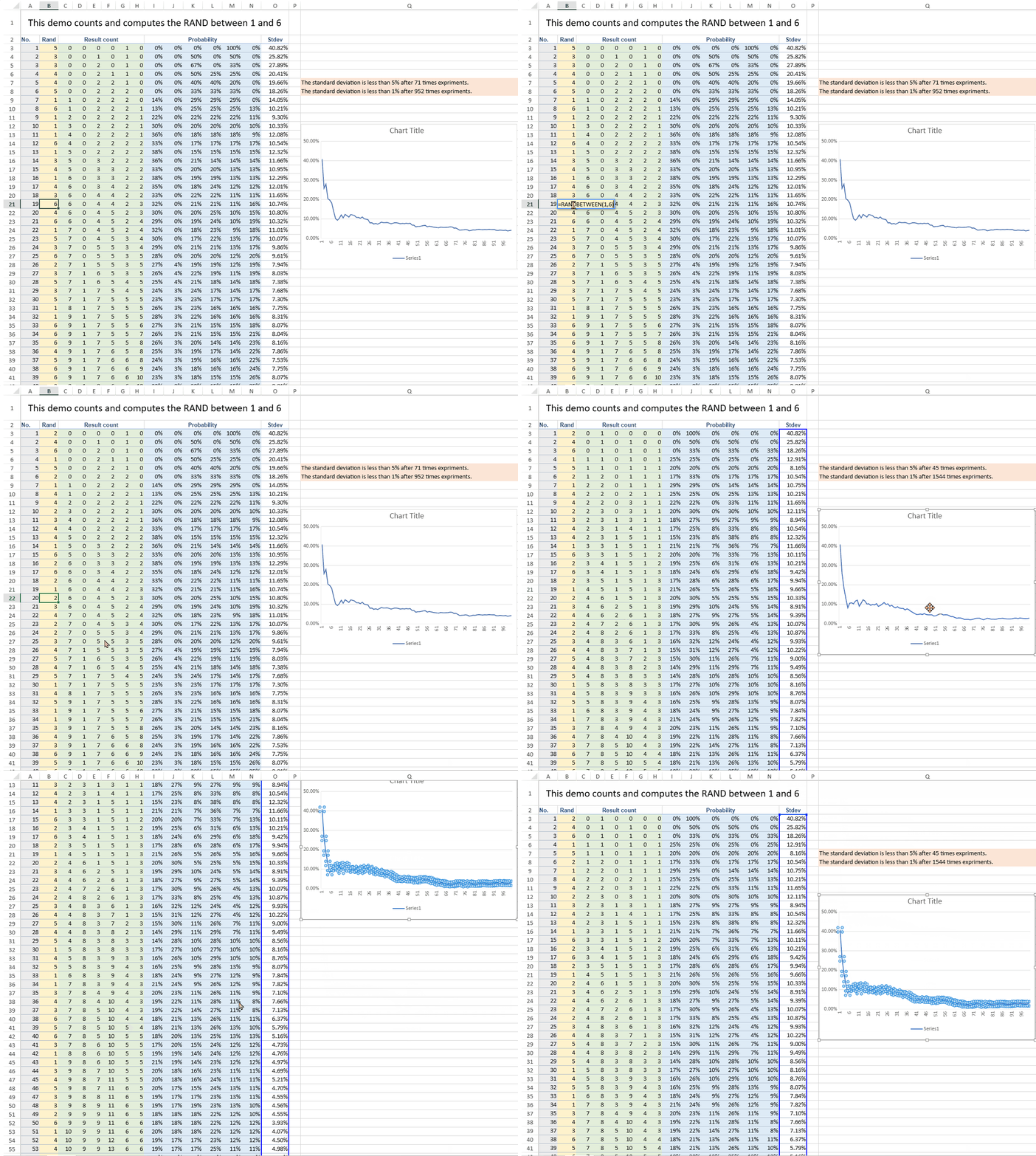
This workbook contains 10,000 rows of data that generate random values using the RAND() function and perform statistical calculations such as probability and standard deviation.
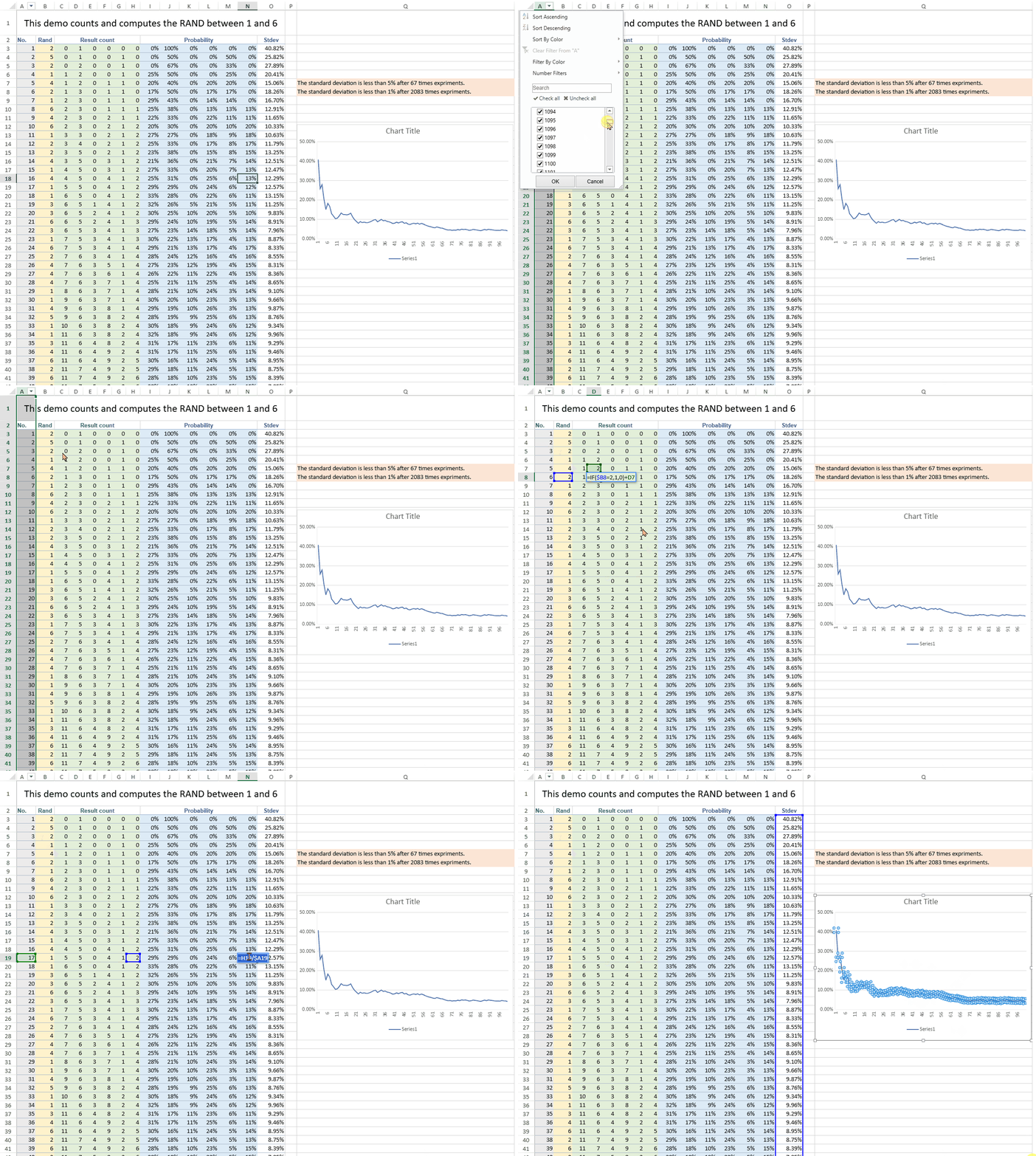
When performing a recalculation — for example, by editing one of the base formulas or updating a random input — the spreadsheet triggers thousands of dependent formula updates and chart refreshes.
Mode | Result | Description |
|---|---|---|
Without CalcWorker (main thread) |
| The UI freezes momentarily until all calculations are complete. Scrolling or selecting cells becomes unresponsive. |
With CalcWorker enabled (Web Worker) |
| Calculations run asynchronously in the background, keeping the interface smooth — you can move, scroll, and inspect results while the sheet continues updating. |