- SpreadJS Overview
- Getting Started
- JavaScript Frameworks
- Best Practices
-
Features
- Workbook
- Worksheet
- Rows and Columns
- Headers
- Cells
- Data Binding
- Data Manager
- TableSheet
- GanttSheet
- ReportSheet
- Data Charts
- JSON Schema with SpreadJS
- SpreadJS File Format
- Data Validation
- Conditional Formatting
- Sort
- Group
-
Formulas
- Built-In Formulas
- Allow Users to Enter Formulas
- Allow Invalid Formulas
- Set Formulas
- Calculation Mode
- Show Cell Formulas
- Create Custom Names
- Create Custom Formulas
- Formula Text Box
- Use Formula Text Box as a Control
- Formula Editor Panel
- Formula Auditing
- Array Formulas
- Dynamic Array Formulas
- Incremental Calculations
- Asynchronous Functions
- Calculating Formulas Outside Worksheets
- East Asian Full-Width Formula Input
- Language Package
- What-If Analysis
- Serialization
- Keyboard Actions
- Shapes
- Floating Objects
- Barcodes
- Charts
- Sparklines
- Tables
- Pivot Table
- Slicer
- Theme
- User Management
- Culture
- AI Assistant
- SpreadJS Designer
- SpreadJS Designer VSCode Plugin
- Tutorials
- SpreadJS Designer Component
- SpreadJS Collaboration Server
- Touch Support
- Formula Reference
- Import and Export Reference
- Events
- API Documentation
- Release Notes
Calculation Mode
Calculation Mode
SpreadJS recalculates formulas when their dependent cells, values, or names change.
You can control this behavior using the CalculationMode option.
CalculationMode Enumeration
CalculationMode is defined in GC.Spread.Sheets.CalculationMode.
Value | Description |
|---|---|
| All dirty cells are recalculated automatically when dependencies change. (Default) |
| Formulas are recalculated only when |
| All formulas except |
Auto Mode (Default)
In auto mode:
SpreadJS recalculates all dirty cells automatically.
A cell is marked as dirty when its value or dependencies change.
Recalculation occurs during operations such as cell input, copy, or paste.
This ensures worksheet results remain up to date at all times.
Manual Mode
In manual mode:
No formulas recalculate automatically.
You must call
spread.calculate()explicitly.
This mode is useful when:
Working with large worksheets containing complex formulas.
Performing batch updates.
Avoiding intermediate recalculation during bulk operations.
Setting Manual Mode
var spread = new GC.Spread.Sheets.Workbook("ss", { calculationMode: GC.Spread.Sheets.CalculationMode.manual });Or:
spread.options.calculationMode = GC.Spread.Sheets.CalculationMode.manual;To recalculate:
spread.calculate();Partial Mode
In partial mode:
Standard formulas recalculate automatically.
SJS.TABLEformulas do not recalculate automatically.SJS.TABLEupdates only whenspread.calculate()is called.
This mode is intended for scenarios involving large data tables where automatic recalculation of all simulations may affect performance.
Example:
spread.options.calculationMode = GC.Spread.Sheets.CalculationMode.partial;Note:
The
CalculationModesetting is preserved when exporting to Excel, where supported by the Excel file format.
CalculationType Enumeration
The spread.calculate() method accepts a CalculationType value to control the scope of recalculation.
Member | Description |
|---|---|
| Marks all cells in the specified range as dirty and recalculates them. (Default) |
| Rebuilds all formulas in the range and then recalculates them. |
| Marks formulas as dirty but does not mark volatile or circular reference cells as dirty. |
| Recalculates volatile cells, circular reference cells, and dirty cells. |
Behavior Differences: Auto vs Manual
The following table summarizes SpreadJS behavior when using different calculation modes with calculation control APIs.
Used Formula | Automatic (Default mode) | Manual |
|---|---|---|
| Disable the calculation engine and do not recalculate any cell. | |
| Enable the calculation engine and calculate volatile cells, circular reference cells, and dirty cells. | Enable the calculation engine and mark the volatile cells as dirty, but don’t calculate the dirty cells. |
| Enable the calculation engine and calculate all cells. | Enable the calculation engine, mark all the cells as dirty, but don’t calculate the dirty cells. |
| Calculate the formulas and their dependencies. | Calculate the formulas. |
| Calculate all formulas in all open worksheets. | |
| Calculate all cells that are marked as dirty, that is, cells that are dependent on volatile or changing data, as well as cells that are programmatically marked as dirty. | |
| Rebuild all formulas in the spread, then calculate them. | |
| Mark all formulas in Sheet 1 to dirty and then dirty dependencies out of the range. Calculate all dirty cells. | Mark all formulas in Sheet 1 to dirty and then dirty dependencies out of the range. Calculate dirty cells in Sheet 1. Keep other cells in dirty state. |
Note: The
sheet.recalcAll()method was deprecated in SpreadJS v16.2. Usespread.calculate()instead.
Example: Using CalculationType
spread.sheets[0].setFormula(0,0,"RAND()");
spread.sheets[0].setFormula(1,0,"=Sheet2!A1");
spread.sheets[0].setFormula(2,0,"=1+2");
spread.sheets[1].setFormula(0,0,"RAND()");
spread.sheets[1].setFormula(1,0,"=Sheet1!A1");

// All the cell is recalculated.
spread.calculate();
spread.calculate(GC.Spread.Sheets.CalculationType.regular);

// Sheet1!A1 Sheet2!A2 are evaluated to new number, and Sheet1!A2 Sheet1!A3 are evaluated.
spread.calculate(GC.Spread.Sheets.CalculationType.all, "Sheet1");

// Sheet1!A1 Sheet2!A2 are evaluated to new number.
spread.calculate(GC.Spread.Sheets.CalculationType.regular, "Sheet1!A1");

// No cells are evaluated.
spread.calculate(GC.Spread.Sheets.CalculationType.regular, "Sheet1!A2");

// Sheet1!A1 is evaluated to new number, Sheet1!A2 Sheet1!A3 are evaluated but don't changed, Sheet2!A2 keeps dirty in manual mode.
spread.calculate(GC.Spread.Sheets.CalculationType.all, "Sheet1");

// Sheet1!A1 is evaluated to new number, Sheet2!A2 keeps dirty in manual mode.
spread.calculate(GC.Spread.Sheets.CalculationType.regular, "Sheet1");

// Sheet2!A2 is evaluated because it is dirty.
spread.calculate(GC.Spread.Sheets.CalculationType.minimal);
Using Calculation Mode in Designer
You can configure calculation options in SpreadJS Designer from:
FORMULAS → Calculation Options

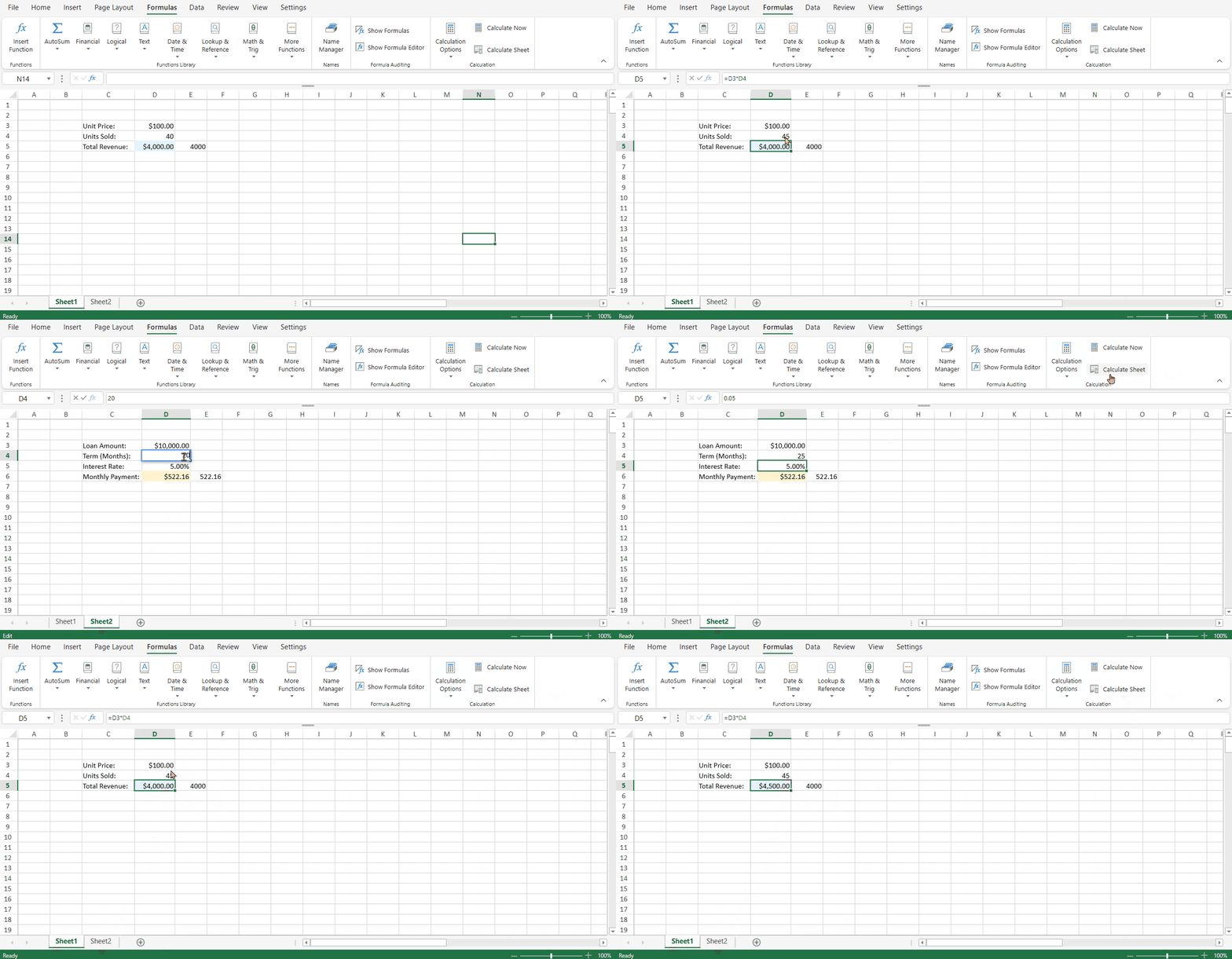
In the case of manual calculation mode, you need to select which section of the workbook you would like to be recalculated.
Click the Calculate Now button to update changes across all open worksheets.
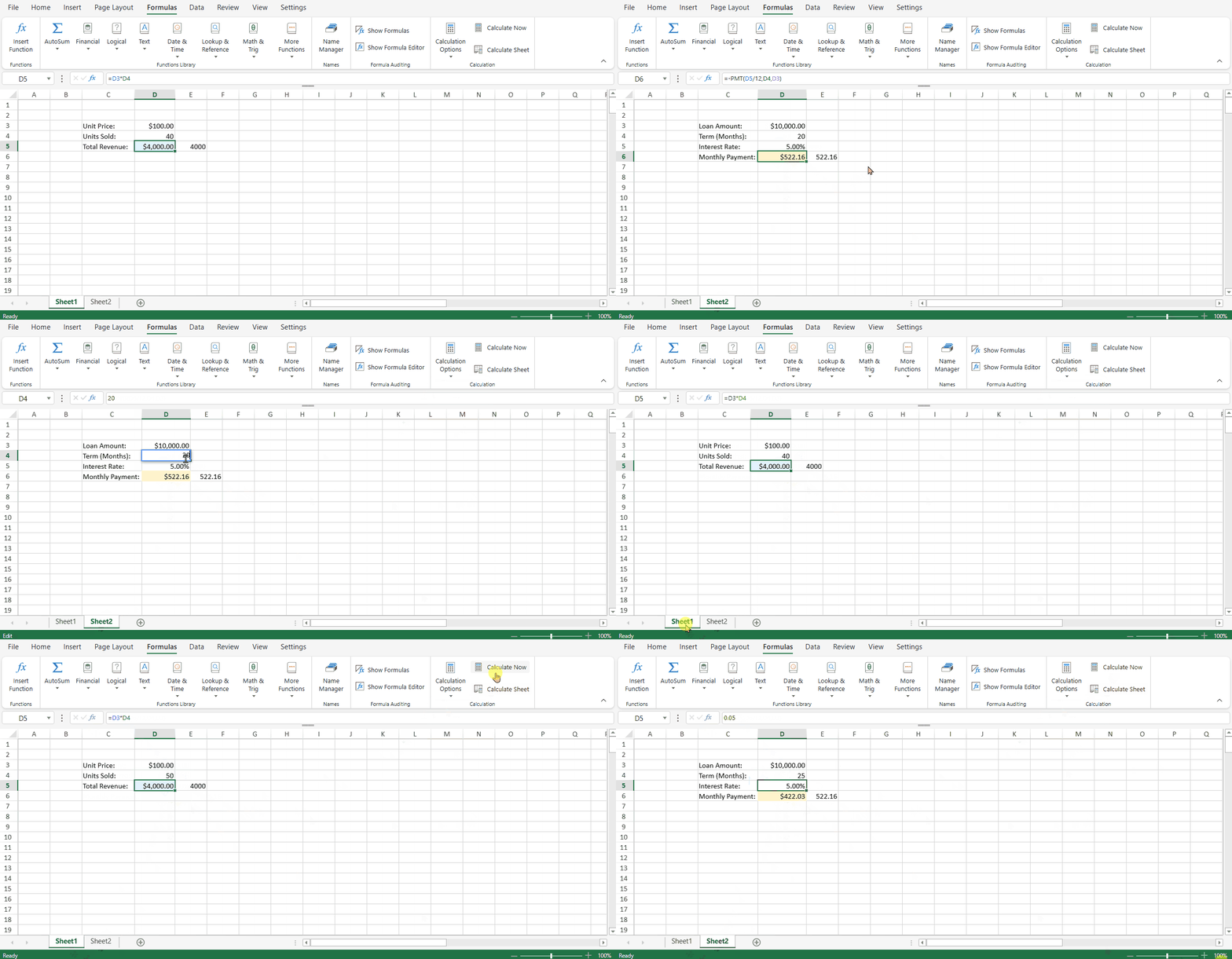
Click the Calculate Sheet button if you only want the modifications to be reflected in the same worksheet.