


- SpreadJS Overview
- Getting Started
- JavaScript Frameworks
- Best Practices
-
Features
- Workbook
- Worksheet
- Rows and Columns
- Headers
- Cells
- Data Binding
- Data Manager
- TableSheet
- GanttSheet
- ReportSheet
- Data Charts
- JSON Schema with SpreadJS
- SpreadJS File Format
- Data Validation
- Conditional Formatting
- Sort
- Group
- Formulas
- What-If Analysis
- Serialization
- Keyboard Actions
- Shapes
- Floating Objects
- Barcodes
- Charts
- Sparklines
- Tables
- Pivot Table
- Slicer
- Theme
- User Management
- Culture
- AI Assistant
- SpreadJS Designer
- SpreadJS Designer VSCode Plugin
- Tutorials
- SpreadJS Designer Component
- SpreadJS Collaboration Server
- Touch Support
- Formula Reference
- Import and Export Reference
- Events
- API Documentation
- Release Notes
Connector Shapes
Connector shapes are used to connect two or more shapes using lines, arrows, and predefined connection points. SpreadJS provides built-in support for creating and customizing connector shapes in a worksheet.
You can use connectors to visually represent relationships between shapes in diagrams and flow-based layouts.
Connector Types
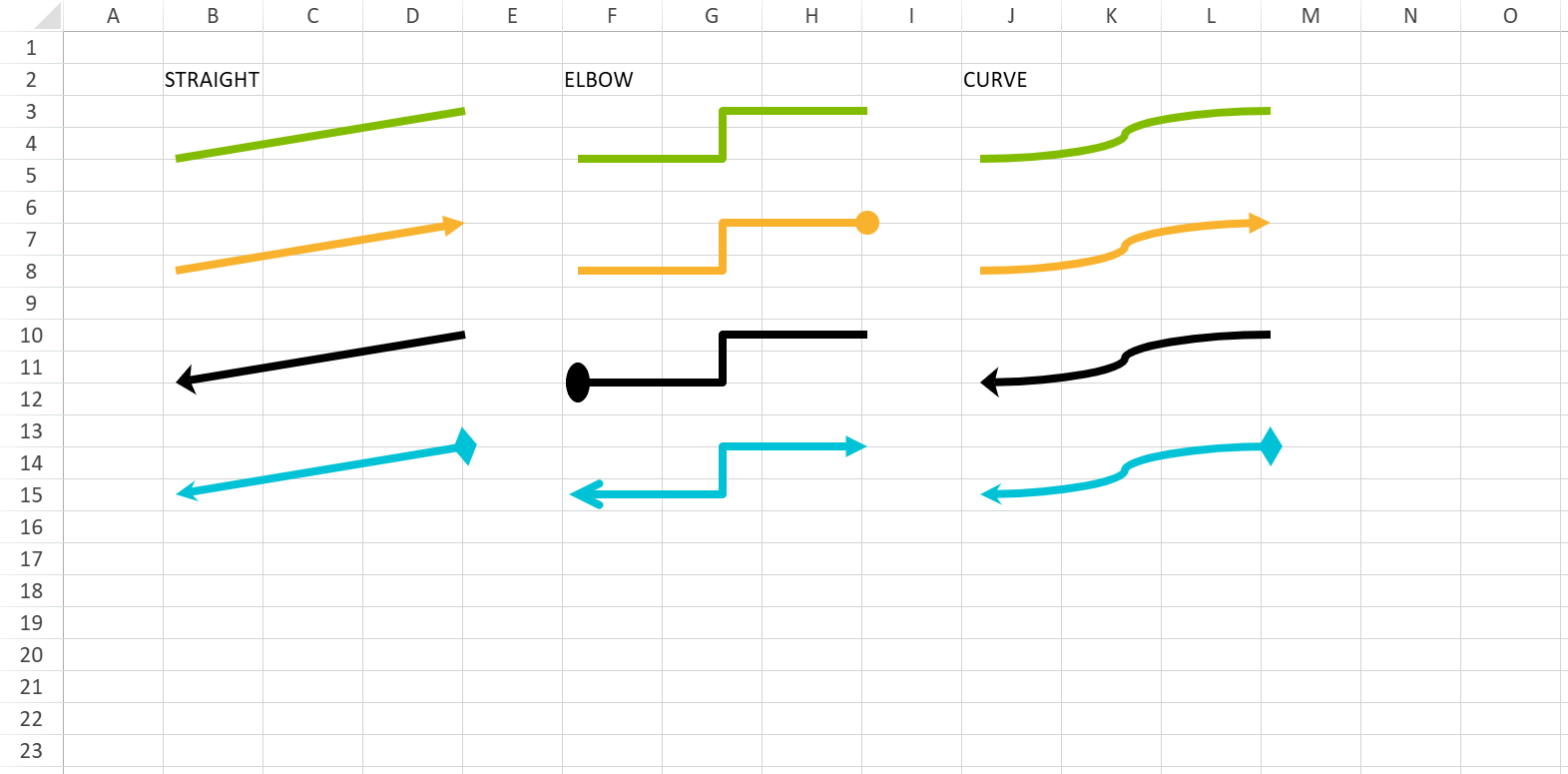
SpreadJS supports the following connector types:
Straight Connector: Connects shapes using a straight line.
Elbow Connector: Connects shapes using angled line segments.
Curve Connector: Connects shapes using a curved line.
You can also customize the arrow style applied to connectors, including:
Normal arrow (no arrowhead)
Basic arrow (both sides pointed)
Open arrow
Stealth arrow
Oval arrow
Diamond arrow
The following image shows connector shapes:
Connection Model
A connector shape attaches to shapes through defined connection points.
Each connector has:
A start connector
An end connector
These endpoints can be bound to a specific shape and a specific connection point index:
connectorShape.startConnector({ name: shape1.name(), index: 3 });
connectorShape.endConnector({ name: shape2.name(), index: 2 });
Connector Interaction and Snapping Behavior
SpreadJS provides built-in interaction logic when working with connectors in the worksheet.
Endpoint Display
When a connector is selected:
Connected endpoints are displayed as filled green circles.
Unconnected endpoints are displayed as white circles.
During dragging, endpoint circles are temporarily hidden to reduce visual interference.
After dragging ends, the endpoint indicators are restored.
Automatic Snapping
When dragging a connector endpoint close to a valid connection point:
The connector automatically snaps to the nearest connection point.
This improves connection accuracy and user efficiency.
While snapping:
The target connection point displays a green highlighted glow effect as visual feedback.
The connector path is previewed in real time so users can see the final routing before releasing the mouse.
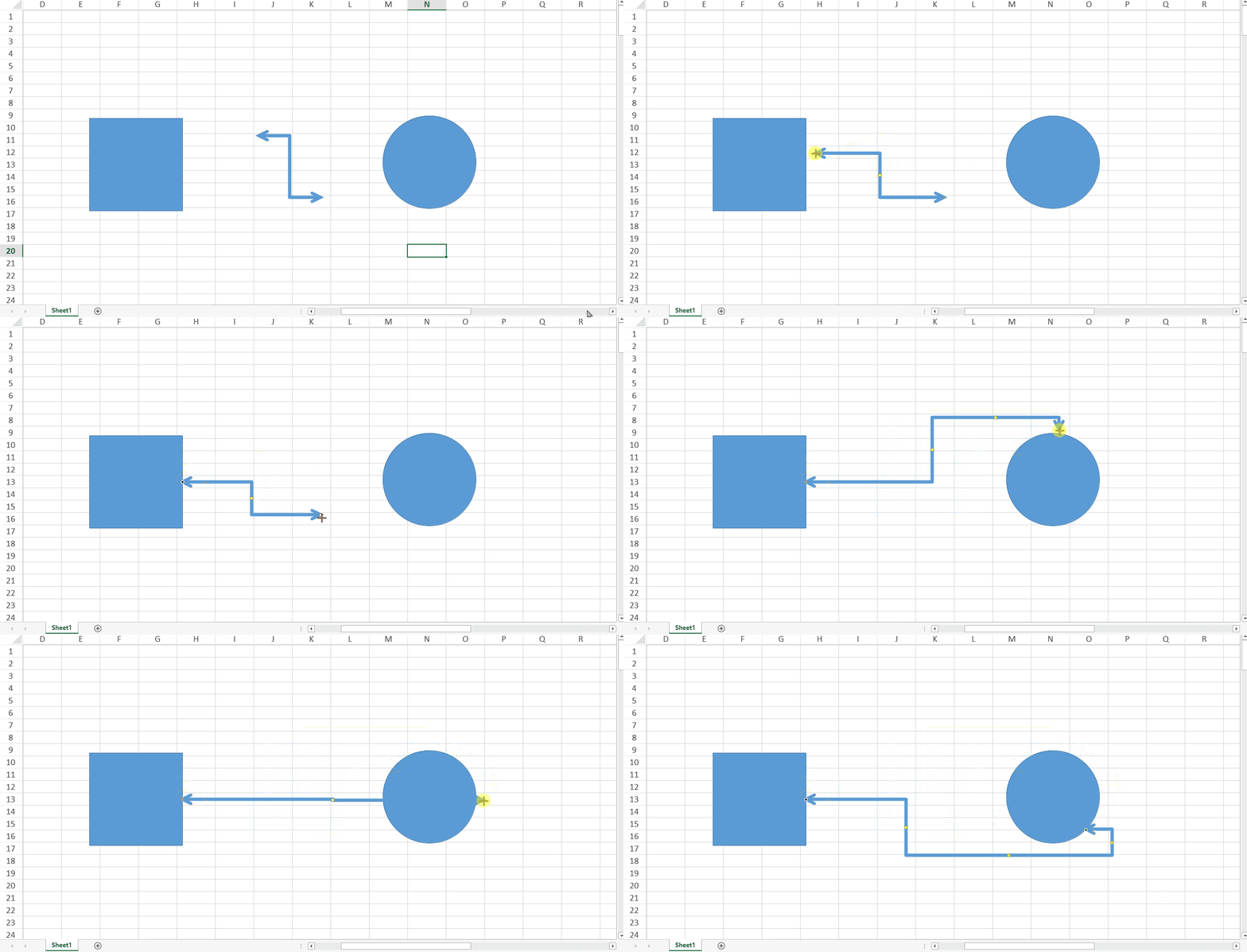
The highlight color and radius are currently fixed and cannot be customized.
Example: Adding a Connector Shape
The following example demonstrates how to add a connector between two shapes:
// Adding the connector shape to the worksheet
window.onload = function ()
{
   var spread = new GC.Spread.Sheets.Workbook(document.getElementById("ss"));
   var sheet = spread.getActiveSheet();

   // Add two shapes
   var shape1 = sheet.shapes.add("myShape1", GC.Spread.Sheets.Shapes.AutoShapeType.rectangle, 150, 100, 100, 100);
   var shape2 = sheet.shapes.add("myShape2", GC.Spread.Sheets.Shapes.AutoShapeType.oval, 700, 100, 100, 100);

   // Add connector
   var connectorShape = sheet.shapes.addConnector(
       "myConnectorShape",
       GC.Spread.Sheets.Shapes.ConnectorType.straight,
       250, 150, 700, 150
   );

   // Set style
   var oldStyle = connectorShape.style();
   oldStyle.line.color = 'red';
   oldStyle.line.lineStyle = GC.Spread.Sheets.Shapes.PresetLineDashStyle.dot;
   oldStyle.line.width = 10;
   oldStyle.line.capType = GC.Spread.Sheets.Shapes.LineCapStyle.square;
   oldStyle.line.joinType = GC.Spread.Sheets.Shapes.LineJoinStyle.miter;
   oldStyle.line.beginArrowheadStyle = GC.Spread.Sheets.Shapes.ArrowheadStyle.triangle;
   oldStyle.line.beginArrowheadWidth = GC.Spread.Sheets.Shapes.ArrowheadWidth.narrow;
   oldStyle.line.beginArrowheadLength = GC.Spread.Sheets.Shapes.ArrowheadLength.short;
   oldStyle.line.endArrowheadStyle = GC.Spread.Sheets.Shapes.ArrowheadStyle.triangle;
   oldStyle.line.endArrowheadWidth = GC.Spread.Sheets.Shapes.ArrowheadWidth.medium;
   oldStyle.line.endArrowheadLength = GC.Spread.Sheets.Shapes.ArrowheadLength.medium;
   connectorShape.style(oldStyle);

   // Bind connection points
   connectorShape.startConnector({ name: shape1.name(), index: 3 });
   connectorShape.endConnector({ name: shape2.name(), index: 2 });
};
Limitations
SpreadJS does not support the following scenarios:
Freeform connector routing is not supported.
Connector layout may differ from Excel.
When using BentArrow connectors, Excel may display clipped areas, while SpreadJS preserves fill rendering.
Resizing certain shapes (Balloon, RectangularCallout, OvalCallout, CloudCallout, etc.) may result in clipped visuals.
Shapes such as Cube and DiagonalStrip may produce unexpected results when control points are adjusted to extreme values.