


- SpreadJS Overview
- Getting Started
- JavaScript Frameworks
- Best Practices
-
Features
- Workbook
- Worksheet
- Rows and Columns
- Headers
- Cells
- Data Binding
- Data Manager
- TableSheet
- GanttSheet
- ReportSheet
- Data Charts
- JSON Schema with SpreadJS
- SpreadJS File Format
- Data Validation
- Conditional Formatting
- Sort
- Group
- Formulas
- What-If Analysis
- Serialization
- Keyboard Actions
- Shapes
- Floating Objects
- Barcodes
- Charts
- Sparklines
- Tables
- Pivot Table
- Slicer
- Theme
- User Management
- Culture
- AI Assistant
- SpreadJS Designer
- SpreadJS Designer VSCode Plugin
- Tutorials
- SpreadJS Designer Component
- SpreadJS Collaboration Server
- Touch Support
- Formula Reference
- Import and Export Reference
- Events
- API Documentation
- Release Notes
Built-In Shapes
SpreadJS supports more than 200 built-in shapes that can be inserted into a worksheet. These include lines, rectangles, block arrows, equation shapes, flowcharts, stars, banners, callouts, connectors, and more.
Inserted shapes can be moved, resized, rotated, styled, or deleted.
You can insert shapes either through the SpreadJS Designer or by using code.
Insert Shapes Using the Designer
In the Designer, open the Insert tab and select a shape from the Shapes gallery.
Once selected, the worksheet enters Drawing Mode, which provides an Excel-like interactive creation experience.
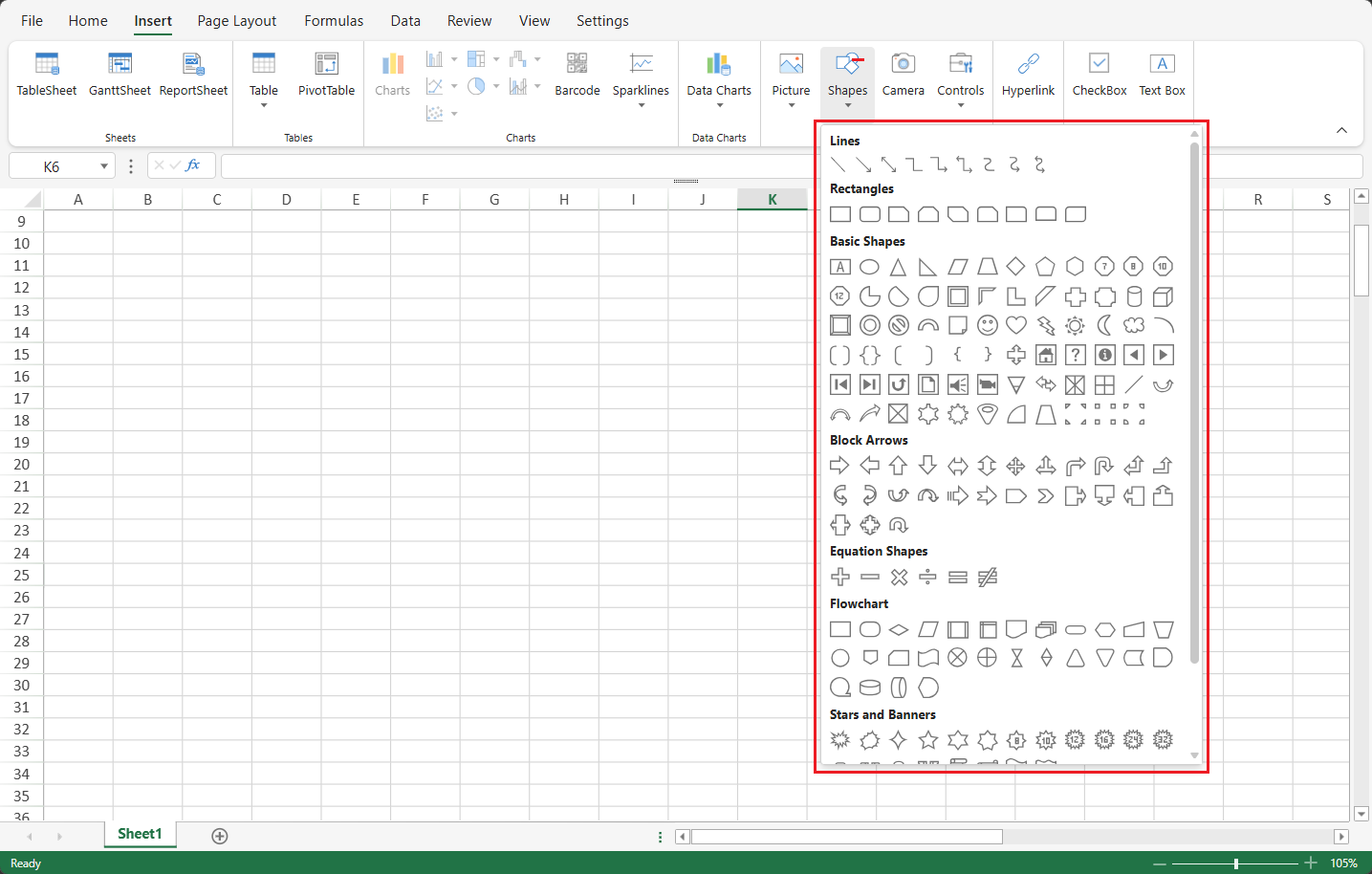
Drawing Mode
When a shape type is selected:
The cursor changes to a precision crosshair
 when entering the worksheet area.
You can define the shape’s bounds by clicking and dragging.
A real-time translucent preview appears during dragging.
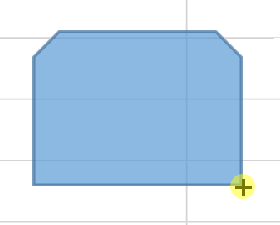
The preview outline matches the exact selected shape type (not a generic rectangle).
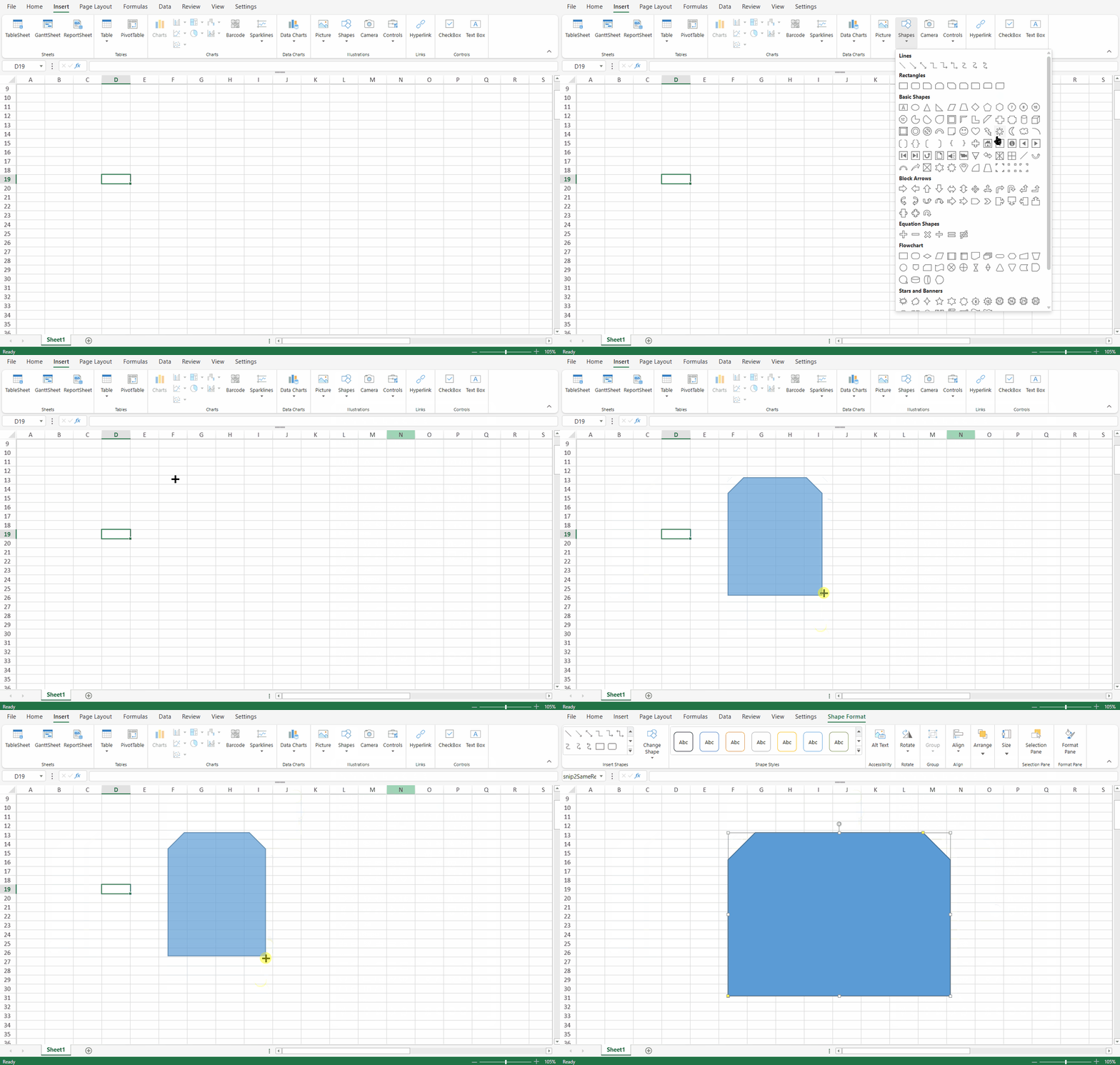
Completion Behavior
Drag and Release: Inserts the shape using the defined bounding box.
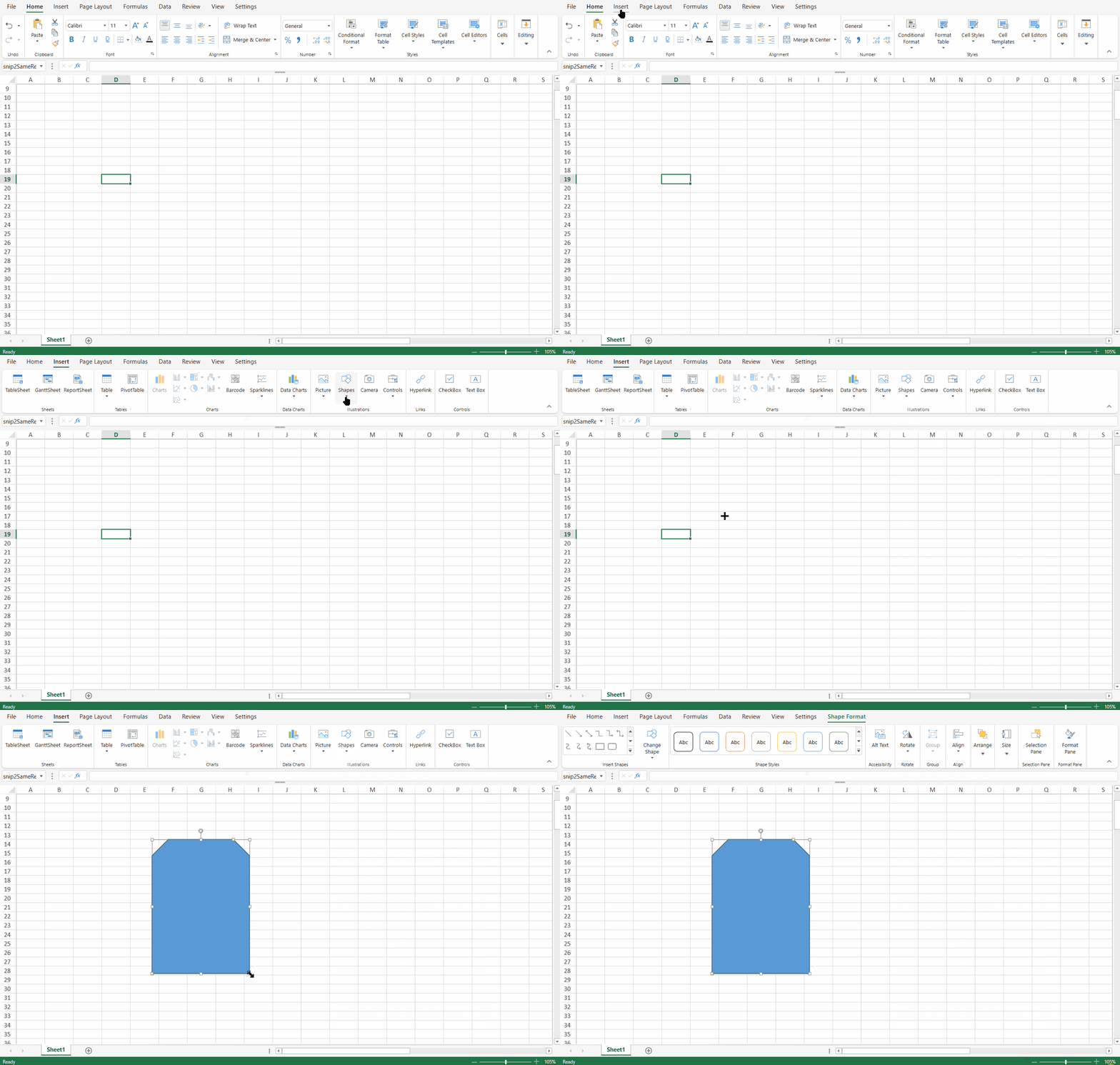
Click Without Dragging: Inserts the shape at the clicked location using default dimensions.
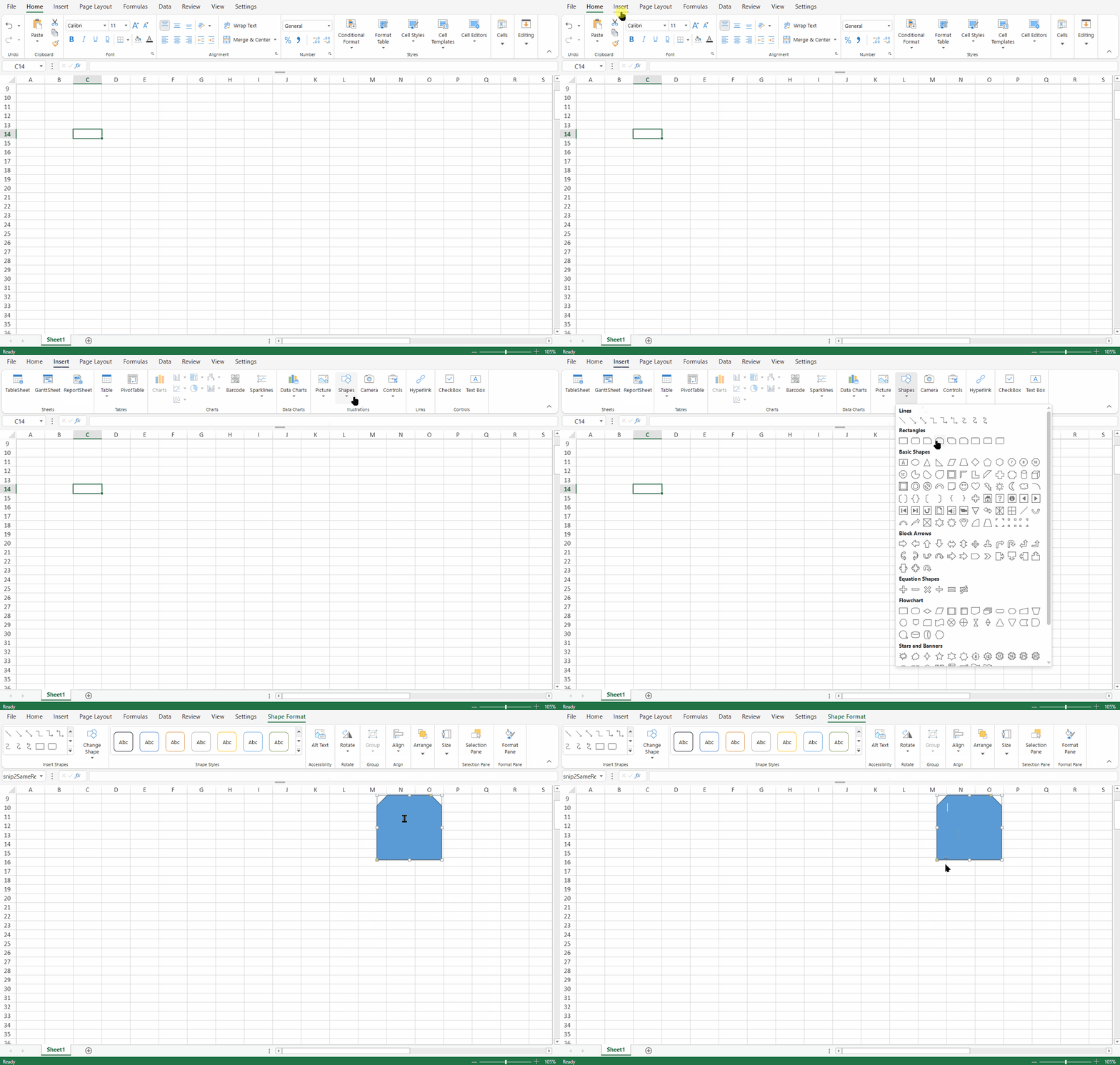
Press ESC: Cancels the drawing operation and exits Drawing Mode.
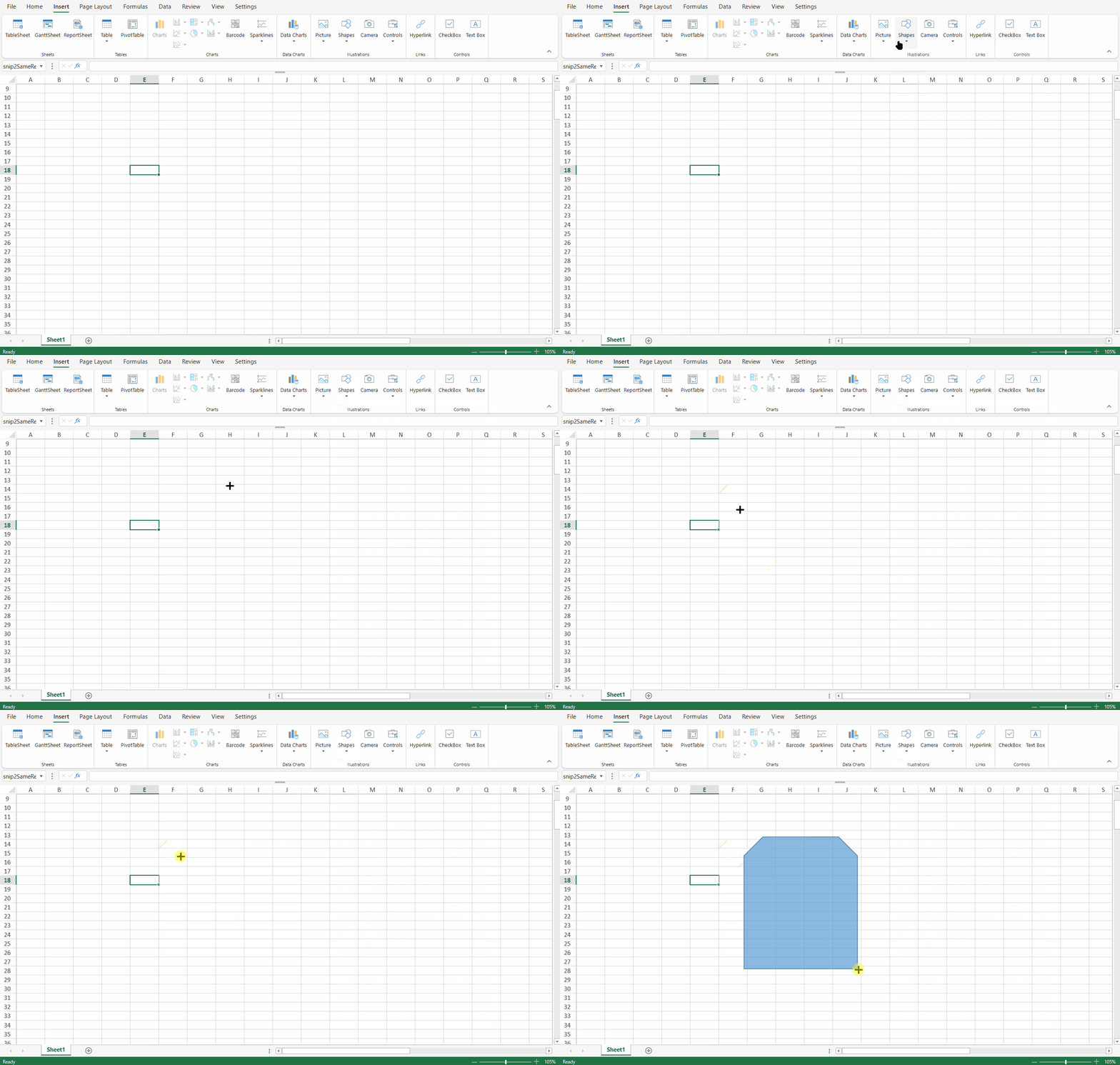
All completed insertions are integrated into the Undo/Redo stack.
By default, Drawing Mode exits automatically after one shape is inserted.
Lock Drawing Mode
For scenarios requiring repeated insertion of the same shape type, a locked drawing state is available.
In the Designer:
Select a shape type from the Insert tab.
Right-click the selected shape icon.
In the context menu, click Lock Drawing Mode.
Once enabled, the system remains in Drawing Mode after each shape is inserted.
Press ESC to exit Lock Mode and return to the normal pointer state.
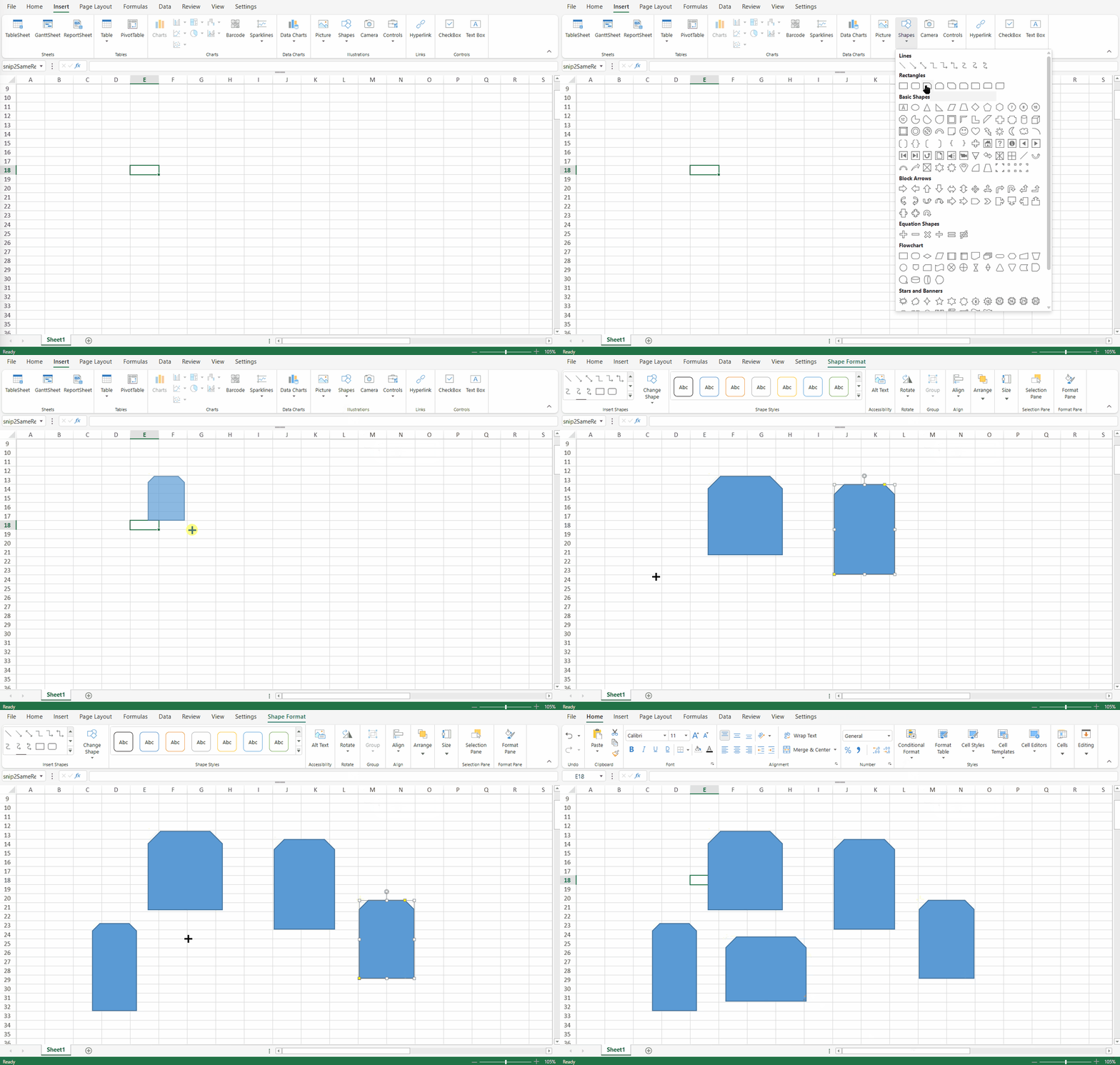
Notes:
The real-time preview mechanism applies to all supported built-in shapes (200+), including auto shapes and connectors.
Connector types (straight, elbow, and curved) fully support connection points and real-time routing during drawing.
Snap-to-grid and snap-to-shape alignment are supported during preview and placement.
For detailed behavior and APIs related to specific shape types, refer to their dedicated documentation pages.
In collaborative scenarios:
Intermediate preview states during drawing are not broadcast to other collaborators.
Only the finalized shape insertion is synchronized.
On touch devices (such as iPad), the shape insertion workflow follows the same interaction model as on desktop.
Insert Shapes Using Code
You can also add built-in shapes programmatically.
// Assume the workbook has been initialized.
var sheet = spread.getActiveSheet();

spread.suspendPaint();
try {
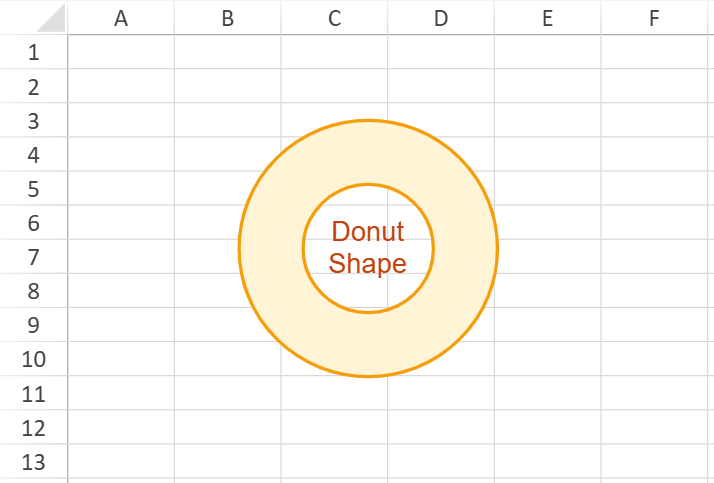
    var donutShape = sheet.shapes.add(
        "donutShape",
        GC.Spread.Sheets.Shapes.AutoShapeType.donut,
        100,
        50,
        150,
        150
    );

    donutShape.text("Donut Shape");

    var style = donutShape.style();
    style.fill.color = "#FFF4D6";
    style.line.color = "#F59E0B";
    style.line.width = 2;
    style.textEffect.color = "#C2410C";
    style.textEffect.font = "16px Arial";
    style.textFrame.hAlign = GC.Spread.Sheets.HorizontalAlign.center;
    style.textFrame.vAlign = GC.Spread.Sheets.VerticalAlign.center;

    donutShape.style(style);
} finally {
    spread.resumePaint();
}
Limitations
For callout shapes, hit testing outside the main shape boundary is not fully supported. Users may not be able to select the shape by clicking outside its primary bounds.