


- SpreadJS Overview
- Getting Started
- JavaScript Frameworks
- Best Practices
-
Features
- Workbook
- Worksheet
- Rows and Columns
- Headers
- Cells
- Data Binding
- Data Manager
- TableSheet
- GanttSheet
- ReportSheet
- Data Charts
- JSON Schema with SpreadJS
- SpreadJS File Format
- Data Validation
- Conditional Formatting
- Sort
- Group
- Formulas
- What-If Analysis
- Serialization
- Keyboard Actions
- Shapes
- Floating Objects
- Barcodes
- Charts
- Sparklines
- Tables
- Pivot Table
- Slicer
- Theme
- User Management
- Culture
- AI Assistant
- SpreadJS Designer
- SpreadJS Designer VSCode Plugin
- Tutorials
- SpreadJS Designer Component
- SpreadJS Collaboration Server
- Touch Support
- Formula Reference
- Import and Export Reference
- Events
- API Documentation
- Release Notes
Scenario Manager
Scenario Analysis is a What-If Analysis feature that saves named sets of input values and applies them to a workbook to compare business outcomes.
A scenario contains values for one or more changing cells. When a scenario is applied, SpreadJS writes the stored values to the target cells and recalculates dependent formulas. This makes it easier to switch between assumptions such as optimistic, pessimistic, and break-even forecasts without manually editing each input cell.
Notes:
Scenarios are managed at the workbook level. A single scenario can include changing cells from one or more worksheets.
TableSheet, GanttSheet, and Report Sheet are not supported.
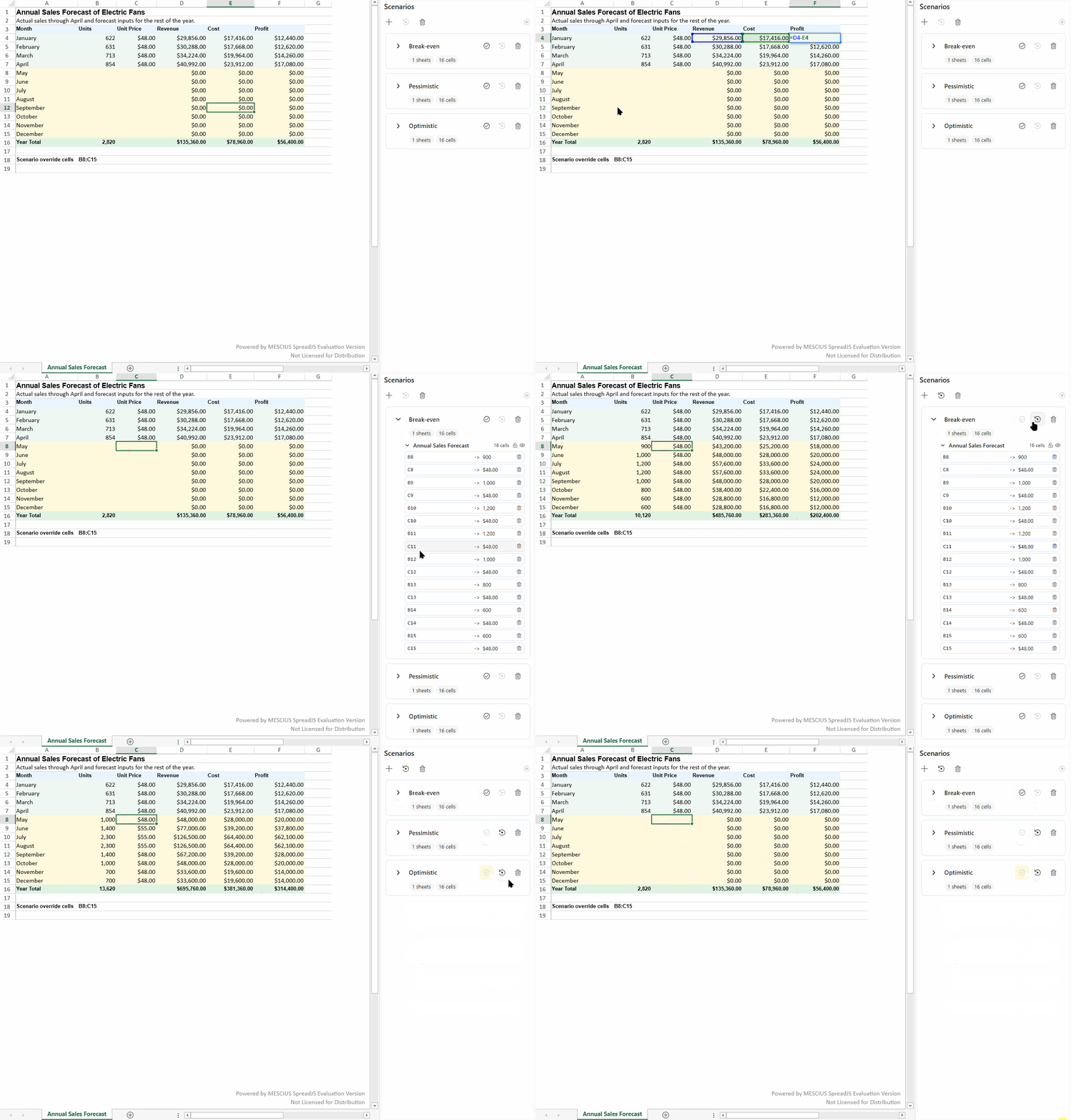
Scenario Concepts
Scenario Analysis uses the following concepts:
Concept | Description |
|---|---|
Scenario | A named set of stored values that can be applied to a workbook. |
Changing Cells | Cells whose values are stored in a scenario and overwritten when the scenario is applied. |
Overrides | Worksheet-level entries that define the changing cells and stored values for a scenario. |
Base Values | Captured original values used to restore cells after a scenario has been applied. |
Applied Scenarios | Scenarios that are currently applied and have not yet been restored. |
Base values are captured automatically before scenario values overwrite target cells. They are used only for restoring affected cells and are not part of the user-authored scenario definition.
Programmatic Scenario Management
Use spread.scenarioManager to manage scenarios through code.
A typical scenario management workflow includes:
Listing scenarios with
all.Applying a scenario with
apply.Restoring scenarios with
restore.Activating scenario capture with
setActiveScenario.Removing scenarios with
remove.
Create and Update Scenarios
Use the workbook's scenarioManager to manage scenarios.
The recommended way to create or update a scenario is to activate scenario capture, edit cell values, and then deactivate scenario capture.
var spread = new GC.Spread.Sheets.Workbook(document.getElementById("ss"));
var sheet = spread.getActiveSheet();
var manager = spread.scenarioManager;

sheet.name("Forecast");
sheet.setValue(1, 1, 1000);           // B2
sheet.setValue(2, 1, 0.15);           // B3
sheet.setFormula(4, 1, "=B2*(1+B3)"); // B5

// Start recording edits into a scenario.
manager.setActiveScenario("Optimistic");

// These value changes are saved in the active scenario.
sheet.setValue(1, 1, 1200);
sheet.setValue(2, 1, 0.18);

// Stop recording edits.
manager.setActiveScenario(null);
After the scenario is created, it can be retrieved from the scenario manager.
var scenario = manager.get("Optimistic");
console.log(scenario);
To get all scenarios in the workbook, use all.
var scenarios = manager.all();Apply and Restore Scenarios
Applying a scenario writes its stored values to the target changing cells.
manager.apply("Optimistic");After a scenario is applied, dependent formulas are recalculated based on the applied values.
To restore the cells affected by a specific scenario to their base values, use restore with the scenario name.
manager.restore("Optimistic");To restore all applied scenarios, call restore without a scenario name.
manager.restore();You can use getAppliedScenarios to check which scenarios are currently applied.
var applied = manager.getAppliedScenarios();Active Scenario Mode
Active Scenario mode records subsequent cell value edits into a target scenario.
Use active scenario mode when you want users to create or update a scenario by editing worksheet cells directly.
manager.setActiveScenario("Pessimistic");

// Cell value edits are captured into the active scenario.
sheet.setValue(1, 1, 800);
sheet.setValue(2, 1, 0.08);

// End scenario capture.
manager.setActiveScenario(null);
Active Scenario mode captures cell value changes. Formula recalculation results are not recorded as scenario values.
Only one scenario can be active in a workbook at a time. Deactivating a scenario stops further capture but does not restore worksheet values.
Rename an existing scenario
To rename an existing scenario, first create a new scenario and then replace the existing one.
// Assume "Plan A" exist.
scenarioManager.setActiveScenario("Plan B");
scenarioManager.setActiveScenario(null);
let scenario = scenarioManager.get("Plan A");
scenario.name = "Plan B";
scenarioManager.set(scenario);
scenarioManager.remove("Plan A");
Remove Scenarios
To remove one scenario, pass the scenario name to remove.
manager.remove("Optimistic");To remove all scenarios from the workbook, call remove without a scenario name.
manager.remove();Removing a scenario removes the scenario definition. It does not automatically restore worksheet values that were already changed by applying the scenario.
Multi-Worksheet Scenarios
A scenario can include changing cells from multiple worksheets. This allows one named scenario to represent a complete workbook-level assumption set.
var manager = spread.scenarioManager;

var incomeSheet = spread.getActiveSheet();
incomeSheet.name("Income");

var costSheet = new GC.Spread.Sheets.Worksheet("Cost");
spread.addSheet(1, costSheet);

incomeSheet.setValue(1, 1, 1000);
costSheet.setValue(1, 1, 600);

manager.setActiveScenario("Expansion");

incomeSheet.setValue(1, 1, 1300);
costSheet.setValue(1, 1, 780);

manager.setActiveScenario(null);
When this scenario is applied later, SpreadJS applies the stored values to the corresponding worksheets.
If a worksheet referenced by a scenario is renamed, the scenario reference is updated automatically. If a referenced worksheet is removed, the corresponding worksheet entries are removed from the scenario definition.
Scenario Panel
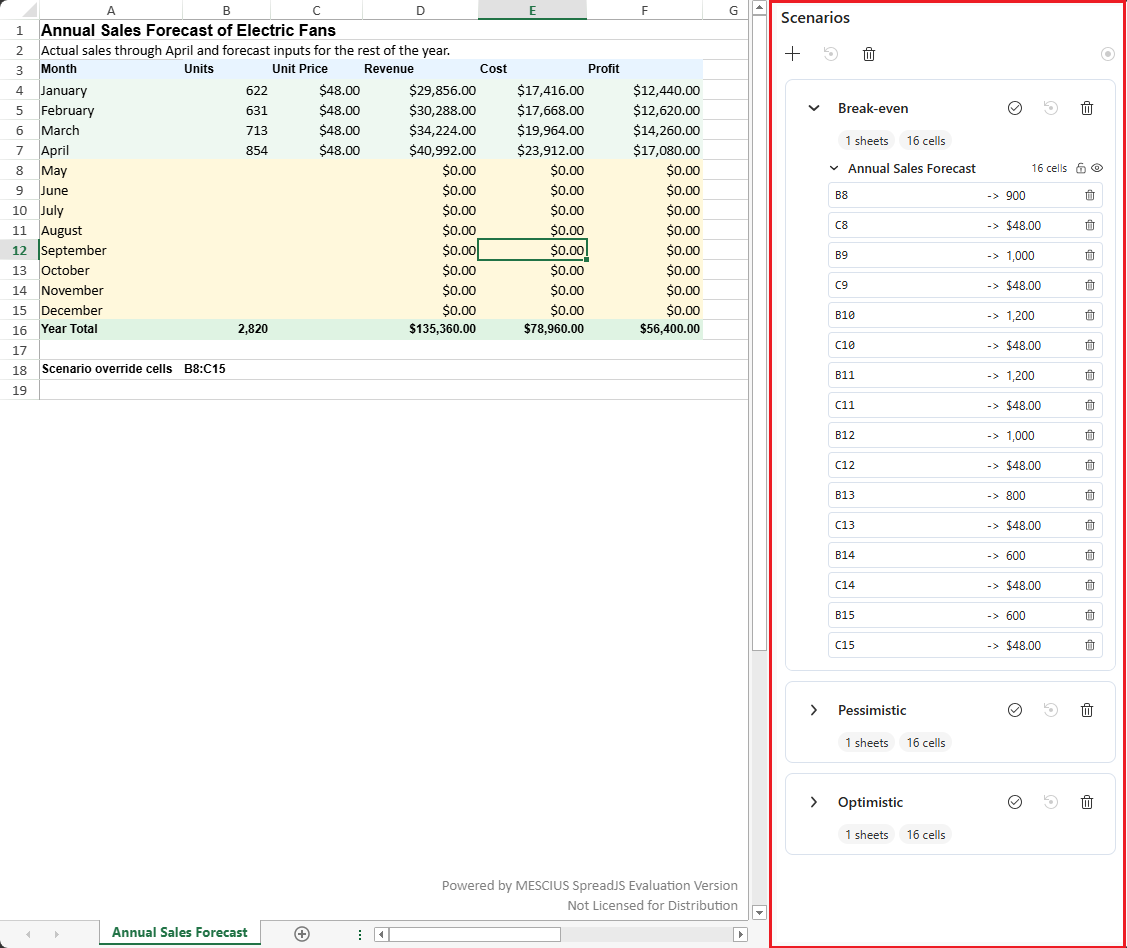
The Scenario Panel provides a runtime UI for viewing and managing workbook scenarios.
let workbook = new GC.Spread.Sheets.Workbook("spread-host");
let scenarioPanel = new GC.Spread.Sheets.Scenarios.ScenarioPanel("scenario-panel-host");

scenarioPanel.attach(workbook);
The panel works with the same workbook-level scenarios managed by spread.scenarioManager. Operations performed in the panel update the workbook in the same way as the corresponding ScenarioManager operations.
Manage Scenarios
The toolbar provides workbook-level commands for creating, restoring, removing, activating, and deactivating scenarios.
Each scenario card displays the worksheets and changing cells included in that scenario. Use the commands in the scenario header to:
Apply the scenario and write its stored values to the workbook.
Restore cells affected by the scenario to their captured base values.
Remove the scenario from the workbook.
Expand or collapse the scenario details.
The badges below the scenario name show the number of worksheets and changing cells it contains. An active badge identifies the scenario that is currently capturing cell value edits.
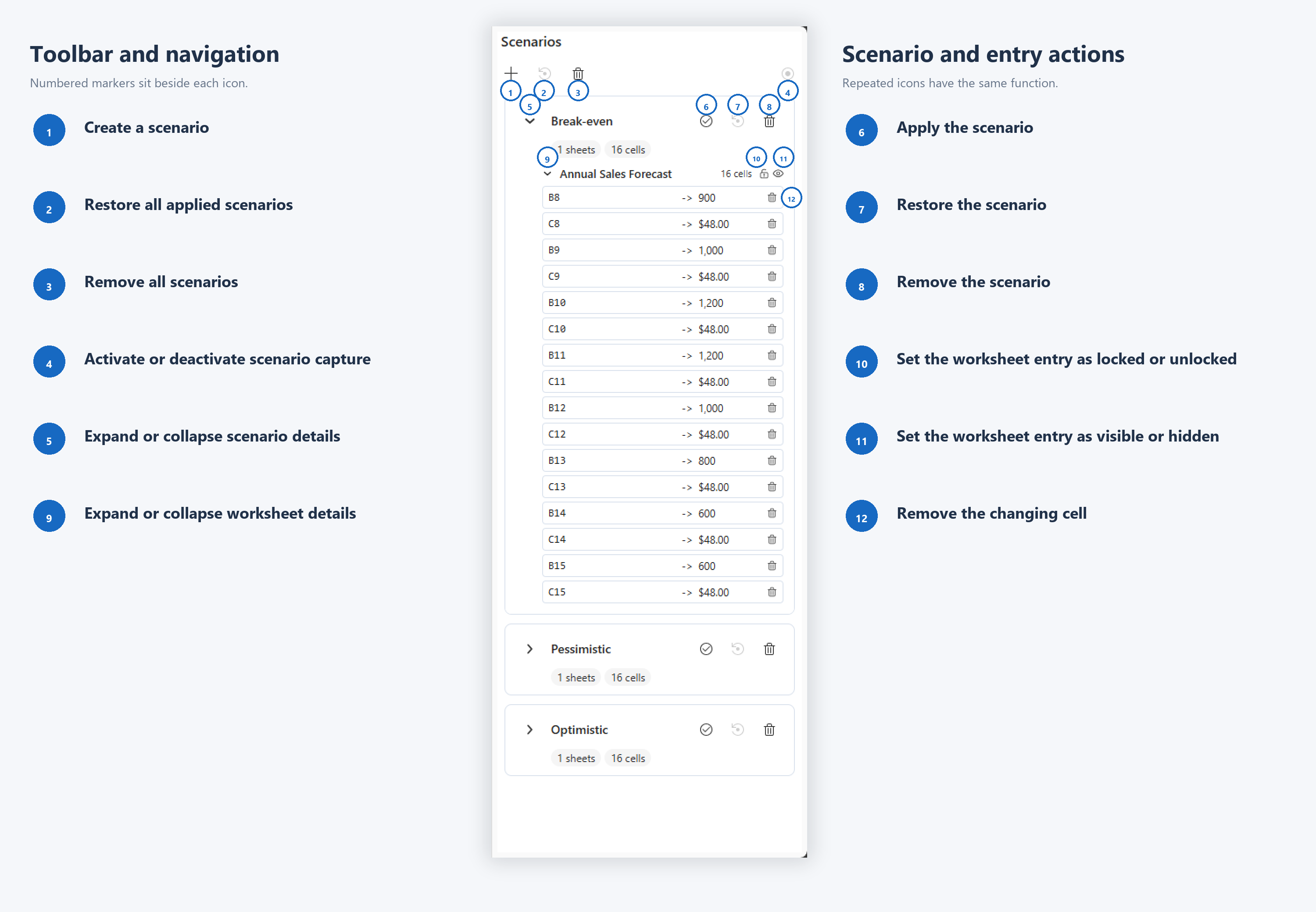
The Scenario Panel contains the following controls:
Area | Description |
|---|---|
Workbook-level commands | Create a scenario, restore applied scenarios, remove scenarios, or control active scenario capture. |
Active scenario control | Select a scenario to capture subsequent cell value edits, or deactivate the current scenario to stop capturing edits. |
Scenario actions | Apply, restore, or remove an individual scenario. |
Scenario status | View the number of included worksheets and changing cells and determine whether the scenario is active. |
Worksheet entry | Expand a worksheet entry to view the changing cells belonging to that worksheet. |
Protection controls | Configure the locked and hidden states of a worksheet-level scenario entry. |
Changing cell | View the target cell and its stored scenario value. When applicable, the panel also displays the current cell value for comparison. |
Remove changing cell | Remove an individual changing cell from the scenario definition. |
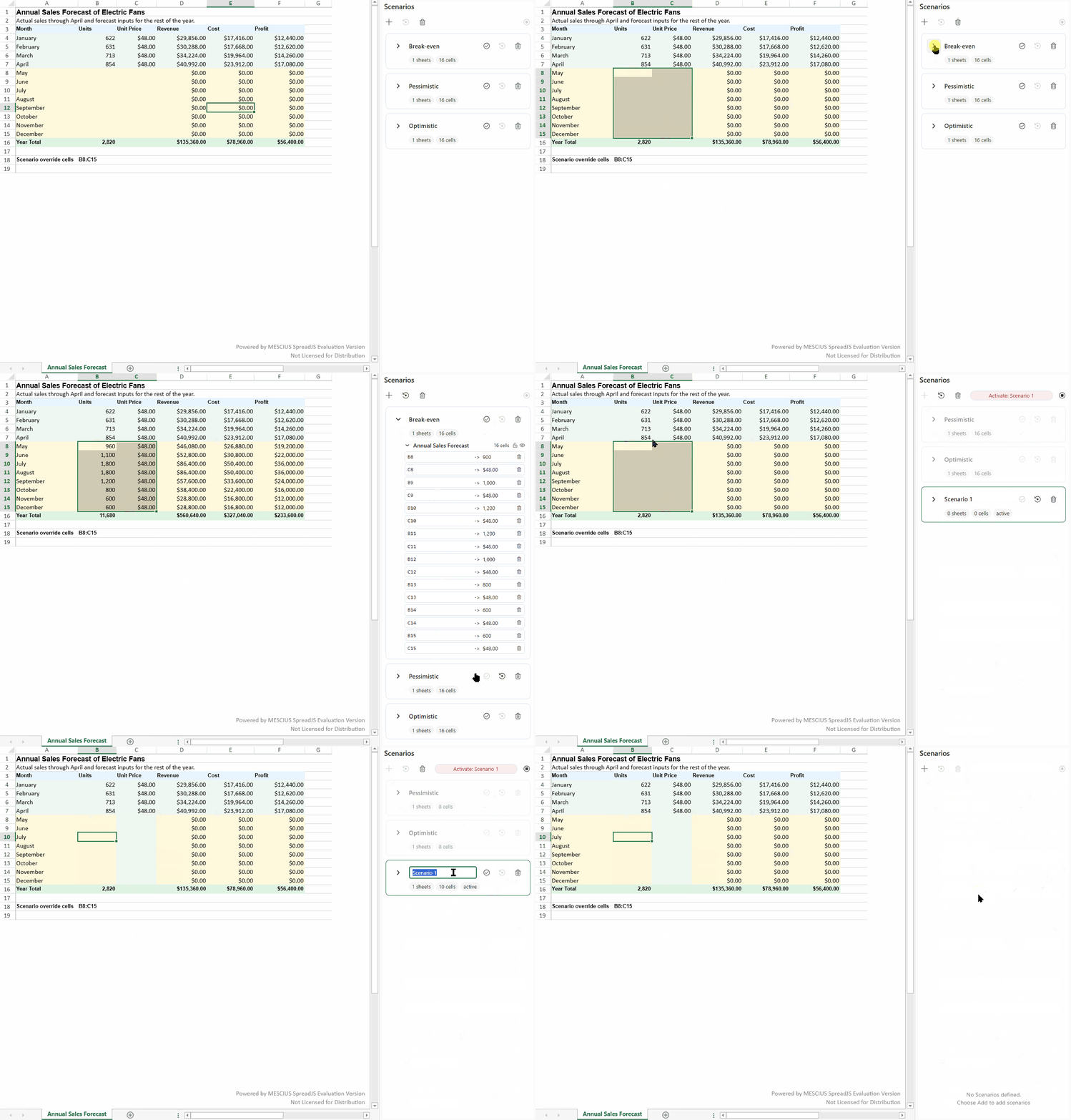
Active Scenario Capture
When a scenario is active, value edits made in the workbook are recorded in that scenario. Formula recalculation results are not recorded as scenario values.
Only one scenario can be active in a workbook at a time. Deactivating the active scenario stops further capture but does not restore worksheet values.
Worksheet and Changing-Cell Details
Expand a scenario and then a worksheet entry to inspect its changing cells.
Each changing-cell entry identifies the target cell and the value stored in the scenario. If the current worksheet value differs from the stored scenario value, the panel displays the values for comparison.
Changing cells can be removed individually from the scenario.
The lock and visibility controls configure protection-related behavior for a worksheet-level scenario entry. These settings take effect when worksheet protection is enabled. For more information, see Protection Behavior.
Events
SpreadJS provides scenario events that allow you to observe scenario operations or cancel them before they are committed.
Use ScenarioChanging to handle a scenario operation before it occurs.
spread.bind(GC.Spread.Sheets.Events.ScenarioChanging, function (e, info) {
    if (info.action === "remove" && info.scenario.name === "Base Plan") {
        info.cancel = true;
    }
});
Use ScenarioChanged to respond after a scenario operation has completed.
spread.bind(GC.Spread.Sheets.Events.ScenarioChanged, function (e, info) {
    console.log(info.action, info.scenario.name);
});
Scenario events are raised for operations such as adding, updating, removing, applying, restoring, activating, and deactivating scenarios.
Protection Behavior
Worksheet protection restricts scenario operations performed through the Scenario Panel and SpreadJS Designer. Protection-related behavior is evaluated across the worksheets referenced by a scenario.
Scenario definition editing includes updating or removing a scenario.
When a referenced worksheet is protected and allowEditScenarios is true, its scenario override remains editable and visible regardless of the locked and hidden settings.
When a referenced worksheet is protected and allowEditScenarios is not true:
An override with locked set to true is read-only.
An override with locked set to false remains editable.
An override with hidden set to true is hidden from the Scenario Panel.
An override with hidden set to false remains visible.
The lock  and visibility
  icons in the Scenario Panel configure these settings for a worksheet-level scenario entry.
Compatibility
Scenarios are saved with the workbook and can be imported from or exported to Excel files.
SpreadJS scenarios are workbook-scoped, while Excel scenarios are worksheet-scoped. During import and export, SpreadJS converts scenario scope as needed.
For details, see Excel Compatibility.