


Text and Objects
Text and Objects tools are a set of tools or functions used to add text and various objects to the current layer. These tools can be added to the toolbar using the PaintToolsPlugin.
The Text and Objects Tool button ( ) opens a secondary toolbar with buttons for adding text and objects, and a properties panel that will display configurable options for the selected option.
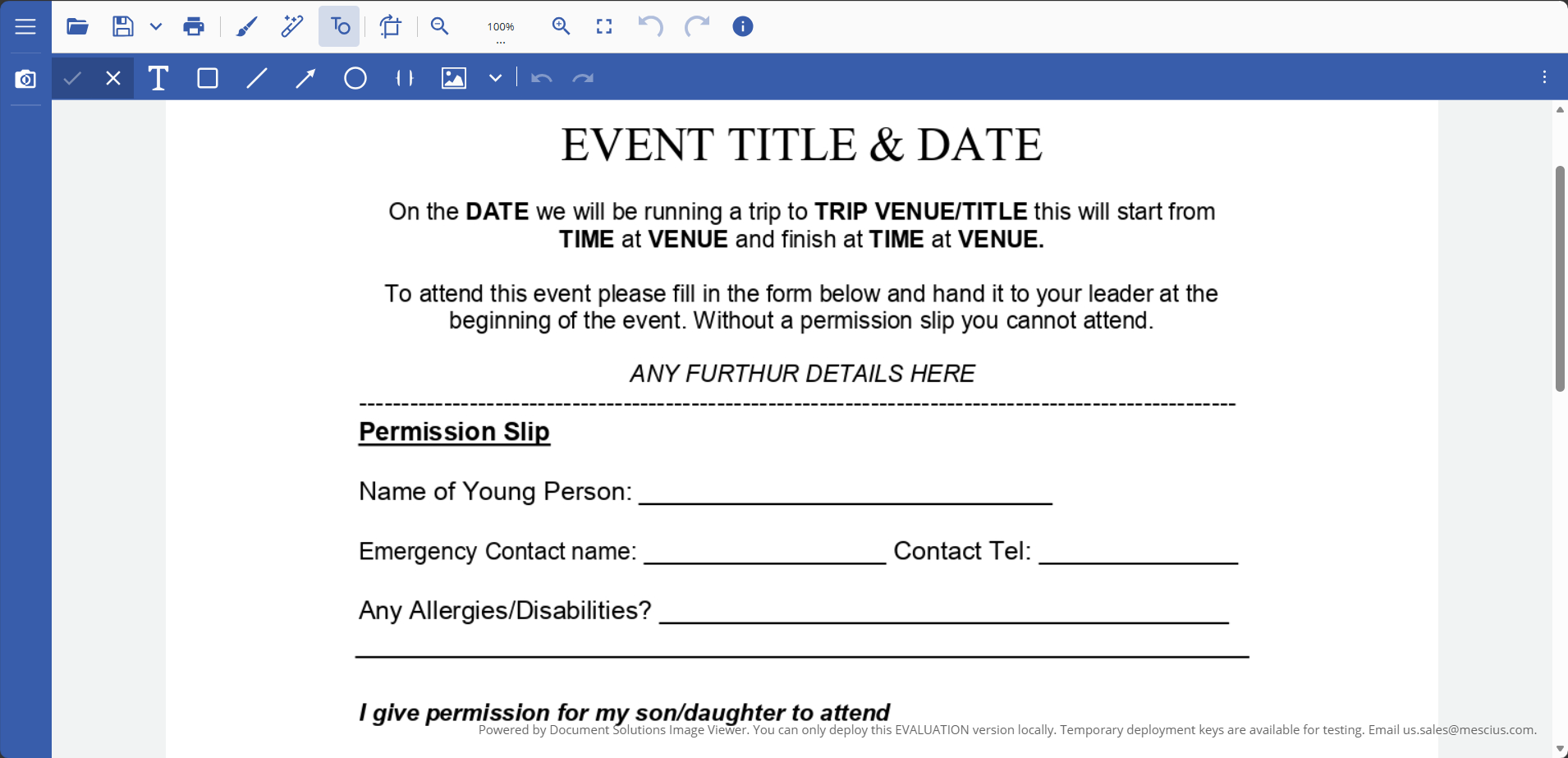
The following table lists the options available in the Text and Objects Tools secondary toolbar:
Icon | Name | Description |
|---|---|---|
| Text | The Text button adds text on top of the image at the desired position. |
| Rectangle | The Rectangle button adds a rectangular shape on top of the image at the desired position. |
| Line | The Line button draws a straight line on top of the image at the desired position. Multiple line endings are provided. |
| Arrow | The Arrow button is a convenience object for drawing an arrow on top of the image at the desired position. |
| Ellipse | The Ellipse button adds an oval/circular shape on top of the image at the desired position. |
| Brackets | The Brackets button adds brackets with adjustable curves/arrows on top of the image at the desired position. |
| Image | The Image button inserts an image file on top of the background image at the desired position. |
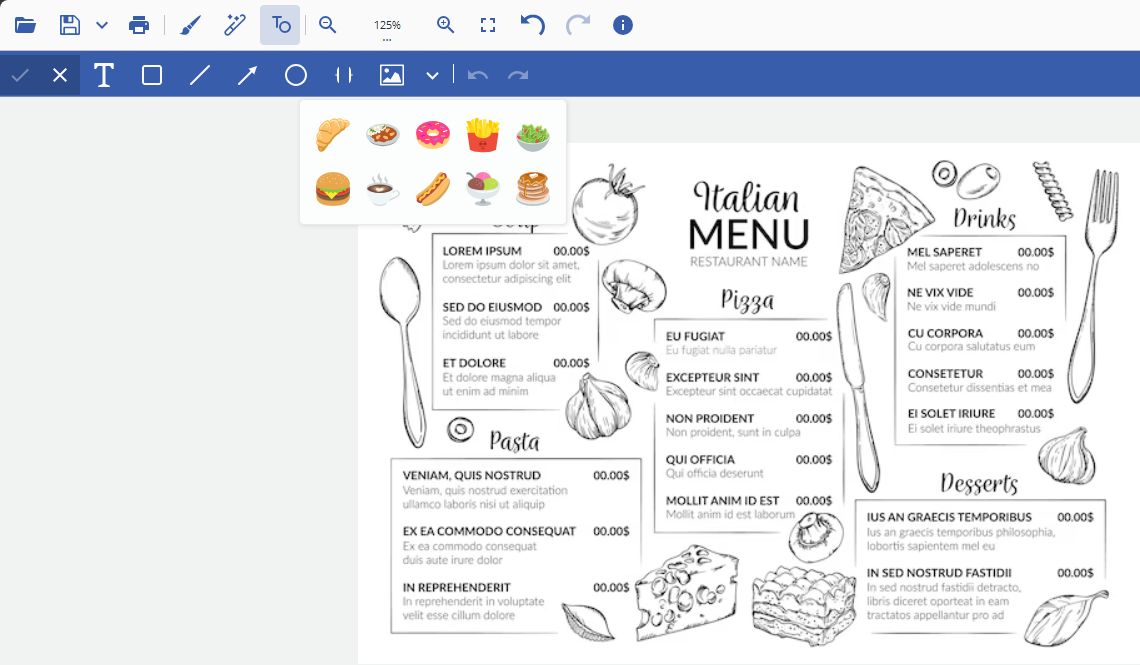
| Image Gallery | The Open image gallery button inserts a predefined image from the toolbar at the desired position. |
| Undo | The Undo button reverts the image to its state before the last change. |
| Redo | The Redo button changes the image to its state after the last change. |
| Apply | The Apply button accepts all the changes and applies them to the image. |
| Cancel | The Cancel button discards all the changes and reverts the image to its original state. |


Note: For more information on adding PaintToolsPlugin to DsImageViewer toolbar, refer to Using Plug-ins.
The following tables list the configurable options for each selected text/object.
Text
Property | Description |
|---|---|
Font Name | Font family selection. |
Font Size | Text size in pixels. |
Text Color | Text color. |
Italic | Toggles italic style. |
Bold | Toggles bold style. |
Opacity | Transparency (0–100%). |
Rotation | Rotation angle (0–360°). |
Rectangle
Property | Description |
|---|---|
Border Color | Border color. |
Fill Color | Inner fill color. |
Line Width | Border thickness (px). |
Opacity | Transparency (0–100%). |
Rotation | Rotation angle (0–360°). |
Line
Property | Description |
|---|---|
Line Color | Line color. |
Line Width | Line thickness (px). |
Start Cap Style | Style of the line start cap. Available styles: none, openArrow, closedArrow, dot, circle, diamond, square, slash, star, bar. |
End Cap Style | Style of the line end cap. Same options as start cap. |
Cap Size | Size of the line cap (e.g., arrowhead size). |
Cap Color | Color of the line caps. |
Opacity | Transparency (0–100%). |
Rotation | Rotation angle (0–360°). |
Arrow
The properties for the Arrow object are the same as those for the Line object, with the main difference that the End Cap Style is preset to 'closedArrow' by default for convenience.
Ellipse
Property | Description |
|---|---|
Border Color | Border color. |
Fill Color | Inner fill color. |
Line Width | Border thickness (px). |
Opacity | Transparency (0–100%). |
Rotation | Rotation angle (0–360°). |
Brackets
Property | Description |
|---|---|
Line Color | Color of the bracket outline. |
Line Width | Stroke thickness of the brackets (in px). |
Opacity | Transparency level (0 = transparent, 100 = opaque). |
Rotation | Rotation angle applied to the brackets. |
Shape | Visual style of brackets: curly {}, round (), square [], angle <>, or custom. |
Arrow Direction | Bending direction of brackets. |
Curve Intensity | Controls how much the brackets curve (0.0–2.0). |
Arrow Intensity | Controls sharpness or depth of the inner bend (0.0–1.5). |
Left Bracket | Show or hide the left-side bracket. |
Right Bracket | Show or hide the right-side bracket. |
Bracket Width (%) | Horizontal size of each bracket relative to total width. |
Image
Property | Description |
|---|---|
Image | Image upload/replacement. Allows selecting or changing the image displayed. |
Border Color | Color of the image border. |
Border Width | Thickness of the border in pixels. |
Border Radius | Radius of the border corners in pixels, enabling rounded corners. |
Fill Color | Background fill color used to fill any empty space within the image’s bounding rectangle. This is especially useful when Keep Aspect Ratio is enabled - unused space around the image is filled with this color. Also, if the image contains transparent areas, these regions are filled with this color to improve visual consistency. |
Opacity | Transparency level of the entire image object. 0% is fully transparent, 100% is fully opaque. |
Rotation | Rotation angle of the image, from 0° to 360°. |
Alignment | Positions the image within its container. |
Horizontal Skew | Tilts the image horizontally along the X-axis to create a slanted effect. |
Vertical Skew | Tilts the image vertically along the Y-axis to create a slanted effect. |
Keep Aspect Ratio | When enabled (true), preserves the original aspect ratio of the image during resizing, potentially creating empty space filled with the Fill Color. When disabled (false), the image stretches to fill the container. |
Image Gallery
The Image Gallery is a predefined collection of icons and graphic elements that’s available on the toolbar. You can use it to insert common images, icons, and symbols without preloading assets, hosting extra files, or writing custom code.
The properties for the Image Gallery are the same as those for the Image object.
Adding & Customizing Image Gallery
Users can add the Image Gallery via the imageGallery property from PaintToolsPluginOptions type.
type PaintToolsPluginOptions = {
  imageGallery?: string[] | ImageGalleryConfig;
}
The Image Gallery button is automatically included in the secondary toolbar (Text and Objects tools) when PaintToolsPlugin is added to the Viewer. To check how to add Text and Objects tools via PaintToolsPlugin, visit this topic.
You can pass a simple list of image URLs or a structured ImageGalleryConfig that organizes images into categories and controls display behavior. Typical configuration options include categories, default width/height, aspect ratio controls, tags, labels, and per-image size rules. You can check the API for more examples.
Refer to the following example code demonstrating how to customize the Image Gallery by adding custom images:
viewer.addPlugin(new PaintToolsPlugin({
    imageGallery: [
        'images/croissant.svg',
        'images/curry-rice.svg',
        'images/doughnut.svg',
        'images/french-fries.svg',
        'images/green-salad.svg',
        'images/hamburger.svg',
        'images/hot-beverage.svg',
        'images/hot-dog.svg',
        'images/ice-cream.svg',
        'images/pancakes.svg'
    ],
}));
Displaying Text and Objects Tools on Image Load
This example demonstrates how to configure the DsImageViewer to show only text and objects tools when an image loads, while hiding other tool groups (paint, effects).
viewer.addPlugin(new PaintToolsPlugin({
  toolbarLayout: {
    paintTools: false,    // Hide painting tools
    effectsTools: false,  // Hide effects tools
    objectTools: true     // Show text and objects tools
  }
}));
viewer.open("./nature.jpg").then(() => {
  viewer.showSecondToolbar("objects"); // Display object toolbar post-load
});
Work with Text/Objects
DsImageViewer allows you to add, edit, move, and delete text/objects per your needs. Examples for Text, Rectangle, and Image gallery appear below with step-by-step illustrations.
Text
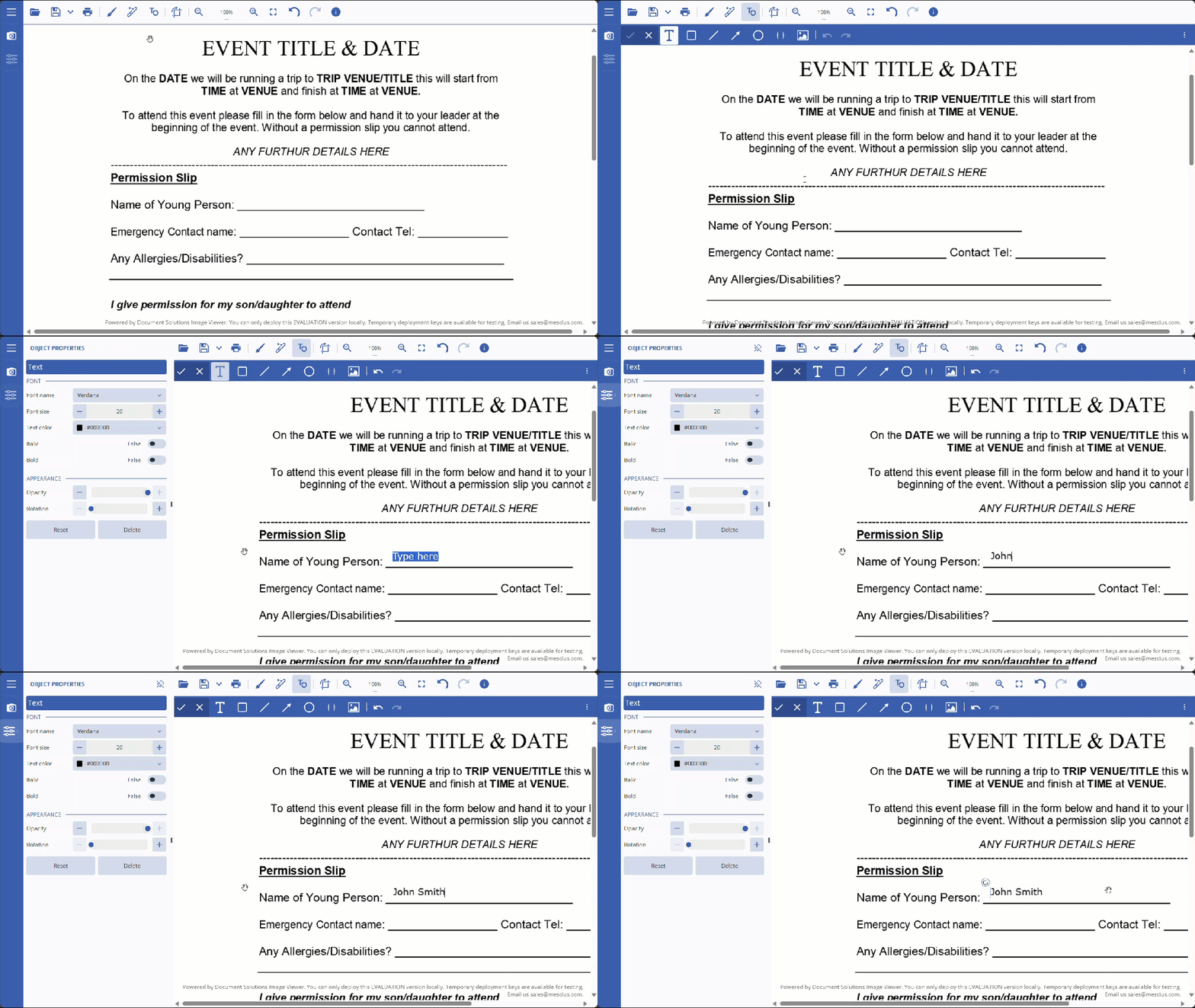
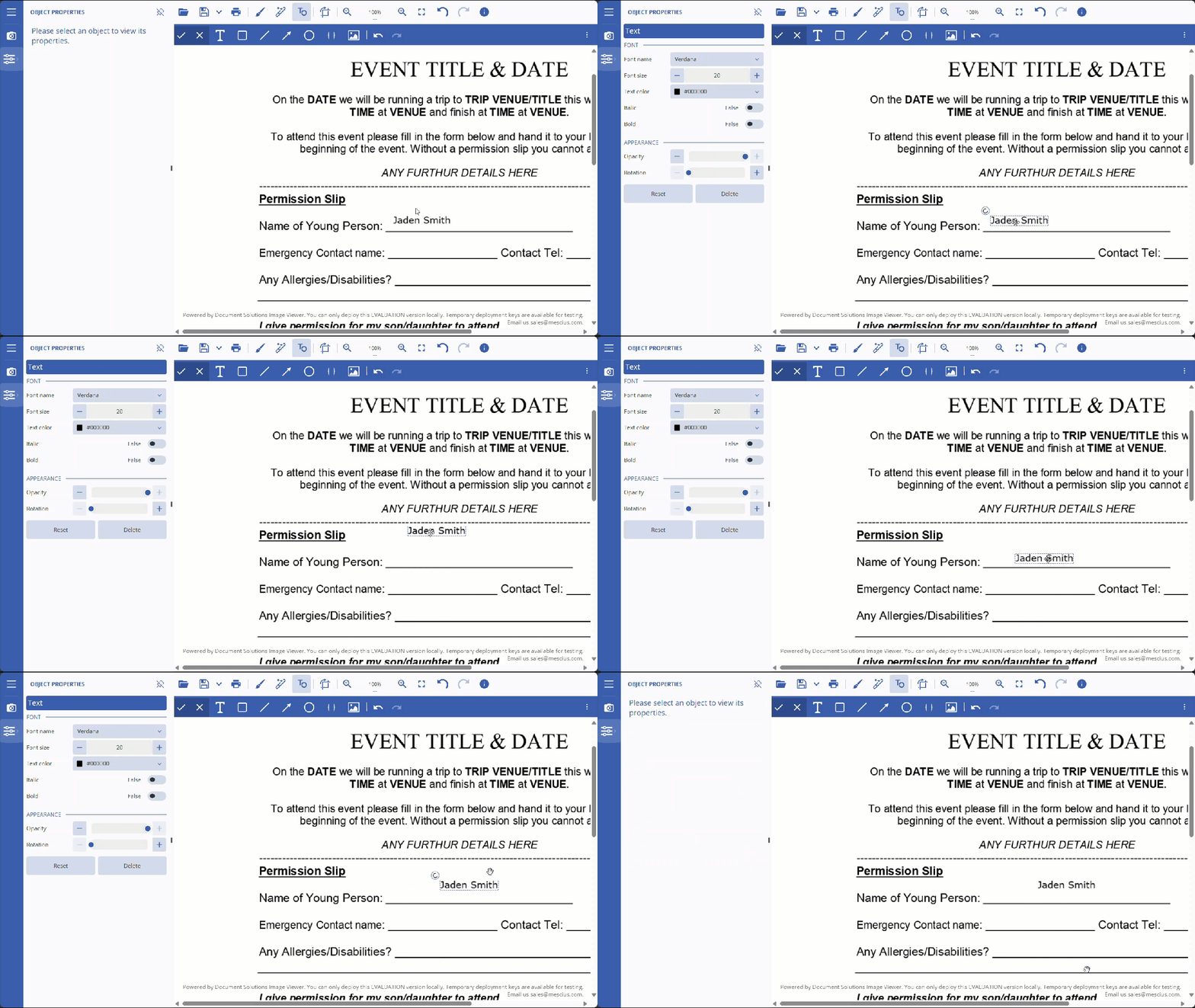
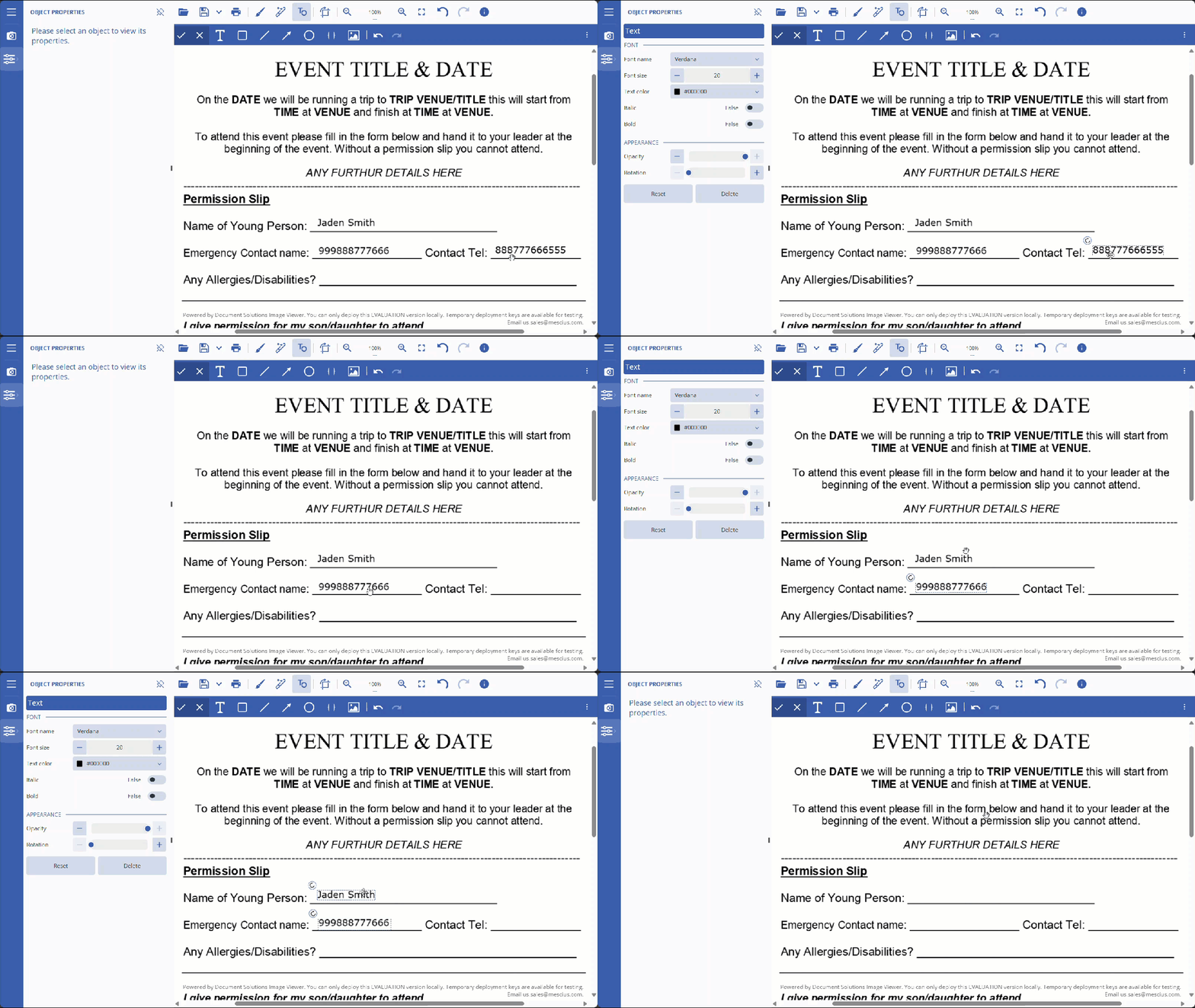
Text is a toolbar button that adds editable text layers to the canvas. Use it to add, move, edit, select, and delete text. Refer to the step-by-step workflows below:
Add Text
Click on the Text button and on the desired location.
Start typing the text, then press the Enter button.
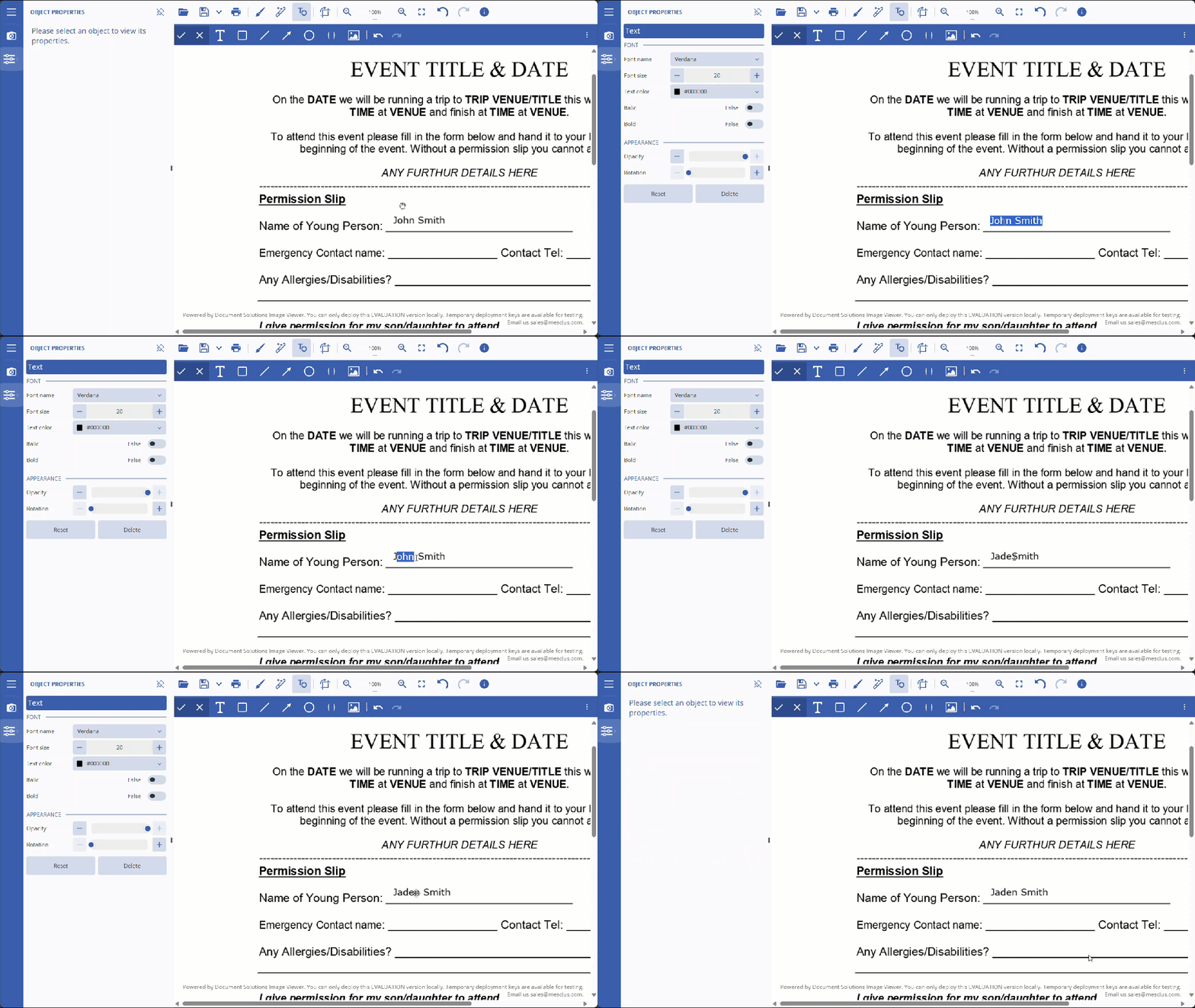
Edit Text
Click on the text box to open the properties panel.
Edit the text, then press the Control+Enter keys to apply changes.
Move Text
Click on the text box. The move cursor icon will appear.
Click and move the text to the desired location.
Select and Delete Text
To select a text, click on the text box.
To delete a text, press the Delete button.
Note: You can also select multiple texts/objects by pressing the Control or Shift keys.
Rectangle
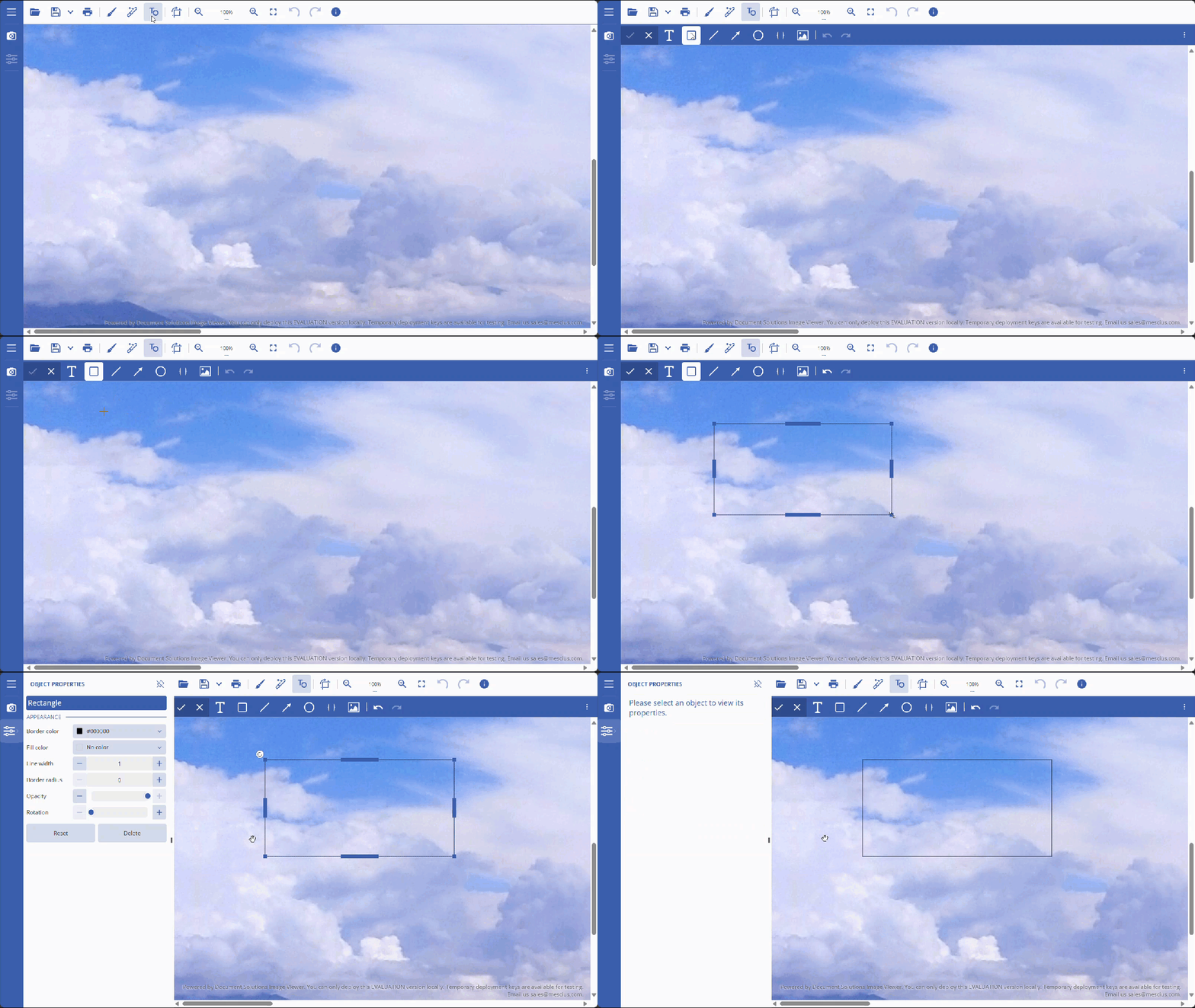
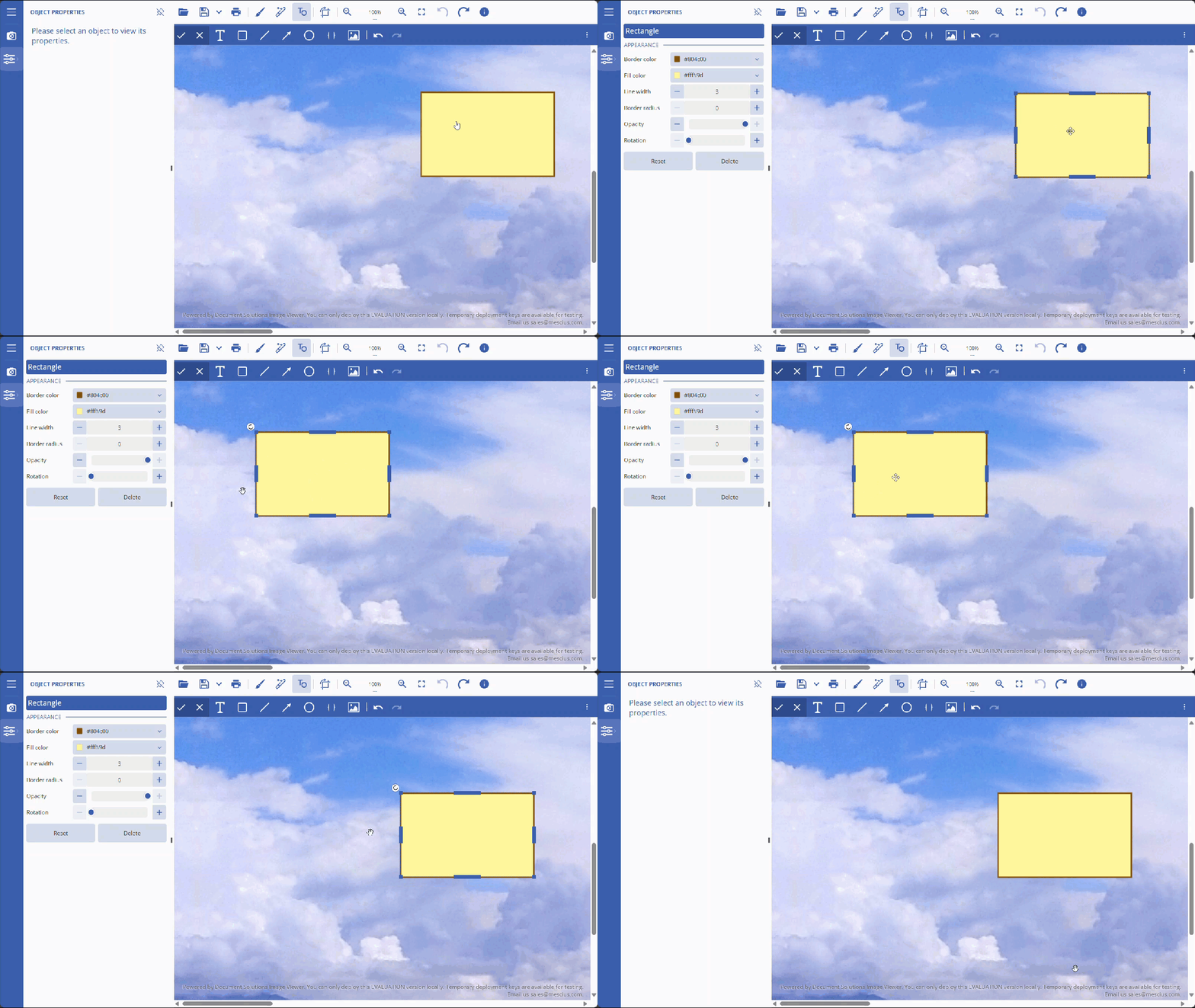
Rectangle is a toolbar button that creates rectangular shape objects on the canvas. Use it to draw, resize, move, select, and delete rectangles. Refer to the step-by-step workflows below:
Add Rectangle
Click on the Rectangle button and on the desired location.
Position and size the rectangle, then click outside.
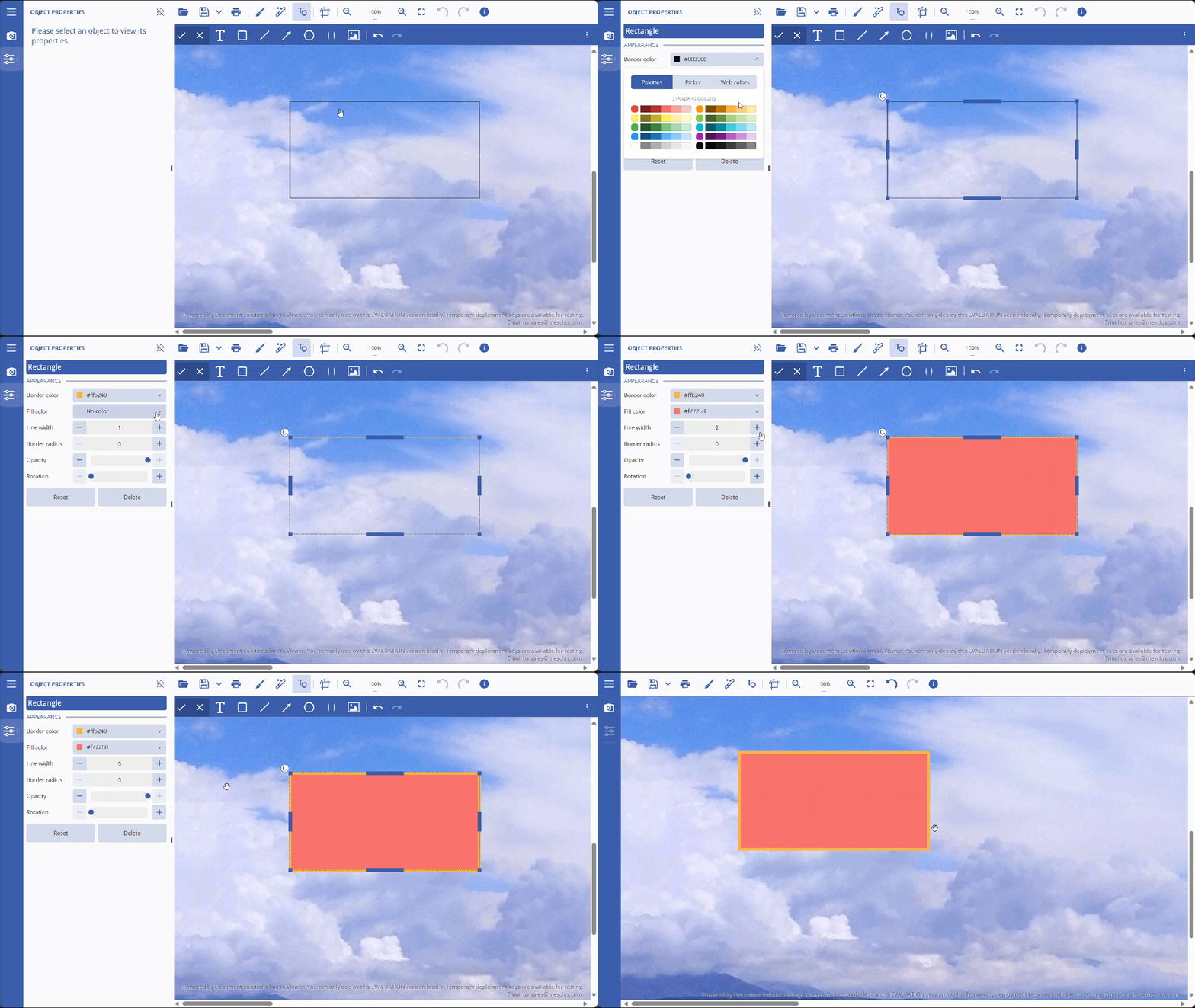
Edit Rectangle
Click on the rectangle to open the properties panel.
Edit the properties, then press the Control+Enter keys to apply changes.
Move Rectangle
Click on the rectangle. The move cursor icon will appear.
Click and move the rectangle to the desired location.
Select and Delete Rectangle
To select a rectangle, click on it.
To delete a rectangle, press the Delete button.
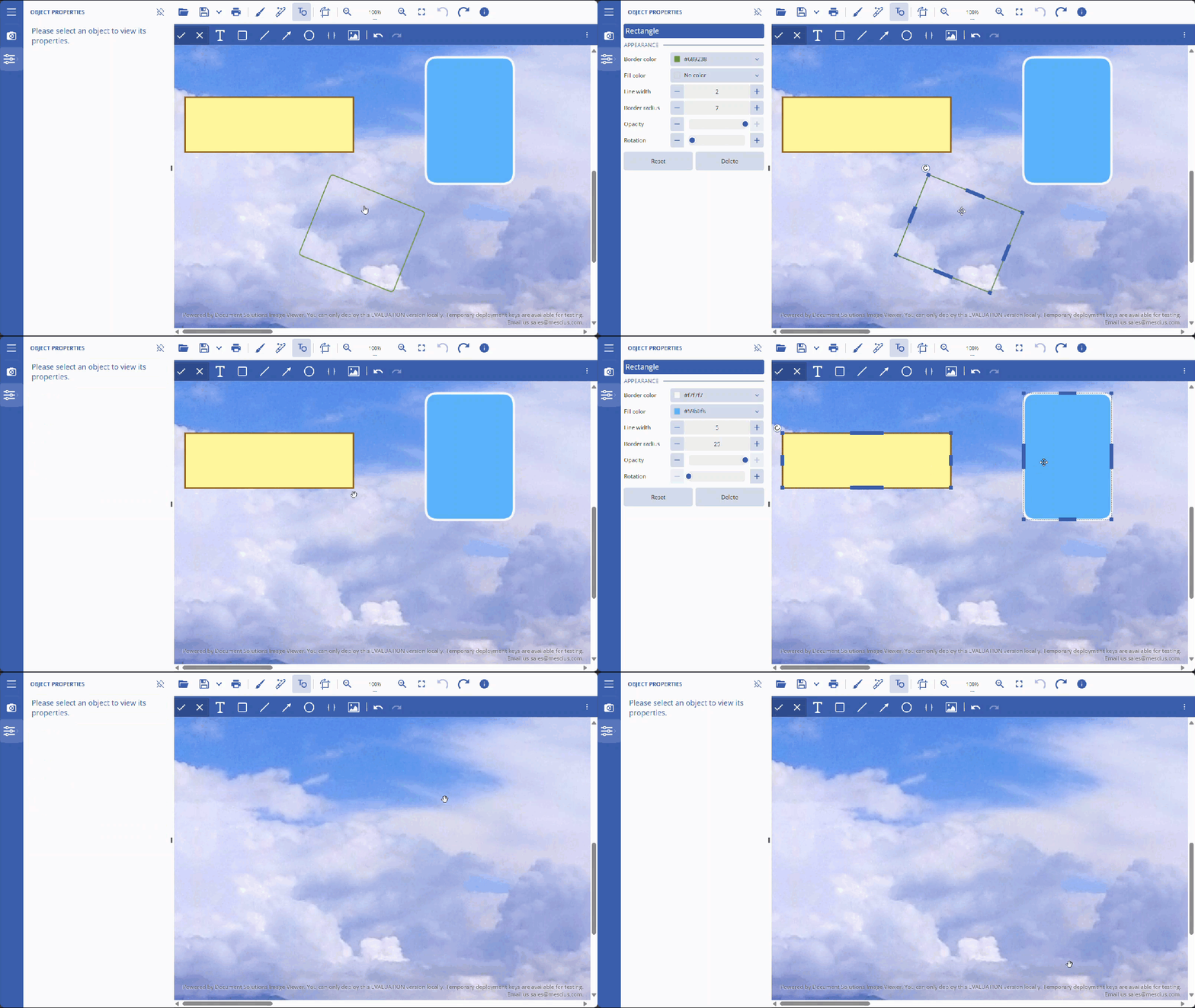
Image Gallery
Image gallery is a toolbar button that opens a collection of preset and custom images for quick insertion. Use it to insert, resize, move, select, and remove gallery images. Refer to the step-by-step workflows below:
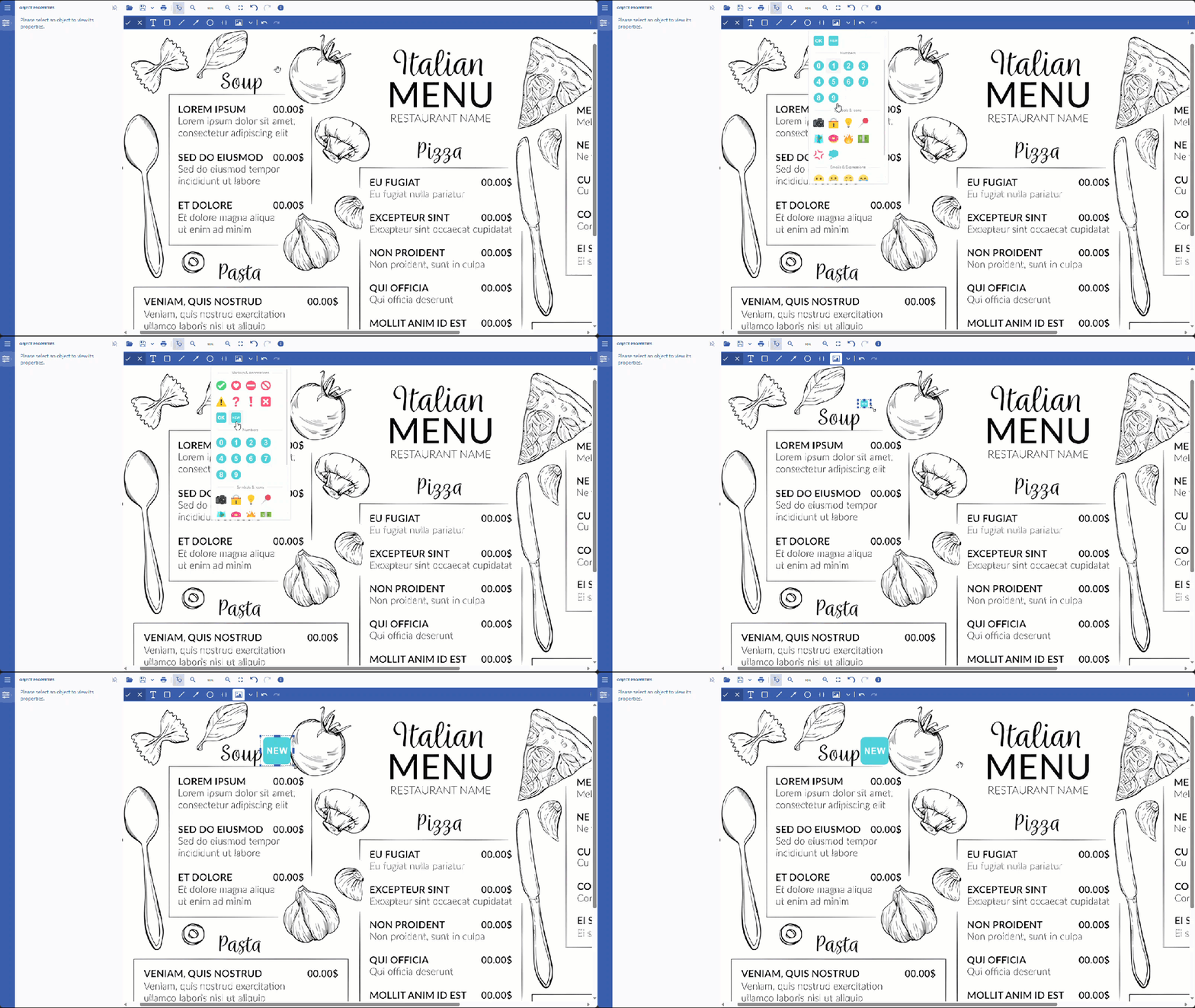
Add Image from Image Gallery
Click on the Image Gallery button, select your desired image, and add it on the desired location.
Position and size the image, then click outside.
Edit Image from Image Gallery
Click on the image to open the properties panel.
Edit the properties, then press the Control+Enter keys to apply changes.
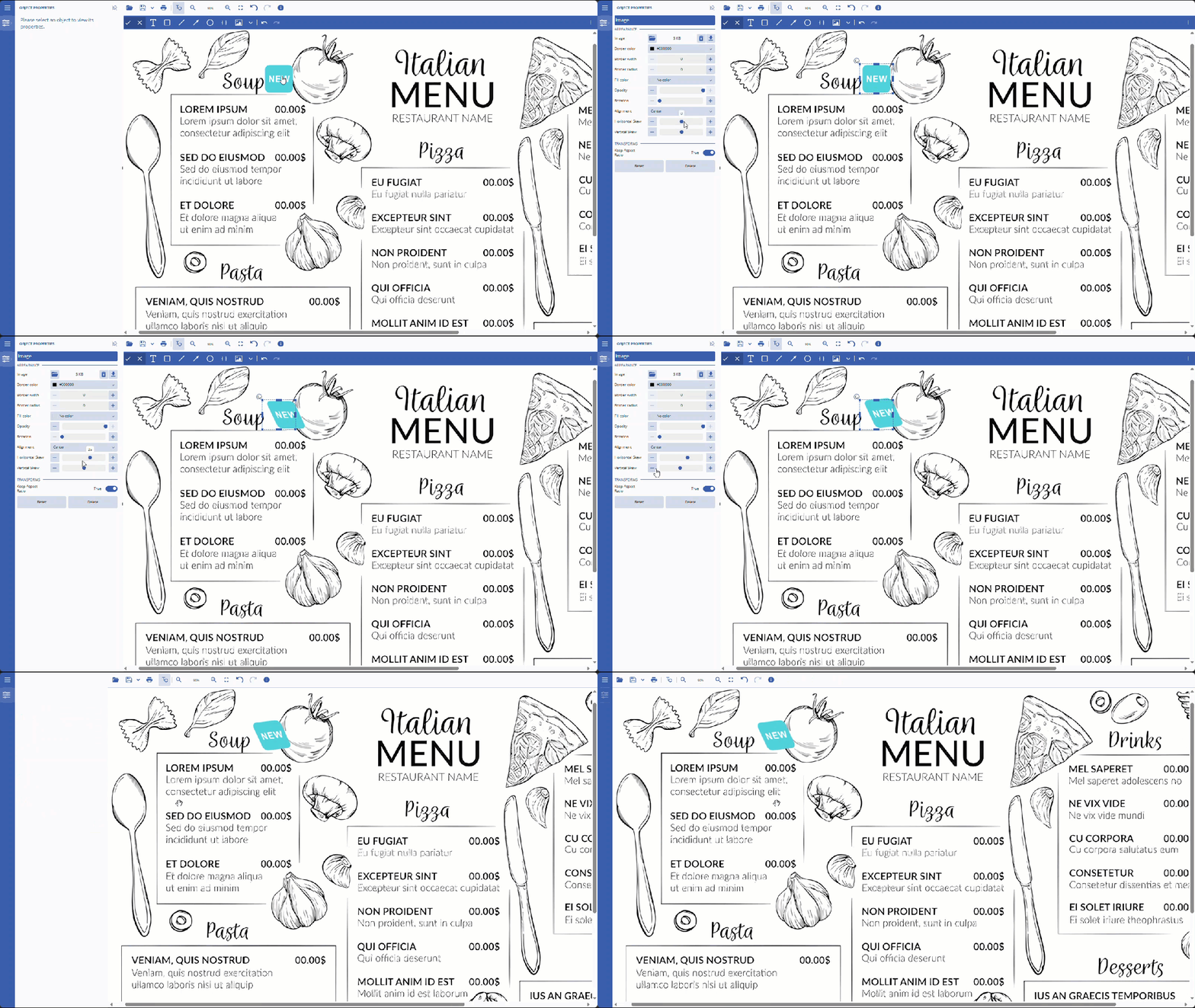
Move Image from Image Gallery
Click on the image. The move cursor icon will appear.
Click and move the image to the desired location.
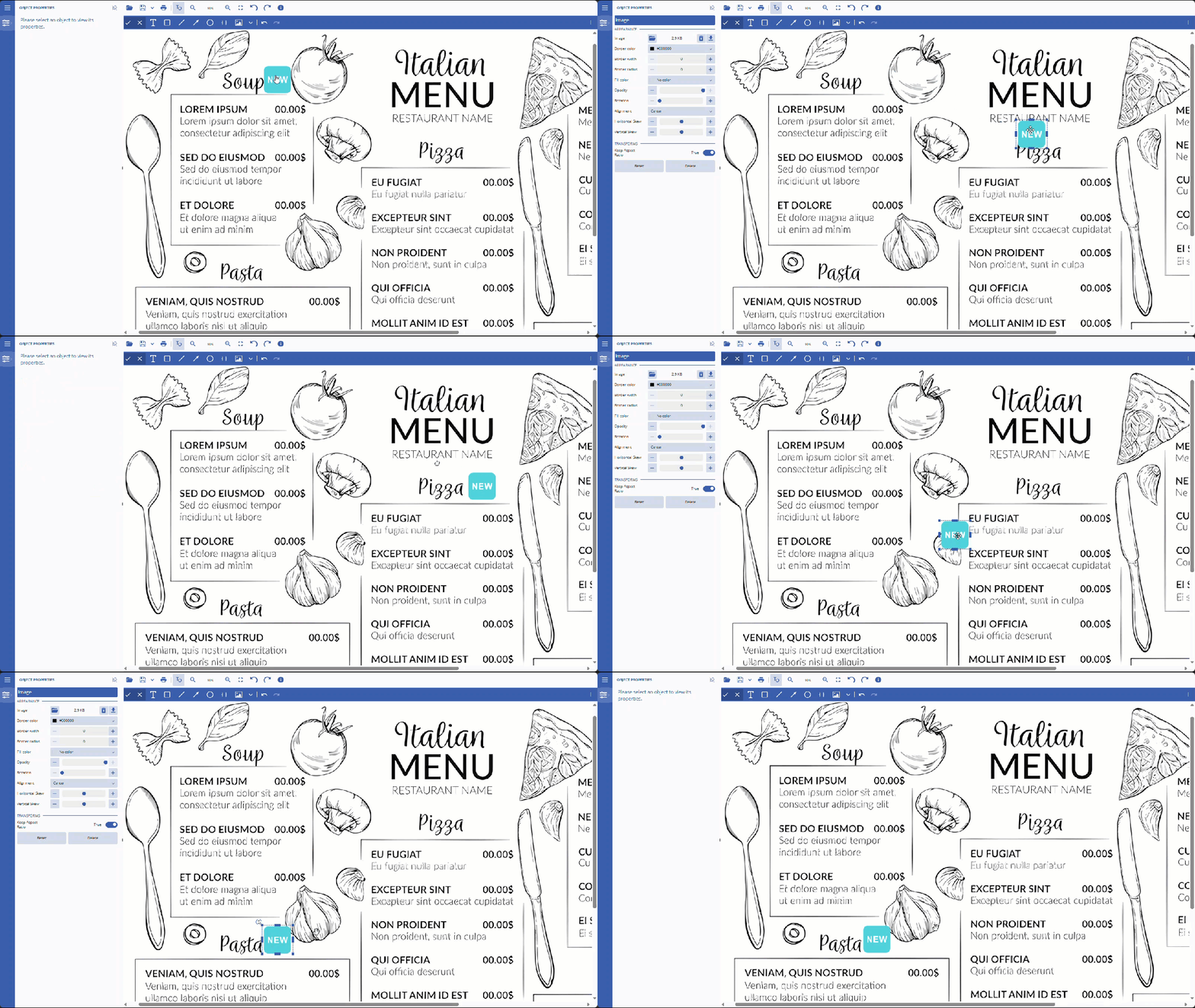
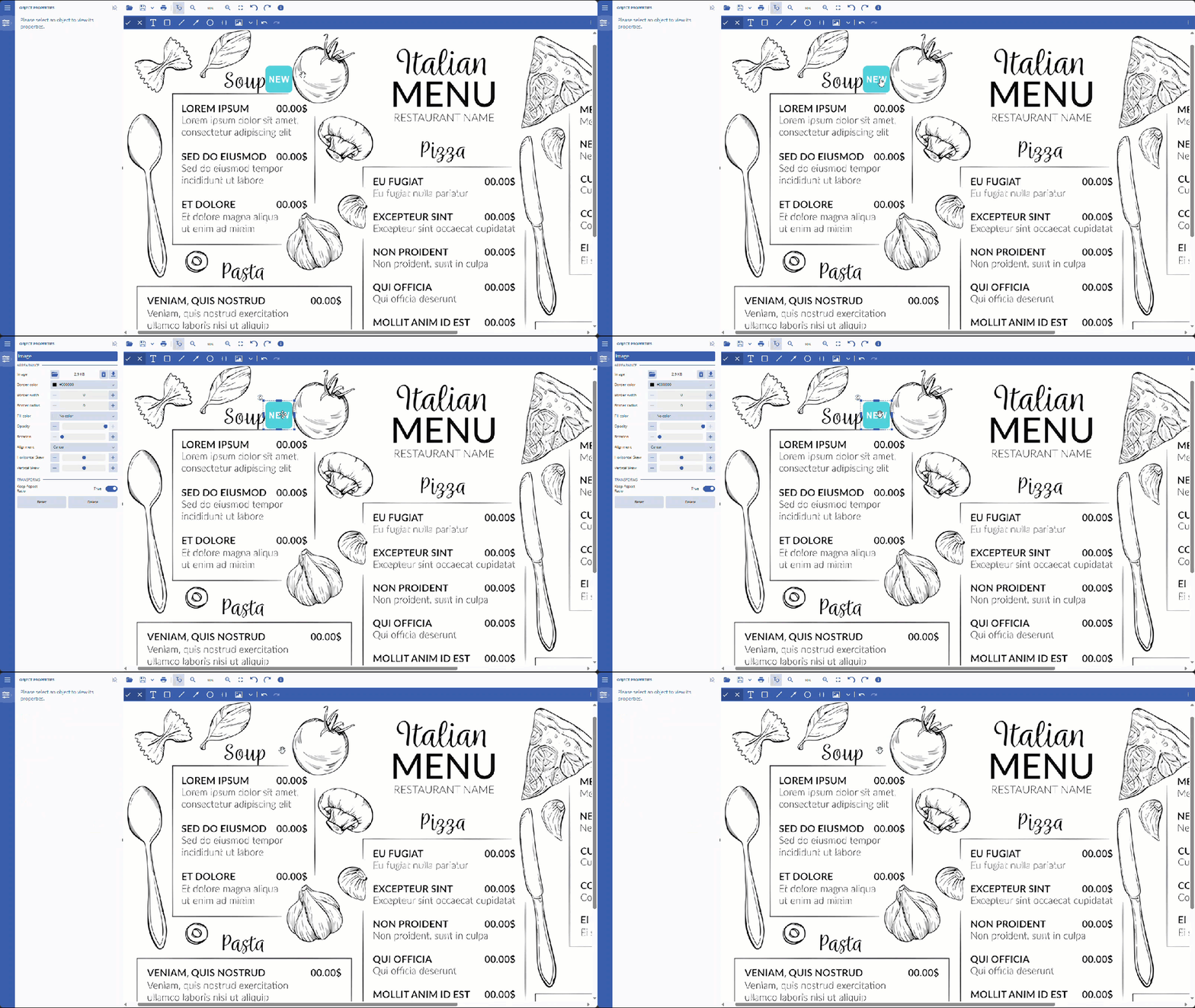
Select and Delete Image from Image Gallery
To select an image, click on it.
To delete an image, press the Delete button.
Limitations
DsImageViewer does not support editing images with animation or multi-frame images. The following is a list of uneditable image formats:
GIF
ICO
SVG
TIFF