- Document Solutions for Excel Java Overview
- Key Features
- Getting Started
- Features
- Templates
- Formula Reference
- File Operations
-
Tutorials
- Saving and Export Excel XLSX Files Using Java
- Creating and Formatting Excel Tables Using Java
- Creating Pivot Tables in Excel Using Java
- Adding Charts to Excel Files Programmatically in Java
- Use Excel Formulas and Named Ranges Programmatically in Java
- Apply Excel Styles, Formatting, and Conditional Formatting in Java
- Use JDK 8 Date Time API
- Document Solutions Data Viewer
- API Reference
- Release Notes
Use Excel Formulas and Named Ranges Programmatically in Java
This tutorial shows how to add dynamic calculations to Excel workbooks using Document Solutions for Excel, Java Edition (DsExcel Java).
You’ll learn how to:
Set Excel formulas in cells using the setFormula() method
Create named formulas (reusable calculations)
Reference worksheet ranges and Excel tables
Build simple totals and balances
Understand how DsExcel handles formula recalculation when saving
Prerequisites
JDK 8+
DsExcel Java (JARs on your classpath)
import com.grapecity.documents.excel.*;1) Create a Workbook and Add Sample Data
This tutorial assumes you already know how to create a workbook and worksheet.
Workbook workbook = new Workbook();
IWorksheet worksheet = workbook.getWorksheets().get(0);
worksheet.setName("Formulas");
Add a small dataset for income and expenses:
Object[][] incomeData = new Object[][] {
    {"ITEM", "AMOUNT"},
    {"Income 1", 2500},
    {"Income 2", 1000},
    {"Income 3", 250},
    {"Other", 250},
};

Object[][] expenseData = new Object[][] {
    {"ITEM", "AMOUNT"},
    {"Rent/mortgage", 800},
    {"Electricity", 120},
    {"Gas", 50},
    {"Groceries", 500},
    {"Car payment", 273},
};

worksheet.getRange("B3:C7").setValue(incomeData);
worksheet.getRange("B10:C15").setValue(expenseData);
2) Convert Ranges into Tables (Optional but Recommended)
Excel tables make formulas easier to read and more resilient because they use structured references.
ITable incomeTable = worksheet.getTables().add(worksheet.getRange("B3:C7"), true);
incomeTable.setName("tblIncome");

ITable expensesTable = worksheet.getTables().add(worksheet.getRange("B10:C15"), true);
expensesTable.setName("tblExpenses");
3) Create Named Formulas (Reusable Calculations)
Named formulas let you define calculations once and reuse them throughout the workbook.
worksheet.getNames().add("TotalMonthlyIncome", "=SUM(tblIncome[AMOUNT])");
worksheet.getNames().add("TotalMonthlyExpenses", "=SUM(tblExpenses[AMOUNT])");
These names behave like Excel-defined names and can be referenced in formulas anywhere in the workbook.
4) Set Formulas on Cells
Now you can populate a summary section using formulas with setFormula()
worksheet.getRange("E6").setValue("Total Monthly Income");
worksheet.getRange("E7").setValue("Total Monthly Expenses");
worksheet.getRange("E9").setValue("Balance");

worksheet.getRange("G6").setFormula("=TotalMonthlyIncome");
worksheet.getRange("G7").setFormula("=TotalMonthlyExpenses");
worksheet.getRange("G9").setFormula("=TotalMonthlyIncome-TotalMonthlyExpenses");
5) Example: Percentage Calculation
You can also compute ratios, such as the percentage of income spent.
worksheet.getRange("E3").setValue("Percent of Income Spent");
worksheet.getRange("G3").setFormula("=TotalMonthlyExpenses/TotalMonthlyIncome");
worksheet.getRange("G3").setNumberFormat("0.00%");
Referencing Worksheet Ranges Directly (Without Tables)
You can also use standard Excel A1 references if you don’t want tables.
worksheet.getRange("G12").setFormula("=SUM(C4:C7)");How Formula Recalculation Works
DsExcel writes formulas directly into the .xlsx file, just like Excel does.
When the workbook is opened in Excel (or another spreadsheet program), formulas automatically recalculate using the latest data.
This makes DsExcel a strong fit for:
Server-side report generation
Exporting Excel templates with dynamic totals
Automated financial summaries and dashboards
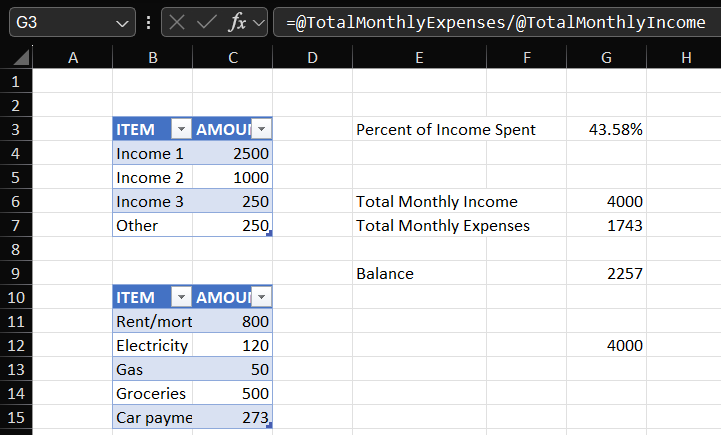
Save the Workbook
workbook.save("FormulasAndNamedRanges.xlsx");The resulting worksheet will appear as follows, with formulas inserted in their respective cells.