


- Document Solutions for Excel Java Overview
- Key Features
- Getting Started
- Features
- Templates
- Formula Reference
- File Operations
-
Tutorials
- Saving and Export Excel XLSX Files Using Java
- Creating and Formatting Excel Tables Using Java
- Creating Pivot Tables in Excel Using Java
- Adding Charts to Excel Files Programmatically in Java
- Use Excel Formulas and Named Ranges Programmatically in Java
- Apply Excel Styles, Formatting, and Conditional Formatting in Java
- Use JDK 8 Date Time API
- Document Solutions Data Viewer
- API Reference
- Release Notes
Creating Pivot Tables in Excel Using Java
Creating Pivot Tables in Excel Using Java (DsExcel Java)
This tutorial shows how to generate Excel pivot tables programmatically using Document Solutions for Excel, Java Edition (DsExcel Java). You’ll place your raw dataset on a dedicated source worksheet, then generate a pivot table on a separate report worksheet.
Pivot tables are one of the most useful Excel features for summarizing large datasets, such as sales reports, inventory lists, logs, or financial exports. With DsExcel Java, you can automate pivot table creation directly in your Java applications.
How Pivot Tables Work in DsExcel Java
DsExcel creates pivot tables in two steps:
Create a pivot cache using
IPivotCaches.create(...)(this defines the pivot data source).Insert a pivot table using
IPivotTables.add(...)(this places the pivot table into a worksheet using the cache).
You can build the pivot cache from either:
A range (range-based data source), or
A table (table-based data source)
Prerequisites
JDK 8+
DsExcel Java (JARs added to your classpath)
import com.grapecity.documents.excel.*;1) Add Pivot Source Data to a Separate Worksheet
Start by creating a workbook and a worksheet dedicated to pivot source data.
Workbook workbook = new Workbook();

IWorksheet sourceSheet = workbook.getWorksheets().get(0);
sourceSheet.setName("Pivot Source");
Add a dataset (header row + records) into a range. Pivot tables typically work best when your dataset is a clean rectangle with column headers.
Object[][] sourceData = new Object[][]{
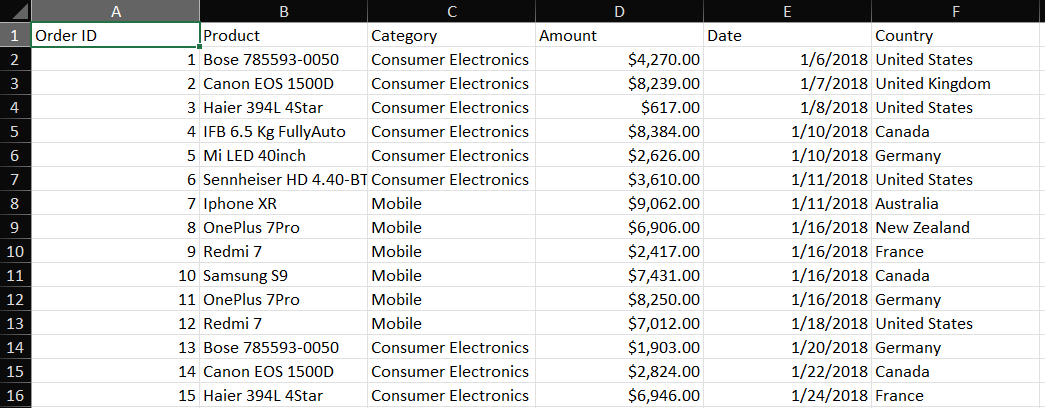
    {"Order ID", "Product", "Category", "Amount", "Date", "Country"},
    {1, "Bose 785593-0050", "Consumer Electronics", 4270, new GregorianCalendar(2018, 0, 6), "United States"},
    {2, "Canon EOS 1500D", "Consumer Electronics", 8239, new GregorianCalendar(2018, 0, 7), "United Kingdom"},
    {3, "Haier 394L 4Star", "Consumer Electronics", 617, new GregorianCalendar(2018, 0, 8), "United States"},
    {4, "IFB 6.5 Kg FullyAuto", "Consumer Electronics", 8384, new GregorianCalendar(2018, 0, 10), "Canada"},
    {5, "Mi LED 40inch", "Consumer Electronics", 2626, new GregorianCalendar(2018, 0, 10), "Germany"},
    {6, "Sennheiser HD 4.40-BT", "Consumer Electronics", 3610, new GregorianCalendar(2018, 0, 11), "United States"},
    {7, "Iphone XR", "Mobile", 9062, new GregorianCalendar(2018, 0, 11), "Australia"},
    {8, "OnePlus 7Pro", "Mobile", 6906, new GregorianCalendar(2018, 0, 16), "New Zealand"},
    {9, "Redmi 7", "Mobile", 2417, new GregorianCalendar(2018, 0, 16), "France"},
    {10, "Samsung S9", "Mobile", 7431, new GregorianCalendar(2018, 0, 16), "Canada"},
    {11, "OnePlus 7Pro", "Mobile", 8250, new GregorianCalendar(2018, 0, 16), "Germany"},
    {12, "Redmi 7", "Mobile", 7012, new GregorianCalendar(2018, 0, 18), "United States"},
    {13, "Bose 785593-0050", "Consumer Electronics", 1903, new GregorianCalendar(2018, 0, 20), "Germany"},
    {14, "Canon EOS 1500D", "Consumer Electronics", 2824, new GregorianCalendar(2018, 0, 22), "Canada"},
    {15, "Haier 394L 4Star", "Consumer Electronics", 6946, new GregorianCalendar(2018, 0, 24), "France"},
};

sourceSheet.getRange("A1:F16").setValue(sourceData);
sourceSheet.getRange("A:F").setColumnWidth(18);
sourceSheet.getRange("D2:D16").setNumberFormat("$#,##0.00"); // Amount column
The Pivot Source sheet data will look as follows:
2) Create a Separate Worksheet for the Pivot Table Output
Create a second worksheet that will contain the pivot table.
IWorksheet pivotSheet = workbook.getWorksheets().add();
pivotSheet.setName("Pivot Report");
3) Create the Pivot Cache (IPivotCache)
Build the pivot cache using the source range on the source worksheet.
IPivotCache pivotCache = workbook.getPivotCaches()
    .create(sourceSheet.getRange("A1:F16"));
4) Add the Pivot Table (IPivotTable)
Insert the pivot table onto the pivot report sheet, starting at a chosen cell (for example, A1).
IPivotTable pivotTable = pivotSheet.getPivotTables()
    .add(pivotCache, pivotSheet.getRange("A1"), "pivotTable1");
5) Configure Pivot Fields (Orientation Examples)
Assign fields to their pivot roles:
RowField: items listed vertically
ColumnField: grouped across the top
DataField: summarized values (Sum, Count, etc.)
PageField: filter dropdown
This setup creates a pivot where:
Product = rows
Category = columns
Amount = summarized totals
Country = filter
IPivotField fieldCategory = pivotTable.getPivotFields().get("Category");
fieldCategory.setOrientation(PivotFieldOrientation.ColumnField);

IPivotField fieldProduct = pivotTable.getPivotFields().get("Product");
fieldProduct.setOrientation(PivotFieldOrientation.RowField);

IPivotField fieldAmount = pivotTable.getPivotFields().get("Amount");
fieldAmount.setOrientation(PivotFieldOrientation.DataField);
fieldAmount.setNumberFormat("$#,##0.00");

IPivotField fieldCountry = pivotTable.getPivotFields().get("Country");
fieldCountry.setOrientation(PivotFieldOrientation.PageField);

// Optional: make the report sheet readable
pivotSheet.getRange("A:D").getEntireColumn().autoFit();
Final Pivot Table Output
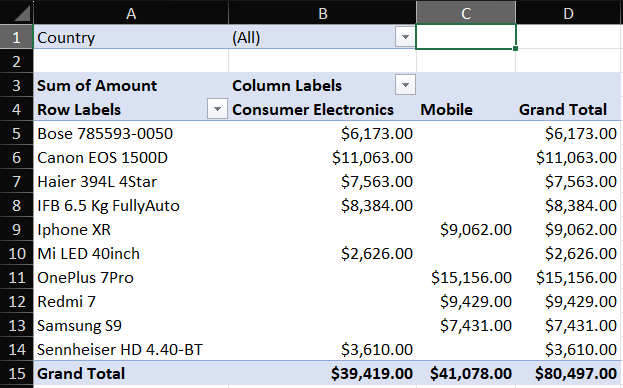
When you open the generated workbook in Excel, you’ll see:
Pivot Source sheet: your raw dataset (A1:F16)
Pivot Report sheet: a pivot table beginning at A1 that:
Lists Products down the left (rows)
Shows Categories across the top (columns)
Displays Sum of Amount in the values area
Includes a Country filter dropdown (page field)
Save the Workbook
workbook.save("CreatePivotTable.xlsx");Next Steps
Explore the full documentation for pivot tables here
View our full-featured demos on pivot tables