


- Document Solutions for Excel Java Overview
- Key Features
- Getting Started
- Features
- Templates
- Formula Reference
- File Operations
-
Tutorials
- Saving and Export Excel XLSX Files Using Java
- Creating and Formatting Excel Tables Using Java
- Creating Pivot Tables in Excel Using Java
- Adding Charts to Excel Files Programmatically in Java
- Use Excel Formulas and Named Ranges Programmatically in Java
- Apply Excel Styles, Formatting, and Conditional Formatting in Java
- Use JDK 8 Date Time API
- Document Solutions Data Viewer
- API Reference
- Release Notes
Creating and Formatting Excel Tables Using Java
Creating and Formatting Excel Tables Using Java (DsExcel Java)
This tutorial shows how to take raw worksheet data and convert it into a structured Excel Table using Document Solutions for Excel, Java Edition (DsExcel Java).
You’ll learn how to:
Add a simple dataset to a worksheet
Convert a range into an Excel table using the Worksheet.getTables().add method.
Apply a built-in TableStyle for a clean, formatted result
Prerequisites
Before you begin, make sure you have:
JDK 8 or later
Document Solutions for Excel, Java Edition (DsExcel Java)
DsExcel JARs added to your classpath
Import the required namespace:
import com.grapecity.documents.excel.*;1) Create a Workbook and Worksheet (Minimal Setup)
This tutorial assumes you already know how to initialize a workbook, shown below.
Workbook workbook = new Workbook();
IWorksheet worksheet = workbook.getWorksheets().get(0);
worksheet.setName("Tables");
2) Add Sample Data to the Worksheet
We’ll start with a small dataset (header row + values), then place it into a worksheet range.
Object[][] sourceData = new Object[][] {
    {"ITEM", "AMOUNT"},
    {"Income 1", 2500},
    {"Income 2", 1000},
    {"Income 3", 250},
    {"Other", 250},
};

worksheet.getRange("B3:C7").setValue(sourceData);
At this stage, the worksheet contains raw values, but it is not yet a structured Excel table.
3) Convert the Range into an Excel Table
Use the Worksheet.getTables().add() method to convert the data range into a structured table.
The second argument set to true indicates the range includes a header row.
ITable incomeTable = worksheet.getTables().add(worksheet.getRange("B3:C7"), true);
incomeTable.setName("tblIncome");
4) Apply a Built-In Table Style
Once the range is a table, you can apply a predefined Excel table style.
incomeTable.setTableStyle(workbook.getTableStyles().get("TableStyleMedium4"));Visual Outcome (Formatted Excel Table)
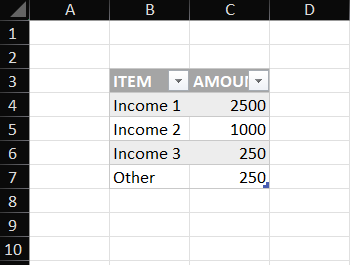
After converting the range into a table and applying a style, the worksheet will display:
A styled header row
Alternating row shading (depending on style)
Table filtering dropdowns in the header row
A structured table object that Excel recognizes as a real table
Save the Workbook
workbook.save("ExcelTables.xlsx");Next Steps
Explore more within our documentation on table styling here.
Checkout our full-featured demos on working with tables in Excel in Java here.