


- Document Solutions for Excel Java Overview
- Key Features
- Getting Started
-
Features
- Worksheet
- Workbook
- Comments
- Hyperlinks
- Sort
- Filter
- Group
- Conditional Formatting
- Data Validations
- Data Binding
- Import Data
- Digital Signatures
- Formulas
- Custom Functions
- Shapes
- Document Properties
- Styles
- Form Controls
- Barcodes
- Themes and Colors
- Chart
- Table
- Pivot Table
- Pivot Chart
- Sparkline
- Slicer
- Print Settings
- Logging
- Defined Names
- AI Assistant
- Templates
- Formula Reference
- File Operations
- Tutorials
- Use JDK 8 Date Time API
- Document Solutions Data Viewer
- API Reference
- Release Notes
Retrieve Pivot Table Ranges and Data
DsExcel allows you to retrieve specific ranges and data from your pivot table.
Retrieve Pivot Table Ranges
The structure of a pivot table report is comprised of different ranges. In order to retrieve a specific range of pivot table, it is important to understand the structure of a pivot table.
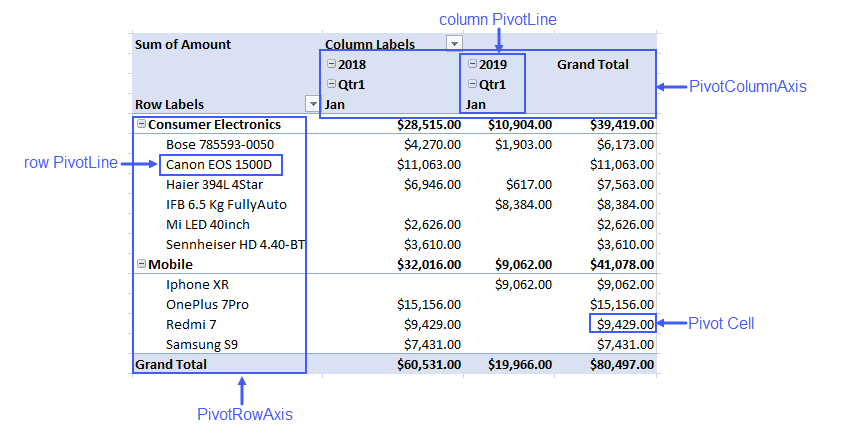
As can be observed from the above screenshot, the structure of a pivot table can be explained as:
PivotRowAxis: The row axis area of a pivot table contains fields which group the table's data by rows
PivotColumnAxis: The column axis area of a pivot table contains fields which break the table's data into different categories by columns.
Pivot Cell: Any cell in a pivot table
Row PivotLine: Any row in the row axis area of a pivot table
Column PivotLine: Any column in the column axis area of a pivot table
DsExcel provides API to retrieve the detailed ranges of a pivot table to apply any operation or style on them to make the result more readable and distinguishable. Detailed pivot table ranges which can be retrieved are:
Different types of pivot cells like subtotals, grand totals, data fields, pivot fields, values, blank cells
Different types of pivot lines like subtotal, grand total, regular or blank line
Entire row or column axis
Whole page area
Entire pivot table report including page fields
A value in any range of pivot table
The position of any element or pivot line
Refer to the following example code to get a specific range and set its style in a pivot table report.
// Get detail range and set style.
for (IPivotLine item : pivottable.getPivotRowAxis().getPivotLines()) {
    if (item.getLineType() == PivotLineType.Subtotal) {
        item.getPivotLineCells().get(0).getRange().getInterior().setColor(Color.GetGreenYellow());
    }
}
The output of above code example when viewed in Excel, looks like below:
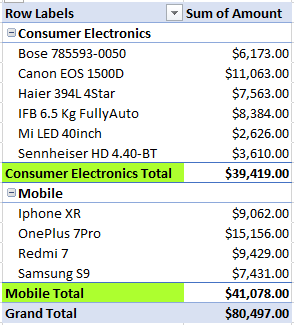
Note: Style applied to a pivot table is lost if the pivot table is changed in any way.
Get Pivot Table Data
DsExcel Java provides GETPIVOTDATA function which queries the pivot table to fetch data as per the specified parameters. The main advantage of using this function is that it ensures that the correct data is returned, even if the pivot table layout has changed.
Syntax
=GETPIVOTDATA(data_field, pivot_table, [field1, item1, field2, item2],´)
GETPIVOTDATA function can be implemented to return a single cell value or a dynamic array depending on the parameters we are passing. To retrieve a single cell value, name of the data field and pivot table are mandatory parameters. While the third parameter which is a combination of field names and item names, is optional. However, for retrieving a dynamic array, all three parameters are required and the item name supports array like {^Canada ̄, ^US ̄, ^France ̄) or a range reference like A1:A3. Also, you must use IRange.setFormula2 for GETPIVOTDATA function to return a dynamic array which is spilled across a range. For ease of use, you can also automatically generate GETPIVOTDATA function by using the IRange.generateGetPivotDataFunction method. However, the generateGetPivotDataFunction method returns null when the IRange object is not a single cell.
Refer to the following example code for GETPIVOTDATA function returning a single cell:
IWorksheet worksheet2 = workbook.getWorksheets().add();
worksheet.getRange("H25").setFormula(worksheet.getRange("G6").generateGetPivotDataFunction(worksheet2.getRange("A1")));
worksheet2.getRange("H24").setFormula("=GETPIVOTDATA(\"Amount\",Sheet1!$A$1,\"Category\",\"Mobile\",\"Country\",\"Australia\")");
Refer to the following example code for GETPIVOTDATA function returning a dynamic array:
// Here, Formula2 is used along with GETPIVOTDATA to fetch the multiple values
worksheet.getRange("H10").setFormula2("=GETPIVOTDATA(\"Amount\",$A$1,\"Category\",\"Consumer Electronics\",\"Country\",{\"Canada\",\"Germany\",\"France\"})");