


- Document Solutions for Excel Java Overview
- Key Features
- Getting Started
-
Features
- Worksheet
- Workbook
- Comments
- Hyperlinks
- Sort
- Filter
- Group
- Conditional Formatting
- Data Validations
- Data Binding
- Import Data
- Digital Signatures
- Formulas
- Custom Functions
- Shapes
- Document Properties
- Styles
- Form Controls
- Barcodes
- Themes and Colors
- Chart
- Table
- Pivot Table
- Pivot Chart
- Sparkline
- Slicer
- Print Settings
- Logging
- Defined Names
- AI Assistant
- Templates
- Formula Reference
- File Operations
- Tutorials
- Use JDK 8 Date Time API
- Document Solutions Data Viewer
- API Reference
- Release Notes
Group Pivot Table Fields
DsExcel Java allows you to group pivot table fields to summarize data more effectively. You can group date fields by date or time units, group numeric fields into ranges, and group selected items into custom categories.
Use the group method of the IPivotField interface to group a pivot table field. DsExcel also supports renaming grouped items and ungrouping when it is no longer needed. Grouping information is preserved after pivot table refresh, update, layout changes, and JSON, SJS or XLSX import and export operations.
Important:
If a pivot cache contains calculated items, grouping is not supported for fields in that cache.
If the source data type changes after refresh, the existing grouping may no longer be retained. For example, if a pure date field becomes a mixed-data field, date grouping is removed because the field no longer satisfies the grouping requirement.
When multiple pivot tables share the same IPivotCache, grouping changes remain consistent across all pivot tables that depend on that cache.
Group Date Fields
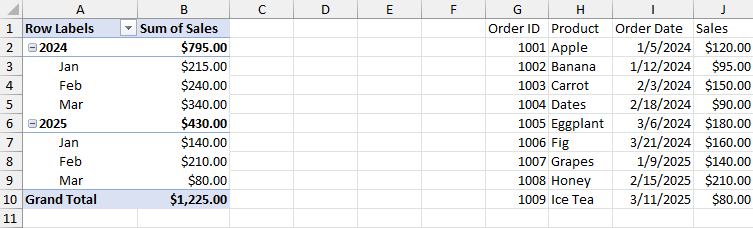
Use date grouping to organize a date field by one or more time units such as seconds, minutes, hours, days, months, quarters, or years. You can also define custom ranges, such as a 7‑day interval (for a weekly view) or any other span that fits your scenario. After the grouping is applied, DsExcel Java creates grouped fields for the selected time units. For example, grouping the Order Date field by years and quarters adds grouped fields such as Years (Order Date) and Quarters (Order Date).
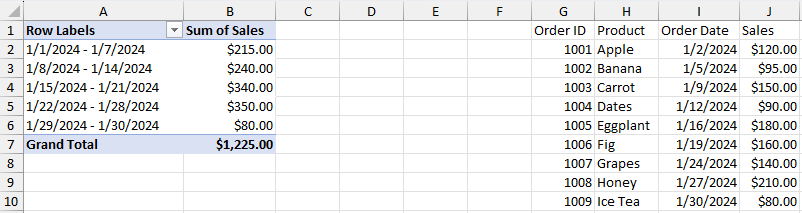
You can control the grouped range by using the setStart, setEnd, setAutoStart, and setAutoEnd methods of PivotFieldDateGroupOptions. If day grouping is used, the setDays method specifies the number of days in each group.
Refer to the following example code to group a date field by months and years.
// Create a new workbook.
Workbook workbook = new Workbook();
workbook.getOptions().getData().setAutomaticGroupDateTimeInPivotTable(false);

// Set data.
Object[][] sourceData = new Object[][] {
    { "Order ID", "Product", "Order Date", "Sales" },
    { 1001, "Apple", java.time.LocalDateTime.of(2024, 1, 5, 0, 0), 120d },
    { 1002, "Banana", java.time.LocalDateTime.of(2024, 1, 12, 0, 0), 95d },
    { 1003, "Carrot", java.time.LocalDateTime.of(2024, 2, 3, 0, 0), 150d },
    { 1004, "Dates", java.time.LocalDateTime.of(2024, 2, 18, 0, 0), 90d },
    { 1005, "Eggplant", java.time.LocalDateTime.of(2024, 3, 6, 0, 0), 180d },
    { 1006, "Fig", java.time.LocalDateTime.of(2024, 3, 21, 0, 0), 160d },
    { 1007, "Grapes", java.time.LocalDateTime.of(2025, 1, 9, 0, 0), 140d },
    { 1008, "Honey", java.time.LocalDateTime.of(2025, 2, 15, 0, 0), 210d },
    { 1009, "Ice Tea", java.time.LocalDateTime.of(2025, 3, 11, 0, 0), 80d },
};

IWorksheet worksheet = workbook.getWorksheets().get(0);
worksheet.getRange("G1:J10").setValue(sourceData);
worksheet.getRange("I2:I10").setNumberFormat("m/d/yyyy");
worksheet.getRange("J2:J10").setNumberFormat("$#,##0.00");

// Add a pivot table.
IPivotCache pivotcache = workbook.getPivotCaches().create(worksheet.getRange("G1:J10"));
IPivotTable pivottable = worksheet.getPivotTables().add(
    pivotcache,
    worksheet.getRange("A1"),
    "dateGroupPivot"
);

IPivotField fieldOrderDate = pivottable.getPivotFields().get("Order Date");
fieldOrderDate.setOrientation(PivotFieldOrientation.RowField);

IPivotField fieldSales = pivottable.getPivotFields().get("Sales");
fieldSales.setOrientation(PivotFieldOrientation.DataField);
fieldSales.setNumberFormat("$#,##0.00");

// Group the "Order Date" field by Years and Months.
PivotFieldDateGroupOptions options = new PivotFieldDateGroupOptions();
options.setGroupBy(java.util.Arrays.asList(
    PivotFieldDateGroupBy.Months,
    PivotFieldDateGroupBy.Years
));
fieldOrderDate.group(options);

worksheet.getRange("A:J").getEntireColumn().autoFit();

// Save to an excel file.
workbook.save("DateGroup.xlsx");
The output is shown in the figure below:
Use day grouping when you want to summarize dates in fixed-length intervals, such as every 7 days for weekly-style analysis.
Refer to the following example code to group a date field into 7-day intervals.
// Create a new workbook.
Workbook workbook = new Workbook();
workbook.getOptions().getData().setAutomaticGroupDateTimeInPivotTable(false);

// Set data.
Object[][] sourceData = new Object[][] {
    { "Order ID", "Product", "Order Date", "Sales" },
    { 1001, "Apple", java.time.LocalDateTime.of(2024, 1, 2, 0, 0), 120d },
    { 1002, "Banana", java.time.LocalDateTime.of(2024, 1, 5, 0, 0), 95d },
    { 1003, "Carrot", java.time.LocalDateTime.of(2024, 1, 9, 0, 0), 150d },
    { 1004, "Dates", java.time.LocalDateTime.of(2024, 1, 12, 0, 0), 90d },
    { 1005, "Eggplant", java.time.LocalDateTime.of(2024, 1, 16, 0, 0), 180d },
    { 1006, "Fig", java.time.LocalDateTime.of(2024, 1, 19, 0, 0), 160d },
    { 1007, "Grapes", java.time.LocalDateTime.of(2024, 1, 24, 0, 0), 140d },
    { 1008, "Honey", java.time.LocalDateTime.of(2024, 1, 27, 0, 0), 210d },
    { 1009, "Ice Tea", java.time.LocalDateTime.of(2024, 1, 30, 0, 0), 80d },
};

IWorksheet worksheet = workbook.getWorksheets().get(0);
worksheet.getRange("G1:J10").setValue(sourceData);
worksheet.getRange("I2:I10").setNumberFormat("m/d/yyyy");
worksheet.getRange("J2:J10").setNumberFormat("$#,##0.00");

// Add a pivot table.
IPivotCache pivotcache = workbook.getPivotCaches().create(worksheet.getRange("G1:J10"));
IPivotTable pivottable = worksheet.getPivotTables().add(
    pivotcache,
    worksheet.getRange("A1"),
    "dayGroupPivot"
);

IPivotField fieldOrderDate = pivottable.getPivotFields().get("Order Date");
fieldOrderDate.setOrientation(PivotFieldOrientation.RowField);

IPivotField fieldSales = pivottable.getPivotFields().get("Sales");
fieldSales.setOrientation(PivotFieldOrientation.DataField);
fieldSales.setNumberFormat("$#,##0.00");

// Group the "Order Date" field into 7-day intervals.
PivotFieldDateGroupOptions options = new PivotFieldDateGroupOptions();
options.setGroupBy(java.util.Collections.singletonList(PivotFieldDateGroupBy.Days));
options.setDays(7);
options.setStart(java.time.LocalDateTime.of(2024, 1, 1, 0, 0));
options.setEnd(java.time.LocalDateTime.of(2024, 1, 31, 0, 0));
options.setAutoStart(false);
options.setAutoEnd(false);
fieldOrderDate.group(options);

worksheet.getRange("A:J").getEntireColumn().autoFit();

// Save to an excel file.
workbook.save("DayGroup.xlsx");
The output is shown in the figure below:
Date grouping creates generated fields for the selected date or time units. By default, if the base field is placed in the Row or Column area, DsExcel Java automatically adds the generated fields to the same layout area.
You can use the setAddGeneratedFieldsToLayout method of PivotFieldDateGroupOptions to control this behavior. The default value is true. If the base field is outside the row or column area, this method has no effect and the generated fields are not added to the layout.
Set this method to false when you want to prevent the generated field from being inserted into the pivot table layout automatically after grouping.
Note: This option is useful when multiple pivot tables share the same IPivotCache. It prevents the layout of other pivot tables from being modified when a field is grouped in the current pivot table.
// Group the "Order Date" field by years and months, but do not add the generated fields to the layout automatically.
PivotFieldDateGroupOptions options = new PivotFieldDateGroupOptions();
options.setGroupBy(java.util.Arrays.asList(
    PivotFieldDateGroupBy.Years,
    PivotFieldDateGroupBy.Months
));
options.setAddGeneratedFieldsToLayout(false);
fieldOrderDate.group(options);
Automatic Grouping
DsExcel Java also supports automatic date grouping through the setAutomaticGroupDateTimeInPivotTable method, which is true by default. When this method is set to true, date grouping is created automatically to match Excel-compatible behavior when a date field is placed in the Row or Column area during pivot table creation or refresh.
Important:
Date grouping can only be applied to pure date fields. If the field contains mixed or non-date values, calling the group method throws an exception.
If a date field is grouped multiple times, the previous grouping is not retained, and only the last grouping takes effect. For example, if you first group by Year and Month, and then group again by Year and Quarter, only the Year and Quarter fields will be kept in the end.
Group Numeric Fields
Use numeric grouping to group a numeric field into ranges based on a start value, end value, and interval.
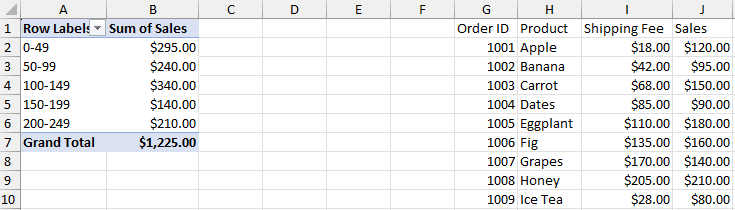
Numeric grouping groups values into buckets on the base field and does not create generated grouped fields. Bucket labels are derived from the base field and the configured range and interval.
You can use the setStart, setEnd, setAutoStart, and setAutoEnd methods of PivotFieldNumberGroupOptions to control the grouping range.
Refer to the following example code to group a numeric field into ranges.
// Create a new workbook.
Workbook workbook = new Workbook();

// Set data.
Object[][] sourceData = new Object[][] {
    { "Order ID", "Product", "Shipping Fee", "Sales" },
    { 1001, "Apple", 18d, 120d },
    { 1002, "Banana", 42d, 95d },
    { 1003, "Carrot", 68d, 150d },
    { 1004, "Dates", 85d, 90d },
    { 1005, "Eggplant", 110d, 180d },
    { 1006, "Fig", 135d, 160d },
    { 1007, "Grapes", 170d, 140d },
    { 1008, "Honey", 205d, 210d },
    { 1009, "Ice Tea", 28d, 80d },
};

IWorksheet worksheet = workbook.getWorksheets().get(0);
worksheet.getRange("G1:J10").setValue(sourceData);
worksheet.getRange("I2:J10").setNumberFormat("$#,##0.00");

// Add a pivot table.
IPivotCache pivotcache = workbook.getPivotCaches().create(worksheet.getRange("G1:J10"));
IPivotTable pivottable = worksheet.getPivotTables().add(
    pivotcache,
    worksheet.getRange("A1"),
    "numberGroupPivot"
);

IPivotField fieldShippingFee = pivottable.getPivotFields().get("Shipping Fee");
fieldShippingFee.setOrientation(PivotFieldOrientation.RowField);

IPivotField fieldSales = pivottable.getPivotFields().get("Sales");
fieldSales.setOrientation(PivotFieldOrientation.DataField);
fieldSales.setNumberFormat("$#,##0.00");

// Group the "Shipping Fee" field by numeric intervals.
// Define grouping range from 0 to 250 with an interval of 50.
PivotFieldNumberGroupOptions options = new PivotFieldNumberGroupOptions();
options.setStart(0d);
options.setEnd(250d);
options.setAutoStart(false);
options.setAutoEnd(false);
options.setInterval(50d);
fieldShippingFee.group(options);

worksheet.getRange("A:J").getEntireColumn().autoFit();

// Save to an excel file.
workbook.save("NumberGroup.xlsx");
The output is shown in the figure below:
Important:
Numeric grouping can only be applied to pure numeric fields. If the field contains non-numeric values, grouping throws an exception.
If a numeric field is grouped more than once, the previous range definition is replaced.
To maintain compatibility with Microsoft Excel, applying custom grouping to a field that is already grouped into numeric ranges has no effect.
Group Selected Items
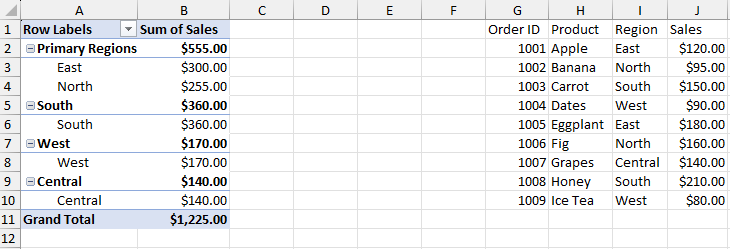
You can group selected pivotItems to create a custom group. Custom grouping creates a generated grouped field. You can use the setName method of PivotFieldCustomGroupOptions to specify a custom group name when the group is created. Custom grouping can be applied to all types of fields, including pure date and numeric fields.
If a new custom grouping overlaps with an existing grouped selection, the new grouping overrides the previous one for the overlapping items. If the selections do not overlap, the new grouped item is added to the generated grouped field.
Custom grouping also supports nested grouping, which means you can create a new grouping based on an existing grouped field.
Similar to date grouping, when the base field is placed in the row or column area, automatic layout insertion for generated fields is controlled by the setAddGeneratedFieldsToLayout method.
Refer to the following example code to group selected items in a pivot table field.
// Create a new workbook.
Workbook workbook = new Workbook();

// Set data.
Object[][] sourceData = new Object[][] {
    { "Order ID", "Product", "Region", "Sales" },
    { 1001, "Apple", "East", 120d },
    { 1002, "Banana", "North", 95d },
    { 1003, "Carrot", "South", 150d },
    { 1004, "Dates", "West", 90d },
    { 1005, "Eggplant", "East", 180d },
    { 1006, "Fig", "North", 160d },
    { 1007, "Grapes", "Central", 140d },
    { 1008, "Honey", "South", 210d },
    { 1009, "Ice Tea", "West", 80d },
};

IWorksheet worksheet = workbook.getWorksheets().get(0);
worksheet.getRange("G1:J10").setValue(sourceData);
worksheet.getRange("J2:J10").setNumberFormat("$#,##0.00");

// Add a pivot table.
IPivotCache pivotcache = workbook.getPivotCaches().create(worksheet.getRange("G1:J10"));
IPivotTable pivottable = worksheet.getPivotTables().add(
    pivotcache,
    worksheet.getRange("A1"),
    "customGroupPivot"
);

IPivotField fieldRegion = pivottable.getPivotFields().get("Region");
fieldRegion.setOrientation(PivotFieldOrientation.RowField);

IPivotField fieldSales = pivottable.getPivotFields().get("Sales");
fieldSales.setOrientation(PivotFieldOrientation.DataField);
fieldSales.setNumberFormat("$#,##0.00");

// Create a custom group in the "Region" field.
// Group "East" and "North" into a new group.
PivotFieldCustomGroupOptions options = new PivotFieldCustomGroupOptions();
options.setName("Core Regions");
options.setItems(java.util.Arrays.asList("East", "North"));
fieldRegion.group(options);

// Rename the created group caption in the pivot table.
fieldRegion.getPivotItems().get("Core Regions").setCaption("Primary Regions");

worksheet.getRange("A:J").getEntireColumn().autoFit();

// Save to an excel file.
workbook.save("CustomGroup.xlsx");
The output is shown in the figure below:
Rename Grouped Items
Use the setCaption method of the IPivotItem interface to rename a grouped item.
Refer to the following example code to rename a grouped item created by custom grouping.
IPivotItem item = pivotTable.getPivotFields()
    .get("Product2")
    .getPivotItems()
    .get("Group1");
item.setCaption("Fresh Fruit");
Ungroup
Use the ungroup method of the IPivotField interface to ungroup a pivot table field. You can use the method on the base field or on a generated grouped field. DsExcel clears all related group fields and restores the original source layout.
If multiple pivot tables share the same IPivotCache, ungrouping changes are reflected in all dependent pivot tables.
Refer to the following example code to remove grouping from a pivot table field.
orderDateField.ungroup();