


- Document Solutions for Excel Java Overview
- Key Features
- Getting Started
-
Features
- Worksheet
- Workbook
- Comments
- Hyperlinks
- Sort
- Filter
- Group
- Conditional Formatting
- Data Validations
- Data Binding
- Import Data
- Digital Signatures
- Formulas
- Custom Functions
- Shapes
- Document Properties
- Styles
- Form Controls
- Barcodes
- Themes and Colors
- Chart
- Table
- Pivot Table
- Pivot Chart
- Sparkline
- Slicer
- Print Settings
- Logging
- Defined Names
- AI Assistant
- Templates
- Formula Reference
- File Operations
- Tutorials
- Use JDK 8 Date Time API
- Document Solutions Data Viewer
- API Reference
- Release Notes
Pivot Table Layout and Format
DsExcel Java enables you to to switch between different pivot table layout forms (Compact, Outline, Tabular), control grand total visibility, and configure advanced display settings.
Change Row Axis Layout
The display of pivot table can be changed to any desired layout using the LayoutRowType enumeration. The following options are provided by this enumeration:
CompactRow (default layout)
OutlineRow
TabularRow
Note: The SubtotalLocationType enumeration can only be set to Bottom if the LayoutRowType is set to TabularRow.
Refer to the following example code to set the row axis layout of the pivot table to TabularRow.
// Set the PivotTable LayoutRowType to Tabular Row
pivottable.setRowAxisLayout(LayoutRowType.TabularRow);
Change Pivot Table Layout
The different layouts of a pivot table makes it more flexible and convenient to analyse its data. DsExcel supports the following pivot table layouts:
Compact form
Outline form
Tabular form
In addition to these, you can also choose to insert blank rows, set the position of subtotals, show all items or to repeat any item in the pivot table layouts.
Refer to the following example code to set the layout of pivot table and additional options.
// Set pivot table layout
field_Category.setLayoutForm(LayoutFormType.Tabular);
field_Category.setLayoutBlankLine(true);

field_Country.setLayoutForm(LayoutFormType.Outline);
field_Country.setLayoutCompactRow(false);

// Set subtotal location
field_Country.setLayoutSubtotalLocation(SubtotalLocationType.Bottom);
field_Country.setShowAllItems(true);
Auto-Fit Column Width
DsExcel allows you to control whether to auto-fit column width using setHasAutoFormat property of IPivotTable interface. Refer to the following example code to auto-fit column width:
/* Auto-fit the column width when refreshed.
   It is recommended to use it together with DeferLayoutUpdate
   due to the extensive text length measurements performed by autofit. */
pivottable.setDeferLayoutUpdate(true);
pivottable.setHasAutoFormat(true);
Manage Grand Total Visibility Settings
The Grand total in pivot table helps in analyzing the total sum of the data in the pivot table. You can display or hide the grand total for the row or column field by setting the visibility of ColumnGrand and RowGrand properties of the IPivotTable interface. These properties take boolean values and are set to true by default. For example, if you want to display the grand total only for rows, then set the RowGrand method to true and ColumnGrand to false.
Refer to the following example code to manage the visibility settings of the grand total field.
// Set the PivotTable report to show grand totals for columns & rows
pivottable.setColumnGrand(true);
pivottable.setRowGrand(true);
Use Pivot Table Options
DsExcel supports the following layout and formatting options in a pivot table:
Merging cells with outer-row item, column item, subtotal and grand total labels
Indentation of Pivot table items when compact row layout form is set
Ordering page fields in pivot table layout. It can be either DownThenOver (default value) or OverThenDown.
Defining number of page fields in each column or row in the pivot table output
Displaying custom string in cells which contain errors
Displaying custom string in cells which contain null values
Refer to the following example code to set various layout and format options in a pivot table.
pivottable.setPageFieldOrder(Order.OverThenDown);
pivottable.setPageFieldWrapCount(2);
pivottable.setCompactRowIndent(2);

pivottable.setErrorString("Error");
pivottable.setNullString("Empty");

pivottable.setDisplayErrorString(true);
pivottable.setDisplayNullString(true);
Refresh Pivot Table
In order to refresh a pivot table, refer to the following example code.
IPivotField field_Product = pivottable.getPivotFields().get("Product");
field_Product.setOrientation(PivotFieldOrientation.RowField);

IPivotField field_Amount = pivottable.getPivotFields().get(3);
field_Amount.setOrientation(PivotFieldOrientation.DataField);

// change pivot cache's source data.
worksheet.getRange("D8").setValue(3000);

// sync cache's data to pivot table.
worksheet.getPivotTables().get(0).refresh();
DsExcel also allows you to control whether to automatically refresh the pivot cache when opening a file in Excel using setRefreshOnFileOpen property of IPivotCache interface. Refer to the following example code to enable automatic refresh of the pivot cache:
// Automatically refresh the saved file when opening with Excel.
pivotcache.setRefreshOnFileOpen(true);
Defer Layout Update
In case of huge amount of data, the performance of a pivot table might get affected while updating its layout by adding or moving fields in the different areas of a pivot table.
DsExcel provides setDeferLayoutUpdate method which improves the performance of a pivot table by deferring its layout updates. When set to true, the pivot table is recalculated only after all the fields are added or moved instead of getting recalculated after each change. You can choose to update the pivot table output after making all the changes by calling the update method.
Refer to the following example code to defer layout updates to a pivot table.
// Defer layout update
pivottable.setDeferLayoutUpdate(true);

// Config pivot table's fields
IPivotField field_Category = pivottable.getPivotFields().get("Category");
field_Category.setOrientation(PivotFieldOrientation.RowField);

IPivotField field_Product = pivottable.getPivotFields().get("Product");
field_Product.setOrientation(PivotFieldOrientation.ColumnField);

IPivotField field_Amount = pivottable.getPivotFields().get("Amount");
field_Amount.setOrientation(PivotFieldOrientation.DataField);

// Update the pivottable.
pivottable.update();
Show/Hide Pivot Table Field List
DsExcel allows you to control whether to show/hide PivotTable field list using setShowPivotTableFieldList property of Workbook class. Refer to the following example code to hide the pivot field list when opening the file in Excel:
// Hide the Pivot Field List when opening the file in Excel.
workbook.setShowPivotTableFieldList(false);
Show/Hide Pivot Table Field Headers
You can control the visibility of field headers (row and column field captions) in a PivotTable by using the setDisplayFieldCaptions method of the IPivotTable interface in DsExcel. By default, setDisplayFieldCaptions is set to true.
When setDisplayFieldCaptions is set to false:
If a row contains only row/column field labels, the entire row is removed and the pivot table range shrinks accordingly.
If a row contains both row/column field labels and other content (such as value labels), only the field label cells are hidden. The pivot table row count remains unchanged.
The table below shows the effect of changing the setDisplayFieldCaptions method:
Row Type | setDisplayFieldCaptions = true | setDisplayFieldCaptions = false |
|---|---|---|
Only field labels |
|
|
Field labels and other data |
|
|
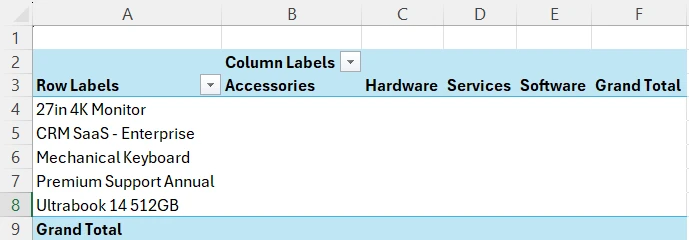
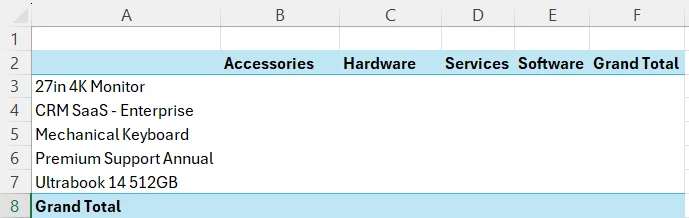
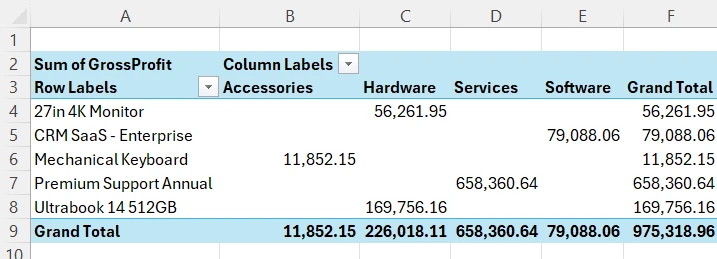
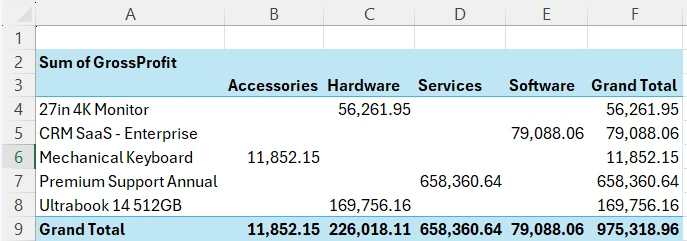
Refer to the following example code to hide the field headers in a PivotTable:
pivottable.setDisplayFieldCaptions(false);Set Conditional Formatting
Refer to the following example code to set conditional formatting in last row of a pivot table report by setting cell color when the values are above average.
// set condional format to the last row
int rowCount = pivottable.getDataBodyRange().getRowCount();
IAboveAverage averageCondition = pivottable.getDataBodyRange().getRows().get(rowCount - 1).getFormatConditions()
        .addAboveAverage();
averageCondition.setAboveBelow(AboveBelow.AboveAverage);
averageCondition.getInterior().setColor(Color.GetPink());

// save to an excel file
workbook.save("PTConditionalFormat.xlsx");Note: Conditional formatting applied to a pivot table is lost if the pivot table is changed in any way.