


- Document Solutions for Excel Java Overview
- Key Features
- Getting Started
-
Features
-
Worksheet
- Work with Worksheets
-
Range Operations
- Access a Range
- Get Intersection, Union and Offset Range
- Access Areas in a Range
- Get Special Cell Ranges
- Access Cells, Rows and Columns in a Range
- Get Address of Cell Range
- Cut or Copy Cell Ranges
- Cut or Copy Shape, Slicer, Chart and Picture
- Paste or Ignore Data in Hidden Range
- Find and Replace Data
- Get Row and Column Count
- Hide Rows and Columns
- Insert And Delete Cell Ranges
- Insert and Delete Rows and Columns
- Merge Cells
- Auto Merge Cells
- Protect Cell Range
- Set Values to a Range
- Set Custom Objects to a Range
- Set Row Height and Column Width
- Auto Fit Row Height and Column Width
- Work with Used Range
- Measure Digital Width
- Set Default Values for Cell Range
- Set Cell Background Image for Cell Range
- Ignore Errors in Cell Range
- Get Range and Range Area
- Picture in Cell
- Customize Worksheets
- Worksheet Views
- Cell Types
- Quote Prefix
- Tags
- Rich Text
- Date and Time Format for a Culture
- Background Image
- Cell Checkboxes
- Workbook
- Comments
- Hyperlinks
- Sort
- Filter
- Group
- Conditional Formatting
- Data Validations
- Data Binding
- Import Data
- Digital Signatures
- Formulas
- Custom Functions
- Shapes
- Document Properties
- Styles
- Form Controls
- Barcodes
- Themes and Colors
- Chart
- Table
- Pivot Table
- Pivot Chart
- Sparkline
- Slicer
- Print Settings
- Logging
- Defined Names
- AI Assistant
-
Worksheet
- Templates
- Formula Reference
- File Operations
- Tutorials
- Use JDK 8 Date Time API
- Document Solutions Data Viewer
- API Reference
- Release Notes
Picture in Cell
DsExcel Java allows you to embed images directly into worksheet cells, similar to MsExcel’s native functionality. Pictures in cells are anchored to the cell, and an image icon appears next to the cell to represent the data. The picture will move, resize, or be deleted in sync with the cell. The pictures in cells are supported when exporting to PDF, HTML, and image formats.
Add Picture in Cell
You can embed images into cells using the IRange.setCellPicture method. To add a picture, create a CellPicture object containing the image data and optional alt text, and assign it to the cell.
The alt text serves as the display value for features that require text evaluation, such as filter and sort. If the alt text is empty, a localized default value will be used (“Picture” in English, “图片” in Chinese, “画像” in Japanese, “그림” in Korean, or “Bild” in German). You can use the CellPicture.setAltText method to set the alt text.
The following example demonstrates how to add a picture with alt text to a cell.
// Create a new workbook.
Workbook workbook = new Workbook();
IWorksheet sheet = workbook.getActiveSheet();
try {
    // Read image data from a file.
    byte[] imageData = Files.readAllBytes(Paths.get("Picture1.png"));

    // Set picture in cell with alt text.
    sheet.getRange("A1").setCellPicture(new CellPicture(imageData, "Dress"));

    // Save to an Excel file.
    workbook.save("PictureinCell.xlsx");
} catch (IOException e) {
    throw new RuntimeException("Error loading image resource", e);
}
The output is shown in the figure below:
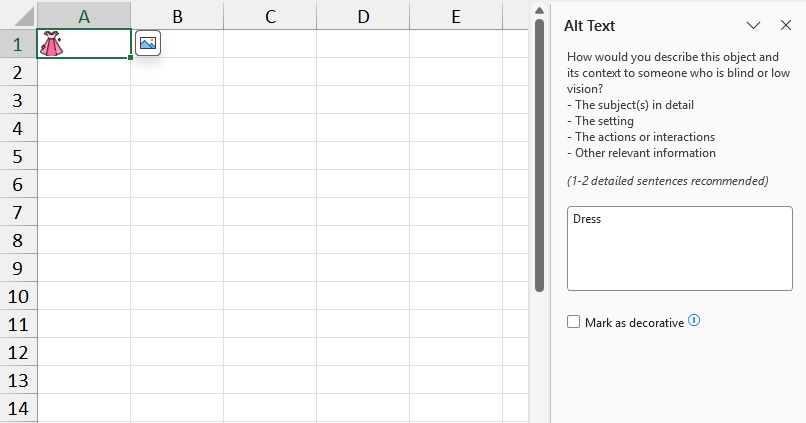
Note: When a cell contains a picture in cell, IRange.setValue returns CalcError.Value, and IRange.getText returns an empty string.
Retrieve Picture from Cell
Use the IRange.getCellPicture method to retrieve a picture from a cell. This mothed returns a CellPicture object if the cell contains a picture in cell; otherwise, it returns null. This method also supports reading valid pictures generated by the IMAGE() function.
The CellPicture.getImageData (byte[]) method returns a copy of the image’s binary data. Supported formats include PNG, JPG, GIF, BMP, and SVG. Modifying the returned array does not affect the image stored in the cell.
The following example demonstrates how to retrieve picture data from a cell and save it to a png file.
// Create a new workbook.
Workbook workbook = new Workbook();
IWorksheet sheet = workbook.getActiveSheet();

try {
    // Read image data from file.
    byte[] imageData = Files.readAllBytes(Paths.get("Picture1.png"));

    // Set picture in cell with alt text.
    sheet.getRange("A1").setCellPicture(new CellPicture(imageData, "Dress"));

    // Retrieve the picture from the cell.
    CellPicture picture = sheet.getRange("A1").getCellPicture();

    if (picture != null) {
        // Get the alt text.
        String altText = picture.getAltText();
        System.out.println("Alt Text: " + altText);  // Output: Alt Text: Dress

        // Get the image data.
        byte[] retrievedData = picture.getImageData();

        // Save to a file.
        Files.write(Paths.get("retrieved_picture.png"), retrievedData);
    }
} catch (IOException e) {
    throw new RuntimeException("Error loading image resource", e);
}
Modify Alt Text
The returned CellPicture object is a copy of the cell’s data. Modifying this object does not automatically update the cell. To change the picture content or alt text in the cell, create or modify a CellPicture and assign it back to the IRange.setCellPicture method.
The following example demonstrates how to modify a picture in a cell.
// Create a new workbook.
Workbook workbook = new Workbook();
IWorksheet sheet = workbook.getActiveSheet();
try {
    // Read image data from file.
    byte[] imageData = Files.readAllBytes(Paths.get("Picture1.png"));

    // Set picture in cell with alt text.
    sheet.getRange("A1").setCellPicture(new CellPicture(imageData, "Dress"));

    // Get the existing picture.
    CellPicture existingPicture = sheet.getRange("A1").getCellPicture();

    // Modify alt text and reassign.
    existingPicture.setAltText("Pink dress with sparkles");
    sheet.getRange("A1").setCellPicture(existingPicture);

} catch (IOException e) {
    throw new RuntimeException("Error loading image resource", e);
}
// Save to an Excel file.
workbook.save("ModifyPictureinCell.xlsx");
The output is shown in the figure below:
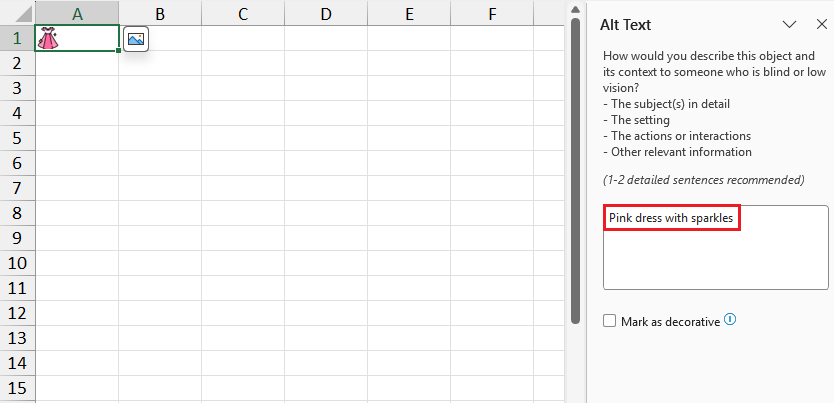
Remove Picture from Cell
You can remove a picture from a cell using any of the following methods. When applied to a range containing multiple cells, the picture in each cell will be removed.
Use the IRange.clear() or IRange.clearContents() method. IRange.clear() removes the cell’s formatting and picture, whereas IRange.clearContents() removes only the picture, and preserves the cell’s formatting.
Set the IRange.setCellPicture method to null.
Assign any value to the IRange.setValue method.
The following example demonstrates how to remove a picture from a cell.
// Create a new workbook.
Workbook workbook = new Workbook();
IWorksheet sheet = workbook.getActiveSheet();

try {
    // Read image data from a file.
    byte[] imageData = Files.readAllBytes(Paths.get("Picture1.png"));

    // Set picture in cell with alt text.
    sheet.getRange("A1").setCellPicture(new CellPicture(imageData, "Dress"));

    // Method 1: Remove the picture using ClearContents().
    sheet.getRange("A1").clearContents();

    // Method 2: Remove the picture by setting CellPicture to null.
    sheet.getRange("A1").setCellPicture(null);

    // Method 3: Remove the picture by assigning a value to the cell.
    sheet.getRange("A1").setValue("No picture");

    // Save to an Excel file.
    workbook.save("RemovePicture.xlsx");
} catch (IOException e) {
    throw new RuntimeException("Error loading image resource", e);
}