


Create Formulas and Named Ranges
This tutorial shows how to create dynamic calculations in Excel .xlsx workbooks using C# and the .NET XLSX API library, Document Solutions for Excel .NET (DsExcel .NET). You'll create a simple worksheet containing income and expense data, define reusable named formulas, and use Excel formulas to calculate totals, balances, and percentages.
By the end of this tutorial, you'll know how to:
Create reusable named formulas.
Reference worksheet ranges and Excel tables in formulas.
Build summary calculations such as totals, balances, and percentages.
Generate Excel workbooks that preserve formulas for use in Microsoft Excel and other compatible spreadsheet applications.
Prerequisites
Before you begin, make sure you have:
.NET SDK
Document Solutions for Excel .NET (DsExcel .NET)
The DS.Documents.Excel NuGet package installed in your project
Import the required namespace and apply the proper using statement:
using GrapeCity.Documents.Excel;1) Create a Workbook and Add Sample Data
Create a new workbook and rename the default worksheet.
Workbook workbook = new Workbook();

IWorksheet worksheet = workbook.Worksheets[0];
worksheet.Name = "Formulas";
Next, add sample income and expense data to the worksheet.
object[,] incomeData =
{
    { "ITEM", "AMOUNT" },
    { "Income 1", 2500 },
    { "Income 2", 1000 },
    { "Income 3", 250 },
    { "Other", 250 }
};

object[,] expenseData =
{
    { "ITEM", "AMOUNT" },
    { "Rent/mortgage", 800 },
    { "Electricity", 120 },
    { "Gas", 50 },
    { "Groceries", 500 },
    { "Car payment", 273 }
};

worksheet.Range["B3:C7"].Value = incomeData;
worksheet.Range["B10:C15"].Value = expenseData;
2) Convert Ranges into Tables
Excel tables make formulas easier to read and maintain because they use structured references instead of fixed cell addresses.
ITable incomeTable =
    worksheet.Tables.Add(worksheet.Range["B3:C7"], true);
incomeTable.Name = "tblIncome";

ITable expensesTable =
    worksheet.Tables.Add(worksheet.Range["B10:C15"], true);
expensesTable.Name = "tblExpenses";
3) Create Named Formulas (Reusable Calculations)
Named formulas allow you to define calculations once and reuse them throughout the workbook.
worksheet.Names.Add(
    "TotalMonthlyIncome",
    "=SUM(tblIncome[AMOUNT])");

worksheet.Names.Add(
    "TotalMonthlyExpenses",
    "=SUM(tblExpenses[AMOUNT])");
These names behave like Excel defined names and can be referenced from formulas anywhere in the workbook.
4) Set Formulas on Cells
Use the Formula property to populate a summary section with reusable calculations.
worksheet.Range["E6"].Value = "Total Monthly Income";
worksheet.Range["E7"].Value = "Total Monthly Expenses";
worksheet.Range["E9"].Value = "Balance";

worksheet.Range["G6"].Formula = "=TotalMonthlyIncome";
worksheet.Range["G7"].Formula = "=TotalMonthlyExpenses";
worksheet.Range["G9"].Formula = "=TotalMonthlyIncome-TotalMonthlyExpenses";
5) Example: Percentage Calculation
You can also calculate ratios, such as the percentage of income spent.
worksheet.Range["E3"].Value = "Percent of Income Spent";

worksheet.Range["G3"].Formula =
    "=TotalMonthlyExpenses/TotalMonthlyIncome";

worksheet.Range["G3"].NumberFormat = "0.00%";
Referencing Worksheet Ranges Directly (Without Tables)
If you don't need structured references, you can use standard Excel A1-style references.
worksheet.Range["G12"].Formula = "=SUM(C4:C7)";How Formula Calculation Works
DsExcel .NET stores Excel formulas in the workbook using standard Excel formula syntax. Formula results are also stored in the workbook, allowing Microsoft Excel and other compatible spreadsheet applications to display calculated values when the workbook is opened.
If worksheet data changes, formulas can be recalculated to reflect the updated values. This allows you to generate workbooks that preserve dynamic calculations while remaining compatible with Excel.
Common use cases include:
Server-side report generation
Exporting Excel templates with reusable formulas
Automated financial reports and summaries
Dashboards with dynamic calculations
6) Save the Workbook
You can save the workbook in XLSX format with the following code:
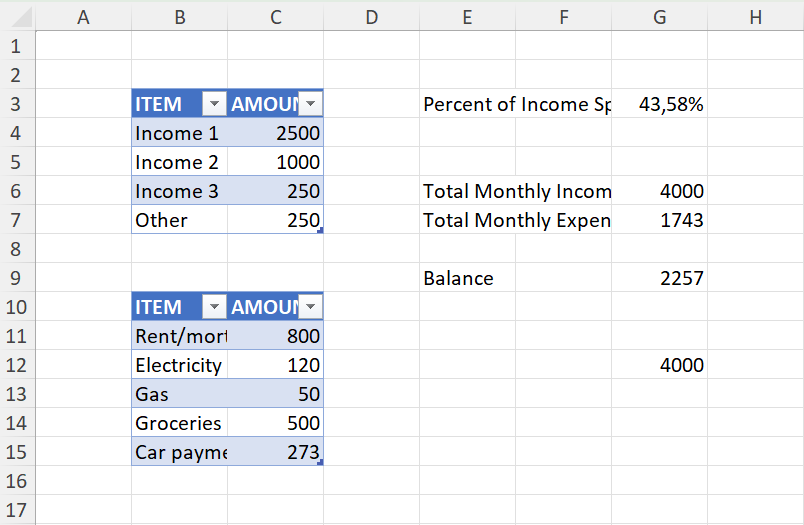
workbook.Save("FormulasAndNamedRanges.xlsx");When you open the generated workbook in Excel, you'll see the income and expense tables together with the calculated totals, balance, and percentage values.
Next Steps
Read the full formulas documentation here.
Explore a full demo showcasing Formulas here.