


Convert Excel XLSX to PDF
This tutorial shows how to convert Excel XLSX files to PDF using Document Solutions for Excel, .NET (DsExcel .NET). DsExcel lets developers create, load, modify, and export Excel workbooks programmatically in .NET applications without requiring Microsoft Excel or other Office dependencies.
Excel-to-PDF conversion is useful when you need to generate finalized reports, invoices, financial statements, dashboards, audit documents, or other business records in a portable format that preserves the workbook layout.
Feel free to download the completed Excel-to-PDF sample application here, or follow along with the video tutorial below:
Prerequisites
Before you begin, make sure you have the following installed:
Visual Studio 2022 or later
.NET SDK
Basic familiarity with C# and .NET console applications
The DS.Documents.Excel NuGet package
DsExcel supports .NET, .NET Core, .NET Framework, Mono, and Xamarin, allowing you to deploy Excel-processing applications across Windows, macOS, and Linux environments.
Why Convert Excel Files to PDF?
PDF is one of the most widely used formats for sharing and archiving finalized business documents. When converting Excel workbooks to PDF, the generated document preserves the layout, formatting, styles, and page structure of the spreadsheet.
Common reasons to export Excel files to PDF include:
Consistent formatting: Fonts, styles, borders, colors, and worksheet layout appear consistently across devices.
Universal compatibility: Users can open the file without requiring Microsoft Excel.
Reduced risk of accidental edits: PDFs are better suited for finalized documents that should not be easily changed.
Professional presentation: PDF output is ideal for reports, financial summaries, invoices, and dashboards.
Common Excel-to-PDF scenarios include financial summaries, budget reports, sales dashboards, inventory records, audit reports, and customer-facing business documents.
Create a .NET Console Application
Start by creating a new .NET Console Application in Visual Studio.
After the project is created, install the DsExcel NuGet package by running the following command in the terminal or Package Manager Console:
dotnet add package DS.Documents.ExcelThis package provides the workbook, worksheet, range, page setup, and PDF export APIs needed for the tutorial.
Create and Save an Excel Workbook in .NET
Open the Program.cs file and add the following code to create a new workbook with sample data:
using GrapeCity.Documents.Excel;

var workbook = new Workbook();
var random = new Random();

for (int i = 0; i < 10; i++)
{
    workbook.Worksheets[0].Range["A" + (i + 1).ToString()].Value = random.Next(20);
}

workbook.Save("RandomValues.xlsx");
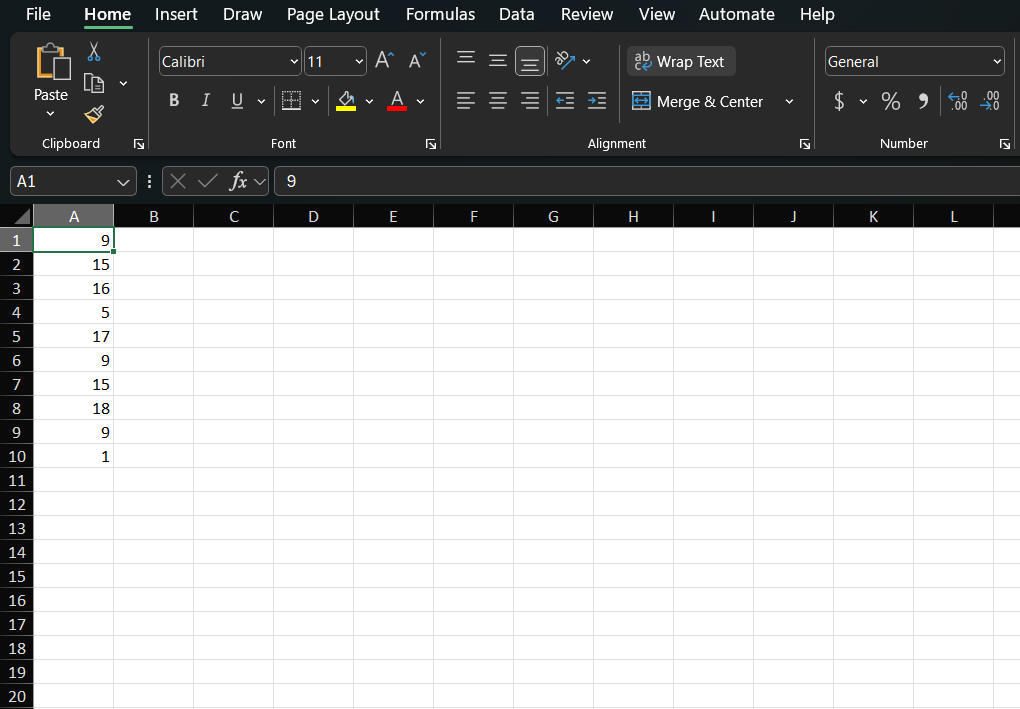
This code creates a new Excel workbook, adds random values to the first worksheet, and saves the result as RandomValues.xlsx.
 )
)
Save the .NET Excel Workbook to PDF
To export the workbook directly to PDF, update the code to save the workbook with a .pdf file extension.
You can also configure the worksheet page setup before saving. For example, the following code sets the worksheet to landscape orientation and fits the content to a single page:
using GrapeCity.Documents.Excel;

var workbook = new Workbook();
var random = new Random();

for (int i = 0; i < 10; i++)
{
    workbook.Worksheets[0].Range["A" + (i + 1).ToString()].Value = random.Next(20);
}

var worksheet = workbook.Worksheets[0];
worksheet.PageSetup.Orientation = PageOrientation.Landscape;
worksheet.PageSetup.IsPercentScale = false;
worksheet.PageSetup.FitToPagesWide = 1;
worksheet.PageSetup.FitToPagesTall = 1;

workbook.Save("RandomValues.pdf");
When this code runs, DsExcel exports the workbook to a PDF file while preserving the spreadsheet layout and page settings.

Load and Convert an Existing Excel File to PDF
DsExcel can also load existing Excel files and export them to PDF. This is useful when you need to convert workbooks created in Microsoft Excel, generated by another system, or uploaded by a user.
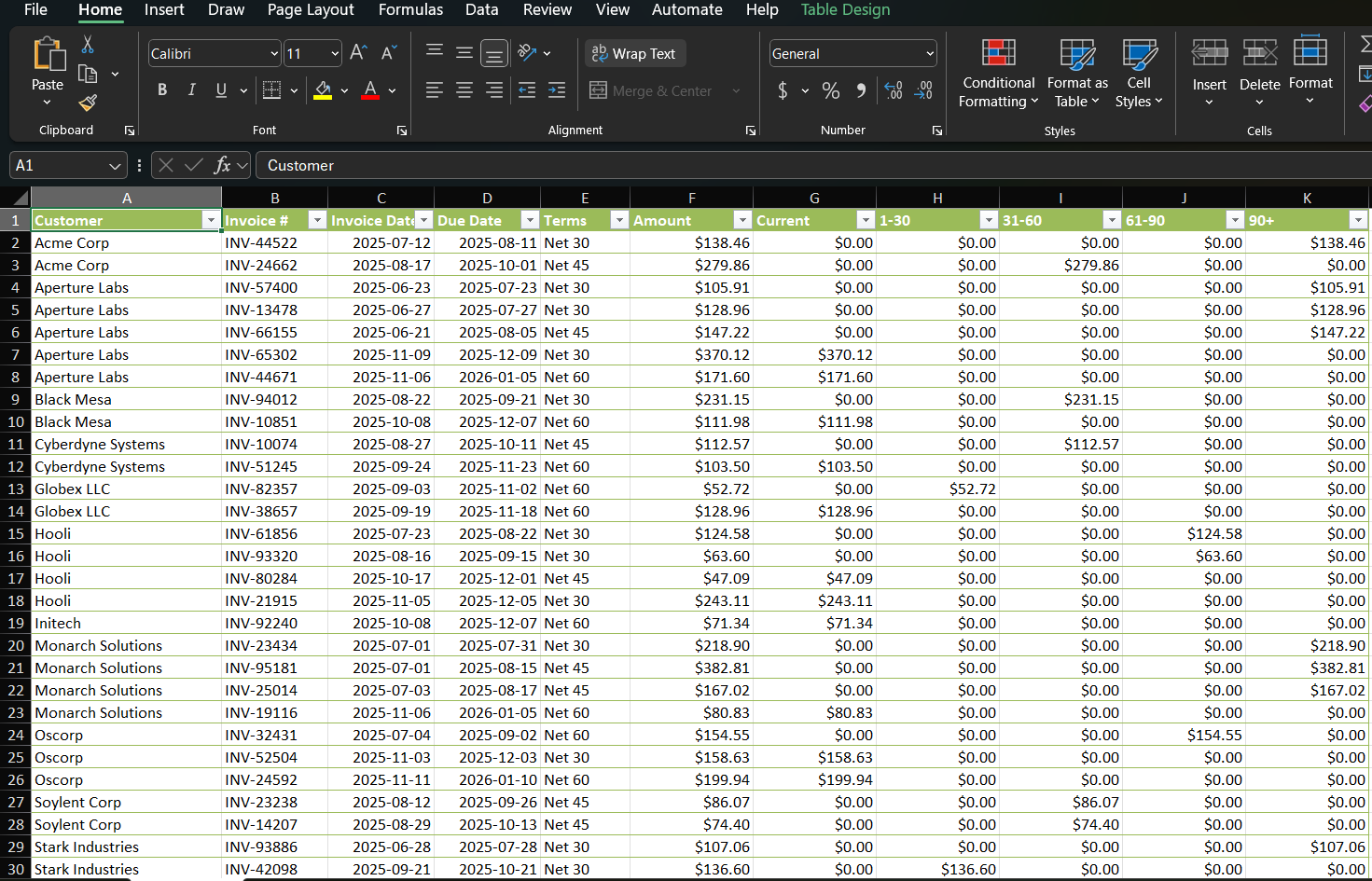
For this example, assume you have an existing workbook named AgingReport.xlsx.
Create a Workbook Instance
Create an empty workbook using the Workbook class:
var workbook = new GrapeCity.Documents.Excel.Workbook();Load the Excel File
Use the Open() method to load the existing XLSX file:
workbook.Open("AgingReport.xlsx");Configure the Page Layout
Before exporting, configure the worksheet page layout so the content fits neatly in the generated PDF:
workbook.Worksheets[0].PageSetup.Orientation = PageOrientation.Landscape;
workbook.Worksheets[0].PageSetup.IsPercentScale = false;
workbook.Worksheets[0].PageSetup.FitToPagesWide = 1;
workbook.Worksheets[0].PageSetup.FitToPagesTall = 1;
Save the Workbook as PDF
Finally, save the workbook as a PDF file:
workbook.Save("AgingReport.pdf");The complete code looks like this:
using GrapeCity.Documents.Excel;

var workbook = new Workbook();

workbook.Open("AgingReport.xlsx");

var worksheet = workbook.Worksheets[0];
worksheet.PageSetup.Orientation = PageOrientation.Landscape;
worksheet.PageSetup.IsPercentScale = false;
worksheet.PageSetup.FitToPagesWide = 1;
worksheet.PageSetup.FitToPagesTall = 1;

workbook.Save("AgingReport.pdf");
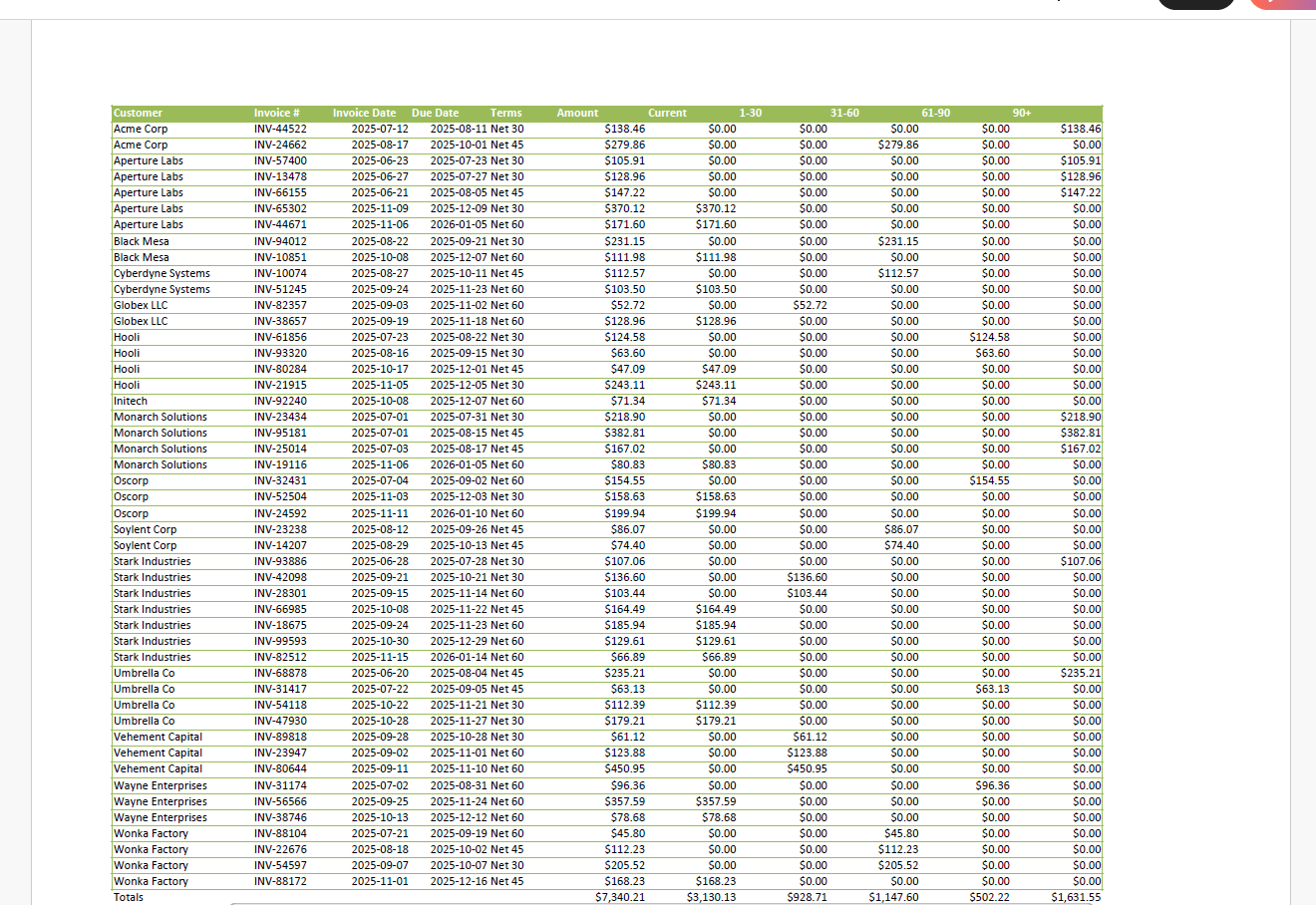
After running the application, the existing Excel workbook is converted into a formatted PDF document.
Configure Fonts for macOS and Linux PDF Export
When exporting Excel spreadsheets to PDF on macOS or Linux, specify the font folder path so DsExcel can locate the fonts used in the workbook:
workbook.FontFolderPath = "path_to_fonts";Place the required font files in the specified directory to help preserve the workbook’s styling and layout during PDF export.
Additional PDF Export Capabilities
Document Solutions for Excel includes a broad set of PDF export features for generating accurate workbook output. Supported export capabilities include:
Borders, fills, and conditional formatting
Charts, shapes, images, and pivot tables
Form controls, transparent cells, and sparklines
Page setup options such as orientation, scaling, and margins
Center-across-selection and shrink-to-fit behavior
Custom PDF document properties and security options
Image quality and font embedding settings
Exporting Excel ranges or entire worksheets to PDF
Programmatic PDF export progress tracking
These capabilities make DsExcel suitable for automated report generation, document workflows, and server-side spreadsheet conversion scenarios.
FAQ
Do I need Microsoft Excel installed to convert XLSX files to PDF?
No. DsExcel can create, load, modify, and export Excel workbooks without requiring Microsoft Excel or Microsoft Office on the server.
Can DsExcel convert existing Excel files to PDF?
Yes. Use the Open() method to load an existing workbook, configure any required page setup options, and then call Save() with a PDF file name.
Can I control how the worksheet fits on the PDF page?
Yes. Use the worksheet PageSetup options to control orientation, scaling, margins, and fit-to-page behavior before exporting.
Does PDF export work on macOS and Linux?
Yes. For non-Windows environments, specify FontFolderPath and include the required fonts to help maintain accurate text rendering and layout.
What kinds of Excel content can be exported to PDF?
DsExcel supports exporting common workbook elements such as formatted cells, charts, shapes, images, pivot tables, conditional formatting, sparklines, and page setup settings.