Sort
The Sort property ('S') defines the sorting type within the template. This property applies to a single or multiple columns, determined by the respective cell values. The sorting functionality extends beyond sorting in ascending and descending order; it allows the application of custom sorting rules to single or multiple columns.
DsExcel implements sorting by observing the following basic rules:
DsExcel processes the sort function of a template by distinguishing the cells into template cells and instance cells. Template cells are the cells in the template file, while instance cells are the cells that are created after the template has been processed.
DsExcel treats the relationship between the template cells as a parent-child relationship. A similar relationship applies between the instance cells.
DsExcel sorts the cells between brother instance cells but cannot change the parent-child relationship. Hence, the instance cells to be sorted must fulfill the following two conditions:
They come from the same template cell.
They have a common parent cell.
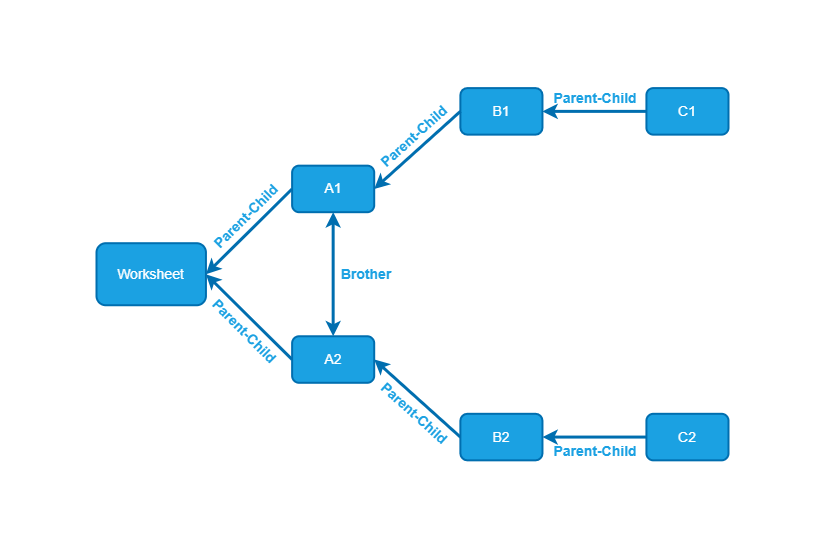
For example, let's consider the following data source:
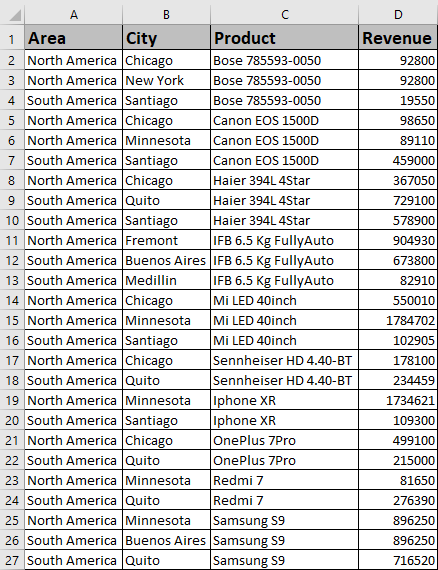
If you use the following template, the cells in column D cannot be sorted because the Sort property is restrained by context cell A1 (i.e., no common parent cell).

Hence, you can only add the Sort property to cell A1. Then the template will be as follows:

Result:
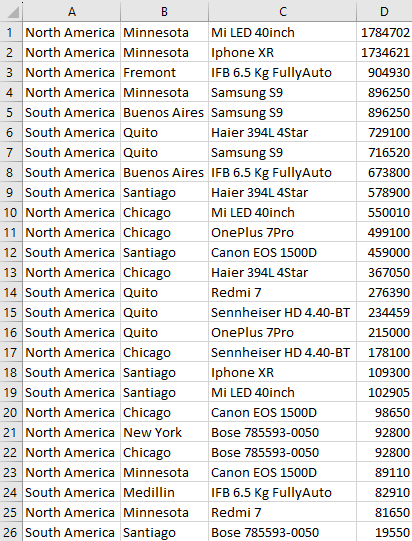
You can only sort cells that have the Sort property; cells without the Sort property will not be sorted. This means that in the above data source, sorting the value of A1 based on the value of D1 will only sort A1, not D1.
Sorting can be performed in three ways:
Enum
Array
Expression
Value: Enum
S=Asc (default value): Ascending
S=Desc : Descending
S=None: None
Value: Array
S={“X“, “Y“,”Z”}
Value: Expression
S=(Cell A Asc {“X“, “Y“,”Z”}, Cell B Desc)
Example 1: Sorting Single Column
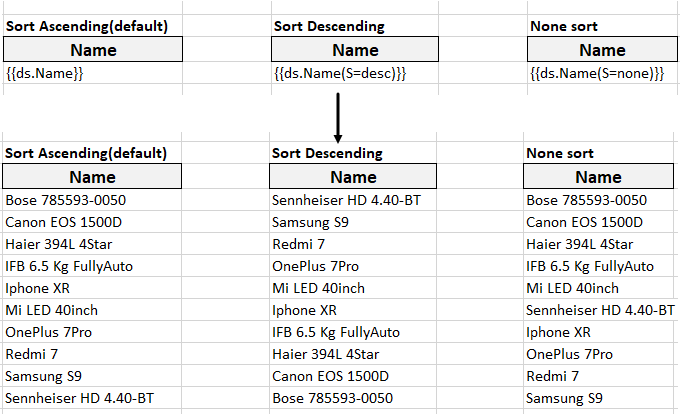
{{ds.field(S=Desc)}}
The below image shows how the template fields are expanded based on their sorting type. You can also download the Excel template layout used in below example.
Example 2: Sorting Multiple Columns
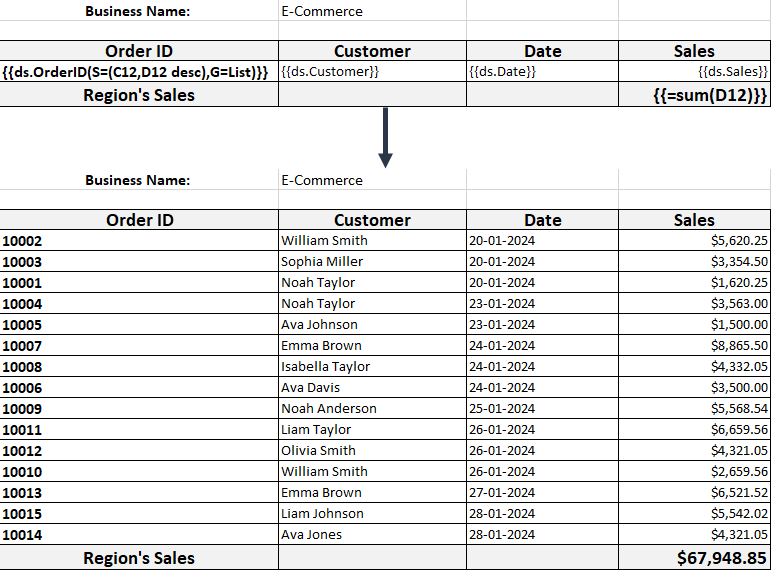
{{ds.OrderID(S=(C12,D12 desc),G=List)}}
The below image shows how the Order ID column is sorted based on C12 and D12 cells. You can also download the Excel template layout used in below example.
Example 3: Sorting using Custom Rule
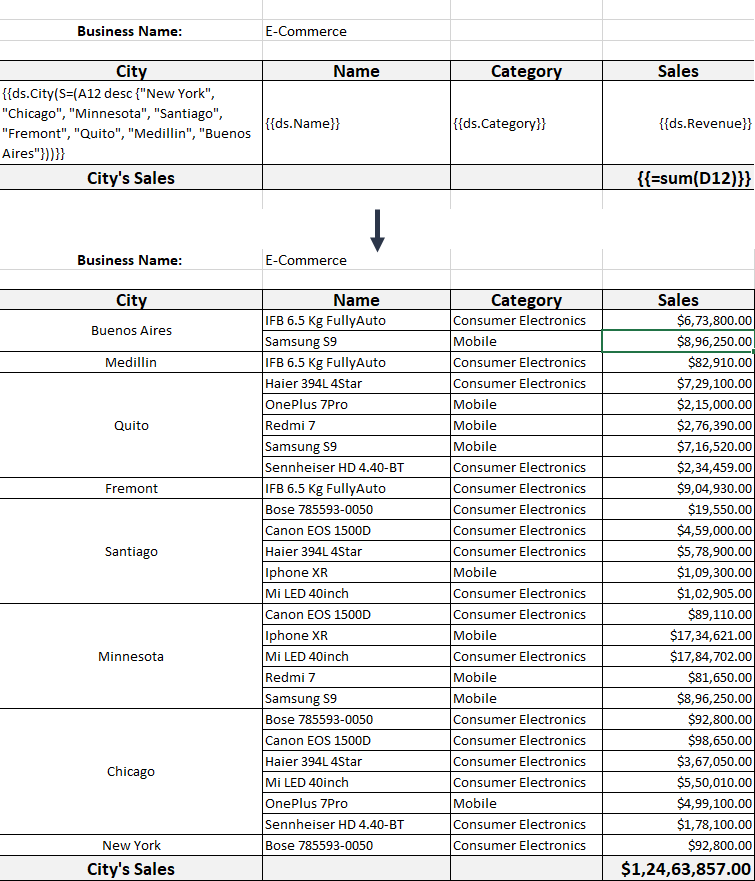
{{ds.City(S=(A12 desc {"New York", "Chicago", "Minnesota", "Santiago", "Fremont", "Quito", "Medillin", "Buenos Aires"}))}}
The below image shows how the City column is sorted based on custom sorting rule. You can also download the Excel template layout used in below example.