Fixed Layout
When DsExcel processes a template layout, it inserts blank lines first and then sets the data and style to generate the final report. In cases where a fixed layout is defined in the template, DsExcel provides two properties you can use to properly load the data in this fixed layout area.
fillMode(FM) Property
The fillMode property can be set to either Insert, Overwrite or OverwriteWithFormat
Insert: (Default Value) Inserts a blank line before setting the data and style in the cells.
Overwrite(O): Directly set data in the cells without inserting blank rows however it retains style of the template layout.
OverwriteWithFormat(OF): The data is set in the new cell that copies the style and merges from the template cell.
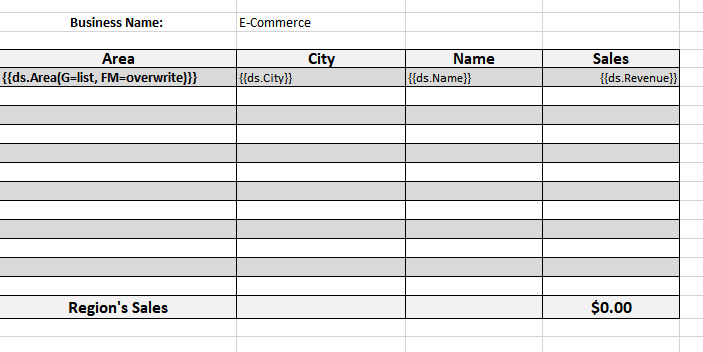
The below template example records the E-Commerce sales of electronic goods in different areas of a country and uses 'overwrite' fillMode property. You can also download the Excel template layout from here.
The data in data source contains 8 rows. After DsExcel processes the template layout, the Excel report will look like below:

Note: If fillMode property is not defined in the template layout, the default behavior is followed, which is to insert the blank lines first. To see the output of fillMode set to OverwriteWithFormat, see the Sample Browser.
fillRange(FR) Property
The fillRange property should be used when fillMode is set to overwrite and the data in data source exceeds the area of fixed layout in template. So if the data overflows, the range defined by fillRange property is duplicated to fill additional data.
For example: If the data in data source contains 20 rows and fillRange property defines the cell range as A1:A8. The range will be duplicated to 8 more rows (total 16 rows) and then again to 8 more rows (total 24 rows), to fill the complete data of 20 rows.
Note: When data in data source overflows and fillRange property is missing, range will not be duplicated to set data. Instead, data will be filled beneath the range area in existing rows.
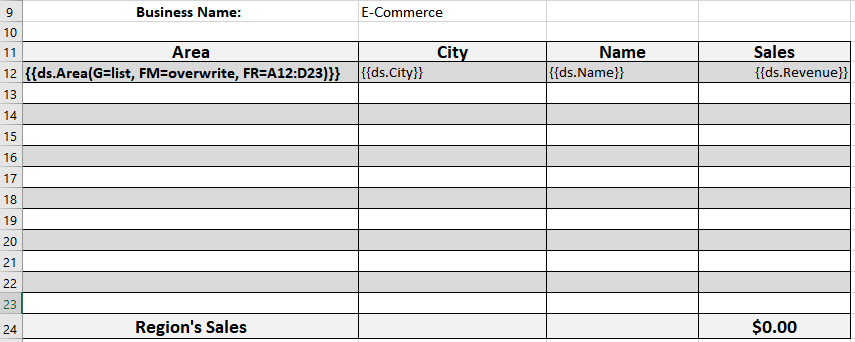
The below template example records the E-Commerce sales of electronic goods in different areas of a country. It uses 'overwrite' fillMode property along with fillRange property to accommodate the additional data. You can also download the Excel template layout from here.
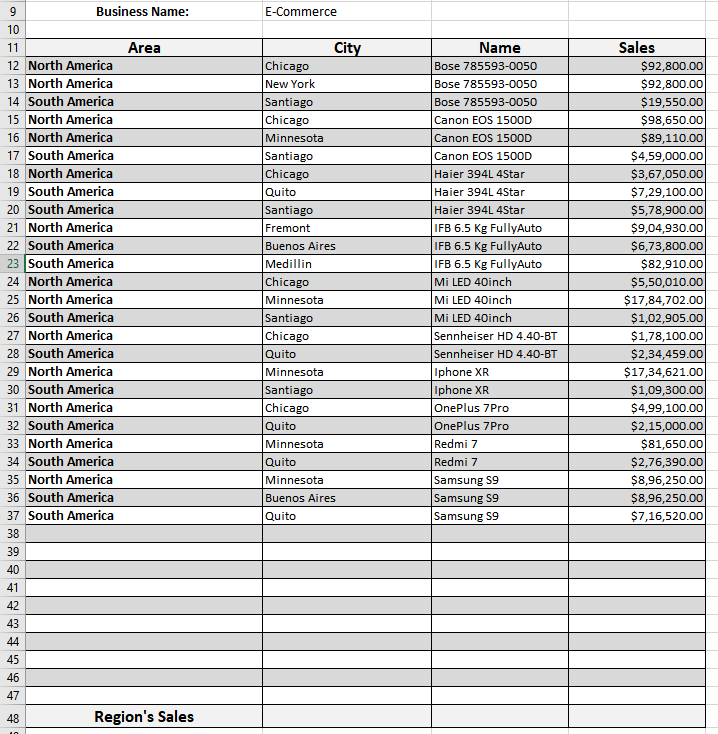
The data in data source contains 26 rows. The fillRange property defines cell range for 12 rows and it is duplicated after that twice to fill all the data. After DsExcel processes the template layout, the Excel report will look like below: