


Image
The image property specifies whether or not to add an image. If the value is true, you can also specify the image width and height or maintain the aspect ratio.
The width and height specify the custom dimensions of an image in a cell, whereas keepaspect fits the image size to the cell size and maintains the aspect ratio as much as possible. When specifying width and height, you also need to specify the unit of the dimension, either pt or px.
The supported image data type is byte[] and base64 string.
The position of image in the cell can be controlled by setting the horizontal and vertical alignment style of cell. By default, the image is located in the center of the cell horizontally and vertically, both.
Value: Boolean
Image = True
Image= False (Default value)
Image.width=String value: Default value is cell width.
Image.height=String value: Default value is cell height.
Image.keepaspect= True
Image.keepaspect= False (Default value)
You can also use the following abbreviations: img, w, h, and ka for image, width, height, and keepaspect, respectively, to create the syntax.
Note: Keepaspect takes precedence over width and height settings when you specify both properties of the image.
Example
{{ds.icon(Image=true)}}
{{ds.icon(Image=true, Image.width=150px)}}
{{ds.icon(Image=true, Image.height=150px)}}
{{ds.icon(Image=true, Image.keepaspect=true)}}
The below image shows how an image can be added in the Excel report. You can also download the Excel template layout used in below example.
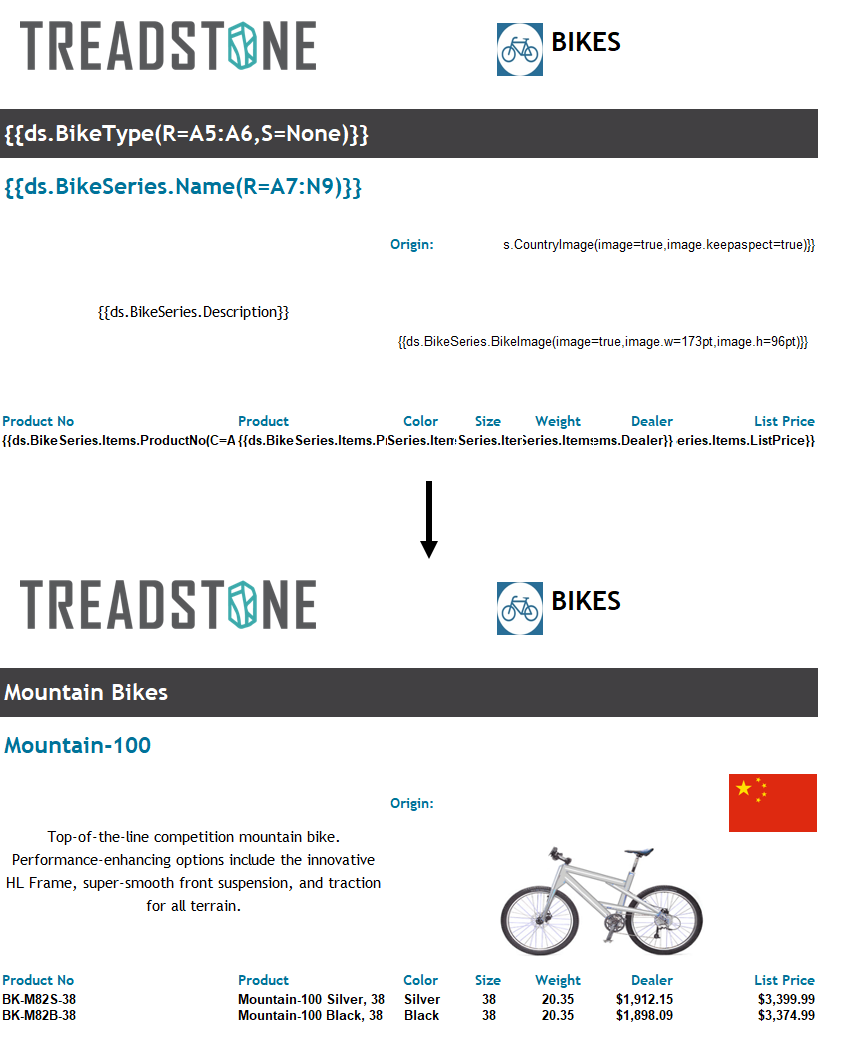
For information regarding template properties related to pagination, see Pagination Properties and Functions.
Note: All the above-mentioned template properties are case-insensitive, which means DsExcel ignores cases and matches values regardless of their lower or upper case letters.