


- FlexGrid for WPF Overview
- Feature Comparison
- Quick Start
- Object Model Summary
- Data Binding
-
Features
- Columns
- Row
- Scrolling Modes
- Selection
- Sorting
- Cell Merging
- Custom Editors
- Custom Icon
- Transpose Data in Grid
- Data Grouping
- Data Filtering
- Data Aggregation
- Custom Cells
- Multiple Cell Factory
- Virtualization
- Paging
- TreeGrid
- Print Support
- Row Details Template
- Layout and Appearance: ClearStyle Technology
- Freezing and Pinning
- Import Data from Excel
- Export to Excel
- Clipboard Operations
- Validation
- FlexGrid Samples
Conditional Filter Column
FlexGrid supports conditional filtering through the column-header menu, allowing data to be filtered by conditions that are appropriate for the column data type. Conditional filtering extends the standard filtering experience by providing operations for text, numeric, and date columns.
Set the ShowConditionalFilterMenu property to True on FlexGrid or an individual GridColumn to display the conditional filtering options. Depending on the column data type, the column-header menu displays Text Filters, Number Filters, or Date Filters.
Conditional filtering can also be combined with the Value Filter to provide both condition-based filtering and value selection from the same column-header menu.
Enable Conditional Column Filtering
Set the ShowConditionalFilterMenu property to True on a GridColumn to display conditional filtering options for a specific column.
The following example enables conditional filtering for the FirstName column.
<c1:FlexGrid>
    <c1:FlexGrid.Columns>
        <c1:GridColumn Binding="FirstName"
                       ShowConditionalFilterMenu="True" />
    </c1:FlexGrid.Columns>
</c1:FlexGrid>
When conditional filtering is enabled, the column-header menu displays a conditional filter entry based on the column data type. For example, a text column displays Text Filters.
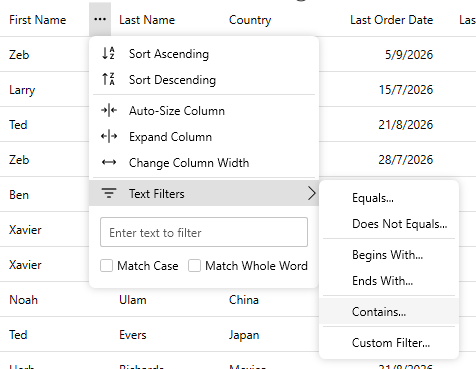
To enable conditional filtering for the FlexGrid, set ShowConditionalFilterMenu on the control.
<c1:FlexGrid ShowConditionalFilterMenu="True" />
This configuration makes conditional filtering available to applicable columns in the grid.
The ShowConditionalFilterMenu property controls only the conditional filtering menu. It does not replace the existing AllowFiltering or ShowFilter properties. AllowFiltering controls whether filtering can be performed, while ShowFilter controls whether the filter icon appears in the column header.
Conditional Filtering by Data Type
The conditional filtering options depend on the data type of the column. FlexGrid provides separate filtering commands for text, numeric, and date columns.
Text Columns
For text columns, FlexGrid displays Text Filters in the column-header menu.
The menu provides text-based operations for matching column values. These include operations such as equality and text matching. The available options allow records to be filtered according to the contents of the selected text column.
For example, a text filter can be applied to display records whose values begin with, end with, contain, or match a specified value.
Numeric Columns
For numeric columns, FlexGrid displays Number Filters.
Number filters provide comparison-based operations for evaluating numeric values. These operations can filter records based on conditions such as equality, greater-than, less-than, or range-based comparisons.
Date Columns
For date columns, FlexGrid displays Date Filters.
Date filters provide date-specific conditions for comparing values against a specified date or date range. The available options allow records to be filtered according to their relationship to the selected date condition.
The exact options presented by the menu depend on the column data type. This allows the filtering interface to provide conditions that are relevant to the values stored in each column.
Custom Conditional Filter
The conditional filtering menu also provides a Custom Filter option for defining more detailed filtering criteria.
Selecting Custom Filter opens the conditional filter form. The form allows multiple filter conditions to be defined and combined by using AND or OR logic.
For example, two conditions can be combined with AND when both conditions must be satisfied. Alternatively, OR can be selected when a record can satisfy either condition.
Conditional filters provide more detailed filtering criteria than the standard inline filter. For text columns, this can supplement the existing text filtering interface when more specific conditions are required.
Note: Numeric and date columns already provide inline conditional filtering through the standard column-header filter. Enabling the additional conditional filter menu for these columns can provide overlapping filtering options.
Combine Conditional and Value Filters
Conditional filtering can be combined with the Value Filter to provide both condition-based filtering and value selection in the column-header menu.
Set FilterMode to Value and ShowConditionalFilterMenu to True
<c1:FlexGrid FilterMode="Value"
             ShowConditionalFilterMenu="True" />
FilterMode="Value" displays a checklist containing the distinct values available in the column, while ShowConditionalFilterMenu="True" adds the conditional filtering commands appropriate for the column data type.
This configuration provides two filtering approaches within the column-header menu:
The Value Filter filters records by selecting individual values from a checklist.
The Conditional Filter filters records according to one or more conditions.
The Value Filter checklist reflects filters applied to other columns. When another column is filtered, FlexGrid evaluates the remaining records and updates the values available in the checklist.
Limitations
FlexGrid supports fewer conditional filtering operations than Microsoft Excel. The conditional filter menu may contain fewer commands than the equivalent Excel filtering interface.
Conditional filtering for numeric and date columns may overlap with the inline filters that the default column-header filter already provides.