


Appearance and Styling
Expression Editor supports customizing its appearance by changing the look of its elements.
Properties | Purpose |
|---|---|
Background | Modifies the background color of the control. |
Foreground | Modifies the foreground color of the control. |
BorderThickness | Adjusts the thickness of the control's border. |
BorderBrush | Modifies the color of the control's border. |
FontFamily | Modifies the font of the text inside the control. |
FontStyle | Modifies the style (Italic, Normal, or Oblique) in which the font is rendered. |
FontSize | Modifies the font size of the text inside the control. |
FontStretch | Specifies how the font of the control will expand or condense. |
FontWeight | Modifies the thickness of control's font. |
C1ExpressionEditor contains a set of Styles:
Style | Purpose |
|---|---|
EditorStyle | Controls the overall appearance of the ExpressionEditor text area, including layout, font, and general styling. |
ErrorBoxStyle | Defines the look of the error box shown when an expression contains invalid syntax or evaluation errors. |
SuggestListPopupStyle | Styles the popup container that appears when auto-suggestions are displayed. |
SuggestListStyle | Customizes the appearance of items within the suggestion list (e.g., functions, fields, constants). |
DescriptionPopupStyle | Determines the style of the popup that shows additional details or descriptions. |
FunctionsStyle | Styles the highlighting for function names within the editor. |
FieldsStyle | Styles how field names appear when highlighted in the editor. |
ConstantsStyle | Defines the formatting of constants used inside expressions. |
OperatorsStyle | Controls the highlight style for operators (+, -, *, /, etc.). |
NumbersStyle | Styles numbers in expressions. |
StringsStyle | Applies styling to string literals inside the editor. |
Customize ExpressionEditor
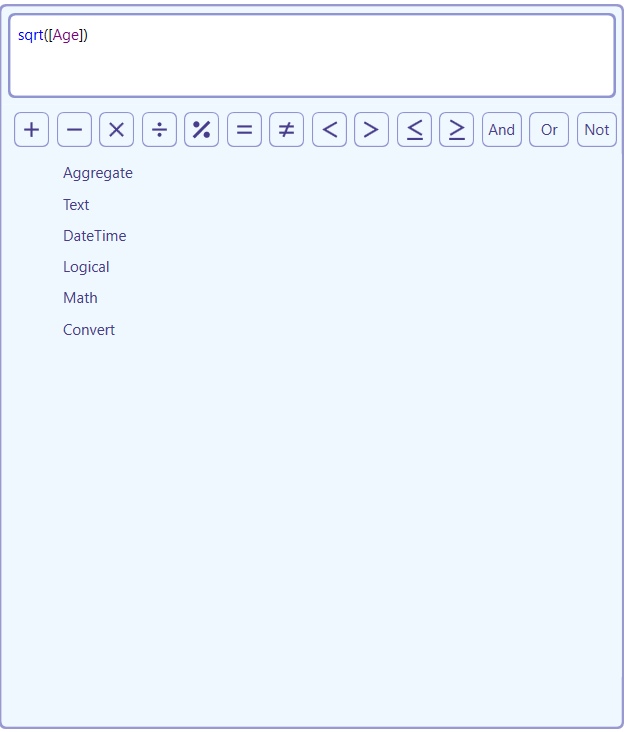
ExpressionEditor allows users to fully customize its appearance to align with their application. The following image illustrates customizing the appearance of Expression Editor.
Sample Usage
<Window.Resources>
    <SolidColorBrush x:Key="ForegroundBrush" Color="DarkSlateBlue"/>
    <SolidColorBrush x:Key="BackgroundBrush" Color="AliceBlue"/>
    <SolidColorBrush x:Key="MouseOverBrush" Color="LightSkyBlue" Opacity="0.3"/>
    <SolidColorBrush x:Key="SelectedBrush" Color="LightSkyBlue" Opacity="0.8"/>
    <SolidColorBrush x:Key="BorderBrush" Color="DarkBlue" Opacity="0.4"/>

    <c1:SyntaxStyle x:Key="FunctionsSyntaxStyle" Foreground="Blue"/>
    <c1:SyntaxStyle x:Key="FieldsSyntaxStyle" Foreground="Purple"/>
    <c1:SyntaxStyle x:Key="ConstantsSyntaxStyle" Foreground="Green"/>
    <c1:SyntaxStyle x:Key="OperatorsSyntaxStyle" Foreground="{StaticResource ForegroundBrush}"/>
    <c1:SyntaxStyle x:Key="NumberSyntaxStyle" Foreground="Black"/>
    <c1:SyntaxStyle x:Key="StringsSyntaxStyle" Foreground="Red"/>
</Window.Resources>