


Values
Since the Gauge control is a data visualization tool, it can let you set a specific value across a linear or radial scale. This helps to analyze the current value of the Gauge control and measure how this value falls between the minimum and maximum value points.
For example, let's say, you want to create a Linear Gauge measuring the percentage of work completed. The amount of work done is measured using the Value property.

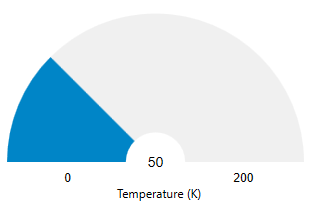
Another example can be using a Radial Gauge to measure temperature. The current temperature is measured using the Value property.
Step
The step determines how the intervals of the Value can be set when the user interacts with the control. For instance, if the Step is 25, and the minimum and maximum values are 0 and 100, respectively, the possible values will be 0, 25, 50, 75 and 100.

The step can be set using the Step property of the C1Gauge class.
<c1:C1LinearGauge Name="linearGauge" Value="75" Step="25" TextVisibility="All" HorizontalAlignment="Left" Margin="127,311,0,273" Width="532" Height="86"/>Minimum and Maximum values
The Min and Max properties in the Gauge controls helps to set the minimum and maximum values of the gauge. The default values of minimum and maximum values in the Gauge control are 0 and 100.
But you can also set the minimum and maximum values of your choice via code.
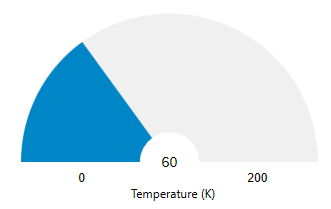
The following code shows how to set the Minimum and Maximum properties in the Radial Gauge control:
<c1:C1RadialGauge x:Name="radialGauge" Minimum="0" Maximum="200" Value="60" HorizontalAlignment="Left" Margin="188,100,0,273" Height="297" Width="336"/>Origin
Defines the starting point of the decorator. If not specified, the origin defaults to the Minimum value of the gauge.