


- List for WinForms Overview
- Key Features
- Design-Time Support
- Quick Start
- Data Binding
- List Items
- Data Views
- Data Presentation
- Format
- Split Presentation
- Search
- Sort
- Navigation
- Scroll Bar
- Selection
- Virtualization
- Display Images
- ToolTips
- Bookmarks
- Export, Import, and Print
- Customization
- Styling and Appearance
- Integration with C1Combo
Using C1Combo with C1List
List and Combo are stand alone controls, which can be used independently of each other. However, you can easily integrate these controls to suit your requirements.
This topic discusses how to use the Combo control with the List control to implement the LookUp feature. The LookUp feature performs match lookup operation in a column or a row range, and returns the corresponding value from another column or row range as showcased in the following GIF.
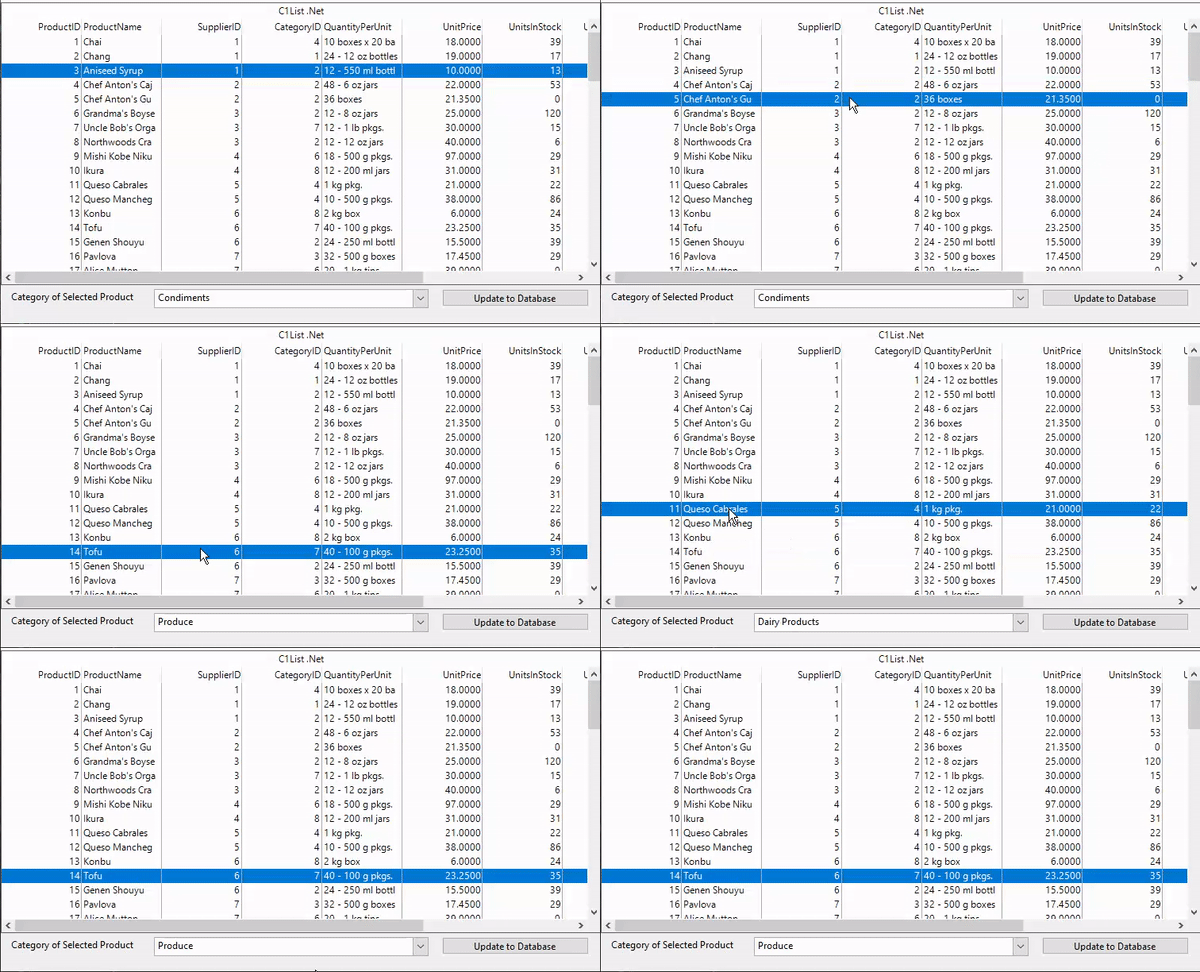
Use the following steps to use the LookUp feature to change the value of Combo box on a button click.
Set Up the Application
Create a new Windows Forms App (.NET or .NET Framework) and set the project framework to .NET 6.0 for .NET application and .NET 4.5.2 for .NET Framework application using Configure your new project window.
Add reference to the List assembly in your application by installing C1.Win.List NuGet package ( for .NET app) or adding C1.Win.List dll (for .NET Framework app).
Drag and drop the List and Combo controls from Toolbox onto the Form.
Bind to a Data Source
Create GetDataTable method to fetch the tables from the database.
private DataTable GetDataTable(string tableName)
{
    //Create the path of the Sample Common Database file in ComponentOne Samples folder
    var file = Environment.GetFolderPath(Environment.SpecialFolder.Personal) + @"\ComponentOne Samples\Common\C1NWind.mdb";
    DataTable dt = new(tableName);
    //If sample Database file exists
    if (File.Exists(file))
    {
        string connectionString = @"Driver={Microsoft Access Driver (*.mdb, *.accdb)};DBQ=" + file;
        if(tableName == "Categories")
        {
            categoriesDataAdapter = new($"Select * from [{tableName}]", connectionString);
            categoriesDataAdapter.Fill(dt);
            _ = new OdbcCommandBuilder(categoriesDataAdapter);
        }
        else
        {
            productsDataAdapter = new($"Select * from [{tableName}]", connectionString);
            productsDataAdapter.Fill(dt);
            _ = new OdbcCommandBuilder(productsDataAdapter);
        }
    }
    return dt;
}
Define a dataset and add tables to it. In this example, we have added the Products and Categories tables.
//adding DataTables into DataSet
ds = new DataSet();
ds.Tables.Add(GetDataTable("Products"));
ds.Tables.Add(GetDataTable("Categories"));
Bind the Combo and List controls to the data source using the DataSource property of the C1List and C1Combo classes, respectively. Also, set the data member for Combo and List controls using DataMember property of the C1Combo and C1List classes, respectively as shown in the following code.
//Setting the DataSource for the List
c1List1.DataSource = ds;
c1List1.DataMember = "Products";
//Setting the DataSource for the C1Combo
c1Combo1.DataSource = ds;
c1Combo1.DataMember = "Categories";
Use LookUp feature
Add the following code to define relations between the data tables.
//Adding a relation between the DataTables
DataColumn parentCol, childCol;
parentCol = ds.Tables["Categories"].Columns["CategoryID"];
childCol = ds.Tables["Products"].Columns["CategoryID"];
DataRelation rel_ProductCategory = new("Product_Category", parentCol, childCol);
ds.Relations.Add(rel_ProductCategory);
Bind SelectedValue property of the C1Combo class to the currently selected CategoryID in the Products table shown in the List.
c1Combo1.DataBindings.Add("SelectedValue", ds, "Products.CategoryID");Subscribe to the button click event and add the following code to the btnUpdate_Click event handler to update the data tables in Combo and List controls.
private void btnUpdate_Click(object sender, EventArgs e)
{
    if (ds is not null)
    {
        try
        {
            //update the Categories Table in the Database
            categoriesDataAdapter.Update(ds, "Categories");
            //update the Products Table in the Database
            productsDataAdapter.Update(ds, "Products");
        }
        catch (Exception ex)
        {
            MessageBox.Show(ex.Message);
        }
    }
}