


- List for WinForms Overview
- Key Features
- Design-Time Support
- Quick Start
- Data Binding
- List Items
- Data Views
- Data Presentation
- Format
- Split Presentation
- Search
- Sort
- Navigation
- Scroll Bar
- Selection
- Virtualization
- Display Images
- ToolTips
- Bookmarks
- Export, Import, and Print
- Customization
- Styling and Appearance
- Integration with C1Combo
Hierarchical Mode
List allows you to display hierarchical data. Hierarchical data refers to data stored in multiple relational tables, where a master (or "parent") table is linked by key fields to detail (or "child") tables. The hierarchical display provides the ability to present the master data to users, such that the related detail data can be viewed in the same list with a single mouse click.
The following GIF shows how you can display hierarchical data using the List and Combo controls.
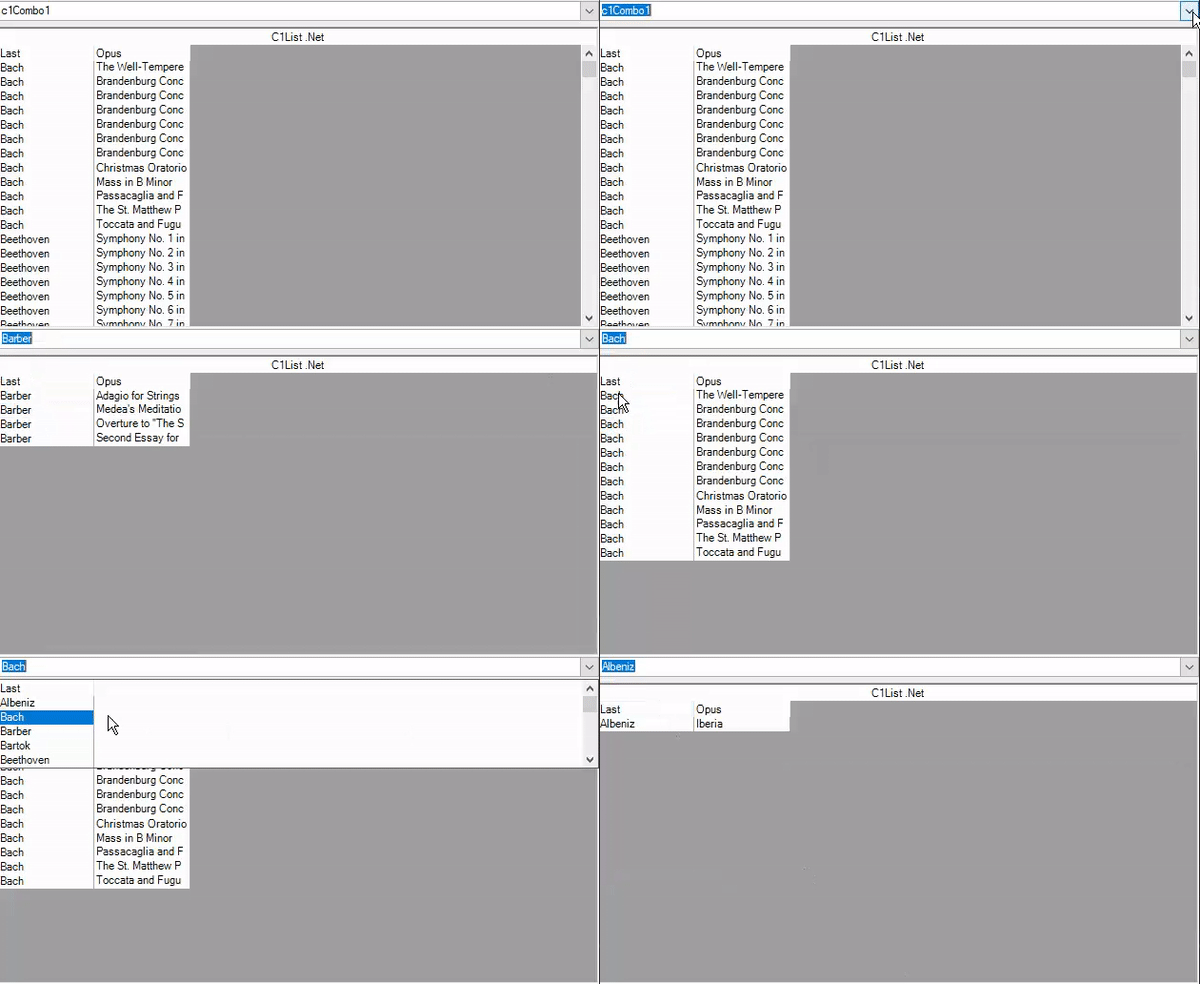
Use the following steps to display hierarchical data in the List control. The following example uses the List and Combo controls to display master-detail relationship in the List control.
Set Up the Application
Create a new Windows Forms App (.NET or .NET Framework) and set the project framework to .NET 6.0 for .NET application and .NET 4.5.2 for .NET Framework application using Configure your new project window.
Add reference to the List assembly in your application by installing C1.Win.List NuGet package ( for .NET app) or adding C1.Win.List dll (for .NET Framework app).
Drag and drop the List and Combo controls from Toolbox onto the Form.
Bind to a Data Source
Bind the Combo control to a data source at design time. For more information on data binding, see Data Binding in C1Combo. In this example, we have used the Last field of the Composer table to bind the Combo control.
This adds a dataset, and a connection string to your project. With this, the following code gets generated automatically to fill the dataset:
// TODO: This line of code loads data into the 'dataSet1.Composer' table. You can move, or remove it, as needed.
this.composerTableAdapter.Fill(this.dataSet1.Composer);
Bind the List control to a data source at design time. For more information on data binding, see Binding to a Data Source in Quick Start topic. In this example, we have used the Opus table for binding the list control.
This adds a dataset, and a connection string to your project. With this, the following code gets generated automatically to fill the dataset:
// TODO: This line of code loads data into the 'dataSet2.Opus' table. You can move, or remove it, as needed.
this.opusTableAdapter.Fill(this.dataSet2.Opus);
Display Hierarchical Data
Subscribe to RowChange event of the C1Combo class, and add the following code to the C1Combo1_RowChange event handler. This event gets fired when the user changes a row in the Combo control.
private void C1Combo1_RowChange(object sender, EventArgs e)
{
    DataRow[] dr = this.dataSet2.Opus.Select("Last ='" + this.c1Combo1.Text + "'");
    DataSet2.OpusDataTable tb = new DataSet2.OpusDataTable();
    foreach (DataRow item in dr)
    {
        tb.ImportRow(item);
    }
    //modifies the data source of the list control
    this.c1List1.DataSource = tb;
}