


Selection
Selection Modes
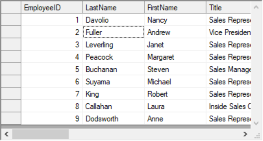
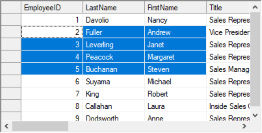
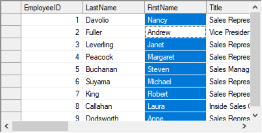
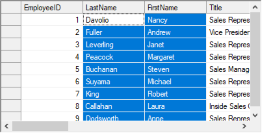
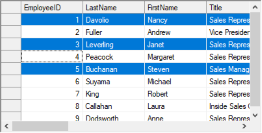
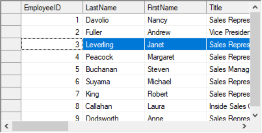
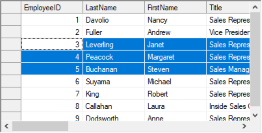
FlexGrid, by default, allows to select a continuous batch of cells using mouse or keyboard and entire row or column by clicking the corresponding header. However, the default behavior can be changed to allow selection in units of cell, row, column etc. by using SelectionMode property of the C1FlexGrid class. The property accepts values from the SelectionModeEnum enumeration. Below table gives a quick snapshot of how selection looks like in each of these modes.
Value | Description | Snapshot |
|---|---|---|
Default | Allows selection of continuous batch of cells using mouse or keyboard. Also, lets the user select entire row or column on clicking the respective header. | |
Cell | Allows selection of single cell at a time. |
|
CellRange | Allows selection of continuous batch of cells using mouse or keyboard. |
|
Column | Allows selection of single column at a time. |
|
ColumnRange | Allows selection of multiple contiguous columns at a time. |
|
ListBox | Allows selection of multiple non-contiguous rows using the Ctrl key. |
|
Row | Allows selection of single row at a time. |
|
RowRange | Allows selection of multiple contiguous rows at a time. |
|
MultiRange | Allows selection of multiple non-contiguous blocks of cells using the Ctrl key. |
|
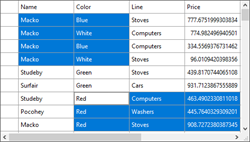
The following code snippet demonstrates how to enable multi range selection in the grid by setting the SelectionMode property to MultiRange.
c1FlexGrid1.SelectionMode = C1.Win.FlexGrid.SelectionModeEnum.MultiRange;Set Selection
FlexGrid provides various ways to set the selection through code. You can use any of these methods depending on the requirement such as selecting the single cell, cell range or rows.
Selection | Method/Property | Sample code |
|---|---|---|
Single cell | Set the Row and Col property. Default value of both of these properties is 1. Hence, by default, selection is set to the first scrollable cell on top left of the grid. | csharp
|
Call the Select(rowIndex, colIndex) method to select a single cell. | csharp
| |
Cell range | Set the RowSel and ColSel property. These properties set the selection starting from value set in Row and Col property to the specified row and column. Note that to specify a block selection, you must set Row and before setting RowSel and ColSel. | csharp
|
Call the Select(CellRange, Boolean) method to select a cell range in a single call. | csharp
| |
Rows (If SelectionModes = SelectionModesEnum. ListBox) | Set the Row.Selected property to true for individual row objects to select the non-continuous rows. | csharp
|
Get Selection
To get selected range of the WinForms FlexGrid, you can use Selection property of the C1FlexGrid class.
private void Button1_Click(object sender, EventArgs e)
  {
    C1.Win.C1FlexGrid.CellRange cr;
    cr = c1FlexGrid1.Selection;
    MessageBox.Show("Selected range\n" +
    cr.r1 + ":" + cr.c1 + " to " + cr.r2 + ":" + cr.c2);
   }
Private Sub Button1_Click(ByVal sender As Object, ByVal e As EventArgs)
Dim cr As C1.Win.C1FlexGrid.CellRange
cr = c1FlexGrid1.Selection
MessageBox.Show("Selected range" & vbLf & cr.r1 & ":" + cr.c1 & " to " + cr.r2 & ":" + cr.c2)
End Sub Select Text on Double Click
By default, double click on a grid cell changes the cell state to edit mode and shows the cursor at position of the mouse pointer. However, you can change this behavior and select the cell value on double click of a cell. This can be done by detecting and disabling the double click in BeforeDoubleClick event. Then, call the StartEditing method to enter the edit mode, change the editor to a TextBox and call the SelectAll method to select the cell value.
Following code shows how you can select text of the WinForms FlexGrid cell on a double click.
private void C1FlexGrid1_BeforeDoubleClick(object sender, BeforeMouseDownEventArgs e)
  {
    // Disable the default double click
    e.Cancel = true;
    // Enter the edit mode
    c1FlexGrid1.StartEditing();
    // Convert to the TextBox class and select using the SelectAll method
    TextBox tb = (TextBox)c1FlexGrid1.Editor;
    tb.SelectAll();
  }
Private Sub C1FlexGrid1_BeforeDoubleClick(ByVal sender As Object, ByVal e As BeforeMouseDownEventArgs)
' Disable the default double click
e.Cancel = True
' Enter the edit mode
c1FlexGrid1.StartEditing()
' Convert to the TextBox class and select using the SelectAll method
Dim tb As TextBox = CType(c1FlexGrid1.Editor, TextBox)
tb.SelectAll()
End Sub