


Overlapping Data Labels
Data-label overlap can occur when label text is long or when a chart contains many data points. FlexChart provides several options for managing overlapping labels.
Appearance of Overlapped Data Labels
Use the OverlappingOptions property for additional overlap control. The property accepts values from the LabelOverlappingOptions enumeration.
These options determine whether labels:
Avoid overlapping one another
Overlap data points when necessary
Appear outside the plot area
The following images compare data labels displayed within and outside the plot area:
LabelOverlappingOptions.None | LabelOverlappingOptions.OutsidePlotArea |
|---|---|
|
|
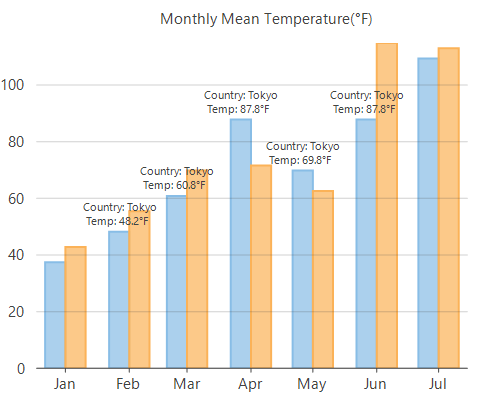
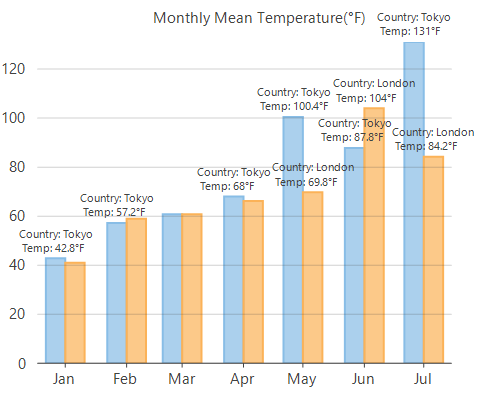
//Allow to display the data labels outside plot area
   this.flexChart1.DataLabel.OverlappingOptions = LabelOverlappingOptions.OutsidePlotArea;
' Allow to display the data labels outside plot area
Me.flexChart1.DataLabel.OverlappingOptions = LabelOverlappingOptions.OutsidePlotAreaAuto-arrange Data Labels
Set DataLabel.Position to Auto to allow FlexChart to position labels according to the available chart space.
Use MaxAutoLabels to limit the number of labels arranged automatically. The default value is 100, which allows FlexChart to arrange up to 100 labels.
LabelPosition.Top | LabelPosition.Auto |
|---|---|
|
|
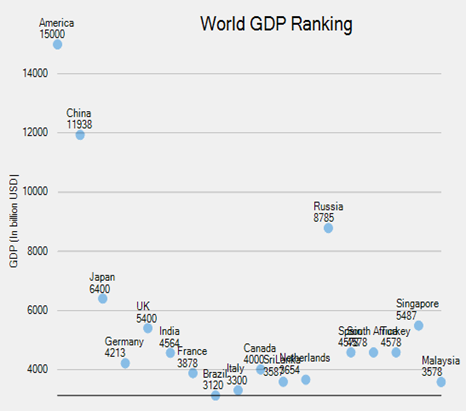
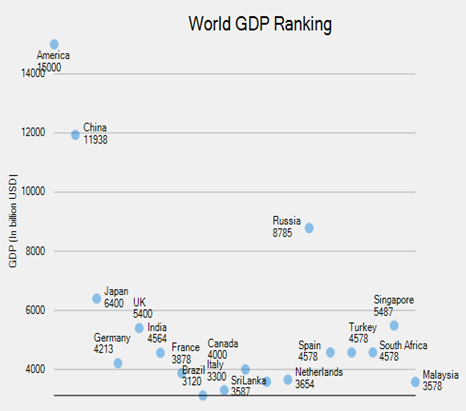
Note: Increasing MaxAutoLabels beyond 100 can reduce rendering performance because label-placement calculations increase with the number of labels. For charts with many data points, reduce the number of visible labels at the series level to improve performance.
//Set position of data labels
  this.flexChart1.DataLabel.Position = LabelPosition.Top;
'Set position of data labels
Me.flexChart1.DataLabel.Position = LabelPosition.TopHide Overlapped Data Labels
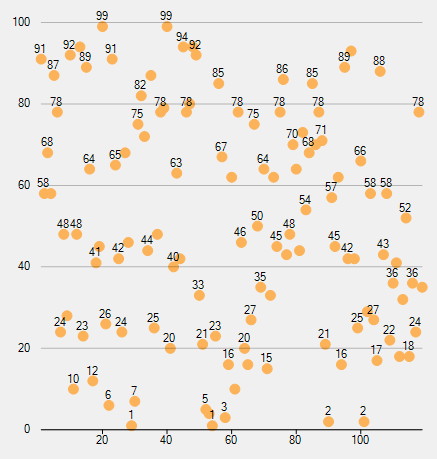
Use the DataLabel.Overlapping property to specify how overlapping labels are handled. The property accepts values from the LabelOverlapping enumeration.
For example, select the hide option to prevent overlapping labels from being displayed.
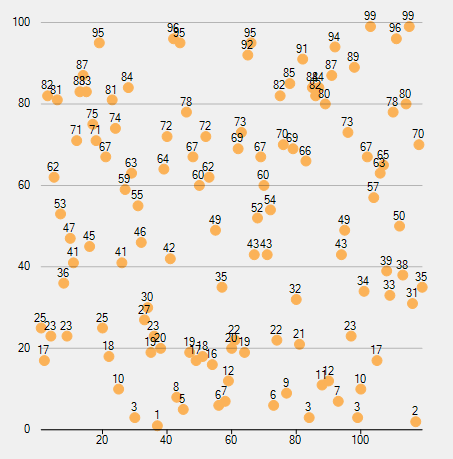
The following images compare charts that display or hide overlapping labels:
LabelOverlapping.Show | LabelOverlapping.Hide |
|---|---|
|
|
//Hide the overlapping data labels
   this.flexChart1.DataLabel.Overlapping = LabelOverlapping.Hide;
' Hide the overlapping data labels
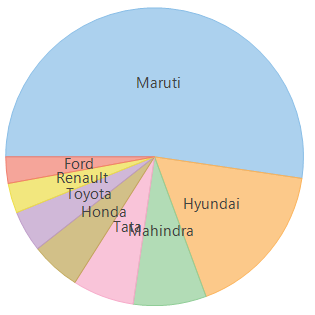
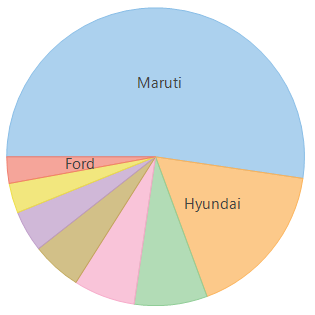
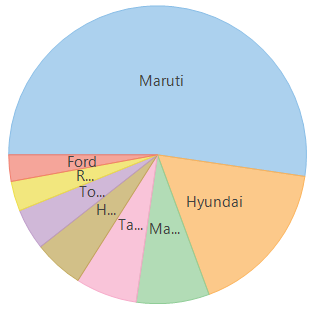
Me.flexChart1.DataLabel.Overlapping = LabelOverlapping.HideFor pie and sunburst charts, use PieDataLabel.Overlapping, which accepts values from the PieLabelOverlapping enumeration. Pie and sunburst labels are displayed by default but can be hidden or trimmed when the text exceeds the available segment space.
The following images show different overlap behaviors for FlexPie labels:
PieLabelOverlapping.Default | PieLabelOverlapping.Hide | PieLabelOverlapping.Trim |
|---|---|---|
|
|
|
//Hide the overlapping data labels
   this.flexPie1.DataLabel.Overlapping = PieLabelOverlapping.Hide;
' Hide the overlapping data labels
Me.flexPie1.DataLabel.Overlapping = PieLabelOverlapping.Hide