


Compress DataSets to Zip Files
Datasets or collection of data like database tables can be compressed with the Zip library so that users can conveniently save datasets into single file, without consuming up much disk space.
This walkthrough takes you through the steps for compressing datasets to zip files.
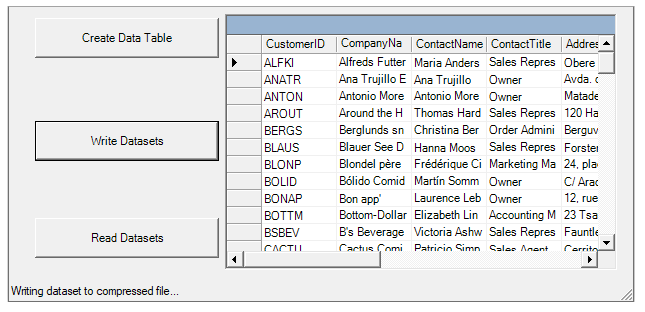
Set up Application
Start a new Visual Studio project and from the Toolbox, add three Button controls along the left edge, a DataGrid control along the right edge of the form, and aStatusBar control towards the bottom of the form as shown in the snapshot in the beginning of the walkthrough.
In the Properties window, make the following changes for button controls:
Button Button.Name Property Button.Text Property Button.Enabled Property 1 btnCreate Create Data Table True (Default) 2 btnSave Write Datasets False 3 btnLoad Read Datasets False For WPF applications, open the MainWindow.xaml and replace the existing XAML with the following code.
<Window
        xmlns="http://schemas.microsoft.com/winfx/2006/xaml/presentation"
        xmlns:x="http://schemas.microsoft.com/winfx/2006/xaml"
        xmlns:d="http://schemas.microsoft.com/expression/blend/2008"
        xmlns:mc="http://schemas.openxmlformats.org/markup-compatibility/2006"
        xmlns:local="clr-namespace:Serialization"
        xmlns:c1="http://schemas.componentone.com/winfx/2006/xaml" x:Class="Serialization.MainWindow"
        mc:Ignorable="d"
        Title="MainWindow" Height="457.49" Width="916.096">
    <Grid Margin="0,0,-92,-150">
        <Button x:Name="BtnCreate" Content="Create Data Table" HorizontalAlignment="Left" Margin="39,92,0,0" VerticalAlignment="Top" Width="164" Height="32" Click="BtnCreate_Click"/>
        <Button x:Name="BtnSave" Content="Write DataSets" HorizontalAlignment="Left" Margin="39,159,0,0" VerticalAlignment="Top" Width="164" Height="33" Click="BtnSave_Click"/>
        <Button x:Name="BtnLoad" Content="Read DataSets" HorizontalAlignment="Left" Margin="39,231,0,0" VerticalAlignment="Top" Width="164" Height="33" Click="BtnLoad_Click"/>
        <DataGrid x:Name="dataGrid1" HorizontalAlignment="Left" Height="229" Margin="242,92,0,0" VerticalAlignment="Top" Width="500"/>
            <StatusBar x:Name="statusBar1" HorizontalAlignment="Left" Height="22" Margin="20,464,-916,-486" VerticalAlignment="Top" Width="896"/>
        <Label x:Name="label1" Content="Label" HorizontalAlignment="Left" Height="33" Margin="242,376,0,0" VerticalAlignment="Top" Width="500" Visibility="Collapsed"/>
    </Grid>
</Window>
Add Reference Assemblies
Go to the Solution Explorer window and click the Show All Files button. Right-click on References, and select the Add Reference menu option to add the C1.Zip assembly from the list.
Open the Code Editor. and add the following statements at the top of the file:
WinForms
This is the C# Code for reference assemblies in WinForms applications:
using System.IO;
using C1.Zip;
This is the VB Code for reference assemblies in WinForms applications:
Imports System.IO
Imports C1.Zip
WPF
This is the C# code for reference assemblies in WPF applications:
using C1.Zip;
using System.IO;
This is the VB code for reference assemblies in WPF applications:
Imports C1.Zip
Imports System.IO
Imports System.Data
Create DataSets
Add the following code to handle the Click event for the Create Data Table button:
WinForms
This is the C# Code for creating datasets in WinForms applications:
void btnCreate_Click(object sender, System.EventArgs e)
{
    // open table
    string conn = GetConnectionString();
    string rs = "select * from customers";
    // show status
    Cursor = Cursors.WaitCursor;
    statusBar1.Text = "Loading data from mdb file...";
    // load data
    OleDbDataAdapter da = new OleDbDataAdapter(rs, conn);
    DataSet ds = new DataSet();
    da.Fill(ds);
    // show status
    Cursor = Cursors.Default;
    statusBar1.Text = "Loaded " + ds.Tables[0].Rows.Count + " records from mdb file.";
    // bind to grid
    dataGrid1.DataSource = ds.Tables[0];
    // enable save button
    btnSave.Enabled = true;
}
This is the VB Code for creating datasets in WinForms applications:
Public Class Form1
    Private Sub btnCreate_Click(sender As Object, e As EventArgs) Handles btnCreate.Click
        ' open table
        Dim conn As String = GetConnectionString()
        Dim rs As String = "select * from customers"
        ' show status
        MyBase.Cursor = Cursors.WaitCursor
        statusBar1.Text = "Loading data from mdb file..."
        ' load data
        Dim da As OleDbDataAdapter = New OleDbDataAdapter(rs, conn)
        Dim ds As DataSet = New DataSet()
        da.Fill(ds)
        ' show status
        MyBase.Cursor = Cursors.Default
        statusBar1.Text = "Loaded " & ds.Tables(0).Rows.Count & " records from mdb file."
        ' bind to grid
        dataGrid1.DataSource = ds.Tables(0)
        ' enable save button
        btnSave.Enabled = True
    End Sub
WPF
This is the C# code for creating datasets in WPF applications:
private void BtnCreate_Click(object sender, RoutedEventArgs e)
{
string conn = GetConnectionString();
string rs = "select * from customers";
// show status
    label1.Content = "Loading data from mdb file...";
    // load data
    OleDbDataAdapter da = new OleDbDataAdapter(rs, conn);
DataSet ds = new DataSet();
da.Fill(ds);
    label1.Content = "Loaded " + ds.Tables[0].Rows.Count + " records from mdb file.";
    // bind to grid
    dataGrid1.ItemsSource = ds.Tables[0].DefaultView;
    // enable save button
    BtnSave.IsEnabled = true;
}
This is the VB code for creating datasets in WPF applications:
Private Sub BtnCreate_Click(ByVal sender As Object, ByVal e As RoutedEventArgs)
    Dim conn As String = GetConnectionString()
    Dim rs As String = "select * from customers"
    ' show status
    Me.label1.Content = "Loading data from mdb file..."
   ' load data
    Dim da As OleDbDataAdapter = New OleDbDataAdapter(rs, conn)
    Dim ds As DataSet = New DataSet()
    da.Fill(ds)
    Me.label1.Content = "Loaded " & ds.Tables(0).Rows.Count & " records from mdb file."
    ' bind to grid
    Me.dataGrid1.ItemsSource = ds.Tables(0).DefaultView
    ' enable save button
    Me.BtnSave.IsEnabled = True
End Sub
The function uses standard ADO.NET objects and methods to create and populate a DataTable object, which is then bound to the DataGrid control.
Add the code given below for GetConnectionString()
WinForms
This is the C# Code for GetConnectionString() in WinForms applications:
static string GetConnectionString()
{
    string path = Environment.GetFolderPath(Environment.SpecialFolder.Personal) + @"\ComponentOne Samples\Common";
    string conn = @"provider=microsoft.jet.oledb.4.0;data source={0}\c1nwind.mdb;";
    return string.Format(conn, path);
}
This is the VB Code for GetConnectionString() in WinForms applications:
Private Shared Function GetConnectionString() As String
    Dim path As String = Environment.GetFolderPath(Environment.SpecialFolder.Personal) & "\ComponentOne Samples\Common"
    Dim conn As String = "provider=microsoft.jet.oledb.4.0;data source={0}\c1nwind.mdb;"
    Return String.Format(conn, path)
End Function
WPF
This is the C# code for GetConnectionString() in WPF applications:
private static string GetConnectionString()
{
    string path = Environment.GetFolderPath(Environment.SpecialFolder.Personal) + @"\ComponentOne Samples\Common";
    string conn = @"provider=microsoft.jet.oledb.4.0;data source={0}\c1nwind.mdb;";
    return string.Format(conn, path);
}
This is the VB code for GetConnectionString() in WPF applications:
Private Shared Function GetConnectionString() As String
    Dim path As String = Environment.GetFolderPath(Environment.SpecialFolder.Personal) & "\ComponentOne Samples\Common"
    Dim conn As String = "provider=microsoft.jet.oledb.4.0;data source={0}\c1nwind.mdb;"
    Return String.Format(conn, path)
End Function
Write DataSets into Zip File
Add the following code to handle the Click event for the Write Datasets button:
WinForms
This is the C# Code for writing datasets in WinForms applications:
void btnSave_Click(object sender, System.EventArgs e)
{
    // create DataTable object and populate it from NorthWind database
    // get data table from grid
    DataTable dt = dataGrid1.DataSource as DataTable;
    Debug.Assert(dt != null);
    // open table
    string conn = GetConnectionString();
    string rs = "select * from customers";
    // show status
    Cursor = Cursors.WaitCursor;
    statusBar1.Text = "Loading data from mdb file...";
    // load data
    OleDbDataAdapter da = new OleDbDataAdapter(rs, conn);
    DataSet ds = new DataSet();
    da.Fill(ds);
    // show status
    Cursor = Cursors.Default;
    statusBar1.Text = "Loaded " + ds.Tables[0].Rows.Count + " records from mdb file.";
    // bind to grid
    dataGrid1.DataSource = ds.Tables[0];
    // enable save button
    btnSave.Enabled = true;
    // Open/create zip file.
    C1.Zip.C1ZipFile zip = new C1.Zip.C1ZipFile();
    zip.Open(@"c:\temp\dataset.zip");
    // Write the dataset into the zip file.
    using (Stream s = zip.Entries.OpenWriter(ds.DataSetName, true))
    {
        ds.WriteXml(s, XmlWriteMode.WriteSchema);
    }
    // show status
    statusBar1.Text = "Writing dataset to compressed file...";
    btnLoad.Enabled = true;
}
This is the VB Code for writing datasets in WinForms applications:
Private Sub btnSave_Click(sender As Object, e As EventArgs) Handles btnSave.Click
    ' create DataTable object and populate it from NorthWind database
    ' get data table from grid
    Dim dt As DataTable = TryCast(dataGrid1.DataSource, DataTable)
    Debug.Assert(dt IsNot Nothing)
    ' open table
    Dim conn As String = GetConnectionString()
    Dim rs As String = "select * from customers"
    ' show status
    MyBase.Cursor = Cursors.WaitCursor
    statusBar1.Text = "Loading data from mdb file..."
    ' load data
    Dim da As OleDbDataAdapter = New OleDbDataAdapter(rs, conn)
    Dim ds As DataSet = New DataSet()
    da.Fill(ds)
    ' show status
    MyBase.Cursor = Cursors.Default
    statusBar1.Text = "Loaded " & ds.Tables(0).Rows.Count & " records from mdb file."
    ' bind to grid
    dataGrid1.DataSource = ds.Tables(0)
    ' enable save button
    btnSave.Enabled = True
    ' Open/create zip file.
    Dim zip As C1ZipFile = New C1ZipFile()
    zip.Open("c:\temp\dataset.zip")
    ' Write the dataset into the zip file.
    Using s As Stream = zip.Entries.OpenWriter(ds.DataSetName, True)
        ds.WriteXml(s, XmlWriteMode.WriteSchema)
    End Using
    ' show status
    statusBar1.Text = "Writing dataset to compressed file..."
    btnLoad.Enabled = True
End Sub
WPF
This is the C# code for writing datasets in WPF applications:
private void BtnSave_Click(object sender, RoutedEventArgs e)
{
    // create DataTable object and populate it from NorthWind database
    // get data table from grid
    DataTable dt = dataGrid1.ItemsSource as DataTable;
    //Debug.Assert(dt != null);
    // open table
    string conn = GetConnectionString();
    string rs = "select * from customers";
    // show status
    //Cursor = Cursors.WaitCursor;
    label1.Content = "Loading data from mdb file...";
    // load data
    OleDbDataAdapter da = new OleDbDataAdapter(rs, conn);
    DataSet ds = new DataSet();
    da.Fill(ds);
    // show status
    label1.Content = "Loaded " + ds.Tables[0].Rows.Count + " records from mdb file.";
    // bind to grid
    dataGrid1.ItemsSource = ds.Tables[0].DefaultView;
    // enable save button
    BtnSave.IsEnabled = true;
    // Open/create zip file.
    C1.Zip.C1ZipFile zip = new C1.Zip.C1ZipFile();
    zip.Open(@"c:\temp\dataset.zip");
    // Write the dataset into the zip file.
    using (Stream s = zip.Entries.OpenWriter(ds.DataSetName, true))
    {
        ds.WriteXml(s, XmlWriteMode.WriteSchema);
    }
    // show status
    label1.Content = "Writing dataset to compressed file...";
    BtnLoad.IsEnabled = true;
}
This is the VB code for writing datasets in WPF applications:
Private Sub BtnSave_Click(ByVal sender As Object, ByVal e As RoutedEventArgs)
    ' create DataTable object and populate it from NorthWind database
    ' get data table from grid
    Dim dt As DataTable = TryCast(Me.dataGrid1.ItemsSource, DataTable)
    'Debug.Assert(dt != null);
    ' open table
    Dim conn As String = GetConnectionString()
    Dim rs As String = "select * from customers"
    ' show status
    'Cursor = Cursors.WaitCursor;
    Me.label1.Content = "Loading data from mdb file..."
    ' load data
    Dim da As OleDbDataAdapter = New OleDbDataAdapter(rs, conn)
    Dim ds As DataSet = New DataSet()
    da.Fill(ds)
    ' show status
    Me.label1.Content = "Loaded " & ds.Tables(0).Rows.Count & " records from mdb file."
    ' bind to grid
    Me.dataGrid1.ItemsSource = ds.Tables(0).DefaultView
    ' enable save button
    Me.BtnSave.IsEnabled = True
    ' Open/create zip file.
    Dim zip As C1ZipFile = New C1ZipFile()
    zip.Open("c:\temp\dataset.zip")
    ' Write the dataset into the zip file.
    Using s As Stream = zip.Entries.OpenWriter(ds.DataSetName, True)
        ds.WriteXml(s, XmlWriteMode.WriteSchema)
    End Using
    ' show status
    Me.label1.Content = "Writing dataset to compressed file..."
    Me.BtnLoad.IsEnabled = True
End Sub
From the code snippet, it is clear that a C1ZipFile object is initialized and a zip file is opened at the temporary location, where you want to save the dataset using the Open method of C1ZipFile class. The OpenWriter method of C1ZipEntryCollection classis invoked to write the dataset into the zip file. This method opens a stream for writing this entry.
Read DataSets from Zip File
Add the following code to handle the Click event for the Read Datasets button:
WinForms
This is the C# Code for reading datasets in WinForms applications:
void btnLoad_Click(object sender, System.EventArgs e)
{
    // get data table from grid
    DataTable dt = dataGrid1.DataSource as DataTable;
    Debug.Assert(dt != null);
    // open table
    string conn = GetConnectionString();
    string rs = "select * from customers";
    // show status
    Cursor = Cursors.WaitCursor;
    statusBar1.Text = "Loading data from mdb file...";
    // load data
    OleDbDataAdapter da = new OleDbDataAdapter(rs, conn);
    DataSet ds = new DataSet();
    da.Fill(ds);
    // show status
    Cursor = Cursors.Default;
    statusBar1.Text = "Loaded " + ds.Tables[0].Rows.Count + " records from mdb file.";
    // bind to grid
    dataGrid1.DataSource = ds.Tables[0];
    // enable save button
    btnSave.Enabled = true;
    // show status
    statusBar1.Text = "Loading DataTable from file....";
    // Open/create zip file.
    C1.Zip.C1ZipFile zip = new C1.Zip.C1ZipFile();
    zip.Open(@"c:\temp\dataset.zip");
    // Read the dataset from the zip file.
    using (Stream s = zip.Entries[ds.DataSetName].OpenReader())
    {
        ds.ReadXml(s);
    }
    // show result
    Cursor = Cursors.Default;
    dataGrid1.DataSource = dt;
}
This is the VB Code for reading datasets in WinForms applications:
Private Sub btnLoad_Click(sender As Object, e As EventArgs) Handles btnLoad.Click
    ' get data table from grid
    Dim dt As DataTable = TryCast(dataGrid1.DataSource, DataTable)
    Debug.Assert(dt IsNot Nothing)
    ' open table
    Dim conn As String = GetConnectionString()
    Dim rs As String = "select * from customers"
    ' show status
    MyBase.Cursor = Cursors.WaitCursor
    statusBar1.Text = "Loading data from mdb file..."
    ' load data
    Dim da As OleDbDataAdapter = New OleDbDataAdapter(rs, conn)
    Dim ds As DataSet = New DataSet()
    da.Fill(ds)
    ' show status
    MyBase.Cursor = Cursors.Default
    statusBar1.Text = "Loaded " & ds.Tables(0).Rows.Count & " records from mdb file."
    ' bind to grid
    dataGrid1.DataSource = ds.Tables(0)
    ' enable save button
    btnSave.Enabled = True
    ' show status
    statusBar1.Text = "Loading DataTable from file...."
    ' Open/create zip file.
    Dim zip As C1ZipFile = New C1ZipFile()
    zip.Open("c:\temp\dataset.zip")
    ' Read the dataset from the zip file.
    Using s As Stream = zip.Entries(ds.DataSetName).OpenReader()
        ds.ReadXml(s)
    End Using
    ' show result
    MyBase.Cursor = Cursors.Default
    dataGrid1.DataSource = dt
End Sub
WPF
This is the C# code for reading datasets in WPF applications:
private void BtnLoad_Click(object sender, RoutedEventArgs e)
{
    // get data table from grid
    DataTable dt = dataGrid1.ItemsSource as DataTable;
    //Debug.Assert(dt != null);
    // open table
    string conn = GetConnectionString();
    string rs = "select * from customers";
    // show status
    label1.Content = "Loading data from mdb file...";
    // load data
    OleDbDataAdapter da = new OleDbDataAdapter(rs, conn);
    DataSet ds = new DataSet();
    da.Fill(ds);
    label1.Content = "Loaded " + ds.Tables[0].Rows.Count + " records from mdb file.";
    // bind to grid
    dataGrid1.ItemsSource = ds.Tables[0].DefaultView;
    // Open / create zip file.
    C1.Zip.C1ZipFile zip = new C1.Zip.C1ZipFile();
    zip.Open(@"c:\temp\dataset.zip");
    // Read the dataset from the zip file.
    using (Stream s = zip.Entries[ds.DataSetName].OpenReader())
    {
        ds.ReadXml(s);
    }
    // show status
    // enable save button
    BtnSave.IsEnabled = true;
    // show status
    label1.Content = "Loading DataTable from file....";
}
This is the VB code for reading datasets in WPF applications:
Private Sub BtnLoad_Click(ByVal sender As Object, ByVal e As RoutedEventArgs)
    ' get data table from grid
    Dim dt As DataTable = TryCast(Me.dataGrid1.ItemsSource, DataTable)
    'Debug.Assert(dt != null);
    ' open table
    Dim conn As String = GetConnectionString()
    Dim rs As String = "select * from customers"
    ' show status
    Me.label1.Content = "Loading data from mdb file..."
    ' load data
    Dim da As OleDbDataAdapter = New OleDbDataAdapter(rs, conn)
    Dim ds As DataSet = New DataSet()
    da.Fill(ds)
    Me.label1.Content = "Loaded " & ds.Tables(0).Rows.Count & " records from mdb file."
    ' bind to grid
    Me.dataGrid1.ItemsSource = ds.Tables(0).DefaultView
    ' Open / create zip file.
    Dim zip As C1ZipFile = New C1ZipFile()
    zip.Open("c:\temp\dataset.zip")
    ' Read the dataset from the zip file.
    Using s As Stream = zip.Entries(ds.DataSetName).OpenReader()
        ds.ReadXml(s)
    End Using
    ' show status
    ' enable save button
    Me.BtnSave.IsEnabled = True
    ' show status
    Me.label1.Content = "Loading DataTable from file...."
End Sub
Here, after opening the zip file using the Open method of C1ZipFile class, the OpenReader method of C1ZipEntry class is invoked to read the dataset into the zip file, without extracting it to the zip file.
This concludes the walkthrough for compressing datasets.