


Compress Data in Memory
The C1.Zip library enables a user to compress basic data types such as strings and doubles and write it into memory streams. This walkthrough takes you through the steps for compressing basic data types such as strings and doubles into streams of memory, and expand the data back when you read it from the streams.
Set up Application
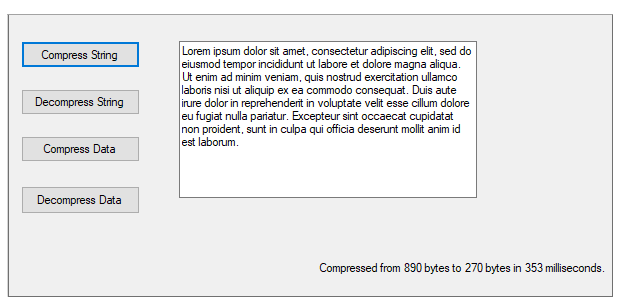
Start a new Visual Studio project and from the Toolbox, add four Button controls along the left edge, a textbox control along the right edge of the form, and a label control towards the bottom left part of the form as shown in the snapshot in the beginning of the tutorial.
In the Properties window, make the following changes for button controls:
Button Button.Name Property Button.Text Property Button.Enabled Property 1 btnCompressString Compress String True (Default) 2 btnExpandString Decompress String False 3 btnCompressData Compress Data True (Default) 4 btnExpandData Decompress Data False Note that the Decompress String and Decompress Data buttons cannot be used until we have some compressed data to expand. For the Textbox control, set the MultiLine property to True, and select the ellipsis button located next to Lines property. In the String Collection Editor dialog box, type the text to use as an initial value.
For WPF applications, open the MainWindow.xaml and replace the existing XAML with the following code.
T<Window x:Class="CompressingandExtract_DataMemory.MainWindow"
        xmlns="http://schemas.microsoft.com/winfx/2006/xaml/presentation"
        xmlns:x="http://schemas.microsoft.com/winfx/2006/xaml"
        xmlns:d="http://schemas.microsoft.com/expression/blend/2008"
        xmlns:mc="http://schemas.openxmlformats.org/markup-compatibility/2006"
        xmlns:local="clr-namespace:CompressingandExtract_DataMemory"
        mc:Ignorable="d"
        Title="MainWindow" Height="475.1" Width="800">
    <Grid>
        <Button x:Name="btnCompressString" Content="Compress Strings" HorizontalAlignment="Left" Height="39" Margin="10,43,0,0" VerticalAlignment="Top" Width="199" Click="BtnCompressString_Click"/>
        <Button x:Name="btnExpandString" Content="Expand Strings" HorizontalAlignment="Left" Height="44" Margin="10,130,0,0" VerticalAlignment="Top" Width="199" Click="BtnExpandString_Click"/>
        <Button x:Name="btnCompressData" Content="Compress Data" HorizontalAlignment="Left" Height="45" Margin="10,224,0,0" VerticalAlignment="Top" Width="199" Click="BtnCompressData_Click"/>
        <Button x:Name="btnExpandData" Content="Expand Data" HorizontalAlignment="Left" Height="44" Margin="10,323,0,0" VerticalAlignment="Top" Width="199" Click="BtnExpandData_Click"/>
        <RichTextBox x:Name="richTextBox1" HorizontalAlignment="Left" Height="324" Margin="267,43,0,0" VerticalAlignment="Top" Width="487">
            <FlowDocument>
                <Paragraph>
                    <Run Text="Lorem ipsum dolor sit amet, consectetur adipiscing elit, sed do eiusmod tempor incididunt ut labore et dolore magna aliqua. Ut enim ad minim veniam, quis nostrud exercitation ullamco laboris nisi ut aliquip ex ea commodo consequat. Duis aute irure dolor in reprehenderit in voluptate velit esse cillum dolore eu fugiat nulla pariatur. Excepteur sint occaecat cupidatat non proident, sunt in culpa qui officia deserunt mollit anim id est laborum."/>
                </Paragraph>
            </FlowDocument>
        </RichTextBox>
        <Label x:Name="label1" Content="Label" HorizontalAlignment="Left" Height="47" Margin="304,387,0,0" VerticalAlignment="Top" Width="450"/>
    </Grid>
</Window>
Add Reference Assemblies
Go to the Solution Explorer window and click the Show All Files button. Right-click on References, and select the Add Reference menu option to add the C1.Zip assembly from the list.
Open the Code Editor. and add the following statements at the top of the file:
WinForms
This is the C# Code for adding references in WinForms applications:
using C1.Zip;
using System.IO;
This is the VB Code for adding references in WinForms applications:
Imports System.IO
Imports C1.Zip
WPF
This is the C# code for adding references in WPF applications:
using System.IO;
using Microsoft.Win32;
using C1.Zip;
This is the VB code for adding references in WPF applications:
Imports System.IO
Imports C1.Zip
Imports Microsoft.Win32
This makes the objects defined in the C1Zip assembly visible to the project and saves a lot of typing.
Compress Strings
Add the following code to handle the btnCompressString_Click event:
WinForms
This is the C# Code for compressing in WinForms applications:
private byte[] m_CompressedString;
private void btnCompressString_Click(object sender, EventArgs e)
{
    // Compress the string.
    long ticks = DateTime.Now.Ticks;
    m_CompressedString = CompressString(textBox1.Text);
    // Tell the user how long it took.
    int ms = (int)((DateTime.Now.Ticks - ticks) / TimeSpan.TicksPerMillisecond);
    int lenBefore = textBox1.Text.Length * 2;
    int lenAfter = m_CompressedString.Length;
    string msg = string.Format("Compressed from {0} bytes to " + "{1} bytes in {2} milliseconds.", lenBefore, lenAfter, ms);
    MessageBox.Show(msg, "Compressed", MessageBoxButtons.OK, MessageBoxIcon.Information);
    // We can now expand it.
    label1.Text = msg;
    btnExpandString.Enabled = true;
}
This is the VB Code for WinForms applications:
' compress/expand string
Dim m_CompressedString As Byte()
Private Sub btnCompressString_Click(ByVal sender As System.Object, ByVal e As System.EventArgs) Handles btnCompressString.Click
    ' compress the string
    Dim ticks As Long = DateTime.Now.Ticks
    m_CompressedString = CompressString(textBox1.Text)
    ' tell user how long it took
    Dim ms As Integer = (DateTime.Now.Ticks - ticks) / TimeSpan.TicksPerMillisecond
    Dim lenBefore As Integer = textBox1.Text.Length * 2 ' << 1 unicode char = 2 bytes
    Dim lenAfter As Integer = m_CompressedString.Length
    Dim msg As String = String.Format("Compressed from {0} bytes to {1} bytes in {2} milliseconds.", lenBefore, lenAfter, ms)
    MessageBox.Show(msg, "Compressed", MessageBoxButtons.OK, MessageBoxIcon.Information)
    ' we can now expand it
    btnExpandString.Enabled = True
End Sub
WPF
This is the C# code for compressing in WPF applications:
private byte[] _compressedString;
private void BtnCompressString_Click(object sender, RoutedEventArgs e)
{
    // Compress the string.
    long ticks = DateTime.Now.Ticks;
    richTextBox1.SelectAll();
    string text = richTextBox1.Selection.Text;
    _compressedString = CompressString(text);
    // Tell the user how long it took.
    int ms = (int)((DateTime.Now.Ticks - ticks) / TimeSpan.TicksPerMillisecond);
    int lenBefore = text.Length * 2;
    int lenAfter = _compressedString.Length;
    string msg = string.Format("Compressed from {0} bytes to " + "{1} bytes in {2} milliseconds.", lenBefore, lenAfter, ms);
    MessageBox.Show(msg, "Compressed", MessageBoxButton.OK);
    // We can now expand it.
    btnExpandString.IsEnabled = true;
}
This is the VB code for compressing in WPF applications:
Private _compressedString As Byte()
Private Sub BtnCompressString_Click(ByVal sender As Object, ByVal e As RoutedEventArgs)
    ' Compress the string.
    Dim ticks As Long = Date.Now.Ticks
    Me.richTextBox1.SelectAll()
    Dim text As String = Me.richTextBox1.Selection.Text
    _compressedString = CompressString(text)
    ' Tell the user how long it took.
    Dim ms As Integer = (Date.Now.Ticks - ticks) / TimeSpan.TicksPerMillisecond
    Dim lenBefore As Integer = text.Length * 2
    Dim lenAfter As Integer = _compressedString.Length
    Dim msg As String = String.Format("Compressed from {0} bytes to " & "{1} bytes in {2} milliseconds.", lenBefore, lenAfter, ms)
    MessageBox.Show(msg, "Compressed", MessageBoxButton.OK)
    ' We can now expand it.
    Me.btnExpandString.IsEnabled = True
End Sub
The first main line declares a member variable called m_CompressedString which will be used to hold the compressed data (encoded as a byte array). The second main line calls a utility function CompressString that compresses a given string into a byte array that can later be expanded to restore the original string. The remainder of the code is used to measure how long the compression process took and to show a dialog box with statistics. (Note that the lenBefore variable is calculated as the length of the string times two. This is because .NET strings are Unicode, and each character actually takes up two bytes.)
Add the following code which implements the CompressString function:
WinForms
This is the C# Code for compressing in WinForms applications:
public byte[] CompressString(string str)
{
    // Open the memory stream.
    MemoryStream ms = new MemoryStream();
    // Attach a compressor stream to the memory stream.
    C1ZStreamWriter sw = new C1ZStreamWriter(ms);
    // Write the data into the compressor stream.
    StreamWriter writer = new StreamWriter(sw);
    writer.Write(str);
    // Flush any pending data.
    writer.Flush();
    // Return the memory buffer.
    return ms.ToArray();
}
This is the VB Code for compressing in WinForms applications:
' utilities to compress/expand a string
'
Public Function CompressString(ByVal str As String) As Byte()
    ' open memory stream
    Dim ms As MemoryStream = New MemoryStream()
    ' attach compressor stream to memory stream
    Dim sw As C1ZStreamWriter = New C1ZStreamWriter(ms)
    ' write data into compressor stream
    Dim writer As StreamWriter = New StreamWriter(sw)
    writer.Write(str)
    ' flush any pending data
    writer.Flush()
    ' return the memory buffer
    CompressString = ms.ToArray()
End Function
WPF
This is the C# code for compressing in WPF applications:
public byte[] CompressString(string str)
{
    // Open the memory stream.
    MemoryStream ms = new MemoryStream();
    // Attach a compressor stream to the memory stream.
    C1ZStreamWriter sw = new C1ZStreamWriter(ms);
    // Write the data into the compressor stream.
    StreamWriter writer = new StreamWriter(sw);
    writer.Write(str);
    // Flush any pending data.
    writer.Flush();
    // Return the memory buffer.
    return ms.ToArray();
}
This is the VB code for WPF applications:
Public Function CompressString(ByVal str As String) As Byte()
    ' Open the memory stream.
    Dim ms As MemoryStream = New MemoryStream()
    ' Attach a compressor stream to the memory stream.
    Dim sw As C1ZStreamWriter = New C1ZStreamWriter(ms)
    ' Write the data into the compressor stream.
    Dim writer As StreamWriter = New StreamWriter(sw)
    writer.Write(str)
    ' Flush any pending data.
    writer.Flush()
    ' Return the memory buffer.
    Return ms.ToArray()
End Function
Decompress Strings
Add the following code to handle the btnExpandString_Click event: WinForms
This is the C# Code for decompressing in WinForms applications:
private void btnExpandString_Click(object sender, EventArgs e)
{
    // Expand the string.
    long ticks = DateTime.Now.Ticks;
    textBox1.Text = ExpandString(m_CompressedString);
    // Tell the user how long it took.
    int ms = (int)((DateTime.Now.Ticks - ticks) / TimeSpan.TicksPerMillisecond);
    int lenBefore = m_CompressedString.Length;
    int lenAfter = textBox1.Text.Length * 2;
    string msg;
    msg = string.Format("Expanded from {0} bytes to {1} bytes " + "in {2} milliseconds.", lenBefore, lenAfter, ms);
    MessageBox.Show(msg, "Expanded", MessageBoxButtons.OK, MessageBoxIcon.Information);
    label1.Text = msg;
}
This is the VB Code for decompressing in WinForms applications:
Private Sub btnExpandString_Click(ByVal sender As System.Object, ByVal e As System.EventArgs) Handles btnExpandString.Click
    ' expand the string
    Dim ticks As Long = DateTime.Now.Ticks
    textBox1.Text = ExpandString(m_CompressedString)
    ' tell user how long it took
    Dim ms As Integer = (DateTime.Now.Ticks - ticks) / TimeSpan.TicksPerMillisecond
    Dim lenBefore As Integer = m_CompressedString.Length
    Dim lenAfter As Integer = textBox1.Text.Length * 2 ' << 1 unicode char = 2 bytes
    Dim msg As String = String.Format("Expanded from {0} bytes to {1} bytes in {2} milliseconds.", lenBefore, lenAfter, ms)
    MessageBox.Show(msg, "Expanded", MessageBoxButtons.OK, MessageBoxIcon.Information)
End Sub
WPF
This is the C# code for decompressing in WPF applications:
private void BtnExpandString_Click(object sender, RoutedEventArgs e)
{
    // Expand the string.
    long ticks = DateTime.Now.Ticks;
    string text = ExpandString(_compressedString);
    richTextBox1.Selection.Text = text;
    // Tell the user how long it took.
    int ms = (int)((DateTime.Now.Ticks - ticks) / TimeSpan.TicksPerMillisecond);
    int lenBefore = _compressedString.Length;
    int lenAfter = text.Length * 2;
    string msg;
    msg = string.Format("Expanded from {0} bytes to {1} bytes " + "in {2} milliseconds.", lenBefore, lenAfter, ms);
    MessageBox.Show(msg, "Expanded", MessageBoxButton.OK);
}
This is the VB code for decompressing in WPF applications:
Private Sub BtnExpandString_Click(ByVal sender As Object, ByVal e As RoutedEventArgs)
    ' Expand the string.
    Dim ticks As Long = Date.Now.Ticks
    Dim text As String = ExpandString(_compressedString)
    Me.richTextBox1.Selection.Text = text
    ' Tell the user how long it took.
    Dim ms As Integer = (Date.Now.Ticks - ticks) / TimeSpan.TicksPerMillisecond
    Dim lenBefore As Integer = _compressedString.Length
    Dim lenAfter As Integer = text.Length * 2
    Dim msg As String
    msg = String.Format("Expanded from {0} bytes to {1} bytes " & "in {2} milliseconds.", lenBefore, lenAfter, ms)
    MessageBox.Show(msg, "Expanded", MessageBoxButton.OK)
End Sub
The main line calls the utility function ExpandString that takes a byte array and returns the original string. Add the following code for the ExpandString function:
WinForms
This is the C# Code for ExpandString function in WinForms applications:
public string ExpandString(byte[] buffer)
{
    // Turn buffer into a memory stream.
    MemoryStream ms = new MemoryStream(buffer);
    // Attach a decompressor stream to the memory stream.
    C1ZStreamReader sr = new C1ZStreamReader(ms);
    // Read uncompressed data.
    StreamReader reader = new StreamReader(sr);
    return reader.ReadToEnd();
}
This is the VB Code for WinForms applications:
Public Function ExpandString(ByVal buffer As Byte()) As String
    ' turn buffer into a memory stream
    Dim ms As MemoryStream = New MemoryStream(buffer)
    ' attach decompressor stream to memory stream
    Dim sr As C1ZStreamReader = New C1ZStreamReader(ms)
    ' read uncompressed data
    Dim reader As StreamReader = New StreamReader(sr)
    ExpandString = reader.ReadToEnd()
End Function
WPF
This is the C# code for ExpandString function in WPF applications:
public string ExpandString(byte[] buffer)
{
    // Turn buffer into a memory stream.
    MemoryStream ms = new MemoryStream(buffer);
    // Attach a decompressor stream to the memory stream.
    C1ZStreamReader sr = new C1ZStreamReader(ms);
    // Read uncompressed data.
    StreamReader reader = new StreamReader(sr);
    return reader.ReadToEnd();
}
This is the VB code for ExpandString function in WPF applications:
Public Function ExpandString(ByVal buffer As Byte()) As String
    ' Turn buffer into a memory stream.
    Dim ms As MemoryStream = New MemoryStream(buffer)
    ' Attach a decompressor stream to the memory stream.
    Dim sr As C1ZStreamReader = New C1ZStreamReader(ms)
    ' Read uncompressed data.
    Dim reader As StreamReader = New StreamReader(sr)
    Return reader.ReadToEnd()
End Function
If you run the project now, you can already experiment with string compression and decompression. You can change the text in the text box, or paste new content into it, then compress and expand the string to see how much it compresses.
Compress Binary Data
Compressing binary data is just as easy as compressing strings. The only difference is that instead of attaching a StreamWriter object to the compressor stream, you attach a BinaryWriter object. Double-click the Compress Data button and add the following code to handle the btnCompressData_Click event:
WinForms
This is the C# Code for compressing binary data in WinForms applications:
private byte[] m_CompressedData;
private void btnCompressData_Click(object sender, EventArgs e)
{
    // Open the memory stream.
    MemoryStream ms = new MemoryStream();
    // Attach a compressor stream to the memory stream.
    C1ZStreamWriter sw = new C1ZStreamWriter(ms);
    // Attach a BinaryWriter to the compressor stream.
    BinaryWriter bw = new BinaryWriter(sw);
    // Write a bunch of numbers into the stream.
    int i;
    int count = 1000;
    bw.Write(count);
    for (i = 0; i <= count - 1; i++)
    {
        double a = i * Math.PI / 180.0;
        bw.Write(i);
        bw.Write(a);
        bw.Write(Math.Sin(a));
        bw.Write(Math.Cos(a));
    }
    // Flush any pending output.
    bw.Flush();
    // Save the compressed data.
    m_CompressedData = ms.ToArray();
    // Done.
    string msg;
    msg = string.Format("Generated table with {0} points," +
        " saved into {1} bytes", count, m_CompressedData.Length);
    label1.Text = msg;
    // We can now expand it.
    btnExpandData.Enabled = true;
}
This is the VB Code for compressing binary data in WinForms applications:
' compress/expand binary data
Private m_CompressedData As Byte()
Private Sub btnCompressData_Click(ByVal sender As System.Object, ByVal e As System.EventArgs) Handles btnCompressData.Click
    ' open memory stream
    Dim ms As MemoryStream = New MemoryStream()
    ' attach compressor stream to memory stream
    Dim sw As C1ZStreamWriter = New C1ZStreamWriter(ms)
    ' attach BinaryWriter to the compressor stream
    Dim bw As BinaryWriter = New BinaryWriter(sw)
    ' write a bunch of numbers into the stream
    Dim i As Integer
    Dim count As Integer = 1000
    bw.Write(count)
    For i = 0 To count - 1
        Dim a As Double = i * Math.PI / 180.0
        bw.Write(i)
        bw.Write(a)
        bw.Write(Math.Sin(a))
        bw.Write(Math.Cos(a))
    Next
    ' flush any pending output
    bw.Flush()
    ' save the compressed data
    m_CompressedData = ms.ToArray()
    ' done
    Dim msg As String = String.Format("Generated table with {0} points, saved into {1} bytes", count, m_CompressedData.Length)
    label1.Text = msg
    ' we can now expand it
    btnExpandData.Enabled = True
End Sub
WPF
This is the C# code for compressing binary data in WPF applications:
private byte[] _compressedData;
        private void BtnCompressData_Click(object sender, RoutedEventArgs e)
        {
            // Open the memory stream.
            MemoryStream ms = new MemoryStream();
            // Attach a compressor stream to the memory stream.
            C1ZStreamWriter sw = new C1ZStreamWriter(ms);
            // Attach a BinaryWriter to the compressor stream.
            BinaryWriter bw = new BinaryWriter(sw);
            // Write a bunch of numbers into the stream.
            int i;
            int count = 1000;
            bw.Write(count);
            for (i = 0; i <= count - 1; i++)
            {
                double a = i * Math.PI / 180.0;
                bw.Write(i);
                bw.Write(a);
                bw.Write(Math.Sin(a));
                bw.Write(Math.Cos(a));
            }
            // Flush any pending output.
            bw.Flush();
            // Save the compressed data.
            _compressedData = ms.ToArray();
            // Done.
            string msg;
            msg = string.Format("Generated table with {0} points," +
                " saved into {1} bytes", count, _compressedData.Length);
            label1.Content = msg;
            // We can now expand it.
            btnExpandData.IsEnabled = true;
        }
This is the VB code for compressing binary data in WPF applications:
Private _compressedData As Byte()
    Private Sub BtnCompressData_Click(ByVal sender As Object, ByVal e As RoutedEventArgs)
        ' Open the memory stream.
        Dim ms As MemoryStream = New MemoryStream()
        ' Attach a compressor stream to the memory stream.
        Dim sw As C1ZStreamWriter = New C1ZStreamWriter(ms)
        ' Attach a BinaryWriter to the compressor stream.
        Dim bw As BinaryWriter = New BinaryWriter(sw)
        ' Write a bunch of numbers into the stream.
        Dim i As Integer
        Dim count As Integer = 1000
        bw.Write(count)
        For i = 0 To count - 1
            Dim a As Double = i * Math.PI / 180.0
            bw.Write(i)
            bw.Write(a)
            bw.Write(Math.Sin(a))
            bw.Write(Math.Cos(a))
        Next
        ' Flush any pending output.
        bw.Flush()
        ' Save the compressed data.
        _compressedData = ms.ToArray()
        ' Done.
        Dim msg As String
        msg = String.Format("Generated table with {0} points," & " saved into {1} bytes", count, _compressedData.Length)
        Me.label1.Content = msg
        ' We can now expand it.
        Me.btnExpandData.IsEnabled = True
    End Sub
The code starts by declaring a member variable called m_CompressedData which will be used to hold the compressed data (encoded as a byte array). Then it sets up the MemoryStream, C1ZStreamWriter, and BinaryWriter objects as before (the only difference is we're now using a BinaryWriter instead of a StreamWriter). Next, the code writes data into the stream using the Write method. The BinaryWriter object overloads this method so you can write all basic object types into streams. Finally, the Flush method is used as before, to make sure any cached data is written out to the compressed stream.
Decompress Binary Data
Expanding the compressed binary data is just a matter of setting up the decompressor stream and reading the data like you would read it from a regular stream. Add the following Click event handler code to the Decompress Data command button:
WinForms
This is the C# Code for decompressing binary data in WinForms applications:
private void btnExpandData_Click(object sender, EventArgs e)
{
    // Open the memory stream on saved data.
    MemoryStream ms = new MemoryStream(m_CompressedData);
    // Attach a decompressor stream to the memory stream.
    C1ZStreamReader sr = new C1ZStreamReader(ms);
    // Read the uncompressed data.
    int i;
    BinaryReader br = new BinaryReader(sr);
    int count = br.ReadInt32();
    for (i = 0; i <= count - 1; i++)
    {
        int deg = br.ReadInt32();
        double rad = br.ReadDouble();
        double sin = br.ReadDouble();
        double cos = br.ReadDouble();
    }
    // Done, tell the user about it.
    string msg;
    msg = string.Format("Read table with {0} points " +
        "from stream with {1} bytes.", count, m_CompressedData.Length);
    label1.Text = msg;
}
This is the VB Code for decompressing binary data in WinForms applications:
Private Sub btnExpandData_Click(ByVal sender As System.Object, ByVal e As System.EventArgs) Handles btnExpandData.Click
    ' open memory stream on saved data
        Dim ms As MemoryStream = New MemoryStream(m_CompressedData)
    ' attach decompressor stream to memory stream
        Dim sr As C1ZStreamReader = New C1ZStreamReader(ms)
    ' read uncompressed data
        Dim i As Integer
    Dim br As BinaryReader = New BinaryReader(sr)
    Dim count As Integer = br.ReadInt32()
    For i = 0 To count - 1
        Dim deg As Integer = br.ReadInt32()
        Dim rad As Double = br.ReadDouble()
        Dim sin As Double = br.ReadDouble()
        Dim cos As Double = br.ReadDouble()
    Next
    ' done
        Dim msg As String = String.Format("Read table with {0} points from stream with {1} bytes.", count, m_CompressedData.Length)
    label1.Text = msg
End Sub
End Class
WPF
This is the C# code for decompressing binary data in WPF applications:
private void BtnExpandData_Click(object sender, RoutedEventArgs e)
{
    // Open the memory stream on saved data.
    MemoryStream ms = new MemoryStream(_compressedData);
    // Attach a decompressor stream to the memory stream.
    C1ZStreamReader sr = new C1ZStreamReader(ms);
    // Read the uncompressed data.
    int i;
    BinaryReader br = new BinaryReader(sr);
    int count = br.ReadInt32();
    for (i = 0; i <= count - 1; i++)
    {
        int deg = br.ReadInt32();
        double rad = br.ReadDouble();
        double sin = br.ReadDouble();
        double cos = br.ReadDouble();
    }
    // Done, tell the user about it.
    string msg;
    msg = string.Format("Read table with {0} points " +
        "from stream with {1} bytes.", count, _compressedData.Length);
    label1.Content = msg;
}
This is the VB code for decompressing binary data in WPF applications:
Private Sub BtnExpandData_Click(ByVal sender As Object, ByVal e As RoutedEventArgs)
    ' Open the memory stream on saved data.
    Dim ms As MemoryStream = New MemoryStream(_compressedData)
    ' Attach a decompressor stream to the memory stream.
    Dim sr As C1ZStreamReader = New C1ZStreamReader(ms)
    ' Read the uncompressed data.
    Dim i As Integer
    Dim br As BinaryReader = New BinaryReader(sr)
    Dim count As Integer = br.ReadInt32()
    For i = 0 To count - 1
        Dim deg As Integer = br.ReadInt32()
        Dim rad As Double = br.ReadDouble()
        Dim sin As Double = br.ReadDouble()
        Dim cos As Double = br.ReadDouble()
    Next
    ' Done, tell the user about it.
    Dim msg As String
    msg = String.Format("Read table with {0} points " & "from stream with {1} bytes.", count, _compressedData.Length)
    Me.label1.Content = msg
End Sub
The code reads the data but does not display it. You can step through it in debug mode to make sure the data being read is the same that was written in. If you run the project and click the compress/decompress data buttons, you will see that the data is saved in an array with 14,125 bytes. To save this data in a regular stream, it would take [4 + 1000 * (4 + 8 * 3)] = 28,004 bytes. So, we compressed it to about half the original size.
This concludes the Compressing Data in Memory walkthrough.