


Quickstart
This quick start will guide you through the steps of creating a Zip file and adding entries to a Zip file using the C1ZipFile class.
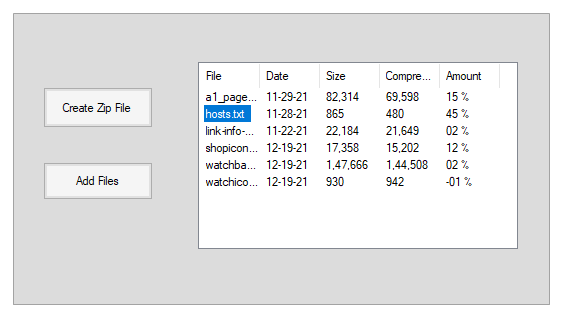
Follow the steps below to create a zip file and add entries to it:
Add Windows controls to form
Start a new Visual Studio project.
From the Toolbox, add two Button controls and a ListView control to the form, and arrange them as shown in the snapshot.
In the Properties window, make the following changes to each button control:
Button Button.Name Property Button.Text Property 1 btnNew Create Zip File 2 btnAdd Add Files In the Properties window, click on the ellipsis button next to the Columns property, for the ListVew control. The ColumnHeader Collection Editor dialog box appears.Click the Add button to add five ColumnHeaders, and then set the Text property of each column to File, Date, Size, Compressed, and Amount, respectively. Select OK to close the editor box.
Note that to view the column headers in the designer, set the View property to Details in the Properties window or select Details from the View drop-down box in the ListView Tasks menu.
For WPF applications, open the MainWindow.xaml and replace the existing XAML with the following code.
<Window x:Class="Quickstart_zip.MainWindow"
        xmlns="http://schemas.microsoft.com/winfx/2006/xaml/presentation"
        xmlns:x="http://schemas.microsoft.com/winfx/2006/xaml"
        xmlns:d="http://schemas.microsoft.com/expression/blend/2008"
        xmlns:mc="http://schemas.openxmlformats.org/markup-compatibility/2006"
        xmlns:local="clr-namespace:Quickstart_zip"
        mc:Ignorable="d"
        Title="MainWindow" Height="450" Width="800">
    <Grid>
        <Button Name="btnNew" Content="Create Zip File…" HorizontalAlignment="Left" Margin="52,75,0,0" VerticalAlignment="Top" Width="125" Height="45" Click="BtnNew_Click"/>
        <Button Name="btnAdd" Content="Add Files…" HorizontalAlignment="Left" Height="47" Margin="50,174,0,0" VerticalAlignment="Top" Width="127" Click="BtnAdd_Click"/>
        <ListView x:Name="listView1" HorizontalAlignment="Left" Height="340" Margin="209,44,0,0" VerticalAlignment="Top" Width="551">
            <ListView.View>
                <GridView>
                    <GridViewColumn  DisplayMemberBinding="{Binding FileName}" Header="File" />
                    <GridViewColumn DisplayMemberBinding="{Binding Date}" HeaderStringFormat="MM/dd/yy" Header="Date" />
                    <GridViewColumn DisplayMemberBinding="{Binding SizeUncompressed}" HeaderStringFormat="#,##0" Header="Size"/>
                    <GridViewColumn DisplayMemberBinding="{Binding SizeCompressed}" HeaderStringFormat="#,##0" Header="Compressed"/>
                    <GridViewColumn DisplayMemberBinding="{Binding pct}" HeaderStringFormat="00 %" Header="Amount"/>
                </GridView>
            </ListView.View>
        </ListView>
    </Grid>
</Window>
Add reference assemblies
In the Solution Explorer window, right-click on References, and select the Add Reference menu option. Add the C1.Zip assembly from the list.
Switch to Code Editor. In the beginning of the file, add the following directives:
WinForms
This is the C# Code for QuickStart in WinForms applications:
using C1.Zip;
using System.IO;
This is the VB Code for QuickStart in WinForms applications:
Imports C1.Zip
Imports System.IO
WPF
This is the C# code for QuickStart in WPF applications:
using System.IO;
using C1.Zip;
using Microsoft.Win32;
This is the VB code for QuickStart in WPF applications:
Imports C1.Zip
Imports Microsoft.Win32
Imports System.IO
This makes the objects defined in the C1.Zip and System.IO assemblies visible to the project.
Declare and initialize C1ZipFile object
In the Code Editor, copy the following data member declaration:
WinForms
This is the C# Code for QuickStart in WinForms applications:
private C1ZipFile m_Zip;This is the VB Code for QuickStart in WinForms applications:
Private m_Zip As C1ZipFileWPF
This is the C# code for QuickStart in WPF applications:
private C1ZipFile zip;This is the VB code for QuickStart in WPF applications:
Private zip As C1ZipFileThis is the main object in this application, and it implements the methods used to create, open and manage zip files.
In the Form_Load event, add the following code:
WinForms
This is the C# Code for QuickStart in WinForms applications:
private void Form1_Load(object sender, EventArgs e)
{
    // Create the C1ZipFile member.
    m_Zip = new C1ZipFile();
}
This is the VB Code for QuickStart in WinForms applications:
Private Sub Form1_Load(ByVal sender As Object, ByVal e As EventArgs)
    ' Create the C1ZipFile member.
    m_Zip = New C1ZipFile()
End Sub
WPF
This is the C# code for QuickStart in WPF applications:
private void Window_Loaded(object sender, RoutedEventArgs e)
{
    // Create the C1ZipFile member.
    zip = new C1ZipFile();
}
This is the VB code for QuickStart in WPF applications:
Private Sub Window_Loaded(sender As Object, e As RoutedEventArgs)
    zip = New C1ZipFile()
End Sub
This code creates a new C1ZipFile object and assigns it to the 'zip' member. Note that the C1ZipFile object cannot be used yet. It needs to be attached to an existing zip file first using the Open method (or to a new one using the Create method).
Create a Zip file
Handle the Click event for the Create Zip File command button by adding the following code:
WinForms
This is the C# Code for QuickStart in WinForms applications:
private void btnCreate_Click(object sender, EventArgs e)
{
    // Show open file dialog.
    SaveFileDialog fo = new SaveFileDialog();
    fo.FileName = "*.zip";
    if (fo.ShowDialog() != DialogResult.OK) return;
    // Open zip file.
    try
    {
        m_Zip.Create(fo.FileName);
    }
    catch
    {
        MessageBox.Show("Can't create ZIP file, please try again.", "C1Zip");
    }
    // Update display.
    UpdateDisplay();
}
This is the VB Code for QuickStart in WinForms applications:
Private Sub btnCreate_Click(ByVal sender As Object, ByVal e As EventArgs)
    ' Show open file dialog.
    Dim fo As SaveFileDialog = New SaveFileDialog()
    fo.FileName = "*.zip"
    If fo.ShowDialog() <> DialogResult.OK Then Return
    ' Open zip file.
    Try
        m_Zip.Create(fo.FileName)
    Catch
        MessageBox.Show("Can't create ZIP file, please try again.", "C1Zip")
    End Try
    ' Update display.
    UpdateDisplay()
End Sub
WPF
This is the C# code for QuickStart in WPF applications:
private void BtnNew_Click(object sender, RoutedEventArgs e)
{
    // Create the C1ZipFile member.
    zip = new C1ZipFile();
    // Show open file dialog.
    SaveFileDialog fo = new SaveFileDialog();
    fo.Filter = "Zip Files (*.zip) | *.zip";
    var open = fo.ShowDialog();
    if (open.HasValue && open.Value)
    {
        try
        {
            // Create zip file.
            zip.Create(fo.FileName);
        }
        catch
        {
            MessageBox.Show("Can't create ZIP file, please try again.", "C1Zip");
        }
    }
}
This is the VB code for QuickStart in WPF applications:
Private Sub BtnNew_Click(ByVal sender As Object, ByVal e As RoutedEventArgs)
    ' Create the C1ZipFile member.
    zip = New C1ZipFile()
    ' Show open file dialog.
    Dim fo As SaveFileDialog = New SaveFileDialog()
    fo.Filter = "Zip Files (*.zip) | *.zip"
    Dim open = fo.ShowDialog()
    If open.HasValue AndAlso open.Value Then
        Try
            ' Create zip file.
            zip.Create(fo.FileName)
        Catch
            MessageBox.Show("Can't create ZIP file, please try again.", "C1Zip")
        End Try
    End If
End Sub
After creating the file, the code calls the UpdateDisplay utility function to display the contents of the zip file.
Add the UpdateDisplay utility function to display the contents of the zip file:
WinForms
This is the C# Code for QuickStart in WinForms applications:
private void UpdateDisplay()
{
    // Remove any existing items.
    listView1.Items.Clear();
    // Add each entry.
    foreach (C1ZipEntry ze in m_Zip.Entries)
    {
        // Calculate the compression amount.
        double pct = 0;
        if (ze.SizeUncompressed > 0)
        {
            pct = 1 - (((double)ze.SizeCompressed) / ((double)ze.SizeUncompressed));
        }
        // Build ListView item.
        ListViewItem lvi = new ListViewItem(new string[] { ze.FileName, Microsoft.VisualBasic.Strings.Format(ze.Date, "MM/dd/yy"), Microsoft.VisualBasic.Strings.Format(ze.SizeUncompressed, "#,##0"), Microsoft.VisualBasic.Strings.Format(ze.SizeCompressed, "#,##0"), Microsoft.VisualBasic.Strings.Format(pct, "00 %") });
        // Save ZipEntry into item tag.
        lvi.Tag = ze;
        // Add item to ListView.
        listView1.Items.Add(lvi);
    }
    // Update UI.
    bool hasEntries = (listView1.Items.Count > 0);
}
This is the VB Code for QuickStart in WinForms applications:
Private Sub UpdateDisplay()
    ' Remove any existing items.
    Me.ListView1.Items.Clear()
    ' Add each entry.
    For Each ze As C1ZipEntry In m_Zip.Entries
        ' Calculate the compression amount.
        Dim pct As Double = 0
        If ze.SizeUncompressed > 0 Then
            pct = 1 - ze.SizeCompressed / ze.SizeUncompressed
        End If
        ' Build ListView item.
        Dim lvi As ListViewItem = New ListViewItem(New String() {ze.FileName, Format(ze.Date, "MM/dd/yy"), Format(ze.SizeUncompressed, "#,##0"), Format(ze.SizeCompressed, "#,##0"), Format(pct, "00 %")})
        ' Save ZipEntry into item tag.
        lvi.Tag = ze
        ' Add item to ListView.
        Me.ListView1.Items.Add(lvi)
    Next
    ' Update UI.
    Dim hasEntries As Boolean = Me.ListView1.Items.Count > 0
End Sub
WPF
This is the C# code for QuickStart in WPF applications:
void UpdateDisplay()
{
    var sel = listView1.SelectedItem;
    listView1.ItemsSource = null;
    if (zip == null)
    {
        return;
    }
    listView1.ItemsSource = zip.Entries;
    listView1.SelectedItem = sel;
}
This is the VB code for QuickStart in WPF applications:
Private Sub UpdateDisplay()
    Dim sel = Me.listView1.SelectedItem
    Me.listView1.ItemsSource = Nothing
    If zip Is Nothing Then
        Return
    End If
    Me.listView1.ItemsSource = zip.Entries
    Me.listView1.SelectedItem = sel
End Sub
The main lines start by declaring a C1ZipEntry object and using it in a ForEach loop over the entries in the zip file (m_Zip.Entries).
For each entry, the function creates a ListViewItem containing the information extracted from the C1ZipEntry object and adds the new entry to the ListView control. Note that the C1ZipEntry object itself is also saved in the Tag property of the ListView items.
Add File entries to Zip Archive
Handle the Click event for the Add Files command button by adding the following code:
WinForms
This is the C# Code for QuickStart in WinForms applications:
private void btnAdd_Click(object sender, EventArgs e)
{
    // Get list of files to add.
    OpenFileDialog fo = new OpenFileDialog();
    fo.Multiselect = true;
    fo.FileName = "*.*";
    if (fo.ShowDialog() == DialogResult.OK)
    {
        // Add files in the list.
        foreach (string file in fo.FileNames)
        {
            m_Zip.Entries.Add(file);
        }
        // Done.
        UpdateDisplay();
    }
}
This is the VB Code for QuickStart in WinForms applications:
Private Sub btnAdd_Click(ByVal sender As Object, ByVal e As EventArgs)
    ' Get list of files to add.
    Dim fo As OpenFileDialog = New OpenFileDialog()
    fo.Multiselect = True
    fo.FileName = "*.*"
    If fo.ShowDialog() = DialogResult.OK Then
        ' Add files in the list.
        For Each file As String In fo.FileNames
            m_Zip.Entries.Add(file)
        Next
        ' Done.
        UpdateDisplay()
    End If
End Sub
WPF
This is the C# code for QuickStart in WPF applications:
private void BtnAdd_Click(object sender, RoutedEventArgs e)
{
    // Get list of files to add.
    OpenFileDialog fo = new OpenFileDialog();
    fo.Multiselect = true;
    fo.FileName = "*.*";
    var open = fo.ShowDialog();
    if (open.HasValue && open.Value)
    {
        // Add files in the list.
        foreach (string file in fo.FileNames)
        {
            zip.Entries.Add(file);
        }
        // Done.
        UpdateDisplay();
    }
}
This is the VB code for QuickStart in WPF applications:
Private Sub BtnAdd_Click(ByVal sender As Object, ByVal e As RoutedEventArgs)
    ' Get list of files to add.
    Dim fo As OpenFileDialog = New OpenFileDialog()
    fo.Multiselect = True
    fo.FileName = "*.*"
    Dim open = fo.ShowDialog()
    If open.HasValue AndAlso open.Value Then
        ' Add files in the list.
        For Each file As String In fo.FileNames
            zip.Entries.Add(file)
        Next
        ' Done.
        UpdateDisplay()
    End If
End Sub
Run the application. Now, you will be able to create zip files and add entries into the zip archives.
See Also
Compressing and Decompressing Files