


Compress Files to .NET Streams
C1Zip allows the user to compress individual files into compressed .NET streams (not zip files) on the disk. This is highly useful when the user wants to compress all files in an application directory.
The Zip library provides medium-level classes like C1ZStreamWriter class and C1ZStreamReader class to use data compression on any .NET streams, not only in zip files.
| Medium-level Classes | Description |
|---|---|
| C1ZStreamWriter class | It compresses data into .NET Streams. This can be done by creating a C1ZStreamWriter object passing the stream to the C1ZStreamWriter constructor. |
| C1ZStreamReader class | It decompresses data from .NET streams. This can be done by creating a C1ZStreamReader object and passing the compressed stream to the C1ZStreamReader constructor. |
The flow-diagram below illustrates how these classes work:

Now that you got an idea about the medium-level classes in C1Zip library, let's see how we can compress and decompress files on .NET streams using the classes.
Set up Application
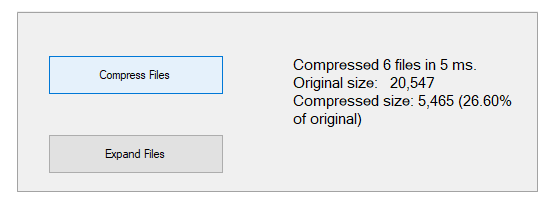
Start a new Visual Studio project and from the Toolbox, add two Button controls along the left edge and label control along the right edge of the form, as shown in the snapshot in the beginning of the tutorial.
In the Properties window make the following changes:
Button Button.Text Property Button.Name Property Button.Enabled Property 1 Compress Files btnCompress True (Default) 2 Expand Files btnExpand False Note that the Expand Files button cannot be used until we have some compressed files to expand. The Label control will display statistics about the compression/expanding process.
For WPF applications, open the MainWindow.xaml and replace the existing XAML with the following code.
<Window x:Class="FilestoStreams_WPFCSharp.MainWindow"
        xmlns="http://schemas.microsoft.com/winfx/2006/xaml/presentation"
        xmlns:x="http://schemas.microsoft.com/winfx/2006/xaml"
        xmlns:d="http://schemas.microsoft.com/expression/blend/2008"
        xmlns:mc="http://schemas.openxmlformats.org/markup-compatibility/2006"
        xmlns:local="clr-namespace:FilestoStreams_WPFCSharp"
        mc:Ignorable="d"
        Title="MainWindow" Height="450" Width="800">
    <Grid HorizontalAlignment="Left" Width="792">
        <Button x:Name="btnCompress" Content="Compress Files" HorizontalAlignment="Left" Height="49" Margin="50,60,0,0" VerticalAlignment="Top" Width="219" Click="BtnCompress_Click"/>
        <Button x:Name="btnExpand" Content="Expand Files" HorizontalAlignment="Left" Height="48" Margin="50,271,0,0" VerticalAlignment="Top" Width="219" IsEnabled="False" Click="BtnExpand_Click"/>
        <Label x:Name="label1" Content="" HorizontalAlignment="Left" Height="259" Margin="328,60,0,0" VerticalAlignment="Top" Width="395"/>
    </Grid>
</Window>
Define Directory Names
Add a reference to the C1.Zip assembly. Define the directory names for the compressed and expanded files.
WinForms
This is the C# Code for defining directory names in WinForms applications:
// compress all files in the demo directory to a new "compressed" directory
private const string DIR_COMP = @"\compressed";
private const string DIR_EXP = @"\expanded";
This is the VB Code for defining directory names in WinForms applications:
' compress all files in the demo directory to a new "compressed" directory
Private Const DIR_COMP As String = "\compressed"
Private Const DIR_EXP As String = "\expanded"
WPF
This is the C# code for defining directory names in WPF applications:
// compress all files in the demo directory to a new "compressed" directory
        private const string DIR_COMP = @"\compressed";
        private const string DIR_EXP = @"\expanded";
This is the VB code for defining directory names in WPF applications:
' Compress all files in the demo directory to a new "compressed" directory
    Private Const DIR_COMP As String = "\compressed"
    Private Const DIR_EXP As String = "\expanded"
Compress Files
Add the following code to handle the Click event for the Compress Files button:
WinForms
This is the C# Code for compressing files to .NET streams in WinForms applications:
private void btnCompress_Click(object sender, EventArgs e)
{
    // get application directory
    string path = Application.ExecutablePath;
    int i = path.IndexOf(@"\bin\");
    if (i > 0) path = path.Substring(0, i);
    // create directory for compressed files
    if (Directory.Exists(path + DIR_COMP))
        Directory.Delete(path + DIR_COMP, true);
    Directory.CreateDirectory(path + DIR_COMP);
    // prepare to collect compression statistics
    long count = 0;
    long size = 0;
    long sizeCompressed = 0;
    long ticks = DateTime.Now.Ticks;
    // compress all files in application dir into compressed dir
    string[] files = Directory.GetFiles(path);
    foreach (string srcFile in files)
    {
        // compress file
        string dstFile = path + DIR_COMP + "\\" + Path.GetFileName(srcFile) + ".cmp";
        CompressFile(dstFile, srcFile);
        // update stats
        count++;
        size += new FileInfo(srcFile).Length;
        sizeCompressed += new FileInfo(dstFile).Length;
    }
    // show stats
    string msg = string.Format(
        "Compressed {0} files in {1} ms.\r\n" +
        "Original size:   {2:#,###}\r\n" +
        "Compressed size: {3:#,###} ({4:0.00}% of original)",
        count,
        (DateTime.Now.Ticks - ticks) / TimeSpan.TicksPerMillisecond,
        size, sizeCompressed,
        (sizeCompressed / (double)size) * 100.0);
    label1.Text = msg;
}
This is the VB Code for compressing files to .NET streams in WinForms applications:
Private Sub btnCompress_Click(ByVal sender As System.Object, ByVal e As System.EventArgs) Handles btnCompress.Click
    ' get application directory
    Dim appPath As String = Application.ExecutablePath
    Dim i As Integer = appPath.IndexOf("\bin\")
    If i > 0 Then appPath = appPath.Substring(0, i)
    ' create directory for compressed files
    If (Directory.Exists(appPath + DIR_COMP)) Then
        Directory.Delete(appPath + DIR_COMP, True)
    End If
    Directory.CreateDirectory(appPath + DIR_COMP)
    ' prepare to collect compression statistics
    Dim count As Long
    Dim size As Long
    Dim sizeCompressed As Long
    Dim ticks As Long = DateTime.Now.Ticks
    ' compress all files in application dir into compressed dir
    Dim files As String() = Directory.GetFiles(appPath)
    Dim srcFile As String
    For Each srcFile In files
        ' compress file
        Dim dstFile As String = appPath + DIR_COMP + "\" + Path.GetFileName(srcFile) + ".cmp"
        CompressFile(dstFile, srcFile)
        ' update stats
        count = count + 1
        size = size + New FileInfo(srcFile).Length
        sizeCompressed = sizeCompressed + New FileInfo(dstFile).Length
    Next
    ' show stats
    Dim msg As String = String.Format(
            "Compressed {0} files in {1} ms." & vbCrLf &
            "Original size:   {2:#,###}" & vbCrLf &
            "Compressed size: {3:#,###} ({4:0.00}% of original)",
            count,
            (DateTime.Now.Ticks - ticks) / TimeSpan.TicksPerMillisecond,
            size, sizeCompressed,
            (sizeCompressed / size) * 100.0)
    label1.Text = msg
    ' now we can expand
    btnExpand.Enabled = True
End Sub
WPF
This is the C# code for compressing files to .NET streams in WPF applications:
private void BtnCompress_Click(object sender, RoutedEventArgs e)
{
    // Get the application directory.
    string appPath = Environment.CurrentDirectory;
    int i = appPath.IndexOf(@"\bin\");
    if (i > 0)
        appPath = appPath.Substring(0, i);
    // Create a directory for compressed files.
    if ((Directory.Exists(appPath + DIR_COMP)))
        Directory.Delete(appPath + DIR_COMP, true);
    Directory.CreateDirectory(appPath + DIR_COMP);
    // Prepare to collect compression statistics.
    long count = 0;
    long size = 0;
    long sizeCompressed = 0;
    long ticks = DateTime.Now.Ticks;
    // Compress all files in the application dir into the compressed dir.
    foreach (string srcFile in Directory.GetFiles(appPath))
    {
        string dstFile = appPath + DIR_COMP + @"\" + System.IO.Path.GetFileName(srcFile) + ".cmp";
        // Compress file.
        CompressFile(dstFile, srcFile);
        // Update stats.
        count++;
        size += new FileInfo(srcFile).Length;
        sizeCompressed += new FileInfo(dstFile).Length;
    }
    // Show stats.
    string msg = string.Format("Compressed {0} files in {1} ms.\n\r" + "Original size:   {2:#,###}\n\r" +
        "Compressed size: {3:#,###} ({4:0.00}% of original)", count,
        (DateTime.Now.Ticks - ticks) / TimeSpan.TicksPerMillisecond, size,
        sizeCompressed, (sizeCompressed * 100.0 / size));
    label1.Content = msg;
    // Now we can expand.
    btnExpand.IsEnabled = true;
}
This is the VB code for compressing files to .NET streams in WPF applications:
Private Sub BtnCompress_Click(ByVal sender As Object, ByVal e As RoutedEventArgs)
    ' Get the application directory.
    Dim appPath As String = Environment.CurrentDirectory
    Dim i As Integer = appPath.IndexOf("\bin\")
    If i > 0 Then appPath = appPath.Substring(0, i)
    ' create directory for compressed files
    If (Directory.Exists(appPath + DIR_COMP)) Then
        Directory.Delete(appPath + DIR_COMP, True)
    End If
    Directory.CreateDirectory(appPath + DIR_COMP)
    ' prepare to collect compression statistics
    Dim count As Long
    Dim size As Long
    Dim sizeCompressed As Long
    Dim ticks As Long = DateTime.Now.Ticks
    ' compress all files in application dir into compressed dir
    Dim files As String() = Directory.GetFiles(appPath)
    Dim srcFile As String
    For Each srcFile In files
        ' compress file
        Dim dstFile As String = appPath + DIR_COMP + "\" + Path.GetFileName(srcFile) + ".cmp"
        CompressFile(dstFile, srcFile)
        ' update stats
        count = count + 1
        size = size + New FileInfo(srcFile).Length
        sizeCompressed = sizeCompressed + New FileInfo(dstFile).Length
    Next
    ' show stats
    Dim msg As String = String.Format(
            "Compressed {0} files in {1} ms." & vbCrLf &
            "Original size:   {2:#,###}" & vbCrLf &
            "Compressed size: {3:#,###} ({4:0.00}% of original)",
            count,
            (DateTime.Now.Ticks - ticks) / TimeSpan.TicksPerMillisecond,
            size, sizeCompressed,
            (sizeCompressed / size) * 100.0)
    label1.Content = msg
    ' now we can expand
    btnExpand.IsEnabled = True
End Sub
Add the code for CompressFile method. The main line calls the utility function CompressFile method to compress each selected file. The compressed files are stored in the \compressed directory under the application folder. They have the same name as the original file, plus a CMP extension. The function starts by creating two new file streams: one for the source file and the other for the compressed file. Then it creates a C1ZStreamWriter object and attaches it to the destination stream.
WinForms
This is the C# Code for compressing files in WinForms applications:
private static bool CompressFile(string dstFile, string srcFile)
{
    // prepare to compress file
    bool retval = true;
    FileStream srcStream = null;
    FileStream dstStream = null;
    try
    {
        // open the files
        srcStream = new FileStream(srcFile, FileMode.Open, FileAccess.Read);
        dstStream = new FileStream(dstFile, FileMode.Create, FileAccess.Write);
        // open compressor stream on destination file
        C1ZStreamWriter sw = new C1ZStreamWriter(dstStream);
        // copy source into compressor stream
        StreamCopy(sw, srcStream);
    }
    catch // exception? tell caller we failed
    {
        retval = false;
    }
    finally // always close our streams
    {
        if (srcStream != null) srcStream.Close();
        if (dstStream != null) dstStream.Close();
    }
    // done
    return retval;
}
This is the VB Code for compressing files in WinForms applications:
Private Function CompressFile(ByVal dstFile As String, ByVal srcFile As String) As Boolean
    ' prepare to compress file
    Dim retval As Boolean = True
    Dim srcStream As FileStream = Nothing
    Dim dstStream As FileStream = Nothing
    Try
        ' open the files
        srcStream = New FileStream(srcFile, FileMode.Open, FileAccess.Read)
        dstStream = New FileStream(dstFile, FileMode.Create, FileAccess.Write)
        ' open compressor stream on destination file
        Dim sw As C1ZStreamWriter = New C1ZStreamWriter(dstStream)
        ' copy source into compressor stream
        StreamCopy(sw, srcStream)
    Catch ' exception? tell caller we failed
        retval = False
    Finally ' always close our streams
        If Not (srcStream Is Nothing) Then srcStream.Close()
        If Not (dstStream Is Nothing) Then dstStream.Close()
    End Try
    ' done
    CompressFile = False
End Function
WPF
This is the C# code for compressing files in WPF applications:
private bool CompressFile(string dstFile, string srcFile)
{
    FileStream srcStream = null;
    FileStream dstStream = null;
    try
    {
        // Open the files.
        srcStream = new FileStream(srcFile, FileMode.Open, FileAccess.Read);
        dstStream = new FileStream(dstFile, FileMode.Create, FileAccess.Write);
        // Open a compressor stream on the destination file.
        C1ZStreamWriter sw = new C1ZStreamWriter(dstStream);
        // Copy the source into the compressor stream.
        StreamCopy(sw, srcStream);
    }
    catch
    {
    }
    finally
    {
        // Always close our streams.
        if (srcStream != null)
            srcStream.Close();
        if (dstStream != null)
            dstStream.Close();
    }
    // Done.
    return false;
}
This is the VB code for compressing files in WPF applications:
Private Function CompressFile(ByVal dstFile As String, ByVal srcFile As String) As Boolean
    ' prepare to compress file
    Dim retval As Boolean = True
    Dim srcStream As FileStream = Nothing
    Dim dstStream As FileStream = Nothing
    Try
        ' open the files
        srcStream = New FileStream(srcFile, FileMode.Open, FileAccess.Read)
        dstStream = New FileStream(dstFile, FileMode.Create, FileAccess.Write)
        ' open compressor stream on destination file
        Dim sw As C1ZStreamWriter = New C1ZStreamWriter(dstStream)
        ' copy source into compressor stream
        StreamCopy(sw, srcStream)
    Catch ' exception? tell caller we failed
        retval = False
    Finally ' always close our streams
        If Not (srcStream Is Nothing) Then srcStream.Close()
        If Not (dstStream Is Nothing) Then dstStream.Close()
    End Try
    ' done
    CompressFile = False
End Function
Add the code for StreamCopy function. It transfers data from the source file and write it into the compressor stream. To put it simply, the StreamCopy function simply copies bytes from one stream to another.
WinForms
This is the C# Code for compressing files in WinForms applications:
private static void StreamCopy(Stream dstStream, Stream srcStream)
{
    byte[] buffer = new byte[32768];
    int read;
    while ((read = srcStream.Read(buffer, 0, buffer.Length)) != 0)
        dstStream.Write(buffer, 0, read);
    dstStream.Flush();
}
This is the VB Code for compressing files in WinForms applications:
Private Sub StreamCopy(ByVal dstStream As Stream, ByVal srcStream As Stream)
    Dim buffer(32768) As Byte
    Dim read As Integer
    Do
        read = srcStream.Read(buffer, 0, buffer.Length)
        If read = 0 Then Exit Do
        dstStream.Write(buffer, 0, read)
    Loop
    dstStream.Flush()
End Sub
WPF
This is the C# code for compressing files in WPF applications:
private static void StreamCopy(Stream dstStream, Stream srcStream)
{
    byte[] buffer = new byte[32768];
    int read;
    while ((read = srcStream.Read(buffer, 0, buffer.Length)) != 0)
        dstStream.Write(buffer, 0, read);
    dstStream.Flush();
}
This is the VB code for compressing files in WPF applications:
Private Shared Sub StreamCopy(ByVal dstStream As Stream, ByVal srcStream As Stream)
    Dim buffer(32768) As Byte
    Dim read As Integer
    Do
        read = srcStream.Read(buffer, 0, buffer.Length)
        If read = 0 Then Exit Do
        dstStream.Write(buffer, 0, read)
    Loop
    dstStream.Flush()
End Sub
Note that the function calls the Flush method after it is done to ensure that any cached data is written out when the function is done copying. This is especially important when dealing with compressed streams, since they cache substantial amounts of data in order to achieve good compression rates.
Decompress Files
Add the following code to handle the Click event for the Expand Files button:
WinForms
This is the C# Code for decompressing files in WinForms applications:
private void btnExpand_Click(object sender, EventArgs e)
{
    // get application directory
    string path = Application.ExecutablePath;
    int i = path.IndexOf(@"\bin\");
    if (i > 0) path = path.Substring(0, i);
    // create directory for expanded files
    if (Directory.Exists(path + DIR_EXP))
        Directory.Delete(path + DIR_EXP, true);
    Directory.CreateDirectory(path + DIR_EXP);
    // prepare to collect compression statistics
    long count = 0;
    long size = 0;
    long sizeExpanded = 0;
    long ticks = DateTime.Now.Ticks;
    // expand all files in "compressed" dir to "expanded" dir
    string[] files = Directory.GetFiles(path + DIR_COMP);
    foreach (string srcFile in files)
    {
        // expand file
        string dstFile = path + DIR_EXP + "\\" + Path.GetFileName(srcFile);
        dstFile = dstFile.Replace(".cmp", "");
        ExpandFile(dstFile, srcFile);
        // update stats
        count++;
        size += new FileInfo(srcFile).Length;
        sizeExpanded += new FileInfo(dstFile).Length;
    }
    // show stats
    string msg = string.Format(
        "Expanded {0} files in {1} ms.\r\n" +
        "Original size:   {2:#,###}\r\n" +
        "Expanded size: {3:#,###} ({4:0.00} x size of compressed)",
        count,
        (DateTime.Now.Ticks - ticks) / TimeSpan.TicksPerMillisecond,
        size, sizeExpanded,
        sizeExpanded / (double)size);
    label1.Text = msg;
}
This is the VB Code for decompressing files in WinForms applications:
Private Sub btnExpand_Click(ByVal sender As System.Object, ByVal e As System.EventArgs) Handles btnExpand.Click
    ' get application directory
    Dim appPath As String = Application.ExecutablePath
    Dim i As Integer = appPath.IndexOf("\bin\")
    If i > 0 Then appPath = appPath.Substring(0, i)
    ' create directory for expanded files
    If Directory.Exists(appPath + DIR_EXP) Then
        Directory.Delete(appPath + DIR_EXP, True)
    End If
    Directory.CreateDirectory(appPath + DIR_EXP)
    ' prepare to collect compression statistics
    Dim count As Long
    Dim size As Long
    Dim sizeExpanded As Long
    Dim ticks As Long = DateTime.Now.Ticks
    ' expand all files in "compressed" dir to "expanded" dir
    Dim srcFile As String
    Dim files As String() = Directory.GetFiles(appPath + DIR_COMP)
    For Each srcFile In files
        ' expand file
        Dim dstFile As String = appPath + DIR_EXP + "\" + Path.GetFileName(srcFile)
        dstFile = dstFile.Replace(".cmp", "")
        ExpandFile(dstFile, srcFile)
        ' update stats
        count = count + 1
        size = size + New FileInfo(srcFile).Length
        sizeExpanded = sizeExpanded + New FileInfo(dstFile).Length
    Next
    ' show stats
    Dim msg As String = String.Format(
            "Expanded {0} files in {1} ms." & vbCrLf &
            "Original size:   {2:#,###}" & vbCrLf &
            "Expanded size: {3:#,###} ({4:0.00} x size of compressed)",
            count,
            (DateTime.Now.Ticks - ticks) / TimeSpan.TicksPerMillisecond,
            size, sizeExpanded,
            sizeExpanded / size)
    label1.Text = msg
End Sub
WPF
This is the C# code for decompressing files in WPF applications:
private void BtnExpand_Click(object sender, RoutedEventArgs e)
{
    // Get the application directory.
    string appPath = Environment.CurrentDirectory;
    int i = appPath.IndexOf(@"\bin\");
    if (i > 0) appPath = appPath.Substring(0, i);
    // Create a directory for expanded files.
    if (Directory.Exists(appPath + DIR_EXP))
        Directory.Delete(appPath + DIR_EXP, true);
    Directory.CreateDirectory(appPath + DIR_EXP);
    // Prepare to collect compression statistics.
    long count = 0;
    long size = 0;
    long sizeExpanded = 0;
    long ticks = DateTime.Now.Ticks;
    // Expand all files in the "compressed" dir to the "expanded" dir.
    foreach (string srcFile in Directory.GetFiles(appPath + DIR_COMP))
    {
        // Expand file.
        string dstFile = appPath + DIR_EXP + @"\" + System.IO.Path.GetFileName(srcFile);
        dstFile = dstFile.Replace(".cmp", "");
        ExpandFile(dstFile, srcFile);
        // Update stats.
        count++;
        size += new FileInfo(srcFile).Length;
        sizeExpanded += new FileInfo(dstFile).Length;
    }
    // Show stats.
    string msg = string.Format("Expanded {0} files in {1} ms.\r\n" + "Original size:   {2:#,###}\r\n" + "Expanded size: {3:#,###} ({4:0.00} x size of compressed)", count, (DateTime.Now.Ticks - ticks) / TimeSpan.TicksPerMillisecond, size, sizeExpanded, sizeExpanded / size);
    label1.Content = msg;
}
This is the VB code for decompressing files in WPF applications:
Private Sub BtnExpand_Click(ByVal sender As Object, ByVal e As RoutedEventArgs)
    ' get application directory
    Dim appPath As String = Environment.CurrentDirectory
    Dim i As Integer = appPath.IndexOf("\bin\")
    If i > 0 Then appPath = appPath.Substring(0, i)
    ' create directory for expanded files
    If Directory.Exists(appPath + DIR_EXP) Then
        Directory.Delete(appPath + DIR_EXP, True)
    End If
    Directory.CreateDirectory(appPath + DIR_EXP)
    ' prepare to collect compression statistics
    Dim count As Long
    Dim size As Long
    Dim sizeExpanded As Long
    Dim ticks As Long = DateTime.Now.Ticks
    ' expand all files in "compressed" dir to "expanded" dir
    Dim srcFile As String
    Dim files As String() = Directory.GetFiles(appPath + DIR_COMP)
    For Each srcFile In files
        ' expand file
        Dim dstFile As String = appPath + DIR_EXP + "\" + Path.GetFileName(srcFile)
        dstFile = dstFile.Replace(".cmp", "")
        ExpandFile(dstFile, srcFile)
        ' update stats
        count = count + 1
        size = size + New FileInfo(srcFile).Length
        sizeExpanded = sizeExpanded + New FileInfo(dstFile).Length
    Next
    ' show stats
    Dim msg As String = String.Format(
            "Expanded {0} files in {1} ms." & vbCrLf &
            "Original size:   {2:#,###}" & vbCrLf &
            "Expanded size: {3:#,###} ({4:0.00} x size of compressed)",
            count,
            (DateTime.Now.Ticks - ticks) / TimeSpan.TicksPerMillisecond,
            size, sizeExpanded,
            sizeExpanded / size)
    label1.Content = msg
End Sub
Add the ExpandFile method. The main line calls the utility function ExpandFile utility method to expand the files that were compressed earlier. The expanded files are stored in the \expanded directory under the application folder. They have the same name as the original file, minus the CMP extension. This function is similar to CompressFile, except that it attaches a C1ZStreamReader to the source stream instead of attaching a C1ZStreamWriter to the destination stream.
WinForms
This is the C# Code for decompressing files in WinForms applications:
private static bool ExpandFile(string dstFile, string srcFile)
{
    // prepare to expand file
    bool retval = true;
    FileStream srcStream = null;
    FileStream dstStream = null;
    try
    {
        // open the files
        srcStream = new FileStream(srcFile, FileMode.Open, FileAccess.Read);
        dstStream = new FileStream(dstFile, FileMode.Create, FileAccess.Write);
        // open expander stream on compressed source
        C1ZStreamReader sr = new C1ZStreamReader(srcStream);
        // copy expander stream into destination file
        StreamCopy(dstStream, sr);
    }
    catch // exception? tell caller we failed
    {
        retval = false;
    }
    finally // always close our streams
    {
        if (srcStream != null) srcStream.Close();
        if (dstStream != null) dstStream.Close();
    }
    // done
    return retval;
}
This is the VB Code for decompressing files in WinForms applications:
Private Function ExpandFile(ByVal dstFile As String, ByVal srcFile As String) As Boolean
    ' prepare to expand file
    Dim retval As Boolean = True
    Dim srcStream As FileStream = Nothing
    Dim dstStream As FileStream = Nothing
    Try
        ' open the files
        srcStream = New FileStream(srcFile, FileMode.Open, FileAccess.Read)
        dstStream = New FileStream(dstFile, FileMode.Create, FileAccess.Write)
        ' open expander stream on compressed source
        Dim sr As C1ZStreamReader = New C1ZStreamReader(srcStream)
        ' copy expander stream into destination file
        StreamCopy(dstStream, sr)
    Catch ' exception? tell caller we failed
        retval = False
    Finally ' always close our streams
        If Not (srcStream Is Nothing) Then srcStream.Close()
        If Not (dstStream Is Nothing) Then dstStream.Close()
    End Try
    ' done
    ExpandFile = retval
End Function
WPF
This is the C# code for decompressing files in WPF applications:
private bool ExpandFile(string dstFile, string srcFile)
{
    // Prepare to expand file.
    bool retval = true;
    FileStream srcStream = null;
    FileStream dstStream = null;
    try
    {
        // Open the files.
        srcStream = new FileStream(srcFile, FileMode.Open, FileAccess.Read);
        dstStream = new FileStream(dstFile, FileMode.Create, FileAccess.Write);
        // Open an expander stream on the compressed source.
        C1ZStreamReader sr = new C1ZStreamReader(srcStream);
        // Copy the expander stream into the destination file.
        StreamCopy(dstStream, sr);
    }
    catch
    {
        // Exception? Tell the caller we failed.
        retval = false;
    }
    finally
    {
        // Always close our streams.
        if (srcStream != null)
            srcStream.Close();
        if (dstStream != null)
            dstStream.Close();
    }
    // Done.
    return retval;
}
This is the VB code for decompressing files in WPF applications:
Private Function ExpandFile(ByVal dstFile As String, ByVal srcFile As String) As Boolean
    ' prepare to expand file
    Dim retval As Boolean = True
    Dim srcStream As FileStream = Nothing
    Dim dstStream As FileStream = Nothing
    Try
        ' open the files
        srcStream = New FileStream(srcFile, FileMode.Open, FileAccess.Read)
        dstStream = New FileStream(dstFile, FileMode.Create, FileAccess.Write)
        ' open expander stream on compressed source
        Dim sr As C1ZStreamReader = New C1ZStreamReader(srcStream)
        ' copy expander stream into destination file
        StreamCopy(dstStream, sr)
    Catch ' exception? tell caller we failed
        retval = False
    Finally ' always close our streams

        If Not (srcStream Is Nothing) Then srcStream.Close()
        If Not (dstStream Is Nothing) Then dstStream.Close()
    End Try
    ' done
    ExpandFile = retval
End Function
Now, that you have you completed all the steps, press F5 to run the application.