


- ASP.NET Core
- Getting Started
- Configuring your MVC Application
- Adding NuGet Packages to your App
- Adding Controls
- Client-Side Support
-
Working with Controls
- Accordion
- Barcode
- Common Features
- CollectionView
- DashboardLayout
- File Manager
- Financial Charts
- FlexChart
-
FlexGrid
- Key Features
- Quick Start
-
Work with FlexGrid
- Clip String
- Columns
- Custom Cell Template
- Custom Editors
- CSV Export
- Data Binding
- Data Map
- Detail Row
- Disable Server Reading
- Excel Import and Export
- Editing
- Excel RTL Export
- Exclusive Value Search
- Filtering
- FlexGrid Selector
- Case-sensitive Search
- Full Text Search
- Header Focusability
- Grouping
- Keyboard Handling
- Merging
- Paging
- Overlays
- Right To Left Rendering
- PDF Export
- Selection Modes
- Resize
- Star Sizing
- Styling and CSS
- Transposed Grid
- Unbound FlexGrid
- Unobtrusive Validation
- Virtual Scrolling
- TreeGrid
- FlexGrid ASP.NET Core Tags
- Tutorials
- FlexMap
- Flex Pie
- Flex Radar
- Flex Report
- Flex Sheet
- Flex Viewer
- Gauge
- Input Controls
- Multi Row
- TransposedMultiRow
- OLAP
- Sunburst Chart
- Tab Panel
- Tree Map
- TreeView
- Globalization
- Styling
- ASP.NET MVC Samples
- Release History
Transposed Grid
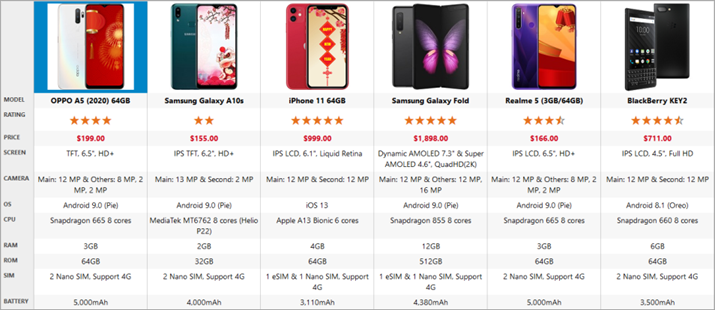
In regular grids, each item is represented by a row with columns that represent the item properties. Whereas, in transposed grids, each item is represented by a column with rows that represent the item properties. TransposedGrid is a FlexGrid extension that supports a grid where the rows and columns are transposed.
MVC allows you to work with the transposed grids by using the TransposedGrid class. This class allows the grid control to display data using a transposed layout, where columns represent data items and rows represent item properties. In such transposed grids, the column headers appear on the left side of the grid. each item is represented by a column with rows that represent the item properties.
To create an application using a TransposeGrid control for displaying products on the grid columns and their properties on the grid rows, follow these steps:
Create an MVC Application
Create a new MVC application using the ComponentOne or VisualStudio templates. For more information about creating an MVC application, see Configuring your MVC Application topic.
Create a Data Source for TransposeGrid
Add a new class to the folder Models (for example:
Sale.cs). See Adding controls to know how to add a new model.Replace the following code in the new model to define the class that serve as a data source for the TransposeGrid control.
public class ProductSheet
{
    public string Name { get; set; }
    public string Image { get; set; }
    public double Rating { get; set; }
    public double Price { get; set; }
    public string Screen { get; set; }
    public string Camera { get; set; }
    public string OS { get; set; }
    public string CPU { get; set; }
    public int RAM { get; set; }
    public int ROM { get; set; }
    public string SIM { get; set; }
    public double Battery { get; set; }
    public static List<ProductSheet> GetData()
    {
        return new List<ProductSheet>() {
                new ProductSheet() {
                    Name = "OPPO A5 (2020) 64GB",
                    Image = "/images/ProductSheet/1.jpg",
                    Rating = 4,
                    Price = 199,
                    Screen = "TFT, 6.5\", HD+",
                    Camera = "Main: 12 MP & Others: 8 MP, 2 MP, 2 MP",
                    OS = "Android 9.0 (Pie)",
                    CPU = "Snapdragon 665 8 cores",
                    RAM = 3,
                    ROM = 64,
                    SIM = "2 Nano SIM, Support 4G",
                    Battery = 5000
                },
                new ProductSheet() {
                    Name = "Samsung Galaxy A10s",
                    Image = "/images/ProductSheet/2.jpg",
                    Rating = 2,
                    Price = 155,
                    Screen = "IPS TFT, 6.2\", HD+",
                    Camera = "Main: 13 MP & Second: 2 MP",
                    OS = "Android 9.0 (Pie)",
                    CPU = "MediaTek MT6762 8 cores (Helio P22)",
                    RAM = 2,
                    ROM = 32,
                    SIM = "2 Nano SIM, Support 4G",
                    Battery = 4000
                },
                new ProductSheet() {
                    Name = "iPhone 11 64GB",
                    Image = "/images/ProductSheet/3.jpg",
                    Rating = 5,
                    Price = 999,
                    Screen = "IPS LCD, 6.1\", Liquid Retina",
                    Camera = "Main: 12 MP & Second: 12 MP",
                    OS = "iOS 13",
                    CPU = "Apple A13 Bionic 6 cores",
                    RAM = 4,
                    ROM = 64,
                    SIM = "1 eSIM & 1 Nano SIM, Support 4G",
                    Battery = 3110
                },
                new ProductSheet() {
                    Name = "Samsung Galaxy Fold",
                    Image = "/images/ProductSheet/4.jpg",
                    Rating = 5,
                    Price = 1898,
                    Screen = "Dynamic AMOLED 7.3\" & Super AMOLED 4.6\", QuadHD(2K)",
                    Camera = "Main: 12 MP & Others: 12 MP, 16 MP",
                    OS = "Android 9.0 (Pie)",
                    CPU = "Snapdragon 855 8 cores",
                    RAM = 12,
                    ROM = 512,
                    SIM = "1 eSIM & 1 Nano SIM, Support 4G",
                    Battery = 4380
                },
                new ProductSheet() {
                    Name = "Realme 5 (3GB/64GB)",
                    Image = "/images/ProductSheet/5.jpg",
                    Rating = 3.5,
                    Price = 166,
                    Screen = "IPS LCD, 6.5\", HD+",
                    Camera = "Main: 12 MP & Others: 8 MP, 2 MP, 2 MP",
                    OS = "Android 9.0 (Pie)",
                    CPU = "Snapdragon 665 8 cores",
                    RAM = 3,
                    ROM = 64,
                    SIM = "2 Nano SIM, Support 4G",
                    Battery = 5000
                },
                new ProductSheet() {
                    Name = "BlackBerry KEY2",
                    Image = "/images/ProductSheet/6.jpg",
                    Rating = 4.5,
                    Price = 711,
                    Screen = "IPS LCD, 4.5\", Full HD",
                    Camera = "Main: 12 MP & Second: 12 MP",
                    OS = "Android 8.1 (Oreo)",
                    CPU = "Snapdragon 660 8 cores",
                    RAM = 6,
                    ROM = 64,
                    SIM = "2 Nano SIM, Support 4G",
                    Battery = 3500
                },
            };
    }
}
Add a TransposeGrid control
Complete the following steps to initialize a TransposeGrid control.
Add a new Controller
In the Solution Explorer, right click the folder Controllers.
From the context menu, select Add | Controller. The Add Scaffold dialog appears.
Complete the following steps in the Add Scaffold dialog:
Select Empty MVC Controller template.
Set name of the controller (for example:
TransposeGridController).Click Add.
Include the following MVC references:
using Microsoft.AspNetCore.Mvc;
using MVC_TransposedGrid.Models;
Note: Replace MVC_TransposeGrid.Models; with _<YourMVCApplicationName>._Models;
> in the references.
Replace the method Index() with the following method.
public IActionResult Index()
{
    return View(ProductSheet.GetData());
}
Add a View for the controller:
From the Solution Explorer, expand the folder Controllers and double click the controller (for example: TransposeGrid
Controller) to open it.Place the cursor inside the method
Index().Right click and select Add View. The Add View dialog appears.
In the Add View dialog, verify that the View name is Index and View engine is Razor (CSHTML).
Click Add. A view has been added for the controller.
In the Solution Explorer, double click
Index.cshtmlto open it.Replace the default code of the Views\Index.cshtml file with the one given below to initialize a TransposeGrid control.
@model IEnumerable<ProductSheet> <script> const { url } = require("inspector"); function loadedRows(grid) { let g = grid; g.columns.defaultSize = 210; setTimeout(function () { g.autoSizeColumn(0, true, 30); g.autoSizeRows(); g.rows[0].height = 170; }); } function formatItem(panel, r, c, cell) { if (panel.cellType == 1) { let binding = panel.rows[r].binding || panel.columns[c].binding; switch (binding) { case 'Image': console.log('<img src="' + cell.textContent + '" draggable="false"/>'); cell.innerHTML = '<img src="' + cell.textContent + '" draggable="false"/>'; break; case 'Name': cell.innerHTML = '<b>' + cell.innerHTML + '</b>'; break; case 'Price': cell.innerHTML = '<span class="price">' + cell.innerHTML + '</span>'; break; // rating as stars case 'Rating': let rating = panel.getCellData(r, c, false) * 1, stars = Math.floor(rating), html = new Array(stars + 1).join('★'); html = '<span class="rating">' + html + '</span>'; if (rating > stars) { html += '<span class="star half">☆</span>'; } cell.innerHTML = html; break; case 'RAM': case 'ROM': cell.textContent += "GB"; break; case 'Battery': cell.textContent += "mAh"; break; } } } </script> <c1-transposed-grid id="theTransposedGrid" auto-generate-rows="false" class="product-sheet-grid" is-read-only="true" headers-visibility="Row" item-formatter="formatItem" loaded-rows="loadedRows" height="615"> <c1-items-source source-collection="Model"></c1-items-source> <c1-transposed-grid-row binding="Image" header=" " align="center" width="80"></c1-transposed-grid-row> <c1-transposed-grid-row binding="Name" header="Model" align="center" word-wrap="true"></c1-transposed-grid-row> <c1-transposed-grid-row binding="Rating" header="Rating" align="center" format="n1" width="130"></c1-transposed-grid-row> <c1-transposed-grid-row binding="Price" header="Price" align="center" format="c2" width="120"></c1-transposed-grid-row> <c1-transposed-grid-row binding="Screen" header="Screen" align="center" word-wrap="true"></c1-transposed-grid-row> <c1-transposed-grid-row binding="Camera" header="Camera" align="center" word-wrap="true"></c1-transposed-grid-row> <c1-transposed-grid-row binding="OS" header="OS" align="center" word-wrap="true"></c1-transposed-grid-row> <c1-transposed-grid-row binding="CPU" header="CPU" align="center" word-wrap="true" width="150"></c1-transposed-grid-row> <c1-transposed-grid-row binding="RAM" header="RAM" align="center" format="n0" width="80"></c1-transposed-grid-row> <c1-transposed-grid-row binding="ROM" header="ROM" align="center" format="n0" width="80"></c1-transposed-grid-row> <c1-transposed-grid-row binding="SIM" header="SIM" align="center" word-wrap="true"></c1-transposed-grid-row> <c1-transposed-grid-row binding="Battery" header="Battery" align="center" format="n0" width="80"></c1-transposed-grid-row> </c1-transposed-grid> <style type="text/css"> .product-sheet-grid { max-height: 2000px; } .product-sheet-grid .wj-rowheaders .wj-cell { text-transform: uppercase; font-size: 80%; } .product-sheet-grid .wj-cell { padding: 4px; border-bottom: none; } .product-sheet-grid .wj-cell span.rating { font-size: x-large; color: #e7711b; margin-right: 0; } .product-sheet-grid .wj-cell span.price { font-weight: bold; color: #d0021b; } .product-sheet-grid img { max-width: 100%; max-height: 100%; } .star { font-size: x-large; width: auto; display: inline-block; color: gray; } .star.half:after { content: '\2605'; color: #e7711b; margin-left: -20px; width: 10px; position: absolute; overflow: hidden; } </style>
Build and Run the Project
Click Build | Build Solution to build the project.
Press F5 to run the project.
Custom editors
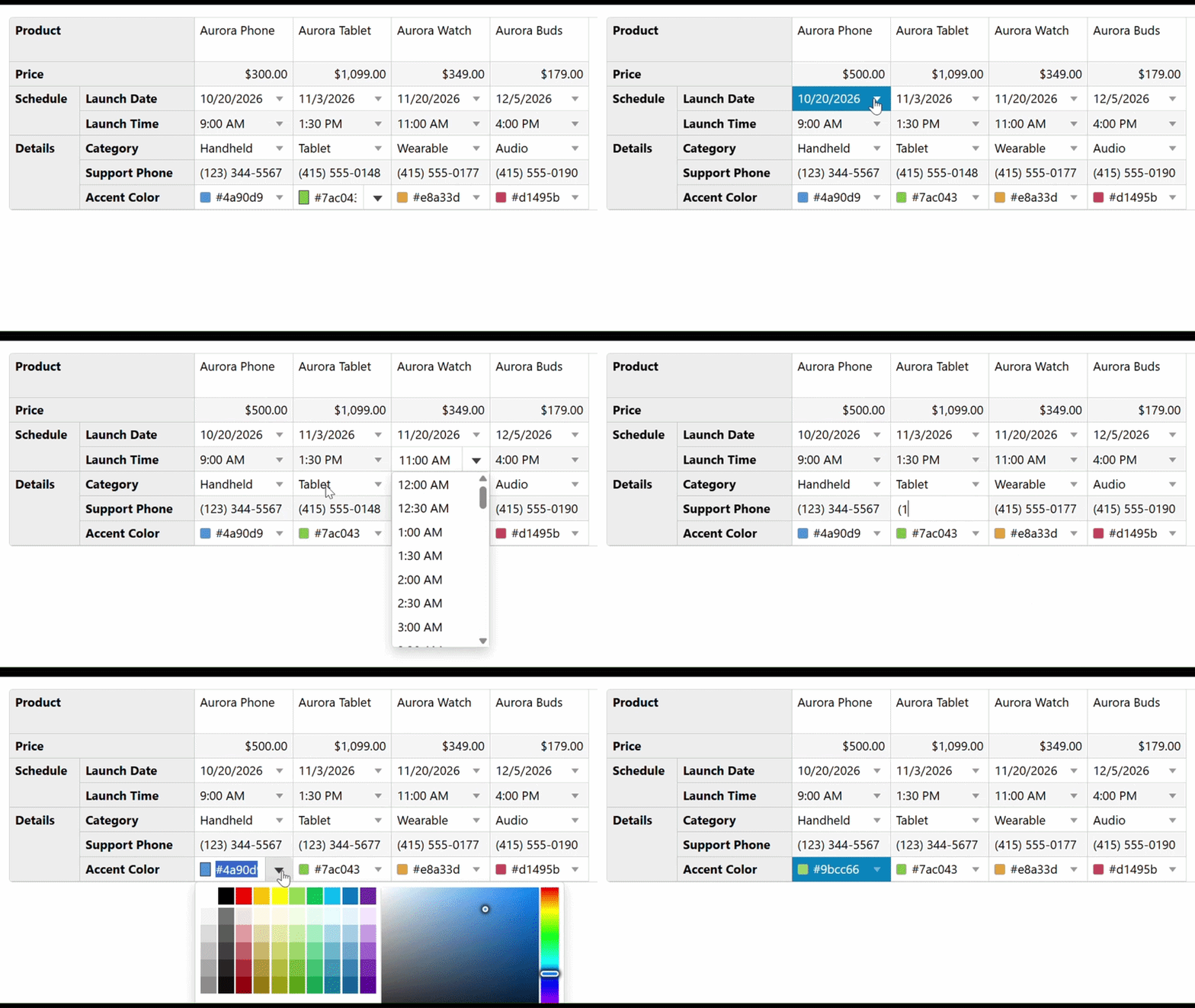
TransposedGrid supports custom editors for editing row values. A custom editor replaces the default editor for a row and allows applications to provide an input control appropriate for the underlying value type.
For example, applications can use InputNumber for numeric values, InputData for date values, or Autocomplete for values selected from a predefined list.
Custom editors can be assigned to an individual row or to a leaf row within a row group. This configuration customizes the editing experience without changing the transposed grid layout.
Configure custom editors
A custom editor replaces the default editor for a specific row and allows applications to control how users enter or modify values.
To configure a custom editor:
Create the input control.
Assign an
Idto the control.Assign the control to the target row.
Assign editors to grouped rows when required.
In code
Controller
public ActionResult CustomEditors()
{
    return View(ReleasePlan.GetData());
}
View
<c1-input-date id="launchDateEditor"
   format="d">
</c1-input-date>
    <c1-input-number id="priceEditor" format="c2">
</c1-input-number>
<c1-transposed-grid id="theTransposedGrid" auto-generate-rows="false">
    <c1-items-source source-collection="Model"></c1-items-source>
     @* editor set directly on a row *@
    <c1-transposed-grid-row binding="Price" header="Price" format="c2" editor="priceEditor"></c1-transposed-grid-row>
    @* editor set on the leaf rows of a row group *@
    <c1-transposed-grid-row header="Schedule">
        <c1-transposed-grid-row binding="LaunchDate" header="Launch Date" format="d" editor="launchDateEditor"></c1-transposed-grid-row>
    </c1-transposed-grid-row>
</c1-transposed-grid>