


MultiLineComboBox
The MultiLineComboBox control extends the ComboBox control with a multi-line text area. Use it to select or enter values such as addresses, notes, formatted labels, or hierarchical item text.
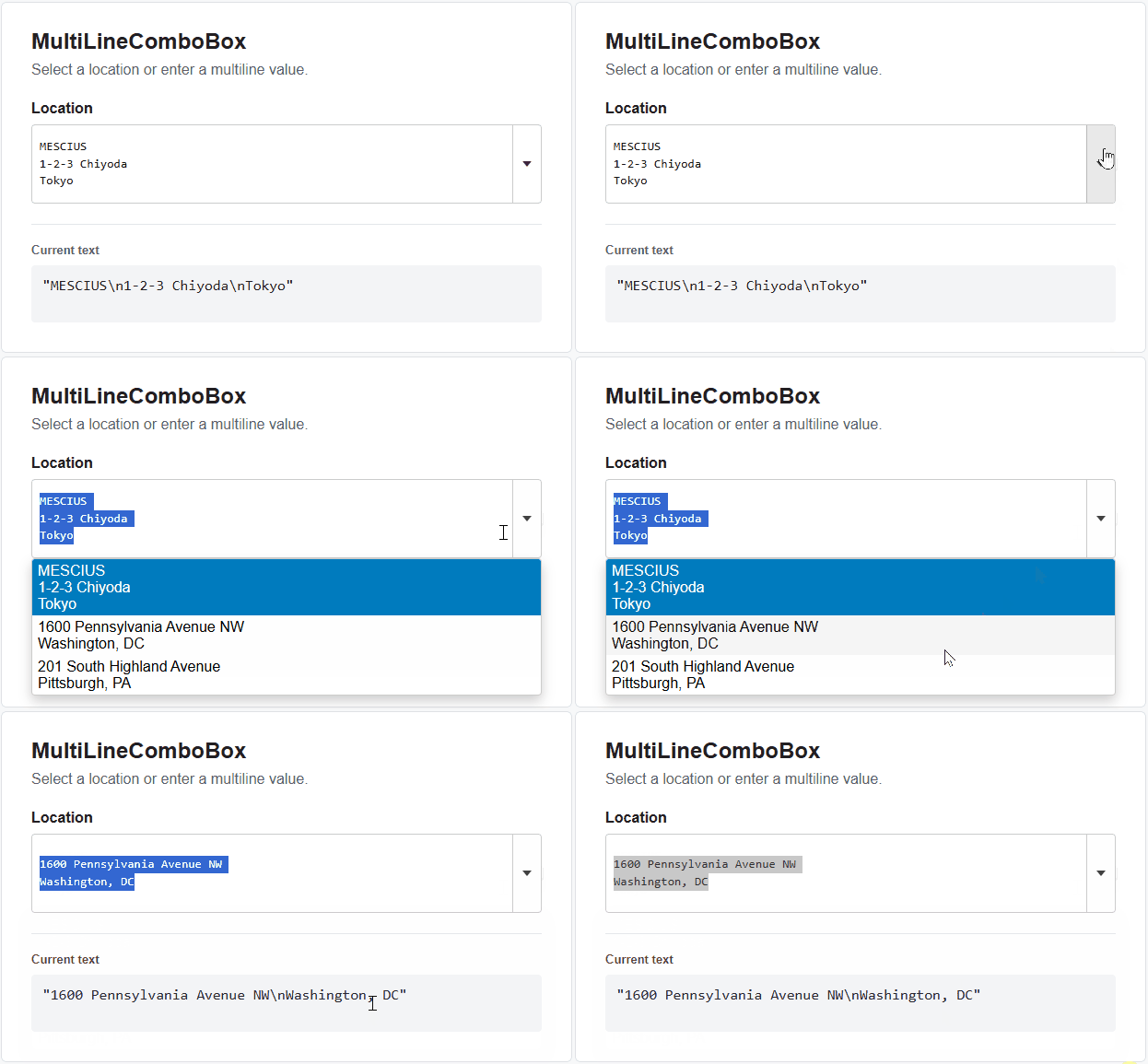
The control retains the item source, selection, and auto-complete behavior of ComboBox. The following example creates an editable control and populates it with multi-line values:
import * as input from '@mescius/wijmo.input';

const locations = [
    'MESCIUS\n1-2-3 Chiyoda\nTokyo',
    '1600 Pennsylvania Avenue NW\nWashington, DC'
];

new input.MultiLineComboBox('#theComboString', {
    isEditable: true,
    itemsSource: locations
});
Set isEditable to true to allow users to enter multi-line values directly. Line breaks are stored as \n in the text value and are preserved during input, selection, and auto-complete. Multi-line values are displayed across multiple lines in both the text area and the drop-down list.
Unlike ComboBox, MultiLineComboBox sets trimText to false by default, preserving leading and trailing whitespace in the text value. Set trimText to true if you want the control to remove this whitespace.
Note:
inputTypealways returns"textarea". Setting this property has no effect.
Keyboard Behavior
MultiLineComboBox gives native text editing behavior priority when the drop-down is closed. When the drop-down is open, navigation follows the standard ComboBox behavior.
Key | Drop-down closed | Drop-down open |
|---|---|---|
| Inserts a line break. | Inserts a line break. |
| Moves the text caret. | Changes the selected item. |
| Moves the text caret to the beginning or end of the visible paragraph. | Changes the selected item. |
| Changes the selected item. | Changes the selected item. |
Mouse wheel | Scrolls the text area. | Uses standard |
| Changes the selected item. | Does not change the selected item independently of the open drop-down. |
Alt+Up and Alt+Down open or close the drop-down list. The remaining keyboard commands are the same as in ComboBox.