


-
Spread Windows Forms Product Documentation
- Getting Started
-
Developer's Guide
- Understanding the Product
- Working with the Component
- Spreadsheet Objects
- Ribbon Control
- Sheets
- Rows and Columns
- Headers
- Cells
- Cell Types
- Data Binding
- Customizing the Sheet Appearance
- Customizing Interaction in Cells
- Tables
- Pivot Table
- Understanding the Underlying Models
- Customizing Row or Column Interaction
- Formulas in Cells
- Sparklines
- Keyboard Interaction
- Events from User Actions
- File Operations
- Storing Excel Summary and View
- Printing
- Chart Control
- Enhanced Chart
- Customizing Drawing
- Touch Support with the Component
- Spread Designer Guide
- Assembly Reference
- Import and Export Reference
- Version Comparison Reference
Filtering Pivot Table Fields
Spread WinForms allows you to filter values in a pivot table. You can add label, value, or date filters to pivot table fields by using the PivotFilters property of the IPivotField interface. To add a filter, specify a PivotFilterType enumeration value as a parameter in the Add method of the IPivotFilters interface.
Spread WinForms also provides the ClearLabelFilters, ClearValueFilters, and ClearAllFilters methods for removing filter conditions. The ClearLabelFilters method removes label filters, the ClearValueFilters method removes value filters, and the ClearAllFilters method removes all filters applied to the field.
Apply Label Filter
The following example demonstrates how to use the Add method of IPivotFilters with PivotFilterType.CaptionContains to filter the Region labels to only show items containing "Ea".
C#
fpSpread1.BorderCollapse = BorderCollapse.Enhanced;
IWorkbook workbook = fpSpread1.AsWorkbook();
IWorksheet sheet1 = workbook.ActiveSheet;

// Set data.
sheet1.SetValue(0, 0, new object[,] {
    {"OrderDate", "Region", "City", "Category", "Product", "Quantity"},
    {"2025-07-01", "East", "Jersey", "Breads", "Bakery", 1120},
    {"2025-07-01", "East", "Jersey", "Breads", "Cookie", 563},
    {"2025-07-02", "East", "Washington, DC", "Breads", "Bakery", 1281},
    {"2025-07-02", "East", "Washington, DC", "Breads", "Cookie", 546},
    {"2025-07-01", "East", "Jersey", "Beverages", "Coffee", 326},
    {"2025-07-02", "East", "Washington, DC", "Beverages", "Coffee", 205},
    {"2025-07-02", "East", "Washington, DC", "Beverages", "Juice", 186},
    {"2025-07-01", "West", "San Francisco", "Breads", "Bakery", 1262},
    {"2025-07-01", "West", "San Francisco", "Breads", "Cookie", 349},
    {"2025-07-01", "West", "Seattle", "Breads", "Bakery", 524},
    {"2025-07-01", "West", "Seattle", "Breads", "Cookie", 196},
    {"2025-07-01", "West", "San Francisco", "Beverages", "Coffee", 363},
    {"2025-07-01", "West", "Seattle", "Beverages", "Coffee", 100},
    {"2025-07-02", "East", "Jersey", "Beverages", "Juice", 120},
    {"2025-07-02", "West", "San Francisco", "Breads", "Bakery", 350},
    {"2025-07-02", "West", "Seattle", "Beverages", "Tea", 180},
    {"2025-07-02", "East", "Jersey", "Breads", "Cookie", 75},
    {"2025-07-03", "West", "San Francisco", "Beverages", "Juice", 210},
    {"2025-07-03", "East", "Boston", "Breads", "Bakery", 420}
});
IPivotCache pvCache = fpSpread1.AsWorkbook().PivotCaches.Create("Sheet1!A1:F20");

// Configure pivot table's fields.
IPivotTable pvTable = pvCache.CreatePivotTable(sheet1.Cells["I1"]);
IPivotFields pvFields = pvTable.PivotFields;
pvTable.AddDataField(pvFields["Quantity"], "Sum of quantity", ConsolidationFunction.Sum);
pvFields["Region"].Orientation = PivotFieldOrientation.Row;
pvFields["City"].Orientation = PivotFieldOrientation.Row;
pvFields["Category"].Orientation = PivotFieldOrientation.Column;
pvFields["Product"].Orientation = PivotFieldOrientation.Column;
pvFields["OrderDate"].Orientation = PivotFieldOrientation.Page;

// Filter for products where the product name contains 'Ea'.
pvFields["Region"].PivotFilters.Add(PivotFilterType.CaptionContains, 0, "Ea");
VB
fpSpread1.BorderCollapse = BorderCollapse.Enhanced
Dim workbook As IWorkbook = fpSpread1.AsWorkbook()
Dim sheet1 As IWorksheet = workbook.ActiveSheet

' Set data.
sheet1.SetValue(0, 0, New Object(,) {
    {"OrderDate", "Region", "City", "Category", "Product", "Quantity"},
    {"2025-07-01", "East", "Jersey", "Breads", "Bakery", 1120},
    {"2025-07-01", "East", "Jersey", "Breads", "Cookie", 563},
    {"2025-07-02", "East", "Washington, DC", "Breads", "Bakery", 1281},
    {"2025-07-02", "East", "Washington, DC", "Breads", "Cookie", 546},
    {"2025-07-01", "East", "Jersey", "Beverages", "Coffee", 326},
    {"2025-07-02", "East", "Washington, DC", "Beverages", "Coffee", 205},
    {"2025-07-02", "East", "Washington, DC", "Beverages", "Juice", 186},
    {"2025-07-01", "West", "San Francisco", "Breads", "Bakery", 1262},
    {"2025-07-01", "West", "San Francisco", "Breads", "Cookie", 349},
    {"2025-07-01", "West", "Seattle", "Breads", "Bakery", 524},
    {"2025-07-01", "West", "Seattle", "Breads", "Cookie", 196},
    {"2025-07-01", "West", "San Francisco", "Beverages", "Coffee", 363},
    {"2025-07-01", "West", "Seattle", "Beverages", "Coffee", 100},
    {"2025-07-02", "East", "Jersey", "Beverages", "Juice", 120},
    {"2025-07-02", "West", "San Francisco", "Breads", "Bakery", 350},
    {"2025-07-02", "West", "Seattle", "Beverages", "Tea", 180},
    {"2025-07-02", "East", "Jersey", "Breads", "Cookie", 75},
    {"2025-07-03", "West", "San Francisco", "Beverages", "Juice", 210},
    {"2025-07-03", "East", "Boston", "Breads", "Bakery", 420}
})

Dim pvCache As IPivotCache = fpSpread1.AsWorkbook().PivotCaches.Create("Sheet1!A1:F20")

' Configure pivot table's fields.
Dim pvTable As IPivotTable = pvCache.CreatePivotTable(sheet1.Cells("I1"))
Dim pvFields As IPivotFields = pvTable.PivotFields
pvTable.AddDataField(pvFields("Quantity"), "Sum of quantity", ConsolidationFunction.Sum)
pvFields("Region").Orientation = PivotFieldOrientation.Row
pvFields("City").Orientation = PivotFieldOrientation.Row
pvFields("Category").Orientation = PivotFieldOrientation.Column
pvFields("Product").Orientation = PivotFieldOrientation.Column
pvFields("OrderDate").Orientation = PivotFieldOrientation.Page

' Filter for products where the product name contains "Ea".
pvFields("Region").PivotFilters.Add(PivotFilterType.CaptionContains, 0, "Ea")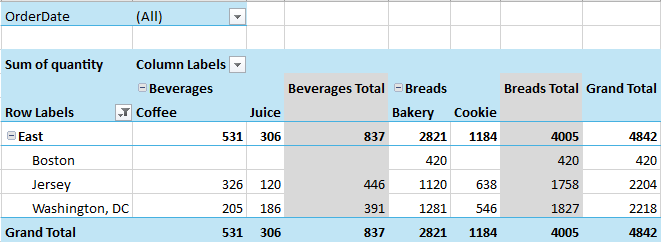
Apply Value Filter
The following example demonstrates how to use the Add method of IPivotFilters with PivotFilterType.ValueIsGreaterThan to filter the Category labels, showing only those with values greater than 3000.
C#
// Configure pivot table's fields.
IPivotTable pvTable = pvCache.CreatePivotTable(sheet1.Cells["I1"]);
IPivotFields pvFields = pvTable.PivotFields;
pvTable.AddDataField(pvFields["Quantity"], "Sum of quantity", ConsolidationFunction.Sum);
pvFields["Region"].Orientation = PivotFieldOrientation.Row;
pvFields["City"].Orientation = PivotFieldOrientation.Row;
pvFields["Category"].Orientation = PivotFieldOrientation.Column;
pvFields["Product"].Orientation = PivotFieldOrientation.Column;
pvFields["OrderDate"].Orientation = PivotFieldOrientation.Page;

// Apply a value filter to show only categories with values greater than 3000.
pvFields["Category"].PivotFilters.Add(PivotFilterType.ValueIsGreaterThan, 0,3000);
VB
' Configure pivot table's fields.
Dim pvTable As IPivotTable = pvCache.CreatePivotTable(sheet1.Cells("I1"))
Dim pvFields As IPivotFields = pvTable.PivotFields
pvTable.AddDataField(pvFields("Quantity"), "Sum of quantity", ConsolidationFunction.Sum)
pvFields("Region").Orientation = PivotFieldOrientation.Row
pvFields("City").Orientation = PivotFieldOrientation.Row
pvFields("Category").Orientation = PivotFieldOrientation.Column
pvFields("Product").Orientation = PivotFieldOrientation.Column
pvFields("OrderDate").Orientation = PivotFieldOrientation.Page

' Apply a value filter to show only categories with values greater than 3000.
pvFields("Category").PivotFilters.Add(PivotFilterType.ValueIsGreaterThan, 0, 3000)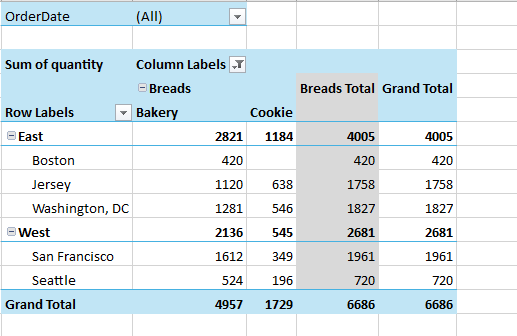
Apply Multiple Filters
The following example demonstrates how to filter using both label and value filters.
C#
IPivotTable pvTable = pvCache.CreatePivotTable(sheet1.Cells["I1"]);
IPivotFields pvFields = pvTable.PivotFields;
pvTable.AddDataField(pvFields["Quantity"], "Sum of quantity", ConsolidationFunction.Sum);
pvFields["Region"].Orientation = PivotFieldOrientation.Row;
pvFields["City"].Orientation = PivotFieldOrientation.Row;
pvFields["Category"].Orientation = PivotFieldOrientation.Column;
pvFields["Product"].Orientation = PivotFieldOrientation.Column;
pvFields["OrderDate"].Orientation = PivotFieldOrientation.Page;

// Filter for products where the product name contains 'Ea'.
pvFields["Region"].PivotFilters.Add(PivotFilterType.CaptionContains, 0, "Ea");

// Apply a value filter to show only categories with values greater than 3000.
pvFields["Category"].PivotFilters.Add(PivotFilterType.ValueIsGreaterThan, 0, 3000);
VB
Dim pvTable As IPivotTable = pvCache.CreatePivotTable(sheet1.Cells("I1"))
Dim pvFields As IPivotFields = pvTable.PivotFields
pvTable.AddDataField(pvFields("Quantity"), "Sum of quantity", ConsolidationFunction.Sum)
pvFields("Region").Orientation = PivotFieldOrientation.Row
pvFields("City").Orientation = PivotFieldOrientation.Row
pvFields("Category").Orientation = PivotFieldOrientation.Column
pvFields("Product").Orientation = PivotFieldOrientation.Column
pvFields("OrderDate").Orientation = PivotFieldOrientation.Page

' Filter for products where the product name contains "Ea".
pvFields("Region").PivotFilters.Add(PivotFilterType.CaptionContains, 0, "Ea")

' Apply a value filter to show only categories with values greater than 3000.
pvFields("Category").PivotFilters.Add(PivotFilterType.ValueIsGreaterThan, 0, 3000)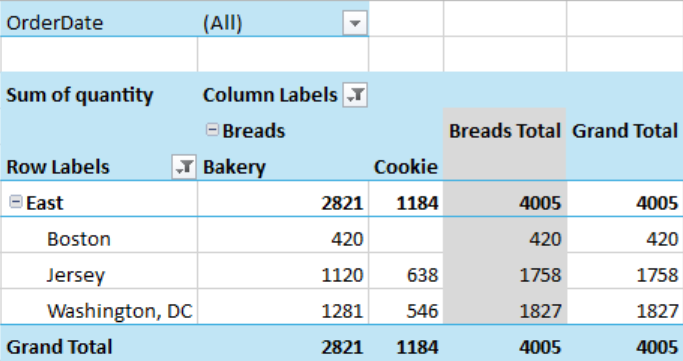
Clear Filters
You can clear all filters from the pivot table using the ClearAllFilters() method.
C#
pvTable.ClearAllFilters();VB
pvTable.ClearAllFilters()Filter Dialog
You can use the Filter dialog by clicking on a column header in a pivot table. It provides various sorting and filtering options. You need to select the required items from the filter dialog's list box for applying the filter. The below image shows the filter dialog box.
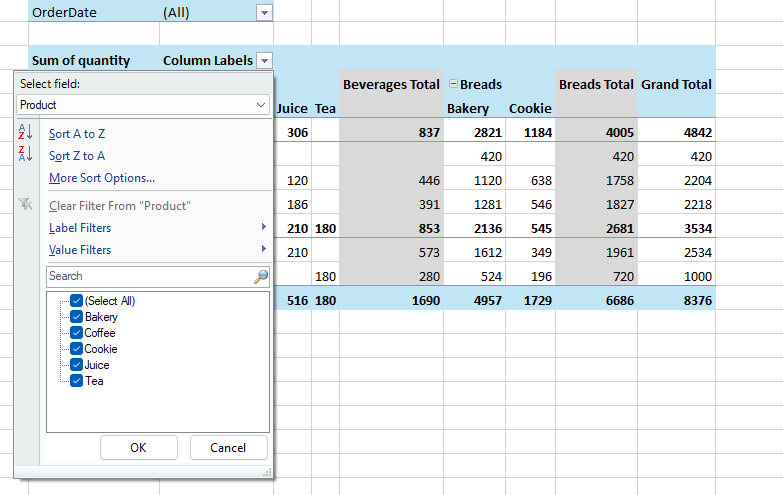
The filter dialog also provides a search box, allowing you to conveniently apply filtering settings. You can enter search items in a case-insensitive manner.