


- SpreadJS Overview
- Getting Started
- JavaScript Frameworks
- Best Practices
- Features
- SpreadJS Designer
- SpreadJS Designer VSCode Plugin
- Tutorials
-
SpreadJS Designer Component
- Getting Started
- Quick Start
- Theme
- Designer Interface
- JavaScript Frameworks
- Template-Based Workbook Initialization
- Customizations
-
Work in Designer Component
- AutoSum Functions
- Set Range Template Cell
- Name Box
- Select Cells Using Go To
- Find and Replace
- Edit Font Size
- Edit Font Family
- Configure Cell Borders
- Manage Conditional Formatting Rules
- Shape Selection Pane
- Automatic Outline
- Format Painter
- Sort and Filter
- Table Slicer
- Data Source
- TableSheet
- GanttSheet Designer
- ReportSheet Designer
- Data Chart Designer
- Text to Columns
- Remove Duplicates
- Pivot Table
- Dockable Side Panel
- Command Palette
- Transform Cells with LAMBDA Formula
- Threaded Comments Panel
- What-If Analysis
- Insert Function Dialog
- Named Cell Templates
- Insert Pictures in Designer
- Toolbar Ribbon
- API Documentation
- SpreadJS Collaboration Server
- Touch Support
- Formula Reference
- Import and Export Reference
- Events
- API Documentation
- Release Notes
Template Range
When your reports require repeating sections, nested details, or grouped summaries that adapt dynamically to your data structure, Template Range is the tool you need.
It allows you to design structured, data‑driven report layouts directly inside SpreadJS—linking tables, building hierarchies, and rendering repeating sections automatically, without worrying about field context or layout logic.
With a few defined cell blocks bound to your data, the Template Range expands hierarchical data—such as customers → products → order details—into clear, repeatable layouts that stay in sync with data updates.
Supported Structures
Depending on how your data is organized, a Template Range can work in two structural patterns:
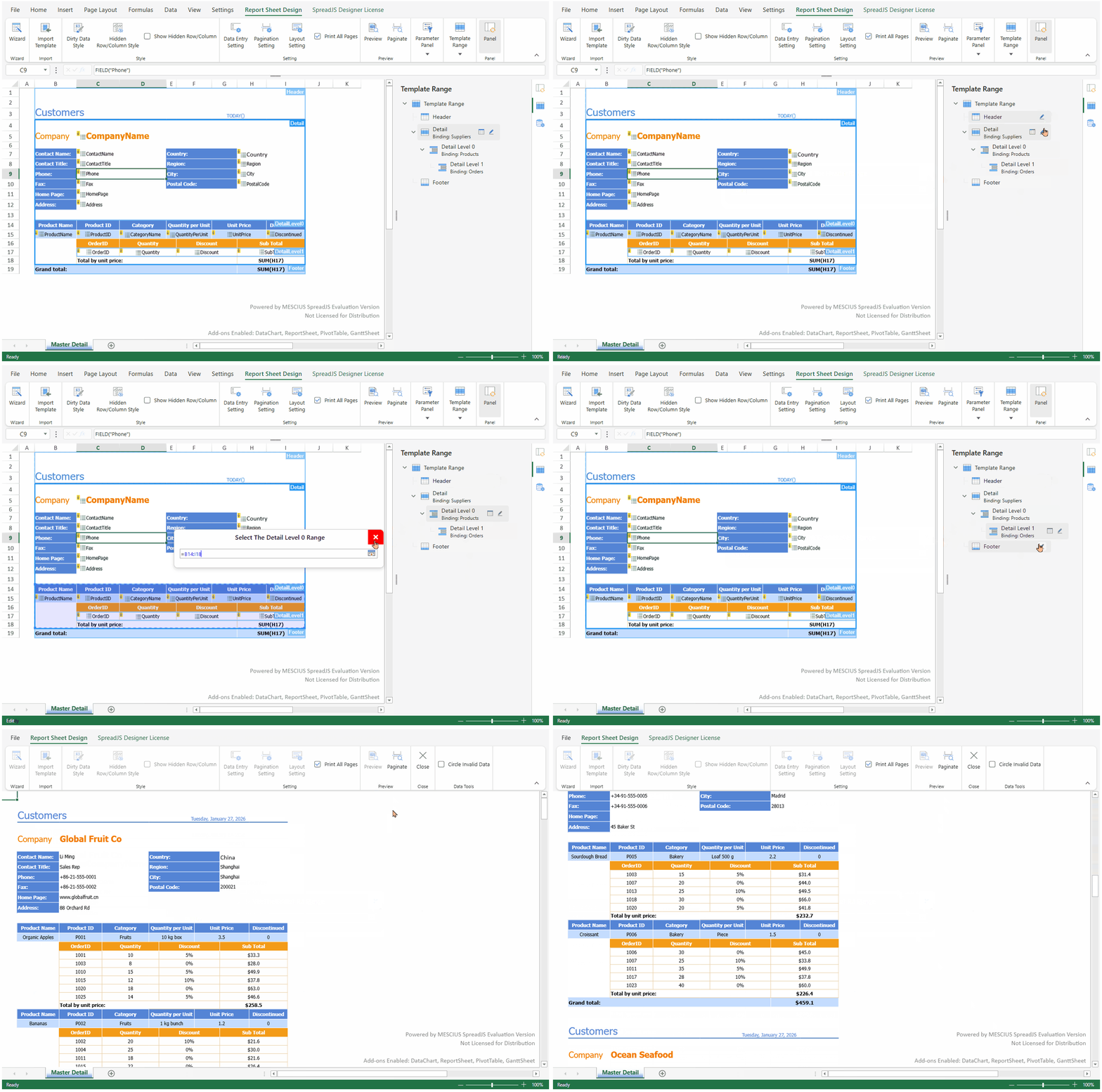
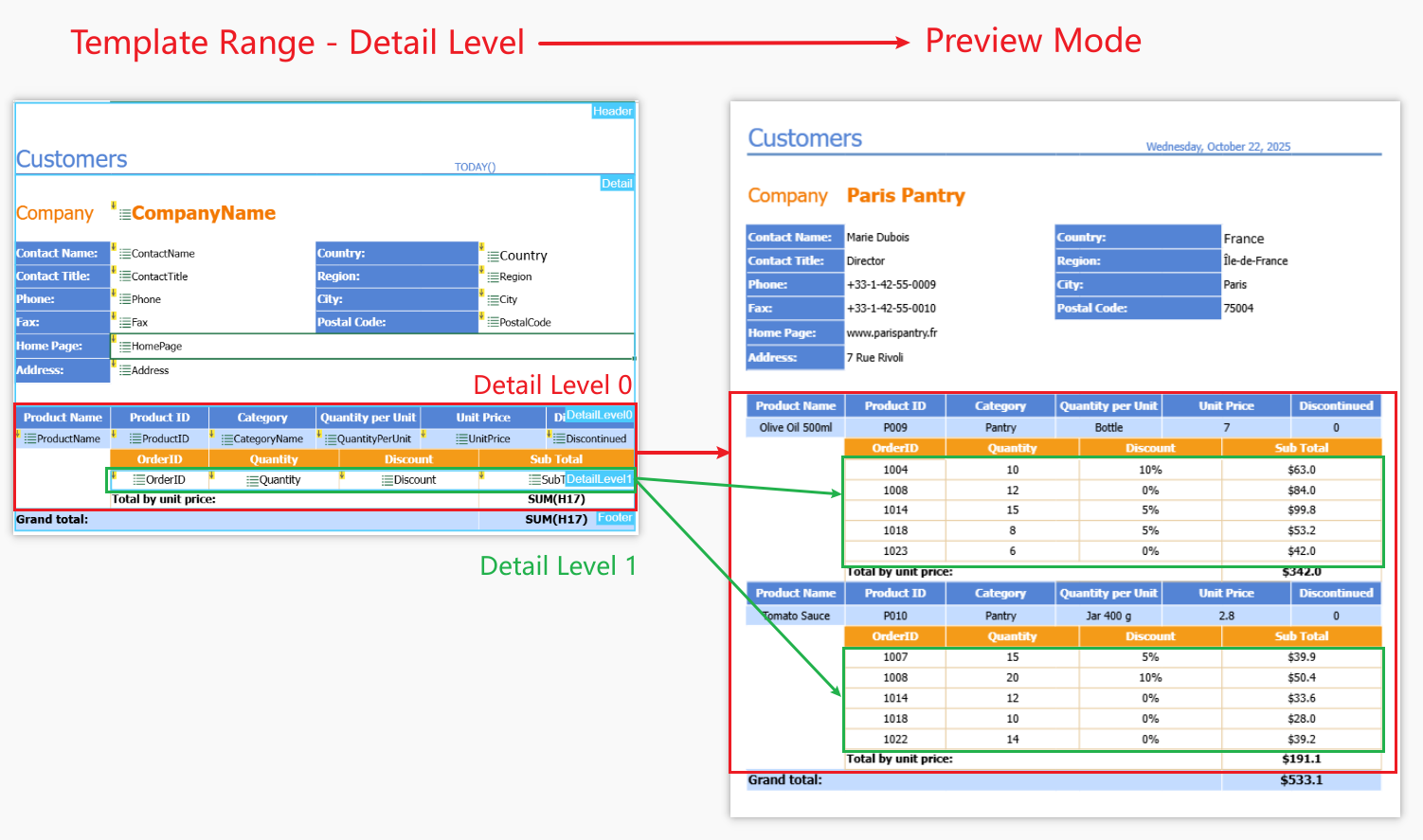
Nested Levels — for hierarchical data across related tables (for example, Customers → Orders → Items).
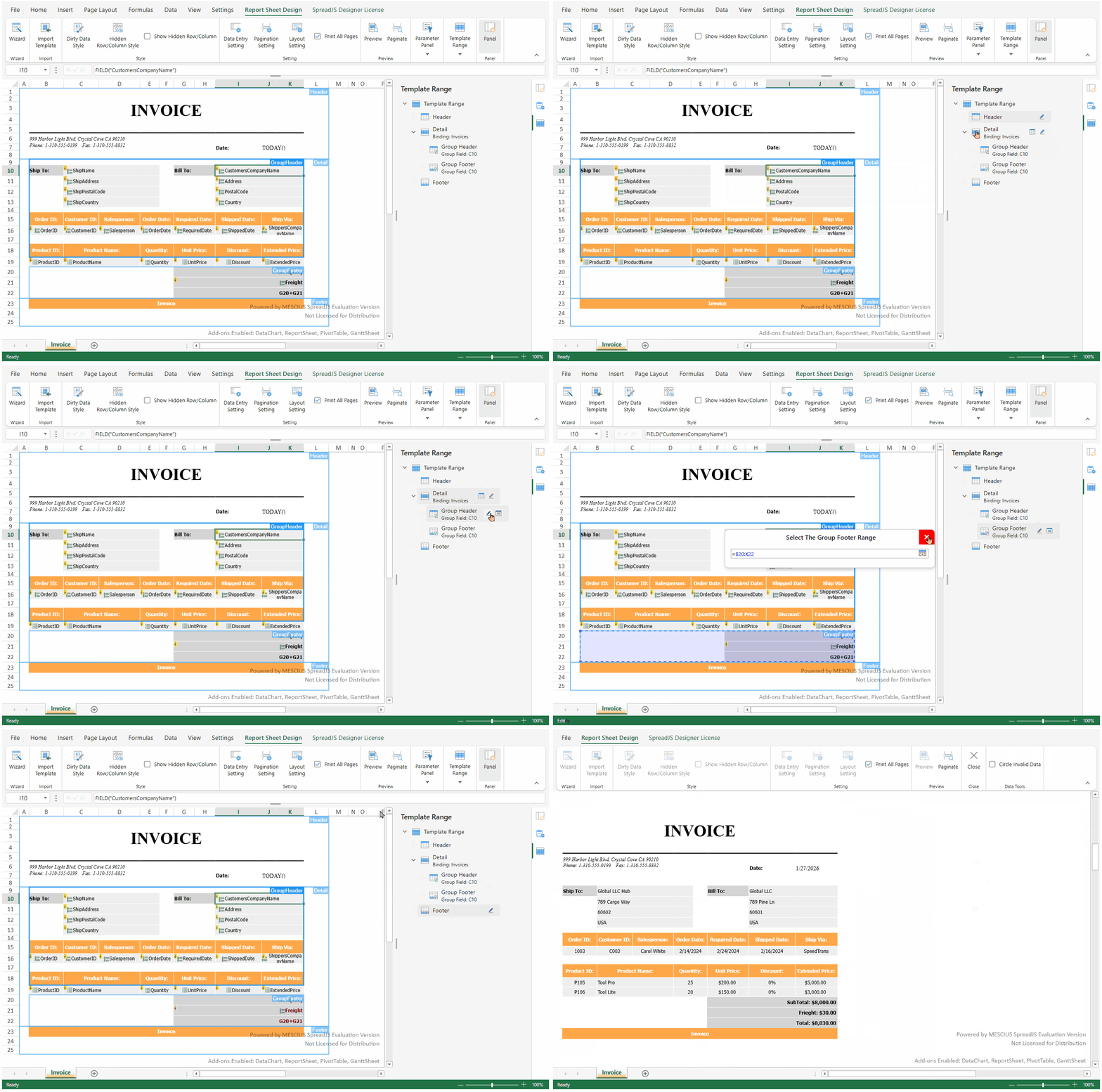
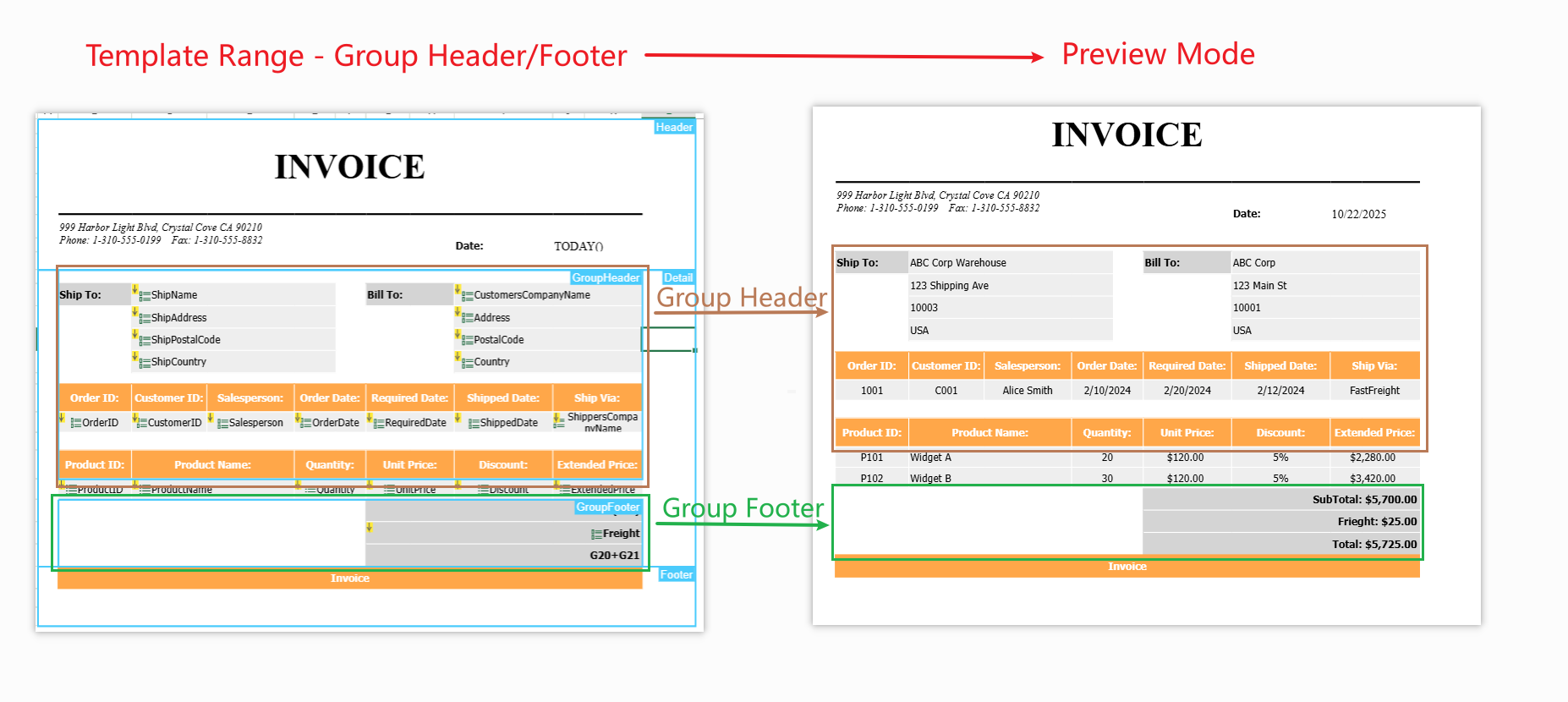
Groups — for summarizing or repeating sections within a single table (for example, Products grouped by Category).
The following diagrams illustrate these two structures.
Nested Levels Example
Groups Example
Key Features
Regardless of which structural pattern you use, Template Range shares the following core capabilities:
Visual, cell‑based report design workflow
Automatic parent–child relationship detection
Smooth integration with data binding and field context logic
Full support for import/export and undo/redo
Key Concepts
Term | Description | Example |
|---|---|---|
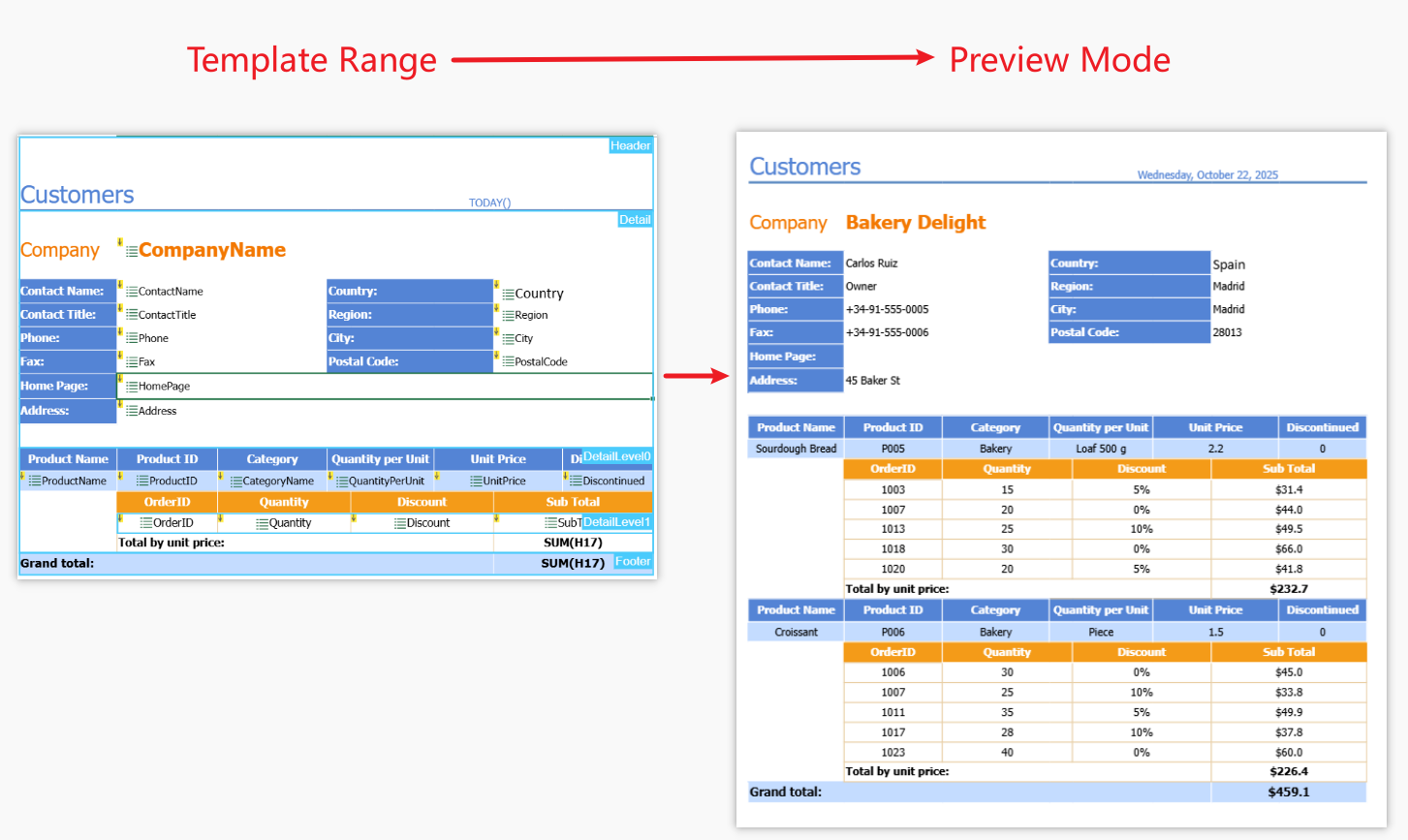
Template Range | A defined block of contiguous cells that serves as the structural template for report generation. Developers drop data fields here to establish layout and field context. When rendered, the engine automatically expands the range according to data relationships and hierarchy settings. |
|
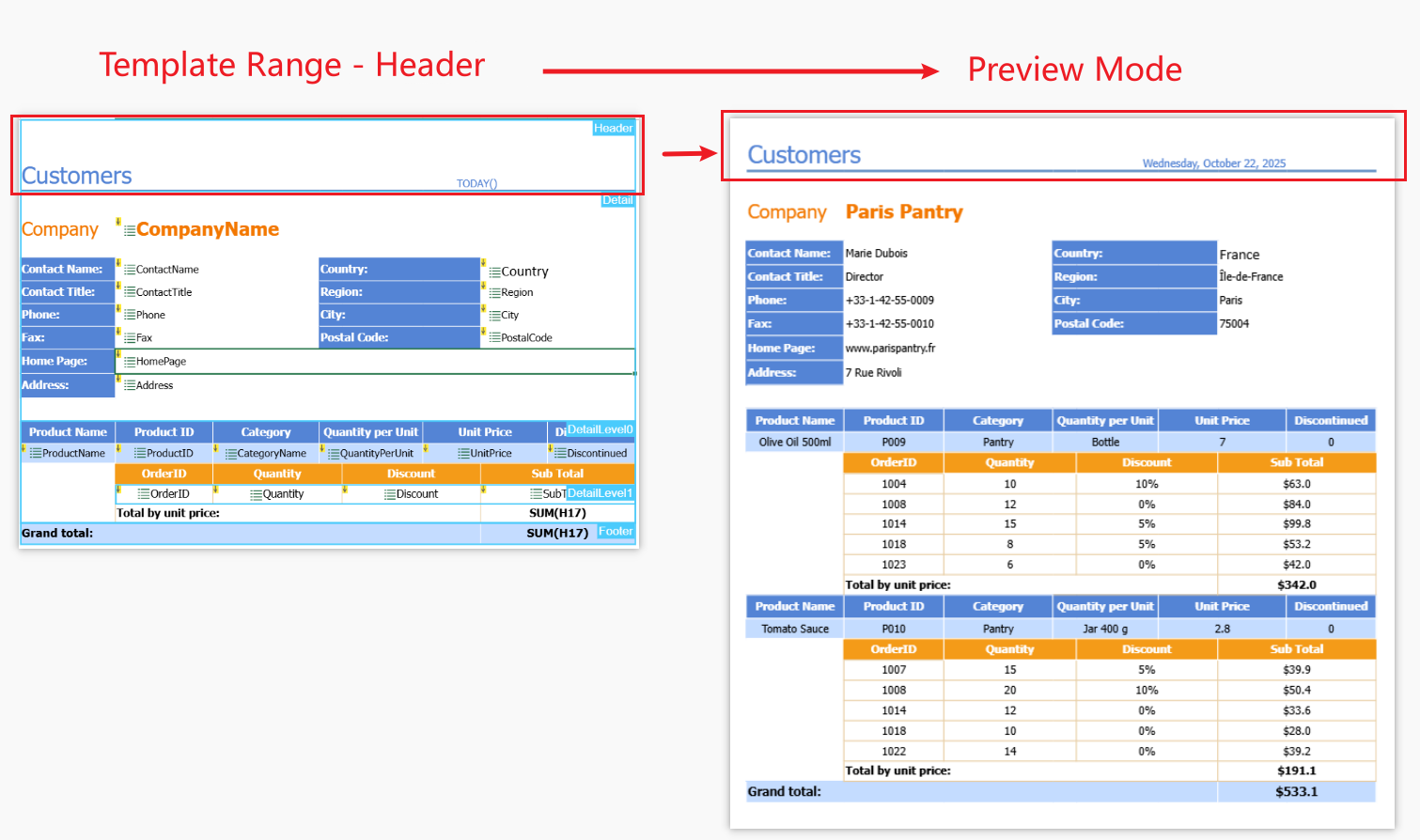
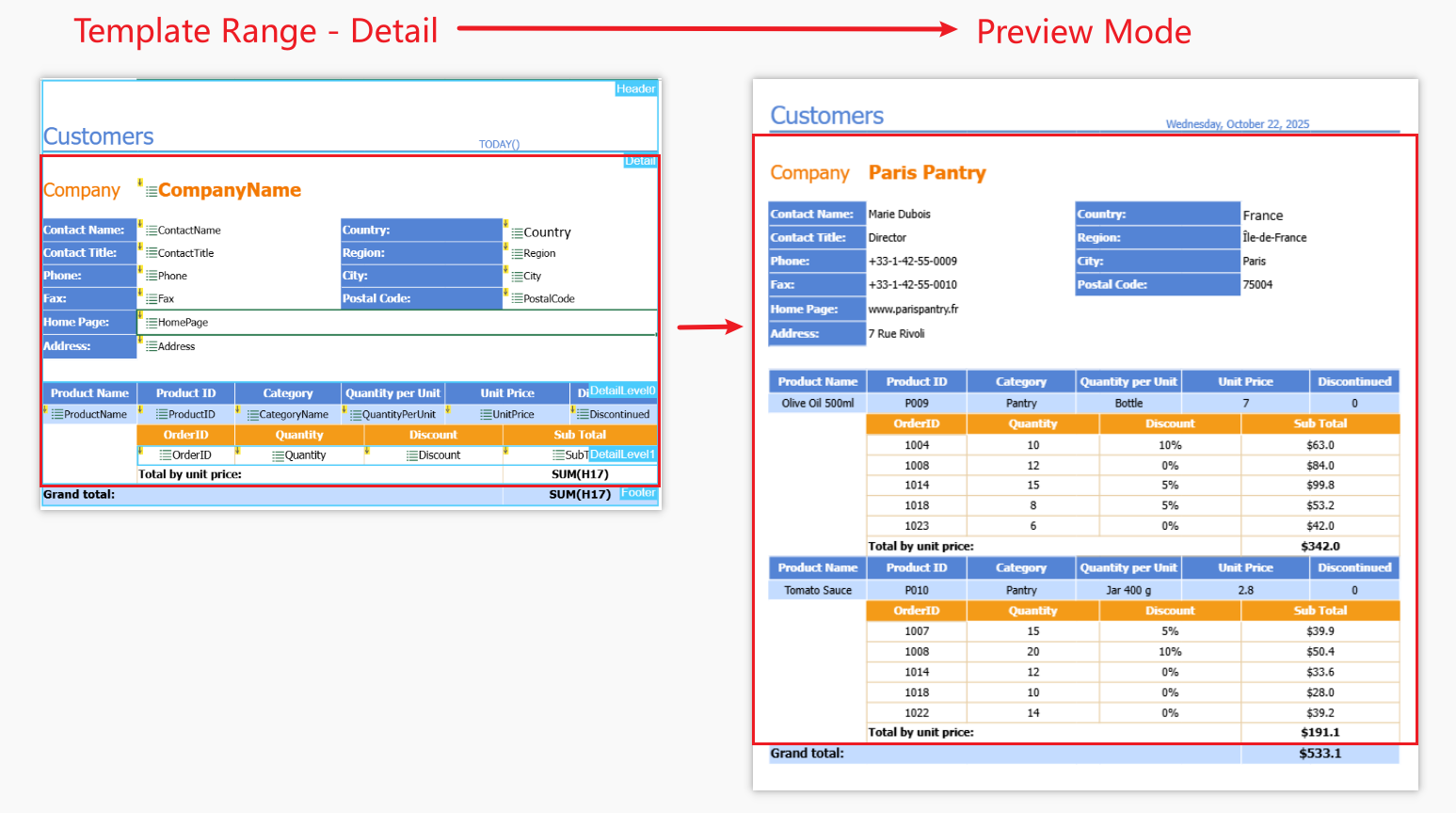
Header | The top section of a template range used for titles, logos, or column labels. Appears once at the start of each group or page and repeats automatically when details expand. |
|
Detail | The main repeating section that renders once per record of the bound data source. Typically used to display row‑level values or line‑item details. |
|
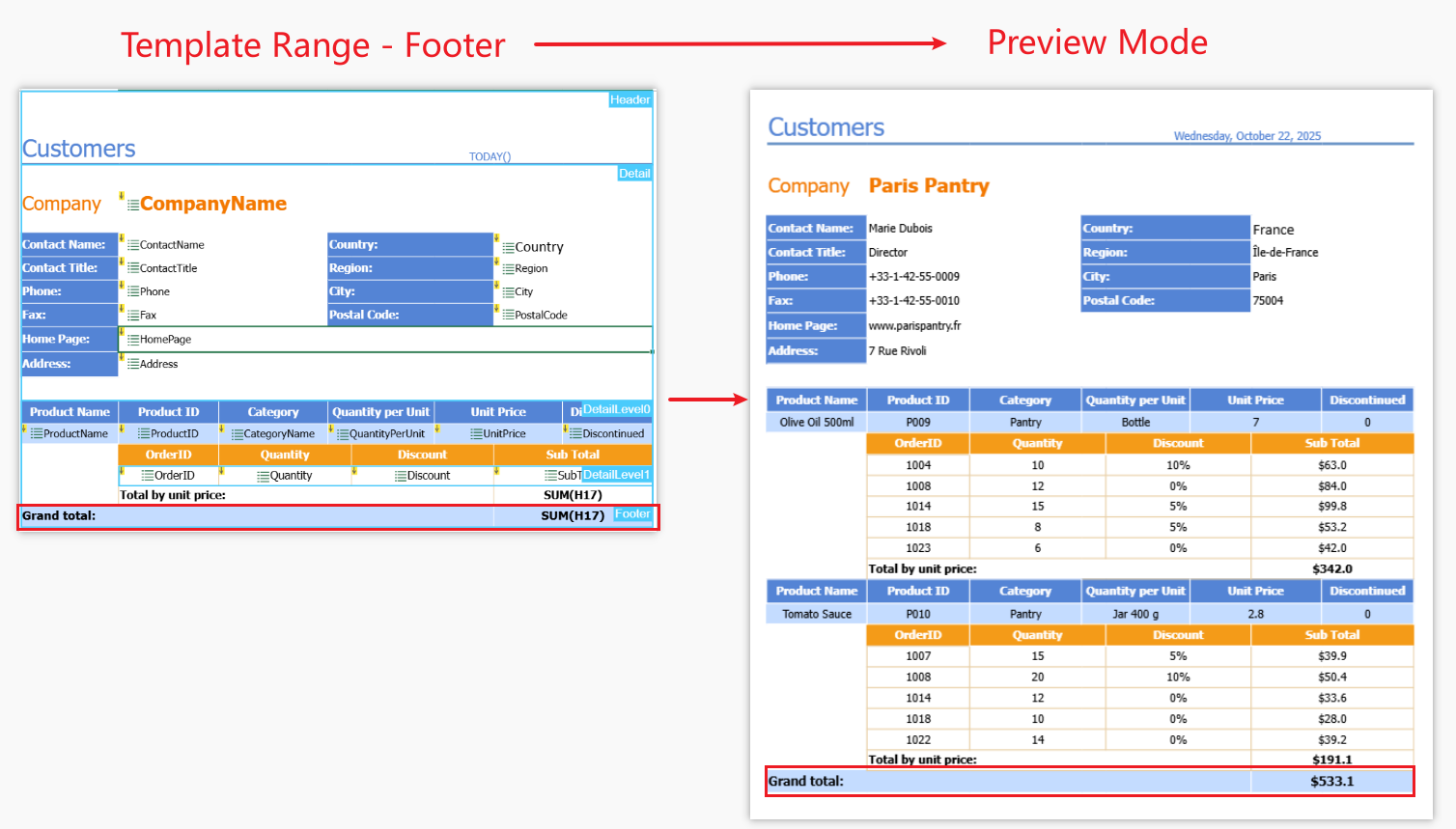
Footer | The bottom section of the template range used for totals, remarks, or final notes. It appears once at the end of each group or the entire report and is repeated automatically where applicable. |
|
Detail Level | A nested detail region inside a Detail area. Each level corresponds to a child table in a master‑detail relationship, enabling hierarchical data expansion (e.g., Orders → Order Items). |
|
Group Header / Footer | Optional bands within a Detail area used for grouped data presentation.
|
|
Usage Steps
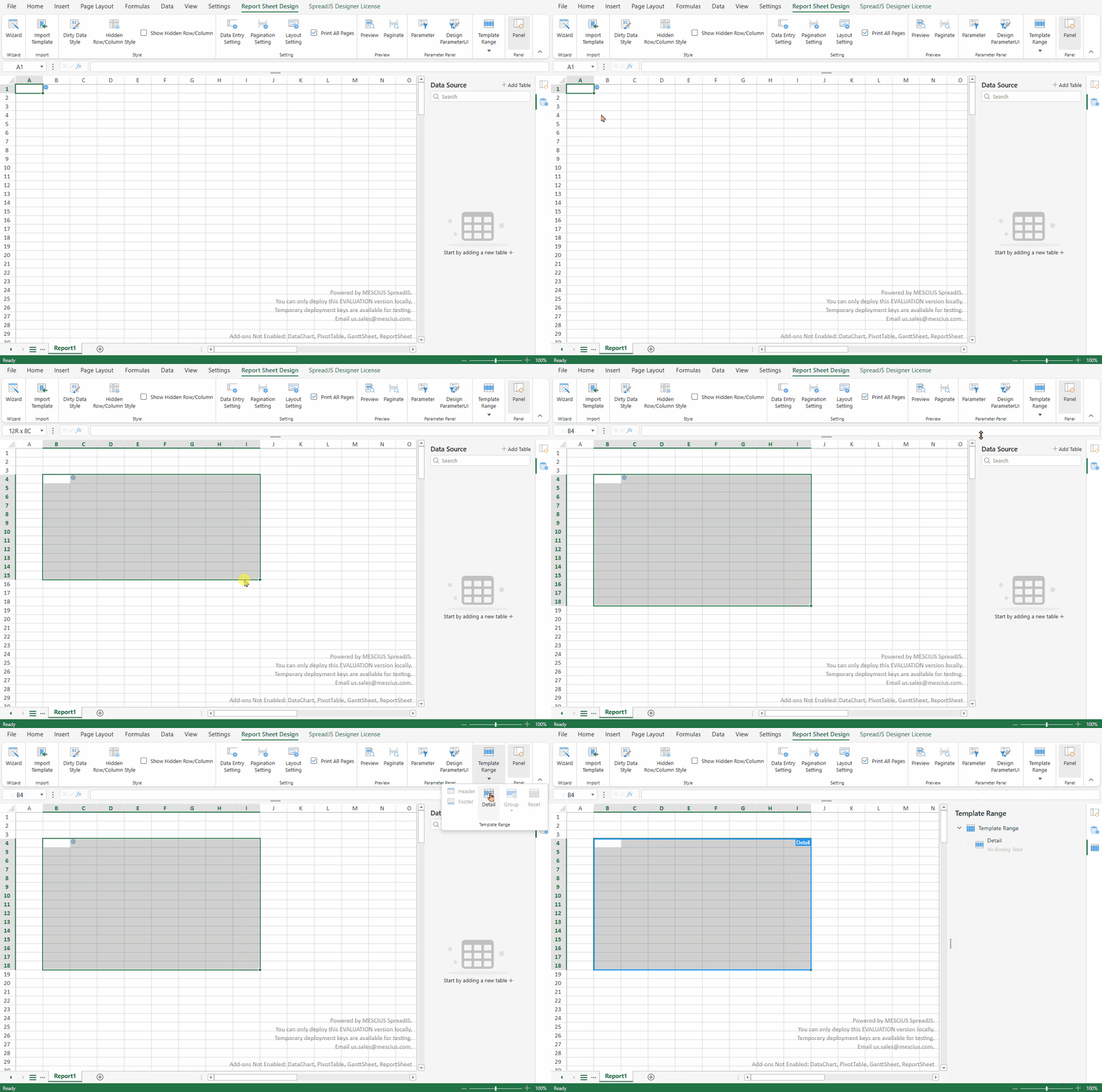
Step 1: Creating a Template Range
Select a contiguous range of cells on the ReportSheet.
On the ReportSheet tab, in the Template Range group, click Detail.
The selected area becomes a new Detail range, outlined with a border and labeled with its range name.
Note:
Each report sheet can contain only one Template Range.
Step 2: Adding Range Components
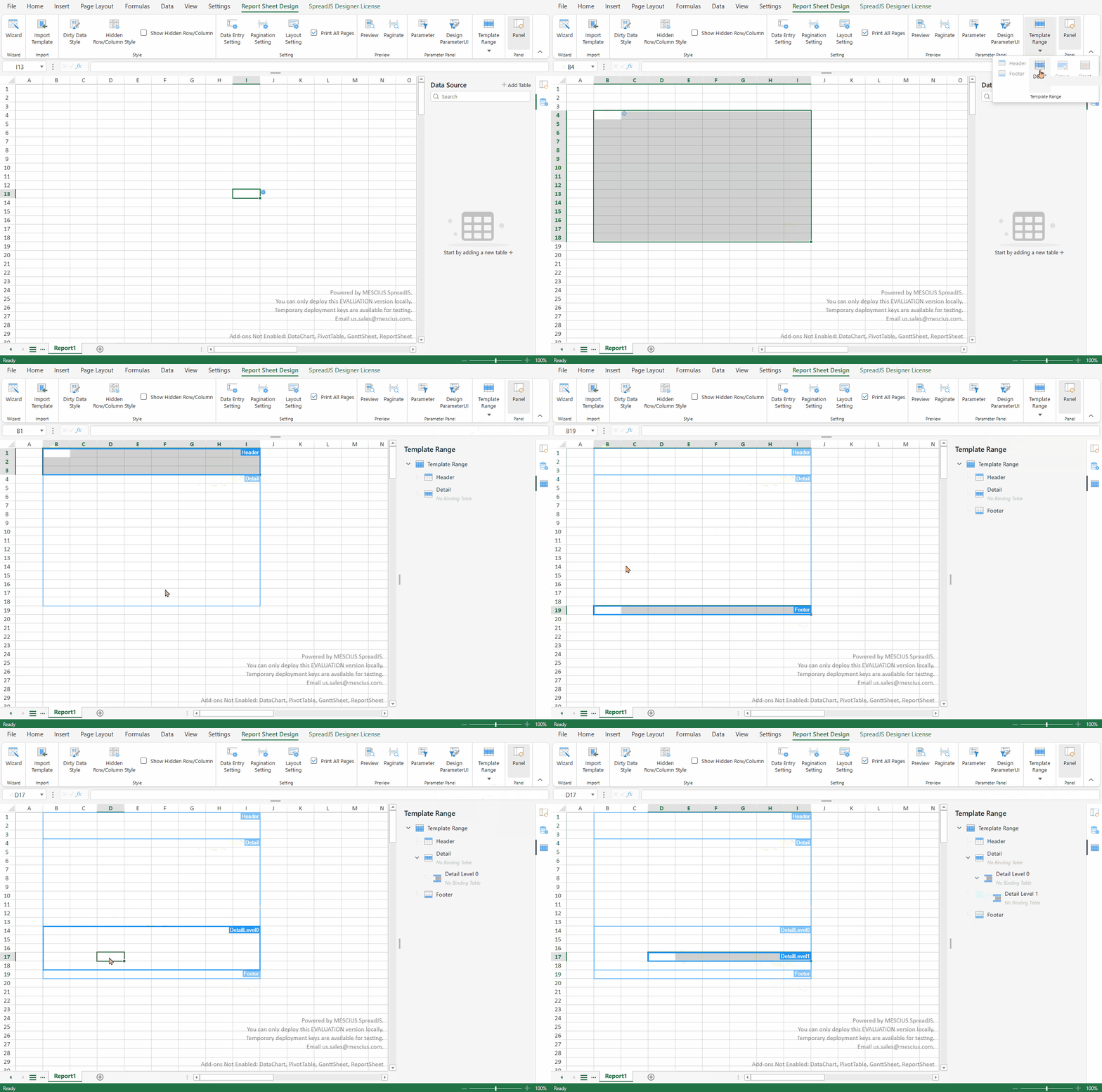
All range components are added the same way—select the target cell area, then choose the component type from the Template Range group on the ReportSheet tab.
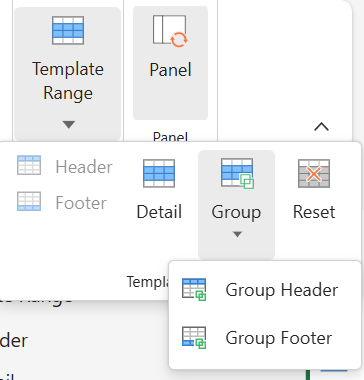
After adding, the selected area is outlined and labeled automatically.
Path A: Nested Level Structure
Insert a Nested Detail under the parent section.
Binding Data Tables
Click inside the target Template Range.
The Template Range panel opens on the right, showing the current range hierarchy.
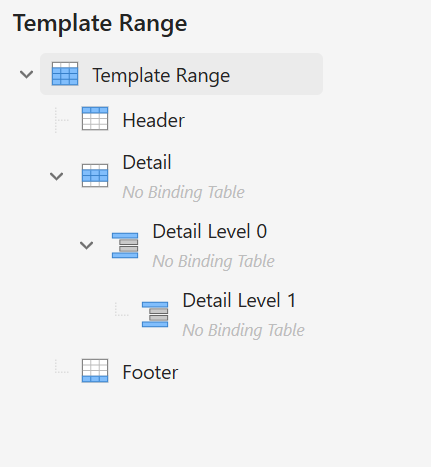
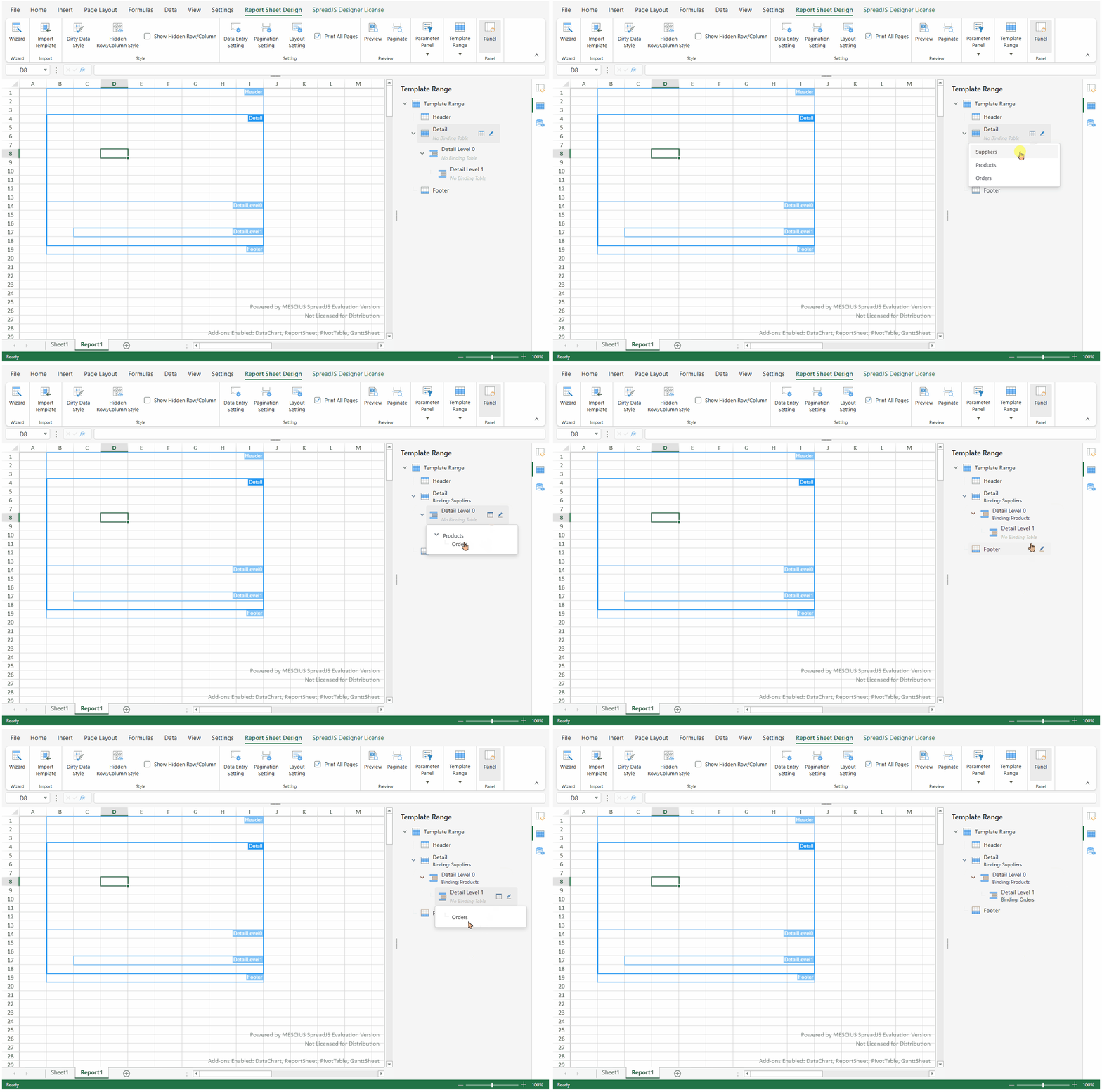
In the panel, select a Detail or Detail Level item and click Bind Table.
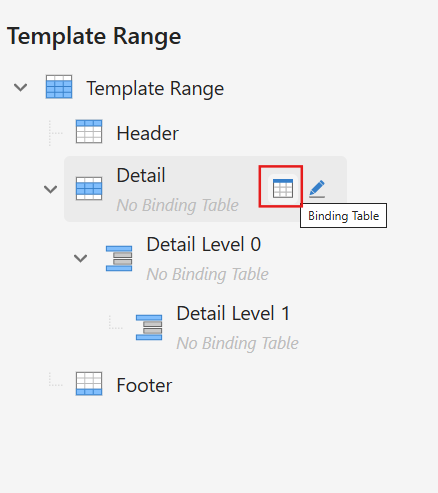
Choose a data table from the available data sources.
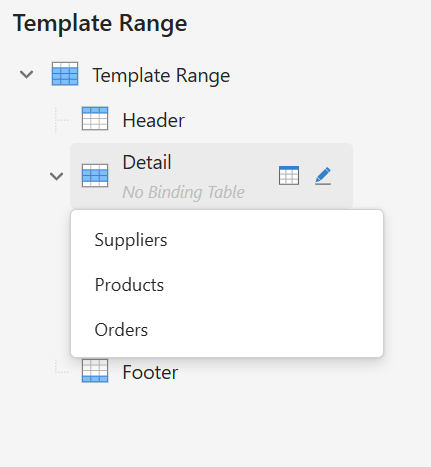
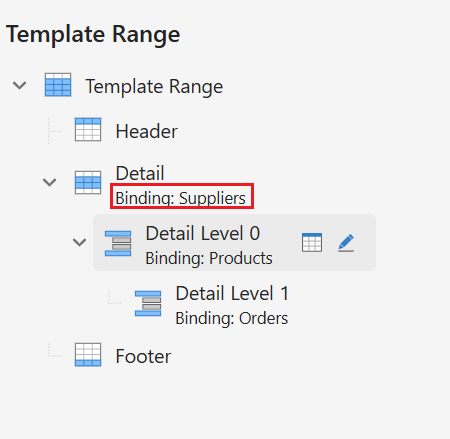
The selected table name now appears next to the range item, confirming the binding.
Note:
Detail Level areas can only bind to child tables that have defined relationships with their parent tables.
Optionally use Range Selection to adjust the area coordinates.
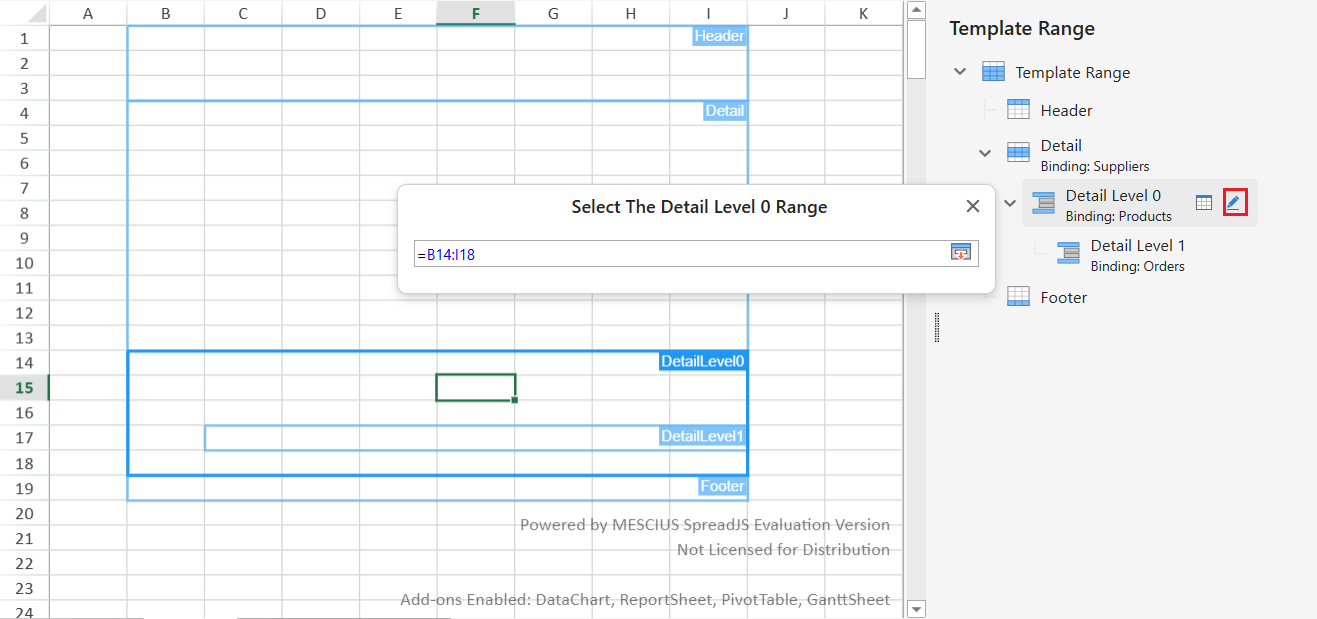
Path B: Group Structure
Insert a Group Header/Footer around your detail section.
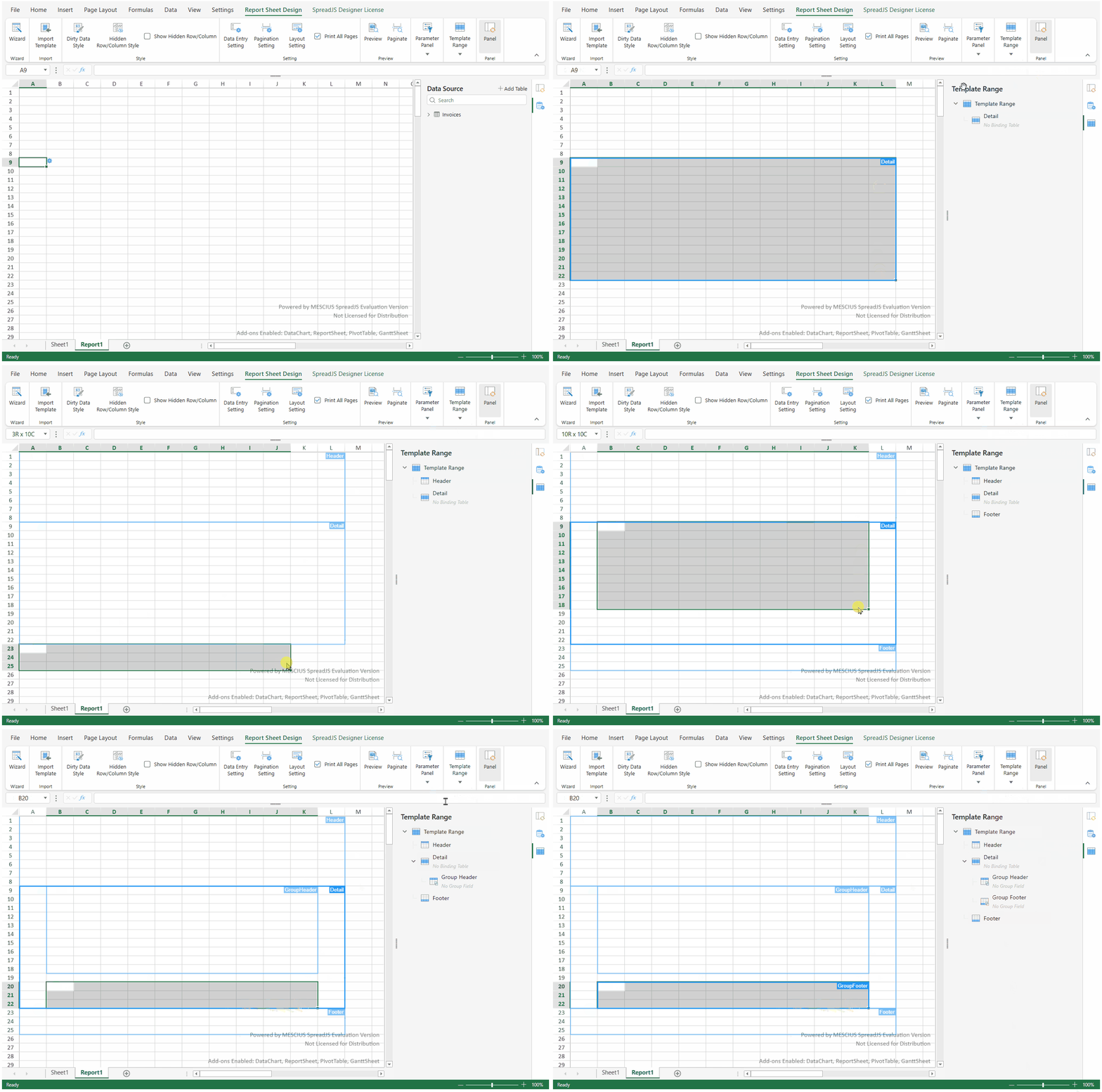
Editing grouping and hierarchies
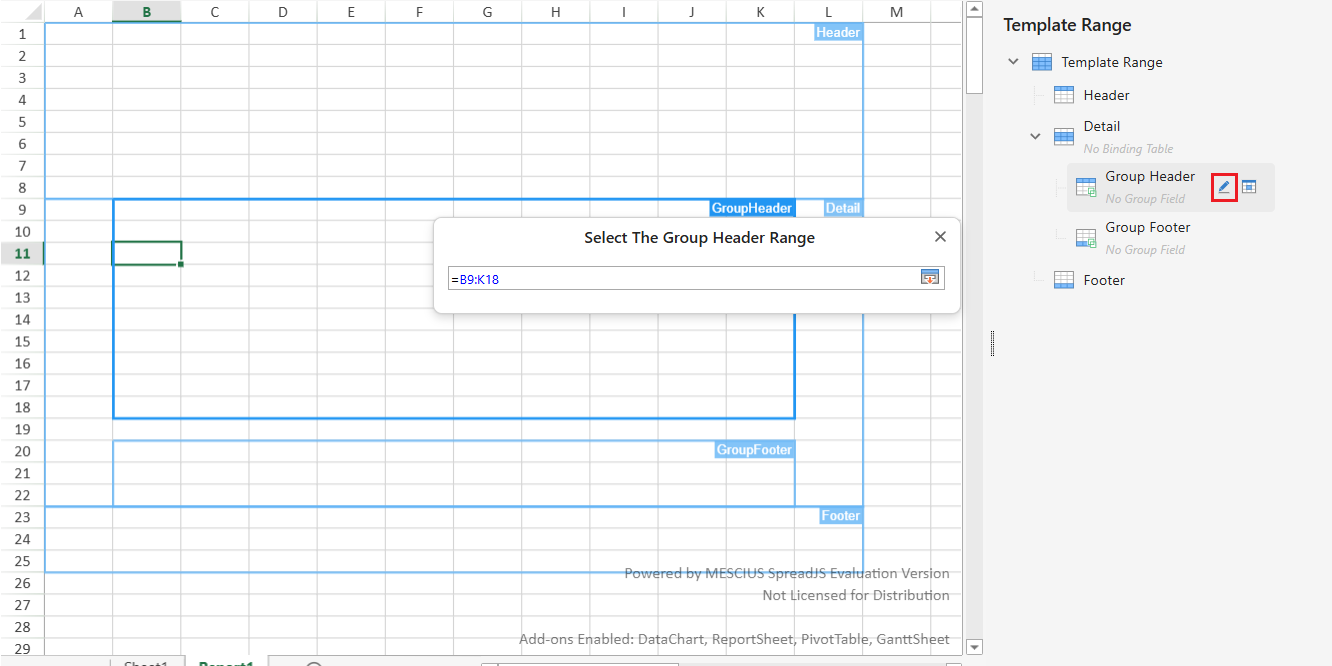
Click a Group Header/Footer item in the Template Range panel.
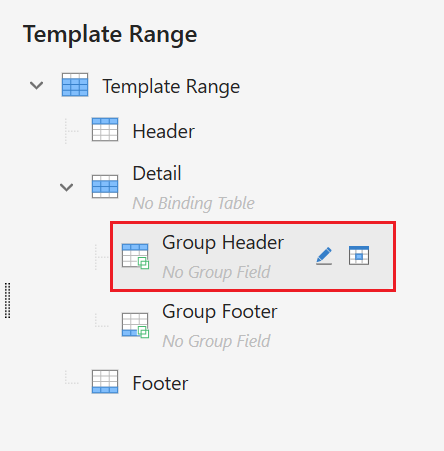
Use the Group Field button to specify grouping columns.
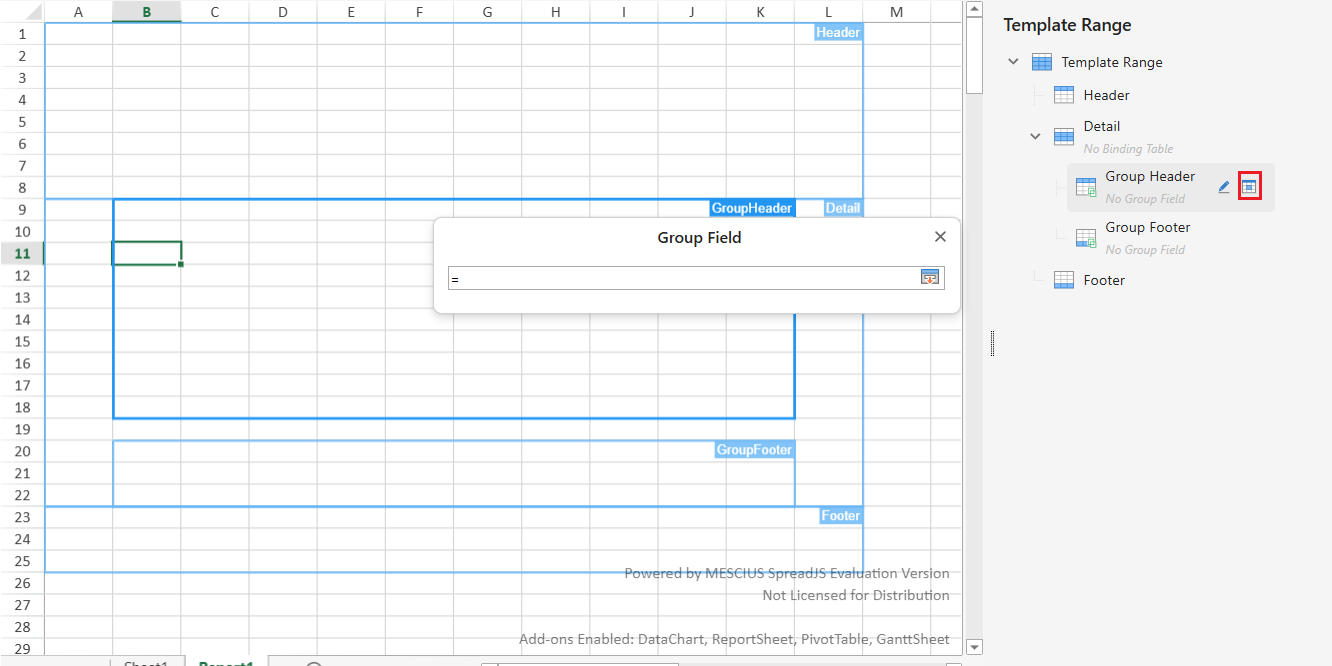
Use Range Selection to adjust the group range boundaries.
Step 3: Designing the Report Layout
After either structure is configured, you can now design the report’s appearance and data presentation.
Notes:
During layout design, the system automatically manages context logic to keep data bindings consistent:
Field Context Detection – When you drop a table field, the system determines data context and expansion direction.
Default Cell Type – Field inserts default to a List cell with vertical context.
Context Initialization – The first inserted field sets the context for that Detail or Nested Level.
Context Reuse – Later fields in the same range inherit existing context settings.
Parent‑Child Inference – Nested levels inherit parent range context automatically.
Edit Lock – Context settings are managed by the system and not editable from the UI.
Field Restrictions – Unbound fields cannot be placed inside any Template Range.
Step 4: Previewing or Resetting
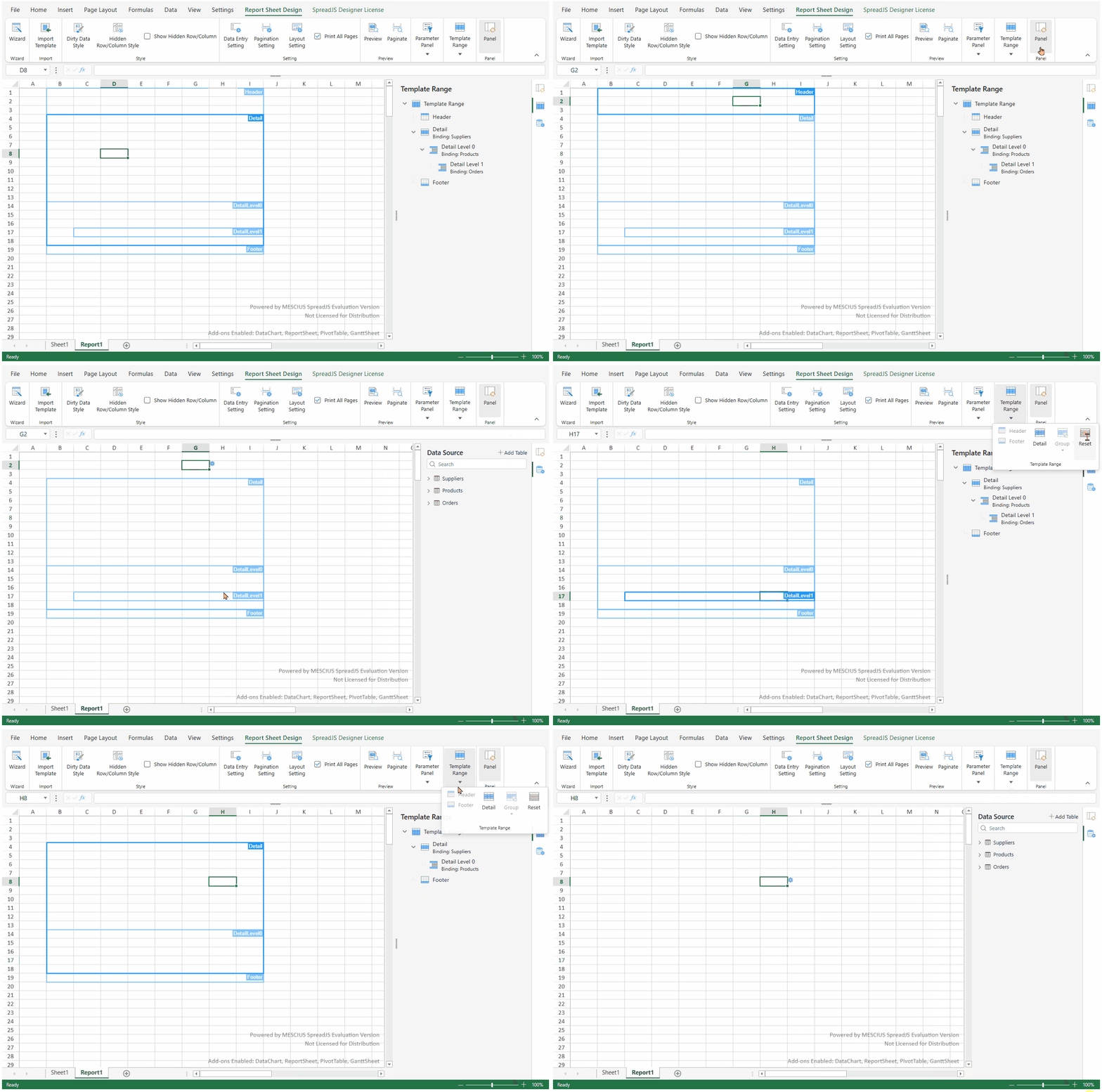
Click Preview to render and validate report output.

Click Reset to clear the current template range.
Note:
When you delete a parent Detail or Detail Level, all of its nested child levels are deleted automatically.
Design Notes and Restrictions
Creation Order
Always create a Detail range first before adding any nested levels, Group headers/footers, or other template ranges.
Only after a Detail range exists can you bind a data table.
Range Limits
Only one Template Range per sheet.
A Nested Level range and a Group range cannot coexist inside the same Detail.
Ranges bound to unrelated tables cannot form a hierarchy.
Data Binding and Context Rules
Only fields from the range’s bound table can be used inside that range.
The first inserted field defines the data context and defaults to a List cell with vertical expansion.
Further fields automatically reuse the existing context.
In nested layouts, child ranges inherit context and expansion from the parent Detail.
Context is auto‑managed and cannot be edited via the UI.
Header and Footer
These areas use the table bound to their parent Detail automatically.
No direct data binding required.
Parent–Child Deletion
Deleting a parent Detail or Detail Level automatically removes all nested levels.
Range Adjustment and Move Policies
When a Template Range is moved or resized, context rules are re‑evaluated.
If any cell binds to a field outside the range’s table, the binding is cleared.
Sub‑ranges move together with their parent selection.
Moving between hierarchical levels is prohibited.
After a move, the target must lie entirely within one Template Range or Sheet Range.
All template cells must share the same binding table as the destination Template Range.
Template Cell Type Conversion Rules
Location | Allowed Conversions |
|---|---|
General / Empty | Empty ↔ Chart |
Outside Group areas | List ↔ Summary |
Inside Group header/footer | Group ↔ Summary |
Import / Export and Undo / Redo
Template Ranges support import/export in ReportSheet Designer format.
All operations support Undo / Redo.