


- SpreadJS Overview
- Getting Started
- JavaScript Frameworks
- Best Practices
-
Features
- Workbook
- Worksheet
- Rows and Columns
- Headers
- Cells
- Data Binding
- Data Manager
- TableSheet
- GanttSheet
- ReportSheet
- Data Charts
- JSON Schema with SpreadJS
- SpreadJS File Format
- Data Validation
- Conditional Formatting
- Sort
- Group
- Formulas
- What-If Analysis
- Serialization
- Keyboard Actions
- Shapes
- Floating Objects
- Barcodes
- Charts
- Sparklines
- Tables
- Pivot Table
- Slicer
- Theme
- User Management
- Culture
- AI Assistant
- SpreadJS Designer
- SpreadJS Designer VSCode Plugin
- Tutorials
- SpreadJS Designer Component
- SpreadJS Collaboration Server
- Touch Support
- Formula Reference
- Import and Export Reference
- Events
- API Documentation
- Release Notes
Scrollbar Options
You can control the visibility and scrolling behavior of workbook scrollbars.
Show or Hide Scrollbars
Use showHorizontalScrollbar and showVerticalScrollbar to control scrollbar visibility.
These properties support three values:
true— Always show the scrollbarfalse— Always hide the scrollbar"auto"— Show the scrollbar only when the worksheet has scrollable content
When set to "auto", the scrollbar is automatically hidden if the content fully fits within the viewport.
spread.options.showHorizontalScrollbar = "auto";
spread.options.showVerticalScrollbar = "auto";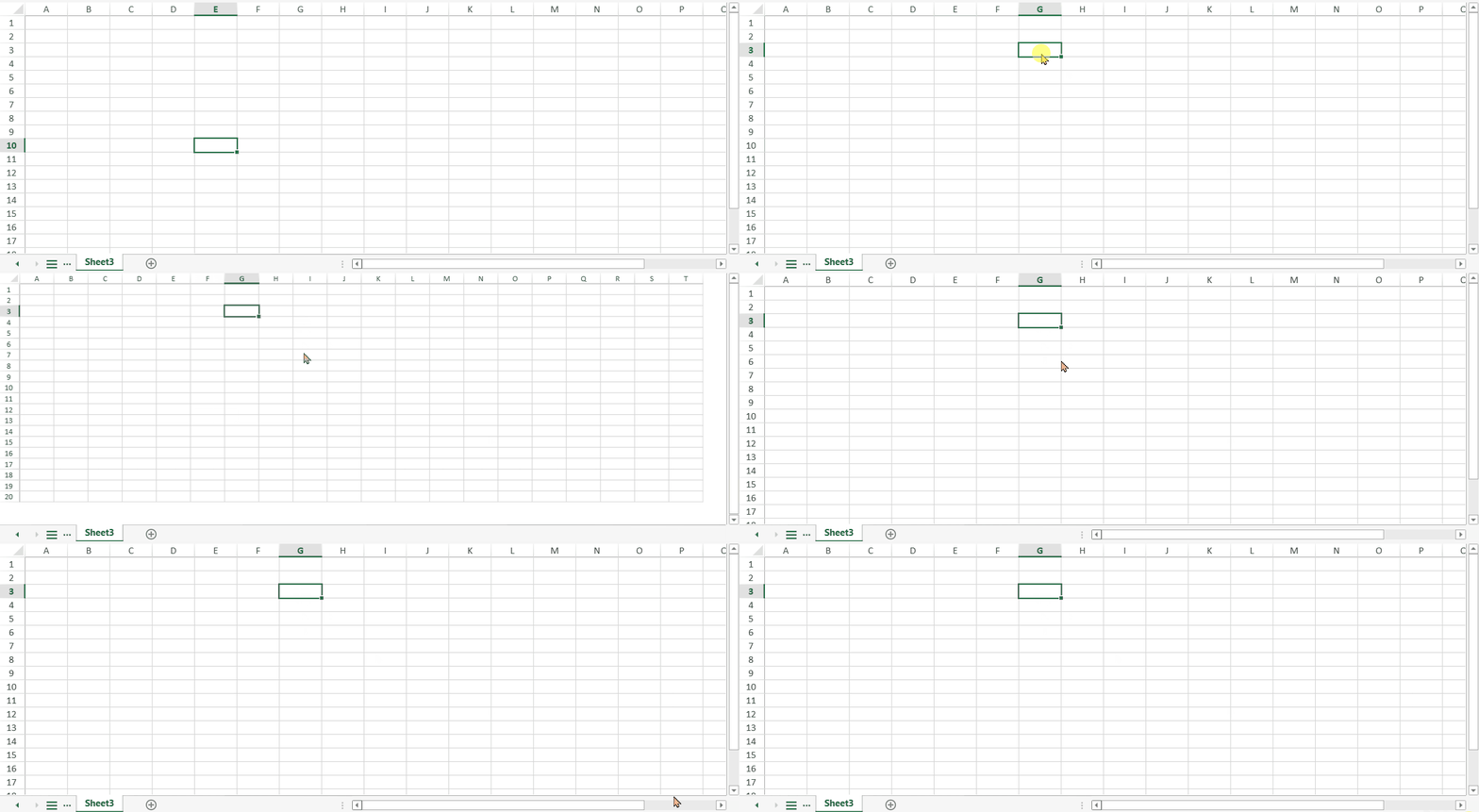
In "auto" mode, the scrollbar is also hidden if:
All rows and columns fit within the viewport
Frozen rows or columns eliminate all scrollable area
Note: When exporting to Excel,
"auto"is treated astruebecause Excel does not support automatic scrollbar visibility.
Control the Scrollable Range
You can adjust how the scrollbar determines its scrollable range.
scrollbarMaxAlign: Aligns the scrollbar with the last row and column of the active sheet.scrollbarShowMax: Calculates the scrollbar range based on the total row and column count.
spread.options.scrollbarMaxAlign = true;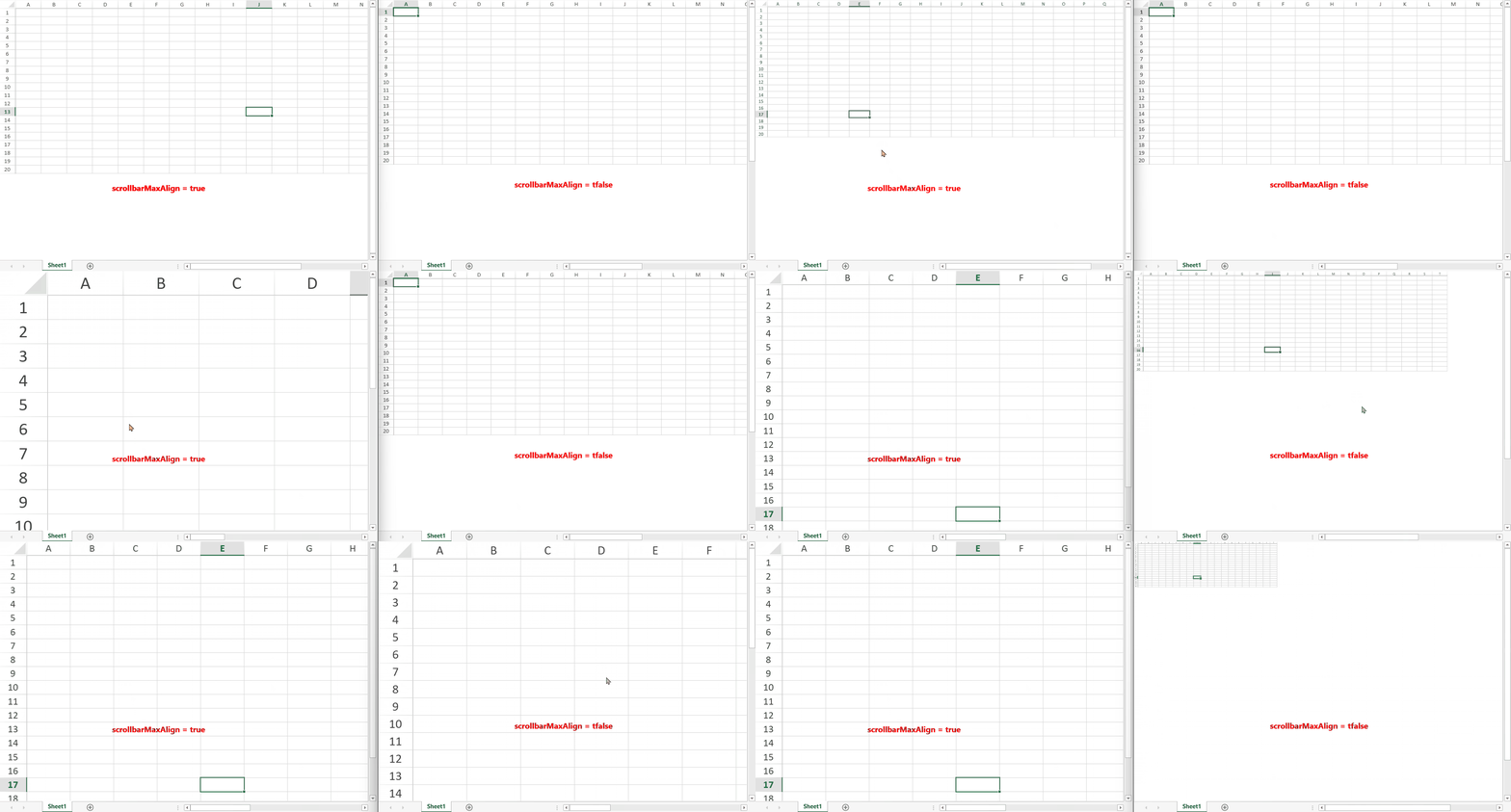
spread.options.scrollbarShowMax = true;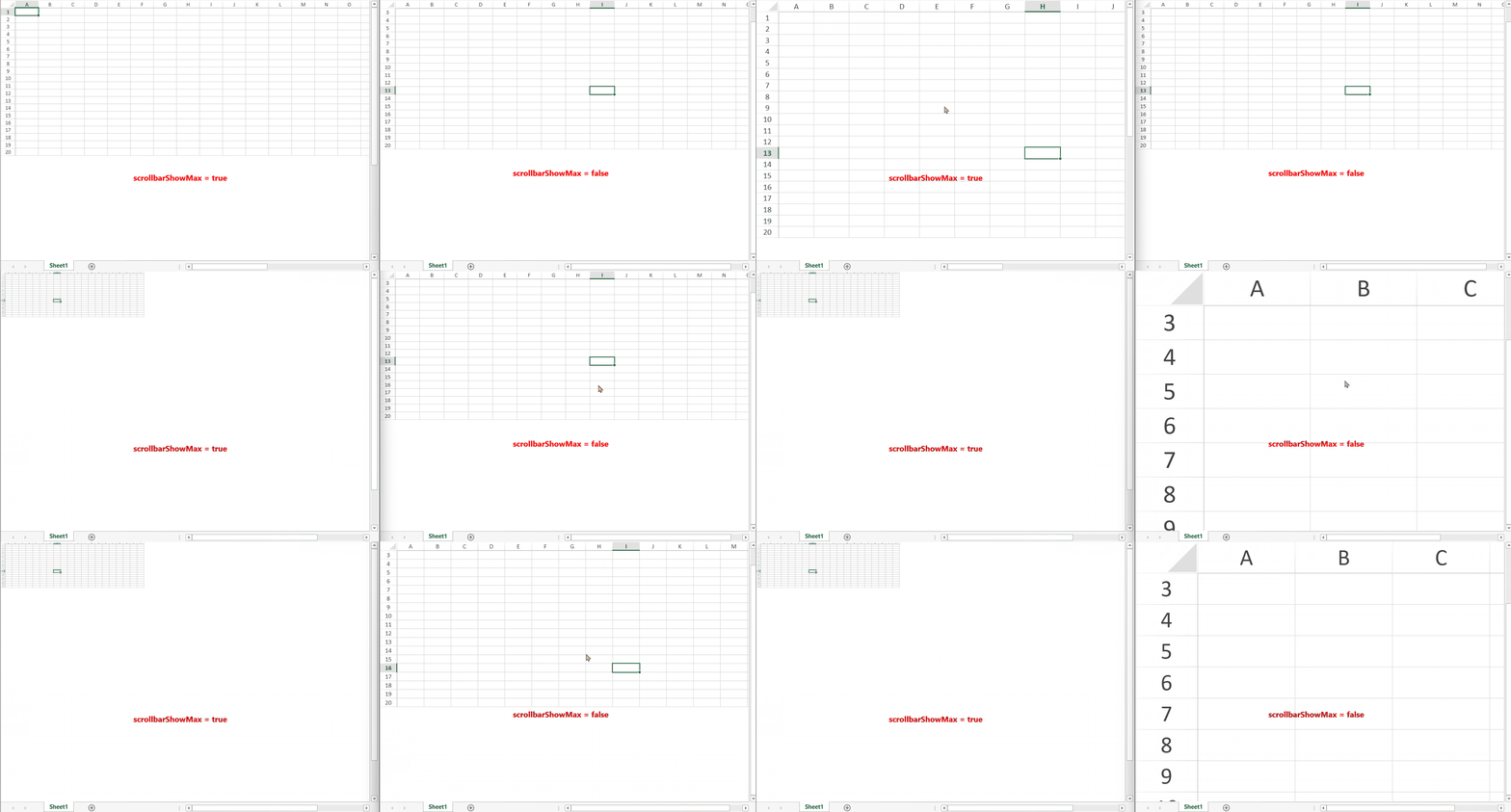
Ignore Hidden Rows and Columns
Use scrollIgnoreHidden to exclude hidden rows and columns from scrollbar calculations.
Hidden rows and columns include:
Zero height or width
Rows or columns hidden using the
visiblemethodCollapsed grouped rows or columns
Filtered-out rows
spread.options.scrollIgnoreHidden = true;