


- SpreadJS Overview
- Getting Started
- JavaScript Frameworks
- Best Practices
- Features
- SpreadJS Designer
- SpreadJS Designer VSCode Plugin
- Tutorials
- SpreadJS Designer Component
- SpreadJS Collaboration Server
- Touch Support
- Formula Reference
- Import and Export Reference
- Events
- API Documentation
- Release Notes
Designer Permission Support
The designer supports the View Mode permission control. When a workbook's permission is set to the View Mode, the default context menu items will be hidden, file menu items and ribbon items will be disabled.
Core Features
If the current workbook's permission is set to View Mode, the designer's file menu, ribbon and context menu will adjust accordingly.
When the workbook's permission is in the View Mode, by default, items in the context menu will be hidden, and items on the file menu and ribbon will be disabled. If users need to make custom context menu items or ribbon items available in the View Mode, they must add properties to the ICommand:
ribbon item: Requires setting the property
viewModeEnableContextcontext menu item: Requires setting the property
viewModeVisibleContextmetaData: Requires adding the metaData property to the command executed by the item, setting the
viewModePermissionproperty within it to control which permission types the command is available under.
By default, the built-in ribbon items and context menu items behave as follows when the current workbook's permission is view-only:
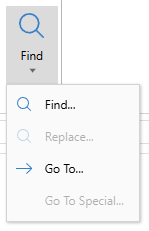
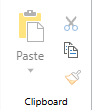
Ribbon: Ribbon items will be set to unavailable based on permissions. By default, only copy, Find, Find…, and Go To… are enabled.
When the workbook's
viewModePermissionsincludesallowNonDataModifyingOperations, copy, Find, Find…, and Go To… on the ribbon are enabled.When the workbook's
viewModePermissionsincludesallowHideRowsOrColumns, copy, Find, Find…, and Go To… on the ribbon are enabled.When the workbook's
viewModePermissionsincludesallowResizeRowsOrColumns, copy, Find, Find…, and Go To… on the ribbon are enabled.When the workbook's
viewModePermissionsincludesallowFilter, copy, Find, Find…, Go To…, Sort & Filter, Filter, Clear Filter, and Reapply on the ribbon are enabled.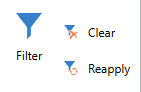
When the workbook's
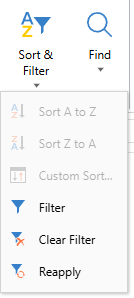
viewModePermissionsincludesallowSort, copy, Find, Find…, Go To…, Sort & Filter, Sort A to Z, Sort Z to A, and Custom Sort… on the ribbon are enabled.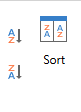
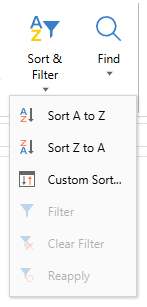
context menu: Menu items will be hidden based on permissions.
When the workbook's
viewModePermissionsincludesallowNonDataModifyingOperations, Copy is displayed on the context menu.
When the workbook's
viewModePermissionsincludesallowHideRowsOrColumns, Copy, Hide, and Unhide are displayed on the context menu.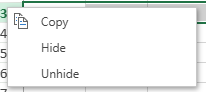
When the workbook's
viewModePermissionsincludesallowResizeRowsOrColumns, Copy and Row Height…, Column Width… are displayed on the context menu.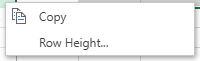
When the workbook's
viewModePermissionsincludesallowFilter, Copy and Filter are displayed on the context menu.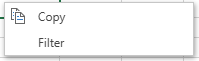
When the workbook's
viewModePermissionsincludesallowSort, Copy, Sort, Sort A to Z, and Sort Z to A is displayed on the context menu.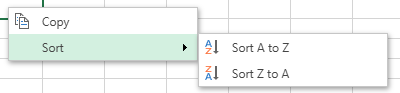
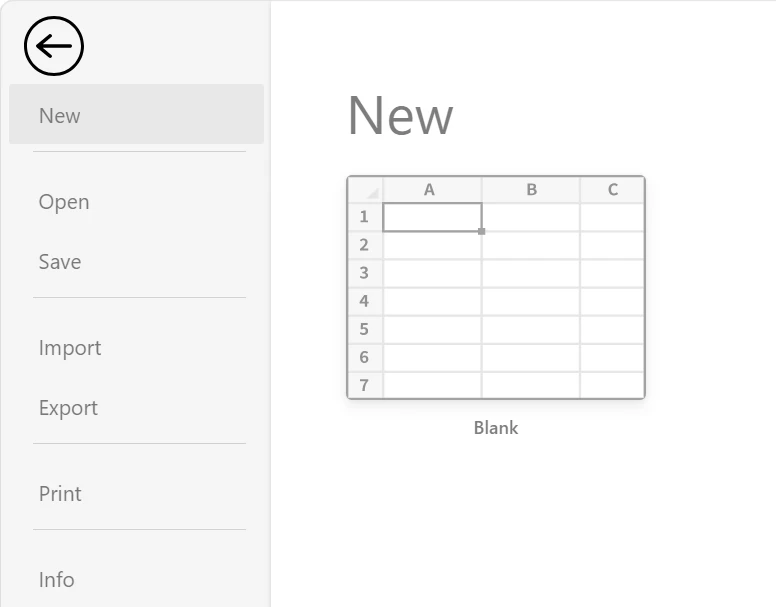
File Menu: Only the back button is enabled in View Mode.
Interface
interface GC.Spread.Sheets.Designer.ICommand {
  ...,
  viewModeVisibleContext?: string; // used for context menu item
  viewModeEnableContext?: string; // used for ribbon item
}
Sample Code
Suppose a new ribbon item "AutoFitAll" needs to be added to the designer ribbon. Clicking it can autofit all rows and columns of the current sheet. It is available when the workbook is in the Edit Mode or in the View Mode but allowResizeRowsOrColumns.
To complete this function:
Obtain the workbook's permission information and record whether the workbook is
allowsResizeRowsOrColumns.Add the command to the commandMap of the config. Note that the command needs to set the
viewModeEnableContextproperty.Add a command group, put the command in the group, and add this command group to the ribbon config.
Set the config to the designer.
// update the workbook permission info.
// 1. Need to obtain the workbook's permission information and record whether the workbook is allowsResizeRowsOrColumns.
const permission = spread.collaboration.getPermission();
const browsingMode = permission && permission.mode, viewModePermissions = permission && permission.viewModePermissions;
const AllowViewModeResizeRowsOrColumnsFlag = "allowViewModeResizeRowsOrColumns";
if (browsingMode === GC.Spread.Sheets.Collaboration.BrowsingMode.view && viewModePermissions & GC.Spread.Sheets.Collaboration.PermissionTypes.allowResizeRowsOrColumns) {
  designer.setData(AllowViewModeResizeRowsOrColumnsFlag , true);
}

// add custom command "AutoFitAll"
// 2. Add the command to the commandMap of the config. Note that the command needs to set the viewModeEnableContext property.
const autoFitAllCommand = {
    text: "AutoFitAll",
    commandName: "autoFitAll",
    iconClass: "ribbon-button-autofit-all",
    bigButton: true,
    viewModeEnableContext: AllowViewModeResizeRowsOrColumnsFlag, // if the workbook in not in viewMode, or in viewMode but the viewModePermissions include allowResizeRowsOrColumns
    execute: (context) => {
        const spread = context.Spread, sheet = spread.getActiveSheet(), rowCount = sheet.getRowCount(), colCount = sheet.getColumnCount();
        spread.collaboration.startBatchOp();
        sheet.suspendPaint();
        for (let i = 0; i < rowCount; i++) {
          sheet.autoFitRow(i);
        }
        for (let i = 0; i < colCount; i++) {
            sheet.autoFitColumn(i);
        }
        sheet.resumePaint();
        spread.collaboration.endBatchOp();
    }
}
const config = GC.Spread.Sheets.Designer.DefaultConfig;
config.commandMap = {
  autoFitAll: autoFitAllCommand
};
// 3. Add a command group, put the command in the group, and add this command group to the ribbon config.
const autoFitCommandGroup = {
  label: "AutoFit",
  thumbnailClass: "AutoFit",
  commandGroup: {
    children: [{
      direction: "vertical",
      commands: ["autoFitAll"]
    }]
  }
}
config.ribbon[0].buttonGroups.unshift(autoFitCommandGroup);
// 4. Set the config to the designer.
designer.setConfig(config);