


Collaboration Policy
This manual describes the behavior and usage policies in SpreadJS Collaboration. These mechanisms control how real-time synchronization works between multiple clients in a shared workbook environment.
Purpose
Ensure developers understand when and how changes are synchronized across clients.
Define the correct way to modify styles, print settings, or other nested objects.
Explain the rules governing formula calculation, synchronization, and behavior during iteration.
Feature Description
1. Nested Object Modification Synchronization
Core Concept
Direct local modifications to nested objects are not synchronized across clients.
To synchronize updates, the entire object must be reset or reassigned via a setter method.
Example Cases
Scenario | Local Effect | Synchronization Behavior | Recommended Action |
|---|---|---|---|
Modify properties of an object returned by | Local style updates are visible only on that client | Changes are not broadcast to other clients | Use |
Modify nested properties of | Affects only local view | Not synchronized | Reassign print settings using full setter (e.g., |
Synchronization Strategy
To trigger proper synchronization:
Retrieve the object you want to modify.
Update it locally.
Call a setter to reapply the entire updated object to the worksheet or workbook.
Example:
// Incorrect – Not synchronized
let s = sheet.getStyle(1, 1);
s.backColor = "yellow"; // local only
// Correct – Synchronized
let style = sheet.getStyle(1, 1);
style.backColor = "yellow";
sheet.setStyle(1, 1, style); // triggers collaboration synchronization
2. Formula Collaboration Behavior
Formulas behave differently under collaboration. Each client independently performs calculation and maintains its own local state based on shared formula definitions.
Snapshot Storage
Only the formula expressions are stored in snapshots.
Formula results are never stored or synchronized between clients.
Formula Recalculation
When a workbook loads, each client independently recalculates formulas.
The recalculation result may temporarily differ due to execution order or iterative calculation variations.
Synchronization Scope
The collaboration service synchronizes formula editing actions (insertions, deletions, edits).
Calculation results (numerical outputs) are not transmitted or synchronized.
CalculationMode Policy
Each client maintains its own
CalculationMode(Manual or Automatic).Changes to one client’s calculation mode do not affect other clients or the server.
Follow these principles:
Write formulas as usual (e.g.,
=A1 + B1).Avoid relying on stored results—each client recalculates independently.
Be careful when using iterative or volatile functions (
RAND,NOW, etc.), as their outcomes may differ across clients.
Iterative Calculation Behavior
Category | Description | Formula Example | Synchronization Behavior |
|---|---|---|---|
Self-Converging | Iterates until a stable result is reached (identical on all clients) | Interdependent department cost allocation | Consistent across clients and refreshes |
Non-Converging | Iterates infinitely or non-stably |
| Differ by client; resets after refresh |
Auto-Data-Entry (One-Time) | Performs one-time iteration (e.g., timestamp) |
| Independent timestamp per client; resets after refresh |
3. Workbook Collaboration State
If the user registers a change set listener through workbook.collaboration.onChangeSet, SpreadJS will be considered to be in collaboration state.
When SpreadJS is in collaboration mode, some APIs become invalid (take no effect) due to the data synchronization mechanism of collaboration.
APIs That Do Not Take Effect in Collaboration Mode
API Location | API Name | Behavior |
|---|---|---|
Workbook |
| Does nothing. The JSON content is not imported into the workbook. |
Workbook |
| Does not import the file content. The operation goes to the error callback. |
Workbook |
| Does not open the file content. The operation goes to the error callback. |
Worksheet |
| Does nothing. The worksheet is not reset. |
Designer Behavior
In Designer, file-loading commands in the File menu are not supported in collaboration mode.
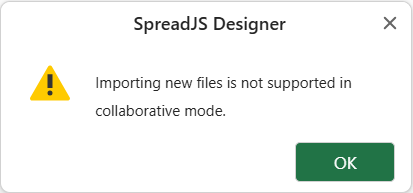
When users select a file through the Open or Import command, regardless of the file type, the file is not opened or imported. Instead, Designer displays an error dialog stating that importing new files is not supported in collaboration mode.
Commands such as Save, Export, Print, and Info continue to work normally.