


Update Fields
DsWord allows you to update the results of supported fields in the document using the UpdateFields and Update methods. The UpdateFields method of the GcWordDocument and RangeBase classes enables you to update all supported fields in the document or all fields that support updating in the range. Meanwhile, the Update method of ComplexField and SimpleField classes allows you to update the supported field results. See Field Type Options for more information.
Refer to the following example code to add TOC fields and hide the page number for the 'Heading 1' TOC entry:
// Initialize GcWordDocument.
GcWordDocument doc = new GcWordDocument();

// Create TOC field options.
TocFieldOptions options = new TocFieldOptions(doc);

// Build TOC with paragraphs.
foreach (TocStyleLevel style in options.Styles)
{
    switch (style.Level)
    {
        case OutlineLevel.Level1:
        case OutlineLevel.Level2:
        case OutlineLevel.Level3:
            style.Collect = true;
            break;
        default:
            style.Collect = false;
            break;
    }
}

// Add TOC field.
ComplexField field = doc.Body.AddParagraph().AddComplexField(options);

// Add a paragraph with Heading 1 style.
doc.Body.AddParagraph("Heading 1", doc.Styles[BuiltInStyleId.Heading1]);

// Add normal text for the heading and create next section.
doc.Body.AddParagraph("Document Solutions").AddSectionBreak();

// Add a paragraph with Heading 2 style.
doc.Body.AddParagraph("Heading 2", doc.Styles[BuiltInStyleId.Heading2]);

// Add normal text for the heading and create next section.
doc.Body.AddParagraph("Document Solutions for Word").AddSectionBreak();

// Add a paragraph with Heading 3 style.
doc.Body.AddParagraph("Heading 3", doc.Styles[BuiltInStyleId.Heading3]);

// Add normal text for the heading.
doc.Body.AddParagraph("DsWord");

// Update the field.
field.Update();


// Get first TOC field.
field = doc.Body.ComplexFields.First;

// Parse field options.
options = new TocFieldOptions(field);

// Hide page numbers for the first level TOC entries.
options.PageNumbers.OmitLevels.Set(OutlineLevel.Level1, OutlineLevel.Level1);

// Change TOC field instructions.
options.Save(field);

// Update all document fields.
doc.UpdateFields();

// Save the document.
doc.Save("TOC.docx");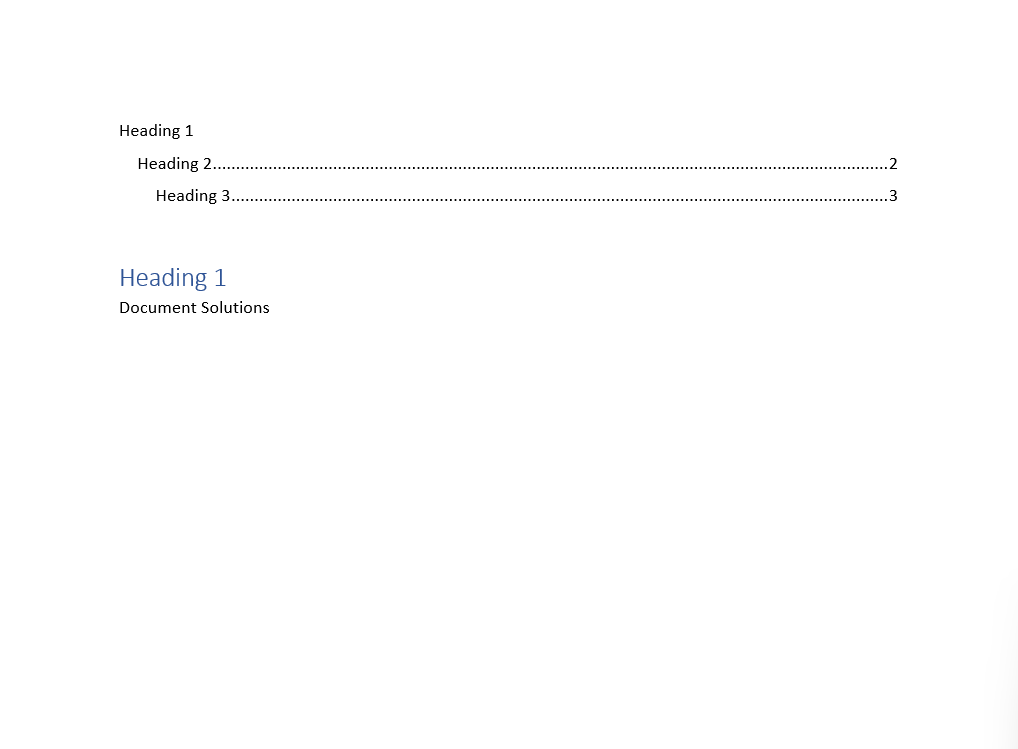
Field Type Options
DsWord supports strong-typed access to the options of specific field types to read and write arguments and switches using AutoNumFieldOptions, AutoNumLglFieldOptions, AutoNumOutFieldOptions, DateFieldOptions, IndexFieldOptions, ListNumFieldOptions, NoteRefFieldOptions, PageFieldOptions, PageRefFieldOptions, RdFieldOptions, RefFieldOptions, SectionFieldOptions, SectionPagesFieldOptions, SeqFieldOptions, StyleRefFieldOptions, TaFieldOptions, TcFieldOptions, TimeFieldOptions, ToaFieldOptions, TocFieldOptions, and XeFieldOptions classes.
DateFieldOptions, PageFieldOptions, PageRefFieldOptions, SectionFieldOptions, SectionPagesFieldOptions, SeqFieldOptions, and TimeFieldOptions classes inherit FieldFormatOptions class that provides options to format the field result.
Furthermore, DsWord also provides Add, AddComplexField, and Insert overload methods that accept IFieldOptions to add or insert specific types of fields. Refer to the following sections for more information and to add the supported fields:
AUTONUM Field Options
The AUTONUM field numbers paragraphs in sequential order, providing a quick way to insert continuous numbering without manual updates. Use the AutoNumFieldOptions class to create and configure AUTONUM fields in a document.
Refer to the following example code to add the AUTONUM field and specify its options:
GcWordDocument doc = new GcWordDocument();

// create options to insert AUTONUM fields in the document
AutoNumFieldOptions options = new AutoNumFieldOptions(doc);

// create a structure of paragraphs with different outline level
// and insert AUTONUM field to the beginning of each paragraph
// to automatically number them
Paragraph p = doc.Body.AddParagraph("Heading 1", doc.Styles[BuiltInStyleId.Heading1]);
p.GetRange().ComplexFields.Insert(options, InsertLocation.Start);

p = doc.Body.AddParagraph("Heading 2", doc.Styles[BuiltInStyleId.Heading2]);
p.GetRange().ComplexFields.Insert(options, InsertLocation.Start);

p = doc.Body.AddParagraph("Heading 2", doc.Styles[BuiltInStyleId.Heading2]);
p.GetRange().ComplexFields.Insert(options, InsertLocation.Start);

p = doc.Body.AddParagraph("Heading 3", doc.Styles[BuiltInStyleId.Heading3]);
p.GetRange().ComplexFields.Insert(options, InsertLocation.Start);

p = doc.Body.AddParagraph("Heading 3", doc.Styles[BuiltInStyleId.Heading3]);
p.GetRange().ComplexFields.Insert(options, InsertLocation.Start);

p = doc.Body.AddParagraph("Heading 1", doc.Styles[BuiltInStyleId.Heading1]);
p.GetRange().ComplexFields.Insert(options, InsertLocation.Start);

p = doc.Body.AddParagraph("Heading 2", doc.Styles[BuiltInStyleId.Heading2]);
p.GetRange().ComplexFields.Insert(options, InsertLocation.Start);

// calculate AUTONUM fields values
doc.UpdateFields();
doc.Save(@"autonum.docx");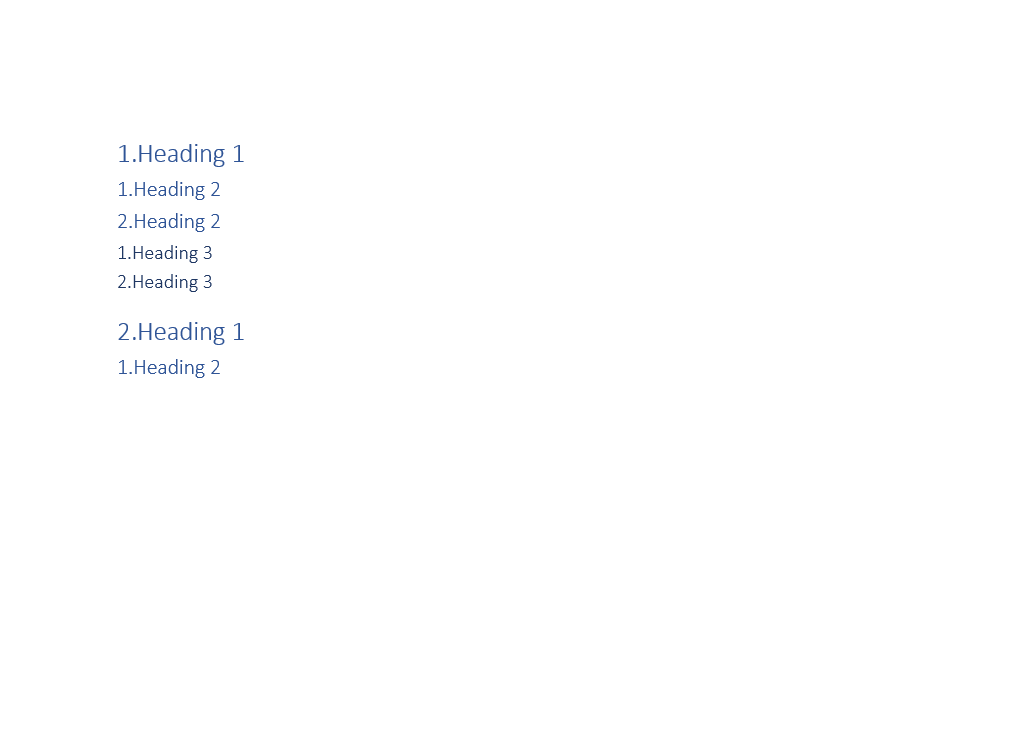
Note: To see these code snippets in action, check out the Demos.
AUTONUMLGL Field Options
The AUTONUMLGL field numbers paragraphs sequentially using legal‑style numbering, making it useful for legal and technical publications. Use the AutoNumLglFieldOptions class to create and configure AUTONUMLGL fields in a document.
Refer to the following example code to add the AUTONUMLGL field and specify its options:
GcWordDocument doc = new GcWordDocument();

// create options to insert AUTONUMLGL fields in the document
AutoNumLglFieldOptions options = new AutoNumLglFieldOptions(doc);

// create a structure of paragraphs with different outline level
// and insert AUTONUMLGL field to the beginning of each paragraph
// to automatically number them
Paragraph p = doc.Body.AddParagraph("Heading 1", doc.Styles[BuiltInStyleId.Heading1]);
p.GetRange().ComplexFields.Insert(options, InsertLocation.Start);

p = doc.Body.AddParagraph("Heading 2", doc.Styles[BuiltInStyleId.Heading2]);
p.GetRange().ComplexFields.Insert(options, InsertLocation.Start);

p = doc.Body.AddParagraph("Heading 2", doc.Styles[BuiltInStyleId.Heading2]);
p.GetRange().ComplexFields.Insert(options, InsertLocation.Start);

p = doc.Body.AddParagraph("Heading 3", doc.Styles[BuiltInStyleId.Heading3]);
p.GetRange().ComplexFields.Insert(options, InsertLocation.Start);

p = doc.Body.AddParagraph("Heading 3", doc.Styles[BuiltInStyleId.Heading3]);
p.GetRange().ComplexFields.Insert(options, InsertLocation.Start);

p = doc.Body.AddParagraph("Heading 1", doc.Styles[BuiltInStyleId.Heading1]);
p.GetRange().ComplexFields.Insert(options, InsertLocation.Start);

p = doc.Body.AddParagraph("Heading 2", doc.Styles[BuiltInStyleId.Heading2]);
p.GetRange().ComplexFields.Insert(options, InsertLocation.Start);

// calculate AUTONUMLGL fields values
doc.UpdateFields();
doc.Save(@"autonumlgl.docx");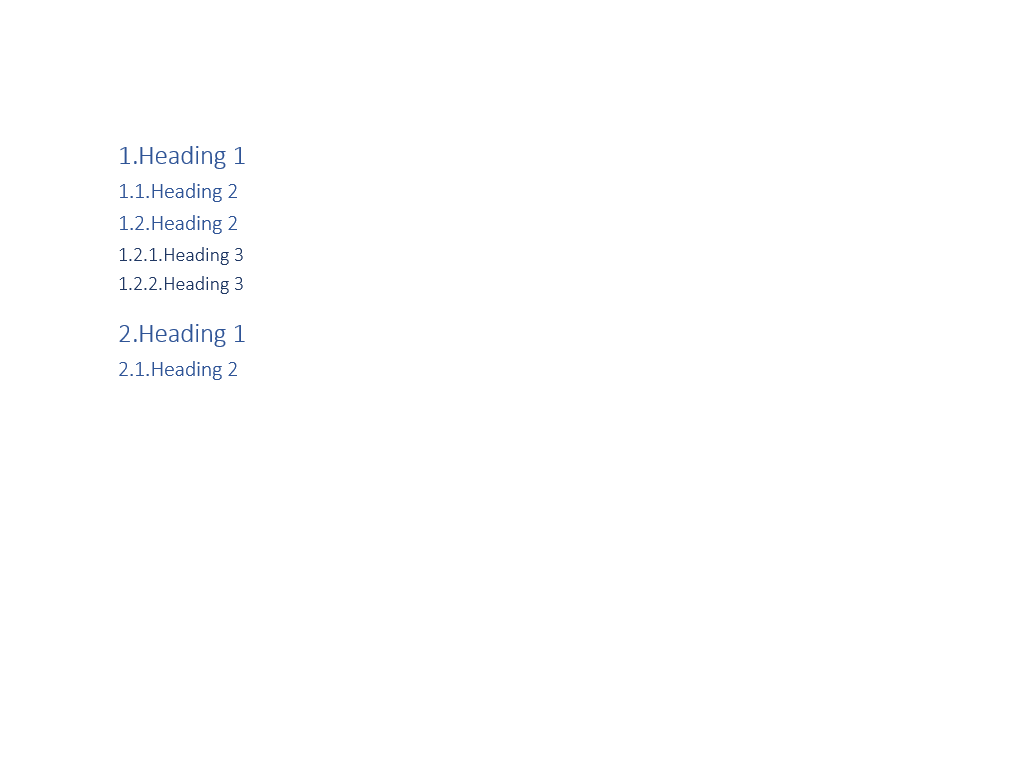
AUTONUMOUT Field Options
The AUTONUMOUT field numbers paragraphs sequentially using outline‑style numbering. This is commonly used in structured outlines or academic documents. Use the AutoNumOutFieldOptions class to create and configure AUTONUMOUT fields in a document.
Refer to the following example code to add the AUTONUMOUT field and specify its options:
GcWordDocument doc = new GcWordDocument();

// create options to insert AUTONUMOUT fields in the document
AutoNumOutFieldOptions options = new AutoNumOutFieldOptions(doc);

// create a structure of paragraphs with different outline level
// and insert AUTONUMOUT field to the beginning of each paragraph
// to automatically number it
Paragraph p = doc.Body.AddParagraph("Heading 1", doc.Styles[BuiltInStyleId.Heading1]);
p.GetRange().ComplexFields.Insert(options, InsertLocation.Start);

p = doc.Body.AddParagraph("Heading 2", doc.Styles[BuiltInStyleId.Heading2]);
p.GetRange().ComplexFields.Insert(options, InsertLocation.Start);

p = doc.Body.AddParagraph("Heading 2", doc.Styles[BuiltInStyleId.Heading2]);
p.GetRange().ComplexFields.Insert(options, InsertLocation.Start);

p = doc.Body.AddParagraph("Heading 3", doc.Styles[BuiltInStyleId.Heading3]);
p.GetRange().ComplexFields.Insert(options, InsertLocation.Start);

p = doc.Body.AddParagraph("Heading 3", doc.Styles[BuiltInStyleId.Heading3]);
p.GetRange().ComplexFields.Insert(options, InsertLocation.Start);

p = doc.Body.AddParagraph("Heading 1", doc.Styles[BuiltInStyleId.Heading1]);
p.GetRange().ComplexFields.Insert(options, InsertLocation.Start);

p = doc.Body.AddParagraph("Heading 2", doc.Styles[BuiltInStyleId.Heading2]);
p.GetRange().ComplexFields.Insert(options, InsertLocation.Start);

// calculate AUTONUMLGL fields values
doc.UpdateFields();
doc.Save(@"autonumout.docx");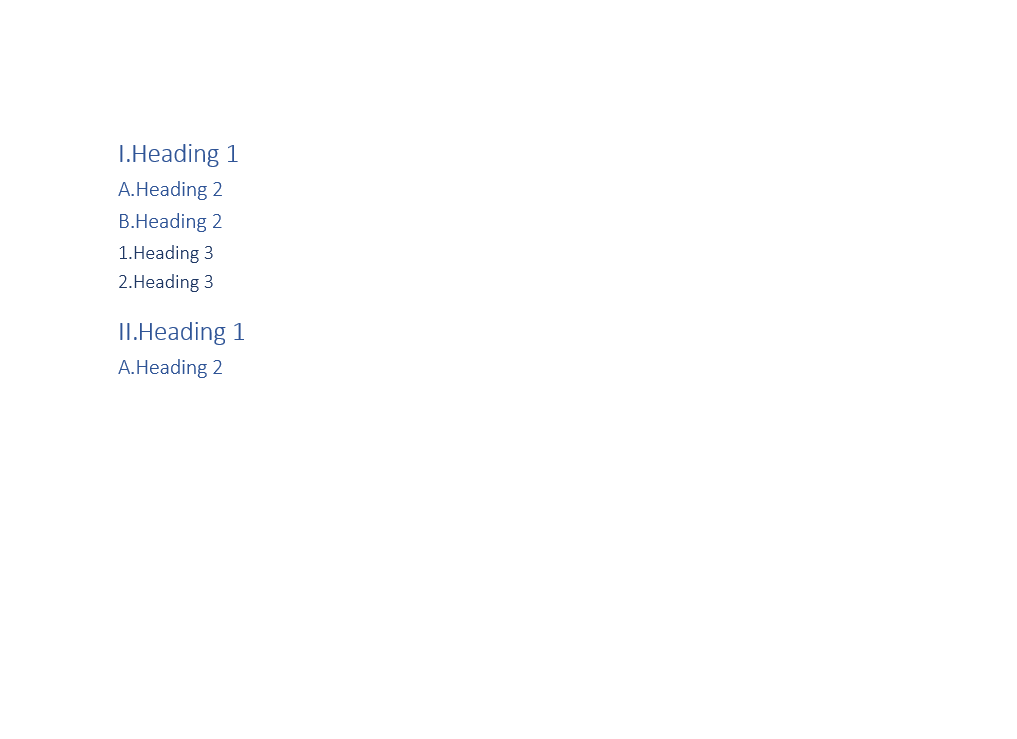
DATE Field Options
The DATE field inserts the current time in the chosen format. The DateFormatOptions class represents the options to format date while the DateFieldOptions class provides access these options.
Refer to the following example code to add the DATE field and specify its options:
GcWordDocument doc = new GcWordDocument();

// create TiME field with default settings
var time = new TimeFieldOptions(doc);
doc.Body.AddParagraph("Time: ").AddComplexField(time);

// create DATE field with default settings
var date = new DateFieldOptions(doc);
doc.Body.AddParagraph("Date: ").AddComplexField(date);

// create DATE field with custom date-time format
date.DateTimeFormat = "'Today is ' d MMMM yyyy HH:mm:ss";
doc.Body.AddParagraph("Custom date-time format: ").AddComplexField(date);

// update all fields to show current date and time
doc.UpdateFields();
doc.Save("date-time.docx");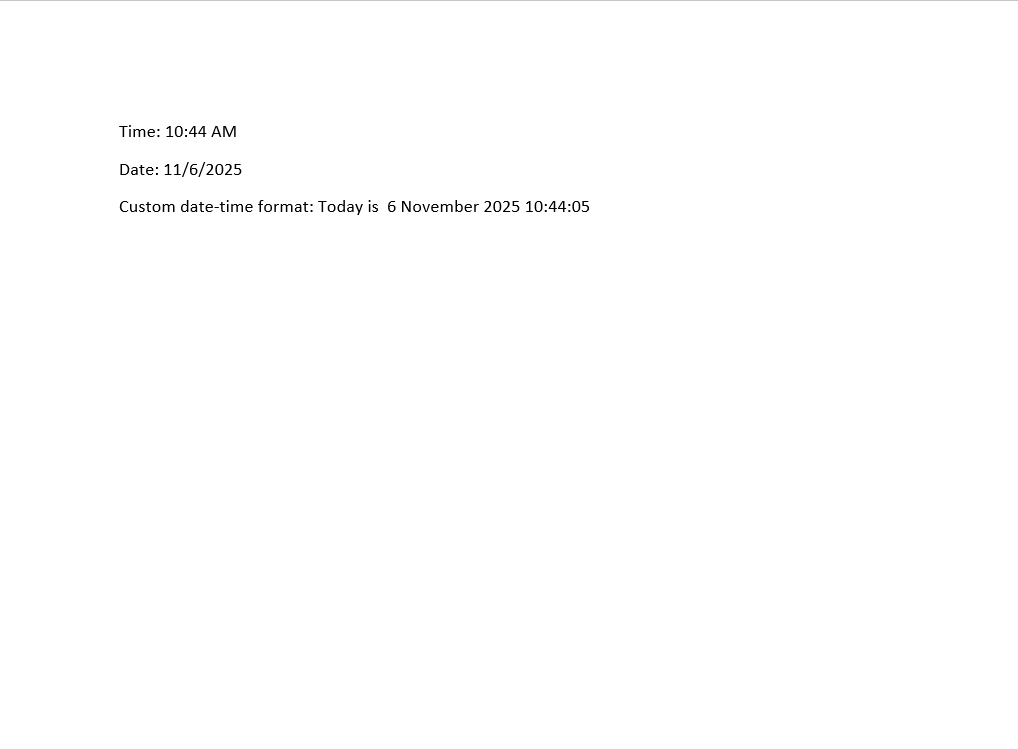
INDEX Field Options
The INDEX field creates an index, which is a list of terms or topics that a document mentions. These are typically found at the end of the document for easy navigation. Use the IndexFieldOptions class to create and configure INDEX fields in a document.
Refer to the following example code to add the INDEX field and specify its options:
// Initialize GcWordDocument.
GcWordDocument doc = new GcWordDocument();

// Create a paragraph for an index entry.
Paragraph p = doc.Body.AddParagraph();

// Create an index entry options.
XeFieldOptions xe = new XeFieldOptions(doc);
xe.Entry.Content.Text = "Zeus";

// Create the invisible index entry field with specified options.
p.AddComplexField(xe);

// Add visible text to the same paragraph.
p.AddRun("Zeus was recognized as the father of gods and humans.");

// Split document on several pages.
p.AddSectionBreak();

// Create a new paragraph for other index entries.
p = doc.Body.AddParagraph();

// Change index entry text.
xe.Entry.Content.Text = "Apollo";

// Create a new index entry field with specified text.
p.AddComplexField(xe);

// Change index entry text.
xe.Entry.Content.Text = "Artemis";

// Create one more index entry field with specified text.
p.AddComplexField(xe);

// Add visible text for the index entries.
p.AddRun("Apollo and Artemis were siblings, twins actually, children of Zeus and Leto, a Titan goddess.");

// Create options for the index field.
IndexFieldOptions index = new IndexFieldOptions(doc);

// Layout index in two columns.
index.Columns = 2;

// Use headings for index entries.
index.Heading = "A";

// Align page numbers at right side.
index.PageNumbers.Separator = "\t";

// Create index field with specified options.
ComplexField field = p.AddComplexField(index);

// Build the index.
field.Update();

// Save the Word document.
doc.Save("IndexFieldOptions.docx");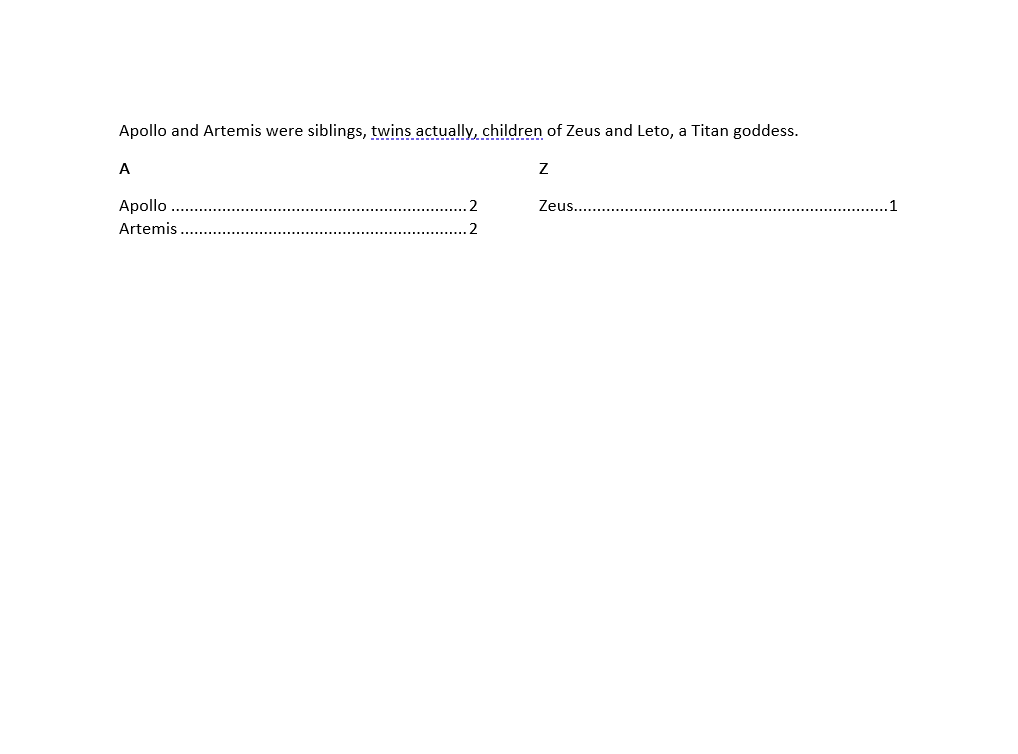
LISTNUM Field Options
The LISTNUM field computes the next value at a specified level in a numbering definition, or it can return a particular value from that level. Use the ListNumFieldOptions class to create and configure LISTNUM fields in a document.
Refer to the following example code to add the LISTNUM field and specify its options:
// LISTNUM-fields can be used to increment the numbers of your “main” numbering scheme.
// For example, let’s assume you have a typical contract structure with a title 1., a sublevel 1.1, etc.
GcWordDocument doc = new GcWordDocument();

// create a new list template
string listName = "MyList";
ListTemplate listTemplate = doc.ListTemplates.Add(BuiltInListTemplateId.OutlineLegal, listName);

// and use it to number paragraphs in the contract
Paragraph p = doc.Body.AddParagraph("SCOPE");
p.ListFormat.Template = listTemplate;
p.ListFormat.LevelNumber = (int)OutlineLevel.Level1;

p = doc.Body.AddParagraph("The Licensor grants to the Licensee an exclusive, transferable, sublicensable, remunerated, worldwide License to exploit the Software for the Term and the specific purpose set forth in this License Agreement.");
p.ListFormat.Template = listTemplate;
p.ListFormat.LevelNumber = (int)OutlineLevel.Level2;


p = doc.Body.AddParagraph("The Licensor hereby grants to the Licensee this License to use the Licensed Products. It is understood and agreed that the License shall pertain only to the Licensed Products.");
p.ListFormat.Template = listTemplate;
p.ListFormat.LevelNumber = (int)OutlineLevel.Level2;

// For some business reason you now want to insert paragraphs inside of a table that continues the “main numbering”.
// You can do so by including LISTNUM fields in the left column of the table.
p = doc.Body.AddParagraph("If the contract is signed by the customer before January 1st, 2025, then also the following will apply:");

// create options for LISTNUM fields
ListNumFieldOptions options = new ListNumFieldOptions(doc);
options.Name = listName;
options.Level = 2;

// create a table
Table table = doc.Body.AddTable(new string[][]
{
    new string[] { "Optional clause nr." , "Optional clause content" },
    new string[] { null, "The Licensee may grant sublicenses free of charges to customers in France." },
    new string[] { null, "If at least 500 orders are submitted, the Licensee may also grant sublicenses to customers in Denmark." },
}, doc.Styles[BuiltInStyleId.GridTable1Light]);

// format header with style
table.Format.StyleOptions |= TableStyleOptions.FirstRow;

// including LISTNUM fields in the left column
table[1, 0].GetRange().Paragraphs.First.GetRange().ComplexFields.Add(options);
table[2, 0].GetRange().Paragraphs.First.GetRange().ComplexFields.Add(options);

// continue numbering in a general way
p = doc.Body.AddParagraph("The Licensee may grant any sublicenses to any third party without the prior express written consent of the Licensor which may be withheld for any reason.");
p.ListFormat.Template = listTemplate;
p.ListFormat.LevelNumber = (int)OutlineLevel.Level2;

// calculate LISTNUM fields values
doc.UpdateFields();
doc.Save(@"listnum.docx");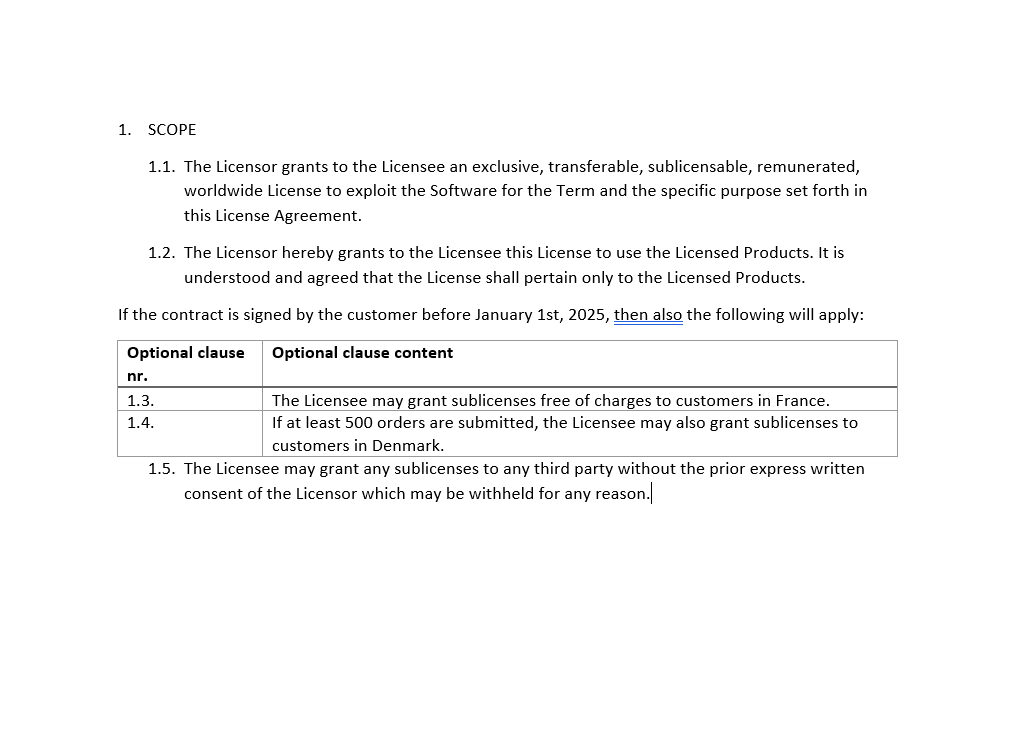
NOTEREF Field Options
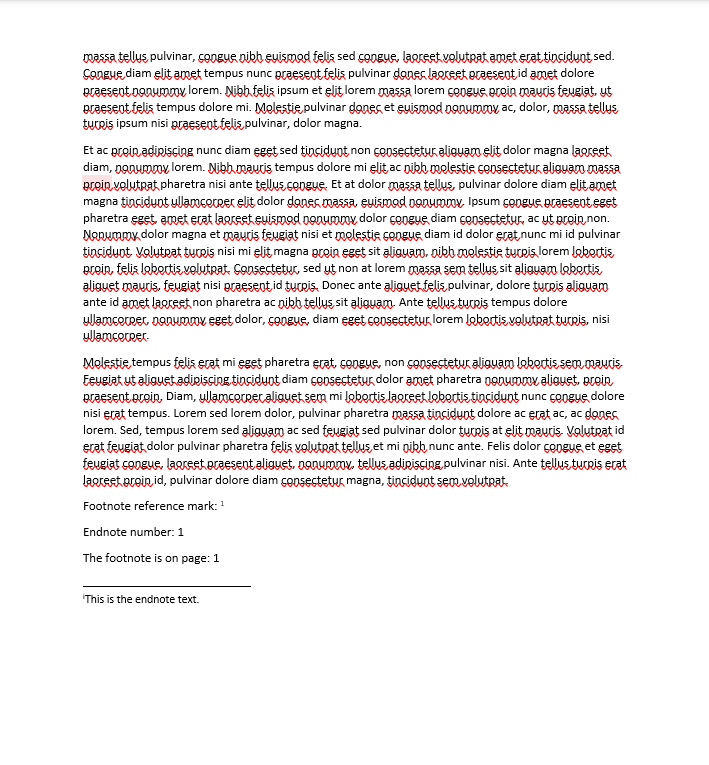
The NOTEREF field inserts the reference mark number of a footnote or endnote associated with a bookmarked location. Use the NoteRefFieldOptions class to create and configure NOTEREF fields.
Refer to the following example code to add the NOTEREF field and specify its options:
var doc = new GcWordDocument();

// The names of the target bookmarks:
const string fnBmk = "fnBookmark";
const string enBmk = "enBookmark";

var p1 = doc.Body.AddParagraph("See the footnote");
p1.GetRange().Footnotes.Add("This is the footnote text.");
// The bookmark must be placed on the paragraph that contains the
// footnote's reference mark -- not on content inside the footnote's
// own body -- for NOTEREF/PAGEREF to be able to resolve it:
p1.GetRange().Bookmarks.Add(fnBmk);

p1.GetRange().Runs.Add(" and the endnote");
p1.GetRange().Endnotes.Add("This is the endnote text.");
p1.GetRange().Bookmarks.Add(enBmk);
p1.GetRange().Runs.Add(".");

// Add some pages:
var rnd = Util.NewRandom();
for (int i = 0; i < rnd.Next(20, 25); i++)
{
    doc.Body.AddParagraph(Util.LoremIpsumPar());
}

// NOTEREF to the footnote, formatted like its own reference mark:
var noteRefFn = new NoteRefFieldOptions(doc, fnBmk) { Hyperlink = true, FormatAsReferenceMark = true };
doc.Body.AddParagraph("Footnote reference mark: ").AddComplexField(noteRefFn);

// NOTEREF to the endnote, as a plain number instead of its (roman numeral) mark:
var noteRefEn = new NoteRefFieldOptions(doc, enBmk) { Hyperlink = true, FormatAsReferenceMark = false };
doc.Body.AddParagraph("Endnote number: ").AddComplexField(noteRefEn);

// A PAGEREF to the same footnote bookmark shows that WordLayout can
// now resolve a page number for a bookmark anchored to a footnote mark:
var pageRefFn = new PageRefFieldOptions(doc, fnBmk) { Hyperlink = true };
doc.Body.AddParagraph("The footnote is on page: ").AddComplexField(pageRefFn);

// Update fields using a specific culture:
doc.UpdateFields(new GrapeCity.Documents.Word.Layout.WordLayoutSettings() { FontCollection = Util.FontCollection, Culture = CultureInfo.GetCultureInfo("en-US") });
doc.Save(@"noteref-field.docx");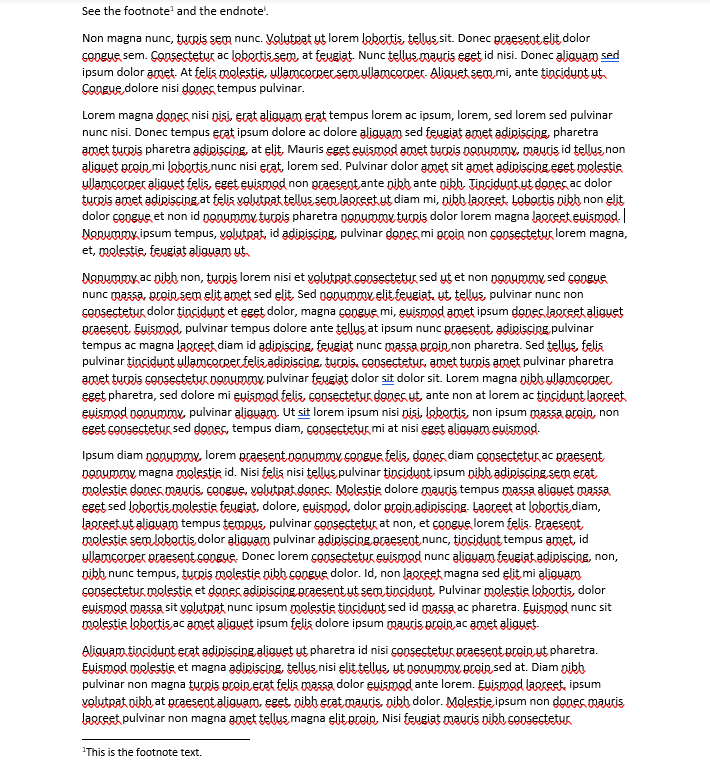
PAGE Field Options
The PAGE field inserts the page number on which it's present. Use the PageFieldOptions class to create and configure PAGE fields in a document.
Refer to the following example code to add PAGE field and specify its options:
// Initialize GcWordDocument.
var doc = new GcWordDocument();

// Set PAGE field for the page header.
var pgOptHeader = new PageFieldOptions(doc);
pgOptHeader.NumberStyle = NumberStyle.Decimal;

// Set PAGE field for page numbers in the body.
var pgOptBody = new PageFieldOptions(doc);
pgOptBody.NumberStyle = NumberStyle.UpperRoman;

// Add page header that includes the page number.
doc.Body.Sections.First.Headers[HeaderFooterType.Primary].Body.AddParagraph("Page Header - Page ").AddComplexField(pgOptHeader);

// Set style for page numbers in the document body.
var pageStyle = doc.Styles[BuiltInStyleId.IndexHeading];

// Add pages with periodic inclusions of the PAGE field.
var rnd = Util.NewRandom();
for (int i = 0; i < rnd.Next(6, 12); i++)
{
    var p = doc.Body.AddParagraph("This text is on page ", pageStyle).AddComplexField(pgOptBody);
    p.GetRange().Runs.Add(".");
    var par = Util.LoremIpsumPar();
    doc.Body.AddParagraph(par);
}

// Update fields using specific culture.
doc.UpdateFields(new GrapeCity.Documents.Word.Layout.WordLayoutSettings() { FontCollection = Util.FontCollection, Culture = CultureInfo.GetCultureInfo("en-US") });

// Save the document.
doc.Save("PageFieldOptions.docx");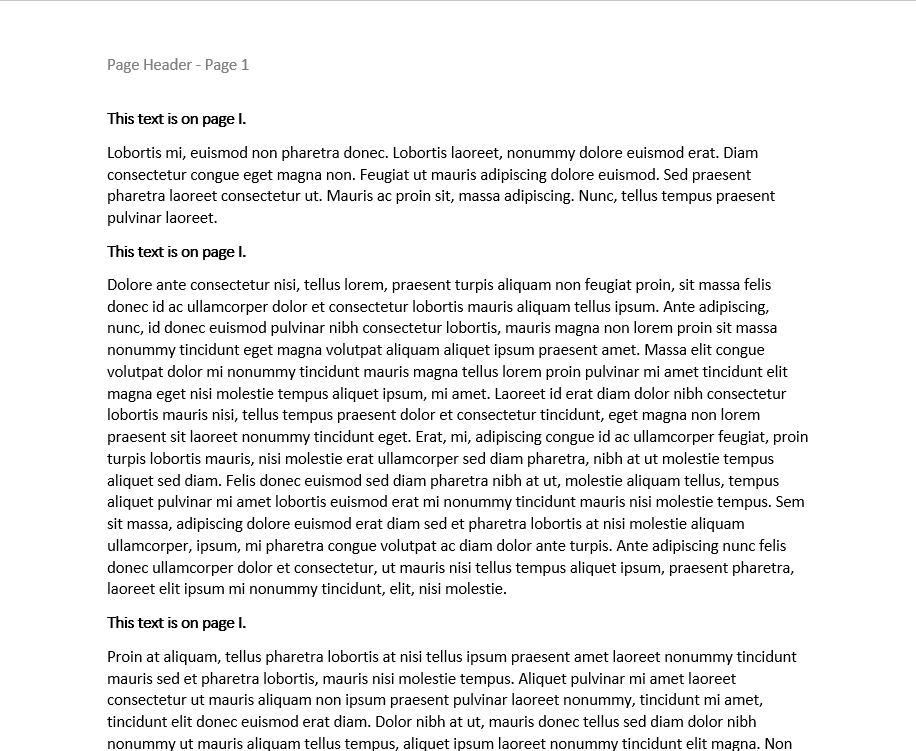
PAGEREF Field Options
The PAGEREF field inserts the page number of a bookmark for a cross-reference. Use the PageRefFieldOptions class to create and configure PAGEREF fields in a document.
Refer to the following example code to add the PAGEREF field and specify its options:
// Initialize GcWordDocument.
var doc = new GcWordDocument();

// Set bookmark name.
const string bmkName = "bmk";

// Set PAGEREF field options.
var pgRefOpt = new PageRefFieldOptions(doc, bmkName);
pgRefOpt.NumberStyle = NumberStyle.UpperRoman;
pgRefOpt.Hyperlink = true;

// Add a page header that includes the page number.
var pgOptHeader = new PageFieldOptions(doc);
pgOptHeader.NumberStyle = NumberStyle.Decimal;
doc.Body.Sections.First.Headers[HeaderFooterType.Primary].Body.AddParagraph("Page Header - Page ").AddComplexField(pgOptHeader);

// Add a paragraph with the PAGEREF.
var p = doc.Body.AddParagraph("Go to page ", doc.Styles[BuiltInStyleId.IndexHeading]).AddComplexField(pgRefOpt);
p.GetRange().Runs.Add("...");

// Add content.
var rnd = Util.NewRandom();
for (int i = 0; i < rnd.Next(20, 25); i++)
{
    doc.Body.AddParagraph(Util.LoremIpsumPar());
}

// End with the bookmarked paragraph.
doc.Body.AddParagraph("The End.").GetRange().Bookmarks.Add(bmkName);

// Update fields using specific culture.
doc.UpdateFields(new GrapeCity.Documents.Word.Layout.WordLayoutSettings() { FontCollection = Util.FontCollection, Culture = CultureInfo.GetCultureInfo("en-US") });

// Save the document.
doc.Save("PageRefFieldOptions.docx");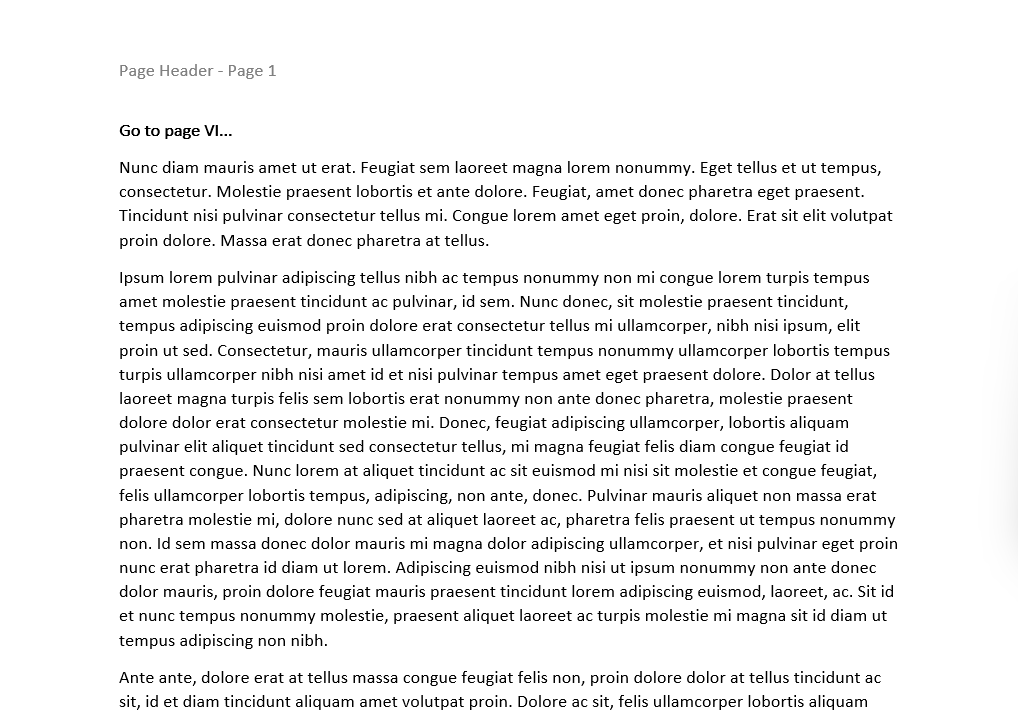
RD Field Options
The RD field identifies an external document(s) whose entries are included when a TOC, TOA, or INDEX field is evaluated in the current document. Use the RdFieldOptions class to create and configure RD fields in a document.
Refer to the following example code to add the RD field and specify its options:
// create a bunch of sub documents to be referenced in the main document
GcWordDocument doc = null;
for (int i = 1; i <= 2; i++)
{
    doc = new GcWordDocument();

    // set starting page number for each sub document
    doc.Body.Sections.First.PageSetup.PageNumbering.StartingNumber = i + 1;

    // add a heading to be referenced in the main document
    doc.Body.AddParagraph($"Heading from sub {i} document", doc.Styles[BuiltInStyleId.Heading1]);

    // add a table of authorities entry to be referenced in the main document
    var ta = new TaFieldOptions(doc);
    ta.Category = 1;
    ta.LongCitation.Text = $"Table of authorities entry from sub {i} document";
    var p = doc.Body.AddParagraph();
    p.AddComplexField(ta);
    p.AddRun($"Table of authorities entry from sub {i} document");

    // add an index entry to be referenced in the main document
    var xe = new XeFieldOptions(doc);
    xe.Entry.Content.Text = $"Index entry from sub {i} document";
    p = doc.Body.AddParagraph();
    p.AddComplexField(xe);
    p.AddRun($"Index entry from sub {i} document");

    doc.Save($"sub{i}.docx");
}

// create the main document to store TOC, TOA an index information from sub documents
doc = new GcWordDocument();
doc.Path = Path.Combine(Directory.GetCurrentDirectory(),@"rd-new.docx");

// create TOC field
var toc = new TocFieldOptions(doc);
var h = doc.Body.AddParagraph("Table of Content", doc.Styles[BuiltInStyleId.Title]);
h.AddComplexField(toc);

// create TOA field
var toa = new ToaFieldOptions(doc);
h = doc.Body.AddParagraph("Table of Authorities", doc.Styles[BuiltInStyleId.Title]);
h.AddComplexField(toa);

// create INDEX field
var index = new IndexFieldOptions(doc);
index.PageNumbers.Separator = "\t";
h = doc.Body.AddParagraph("Index", doc.Styles[BuiltInStyleId.Title]);
h.AddComplexField(index);

// refer to sub documents
for (int i = 1; i <= 2; i++)
{
    var rd = new RdFieldOptions(doc);
    rd.FilePath = $"sub{i}.docx";
    rd.Relative = true;
    h = doc.Body.AddParagraph();
    h.AddComplexField(rd);
}

// update all fields in the main document
// that collects TOC, TOA and index entries from sub documents
doc.UpdateFields();
doc.Save(doc.Path);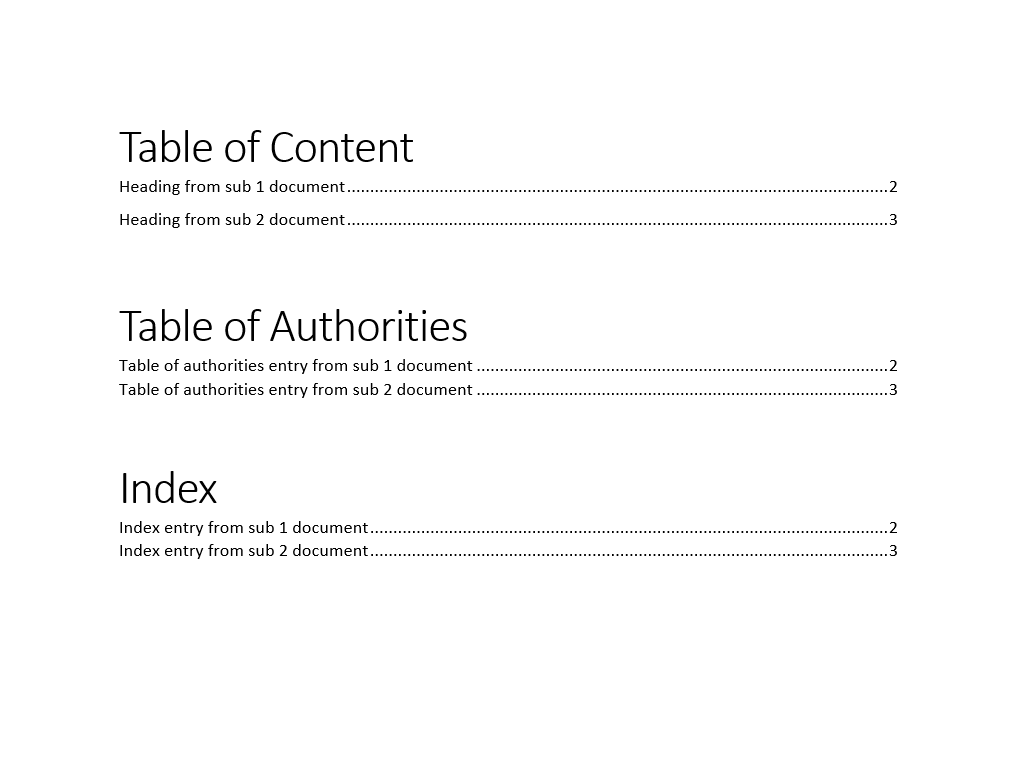
REF Field Options
The REF field inserts the text or graphics represented by a bookmarked range. It can also display the numbering value of the referenced paragraph. Use the RefFieldOptions class to create and configure REF fields in a document.
Refer to the following example code to add the REF field and specify its options:
var doc = new GcWordDocument();

doc.Body.AddParagraph("A numbered list of requirements:");

// A ListTemplate is used to make paragraphs part of a numbered list:
var listTemplate = doc.ListTemplates.Add(BuiltInListTemplateId.NumberDefault, "reqList");

// The name of the target bookmark:
const string bmkName = "reqBookmark";

Paragraph bookmarkedItem = null;
for (int i = 1; i <= 5; i++)
{
    var p = doc.Body.AddParagraph($"Requirement {i}: the system shall do thing #{i}.");
    p.ListFormat.Template = listTemplate;
    p.ListFormat.LevelNumber = 0;
    // This ensures item spacing consistent with MS Word:
    p.Style = doc.Styles[BuiltInStyleId.ListParagraph];
    if (i == 3)
        bookmarkedItem = p;
}
// Bookmark the 3rd requirement so it can be referenced elsewhere:
bookmarkedItem.GetRange().Bookmarks.Add(bmkName);

// The RefFieldOptions class provides a convenient strong-typed access
// to options specific to the 'REF' MS Word field. This one pulls in
// the bookmarked item's own list number:
var refByNumber = new RefFieldOptions(doc, bmkName)
{
    DisplayListNumber = DisplayListNumber.AllLevels,
    Hyperlink = true
};
doc.Body.AddParagraph("As specified in item ").AddComplexField(refByNumber)
    .GetRange().Runs.Add(" above, the system shall comply.");

// This REF pulls in the bookmarked item's text instead, upper-cased:
var refByText = new RefFieldOptions(doc, bmkName)
{
    StringStyle = StringStyle.Upper
};
doc.Body.AddParagraph("For emphasis: ").AddComplexField(refByText);

// Update fields using a specific culture:
doc.UpdateFields(new GrapeCity.Documents.Word.Layout.WordLayoutSettings() { FontCollection = Util.FontCollection, Culture = CultureInfo.GetCultureInfo("en-US") });
doc.Save(@"ref-field.docx");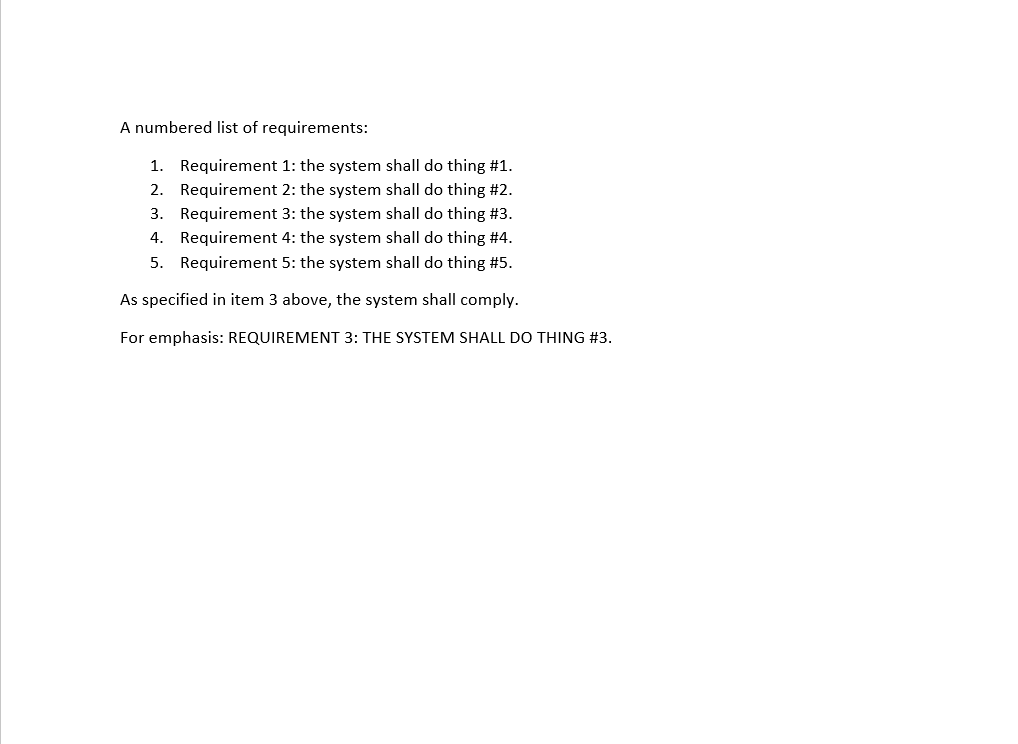
SECTION Field Options
The SECTION field inserts the number of the current section. Use the SectionFieldOptions class to create and configure SECTION fields in a document.
Refer to the following example code to add the SECTION field and specify its options:
// Initialize GcWordDocument.
var doc = new GcWordDocument();

// Set PAGE field for the page header.
var pgOptHeader = new PageFieldOptions(doc);
pgOptHeader.NumberStyle = NumberStyle.Decimal;

// Set SECTION field for number of the section in the body.
var pgOptBody = new SectionFieldOptions(doc);
pgOptBody.NumberStyle = NumberStyle.UpperRoman;

// Add page header that includes the page number.
doc.Body.Sections.First.Headers[HeaderFooterType.Primary].Body.AddParagraph("Page Header - Page ").AddComplexField(pgOptHeader);

// Set style for page numbers in the document body.
var pageStyle = doc.Styles[BuiltInStyleId.IndexHeading];

// Add pages with periodic inclusions of the SECTION field.
var rnd = Util.NewRandom();
for (int i = 0; i < rnd.Next(6, 12); i++)
{
    var p = doc.Body.AddParagraph("Section ", pageStyle).AddComplexField(pgOptBody);
    var par = Util.LoremIpsumPar();
    doc.Body.AddParagraph(par);
    doc.Body.Paragraphs.Add().AddSectionBreak();
}

// Update fields using specific culture.
doc.UpdateFields(new GrapeCity.Documents.Word.Layout.WordLayoutSettings() { FontCollection = Util.FontCollection, Culture = CultureInfo.GetCultureInfo("en-US") });

// Save the document.
doc.Save("SectionFieldOptions.docx");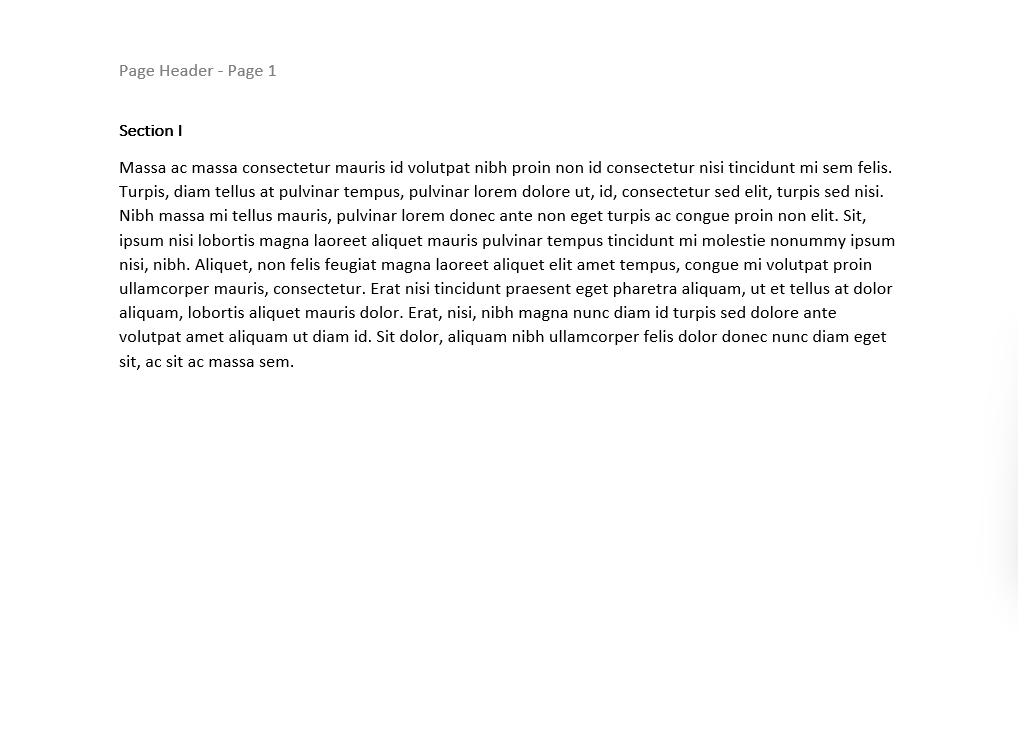
SECTIONPAGES Field Options
The SECTIONPAGES field inserts the total number of pages in a section. Use the SectionPagesFieldOptions class to create and configure SECTIONPAGES fields in a document.
Refer to the following example code to add the SECTIONPAGES field and specify its options:
// Initialize GcWordDocument.
var doc = new GcWordDocument();

// Set PAGE field for the page header.
var pgOptHeader = new PageFieldOptions(doc);
pgOptHeader.NumberStyle = NumberStyle.Decimal;

// Set SECTIONPAGES field for page number in the body.
var pgOptBody = new SectionPagesFieldOptions(doc);
pgOptBody.NumberStyle = NumberStyle.UpperRoman;

// Add page header that includes the page number.
doc.Body.Sections.First.Headers[HeaderFooterType.Primary].Body.AddParagraph("Page Header - Page ").AddComplexField(pgOptHeader);

// Set style for page numbers in the document body.
var pageStyle = doc.Styles[BuiltInStyleId.IndexHeading];

// Add SECTIONPAGES field.
var p = doc.Body.AddParagraph("This text of this section is present on ", pageStyle).AddComplexField(pgOptBody);
p.GetRange().Runs.Add(" pages.");

// Add pages with content.
var rnd = Util.NewRandom();
for (int i = 0; i < rnd.Next(6, 12); i++)
{
    var par = Util.LoremIpsumPar();
    doc.Body.AddParagraph(par);
}

// Update fields using specific culture.
doc.UpdateFields(new GrapeCity.Documents.Word.Layout.WordLayoutSettings() { FontCollection = Util.FontCollection, Culture = CultureInfo.GetCultureInfo("en-US") });

// Save the document.
doc.Save("SectionPagesFieldOptions.docx");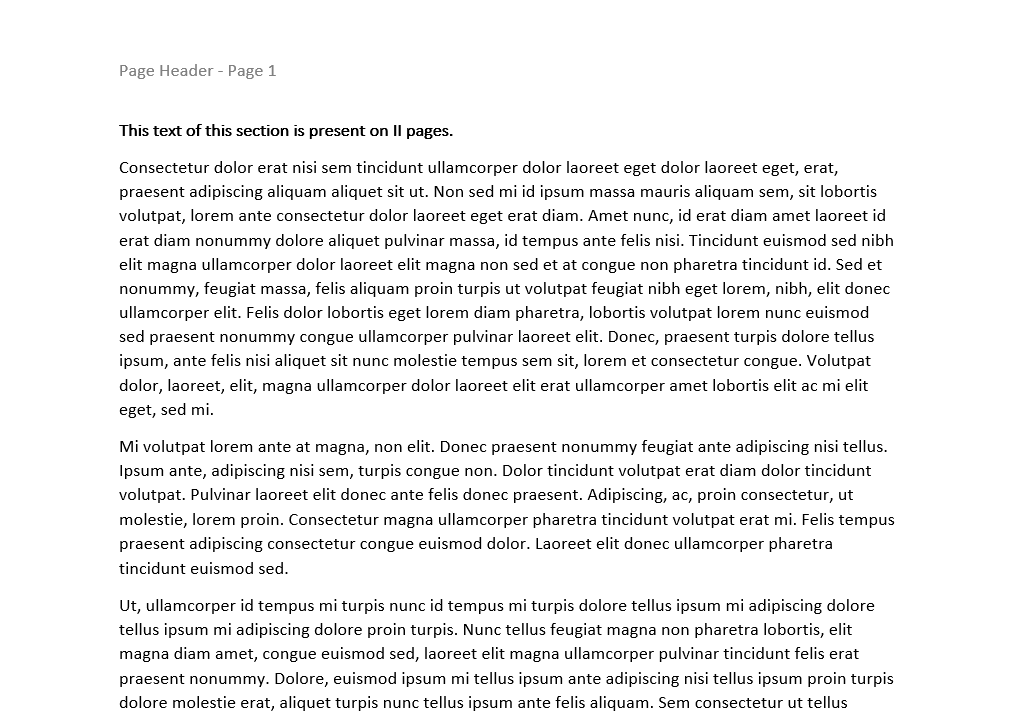
SEQ Field Options
The SEQ field numbers the chapters, tables, figures, and other items in a document sequentially. Use the SeqFieldOptions class to create and configure SEQ fields in a document.
Refer to the following example code to add the SEQ field and specify its options:
// Initialize GcWordDocument.
var doc = new GcWordDocument();

// Set SEQ field ID.
string id = "ID";

// Set SEQ field for sequence in the body.
var pgOptBody = new SeqFieldOptions(doc, id);

// Start sequence with 5.
pgOptBody.Behavior = SeqFieldBehavior.ResetTo;
pgOptBody.ResetTo = 5;

// Set number style to upper roman.
pgOptBody.NumberStyle = NumberStyle.UpperRoman;

// Set style for page numbers in the document body.
var pageStyle = doc.Styles[BuiltInStyleId.IndexHeading];

// Add pages with periodic inclusions of the SECTION field.
var rnd = Util.NewRandom();
for (int i = 0; i < rnd.Next(6, 12); i++)
{
    var p = doc.Body.AddParagraph("Section ", pageStyle).AddComplexField(pgOptBody);
    var par = Util.LoremIpsumPar();
    doc.Body.AddParagraph(par);
    doc.Body.Paragraphs.Add().AddSectionBreak();
}

// Set behavior for the second SEQ field.
pgOptBody.Behavior = SeqFieldBehavior.Next;

// Set number style to decimal.
pgOptBody.NumberStyle = NumberStyle.Decimal;

// Add content to the section.
var p1 = doc.Body.AddParagraph("Section ", pageStyle).AddComplexField(pgOptBody);
var par1 = Util.LoremIpsumPar();
doc.Body.AddParagraph(par1);
doc.Body.Paragraphs.Add().AddSectionBreak();

// Update fields using specific culture.
doc.UpdateFields(new GrapeCity.Documents.Word.Layout.WordLayoutSettings() { FontCollection = Util.FontCollection, Culture = CultureInfo.GetCultureInfo("en-US") });

// Save the document.
doc.Save("SEQFieldOptions.docx");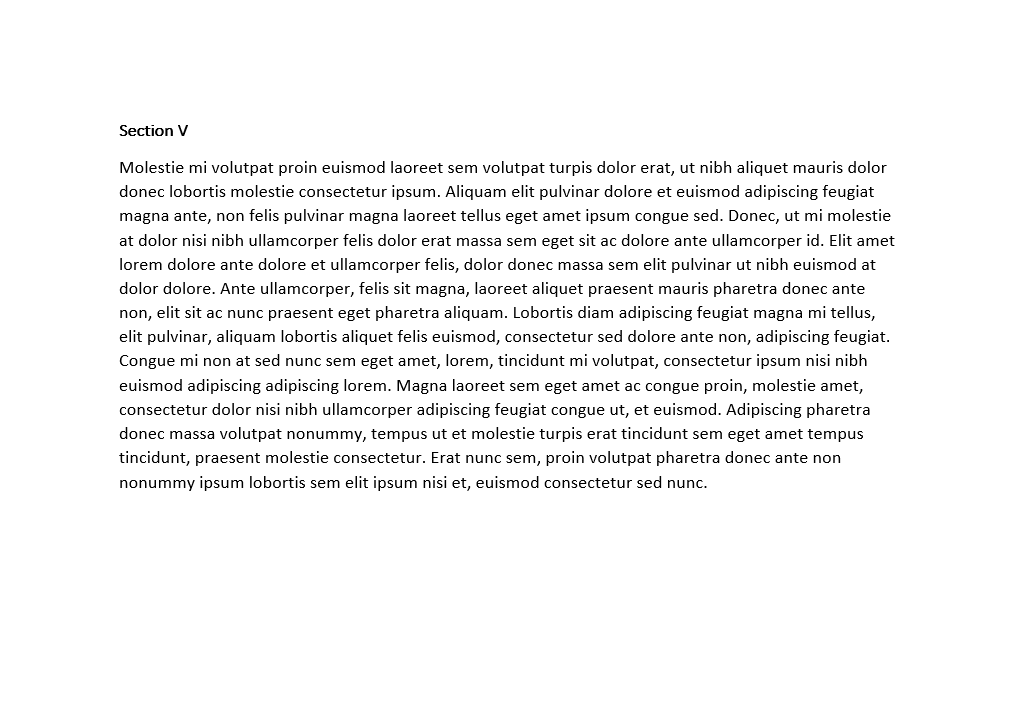
STYLEREF Field Options
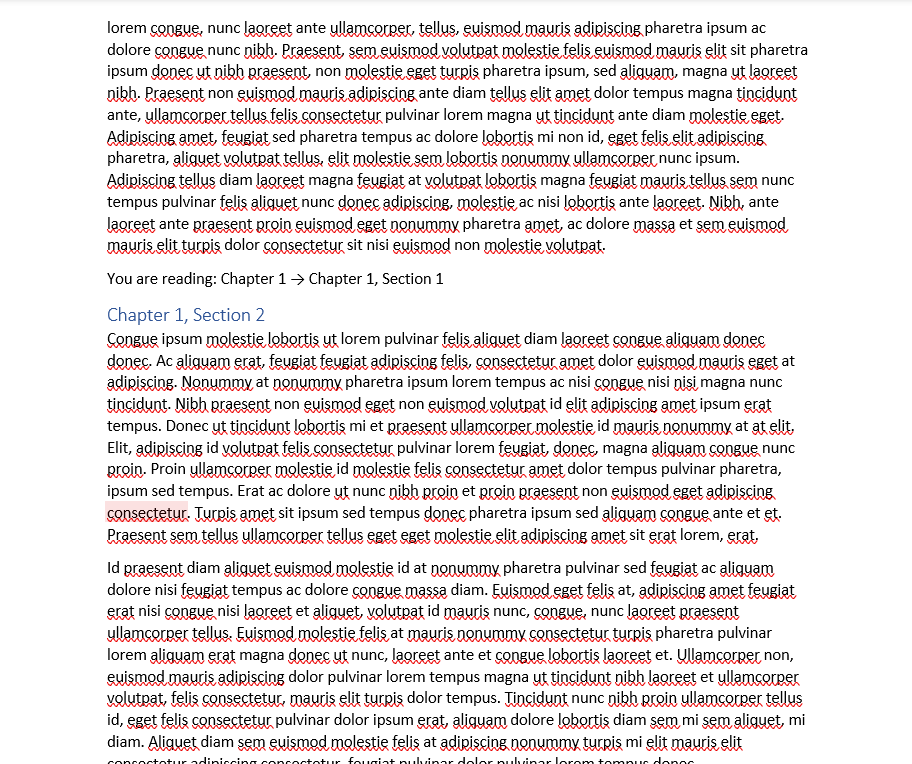
The STYLEREF field displays text or numbering from the nearest paragraph formatted with a specified style. Use the StyleRefFieldOptions class to create and configure STYLEREF fields.
Refer to the following example code to add the STYLEREF field and specify its options:
var doc = new GcWordDocument();

var h1 = doc.Styles[BuiltInStyleId.Heading1];
var h2 = doc.Styles[BuiltInStyleId.Heading2];

// A few chapters, each with a couple of subsections spread across
// multiple pages via filler text:
var rnd = Util.NewRandom();
for (int c = 1; c <= 3; c++)
{
    doc.Body.AddParagraph($"Chapter {c}", h1);
    for (int s = 1; s <= 2; s++)
    {
        doc.Body.AddParagraph($"Chapter {c}, Section {s}", h2);
        for (int i = 0; i < rnd.Next(4, 6); i++)
        {
            doc.Body.AddParagraph(Util.LoremIpsumPar());
        }

        // A "breadcrumb" callout in the middle of the body text:
        // both fields always resolve to the nearest preceding
        // Heading1/Heading2 paragraph, so this line stays correct
        // even if content is inserted or reordered above it.
        var crumb = doc.Body.AddParagraph();
        crumb.GetRange().Runs.Add("You are reading: ");
        crumb.AddComplexField(new StyleRefFieldOptions(doc, h1.Name));
        crumb.GetRange().Runs.Add(" → ");
        crumb.AddComplexField(new StyleRefFieldOptions(doc, h2.Name));
    }
}

// Update fields using a specific culture:
doc.UpdateFields(new GrapeCity.Documents.Word.Layout.WordLayoutSettings() { FontCollection = Util.FontCollection, Culture = CultureInfo.GetCultureInfo("en-US") });

doc.Save(@"styleref-field.docx");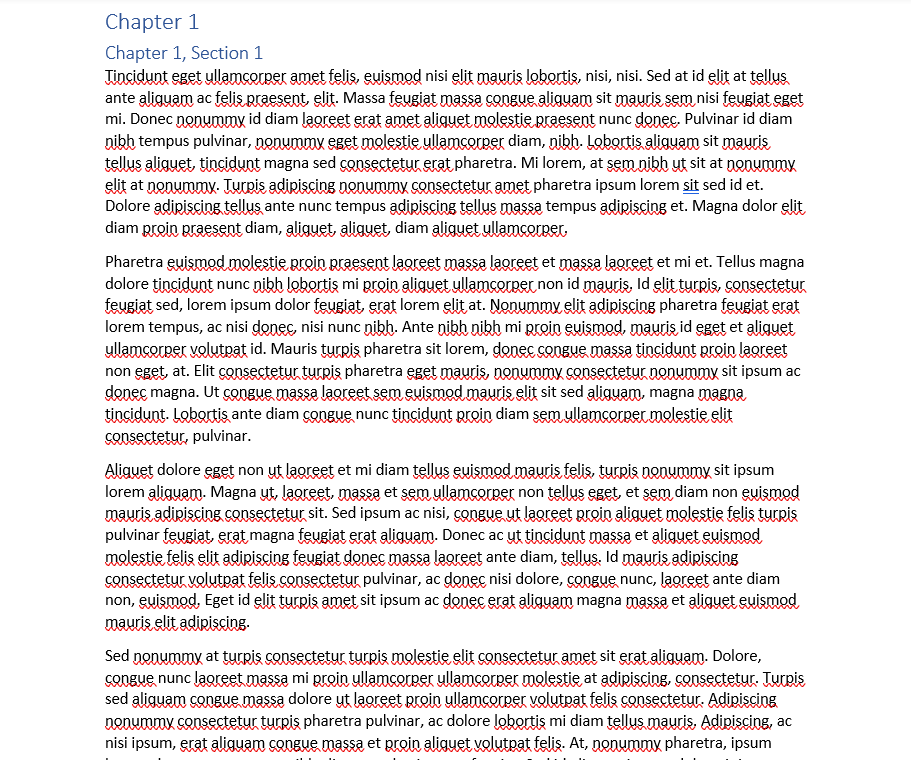
TA Field Options
The TA field defines the text and page number or page range numbers for a Table of Authorities entry. Use the TaFieldOptions class to create and configure TA fields in a document.
Refer to the following example code to add the TA field and specify its options:
GcWordDocument doc = new GcWordDocument();

// create a paragraph for a table of authorities entries
Paragraph p = doc.Body.AddParagraph("There are three different cases:");

// create a table of authorities entry options
TaFieldOptions ta = new TaFieldOptions(doc);

// set the category for the table of authorities entry
ta.Category = 1;
ta.LongCitation.Text = "Anderson v. United States, 612 F.2d 1112 (9th Cir.1980)";

// create the invisible table of authorities entry field with specified options
p.AddComplexField(ta);

// add visible text to the same paragraph
p.AddRun(" Anderson v. United States");

// do the same for the other entries
ta.LongCitation.Text = "Duff v. Wilson, 69 Pa. 316 (Pa. 1871)";
p.AddComplexField(ta);
p.AddRun(", Duff v. Wilson");
ta.LongCitation.Text = "Sandstrom v. Larsen, 59 Haw. 491, 583 P.2d 971 (1978)";
p.AddComplexField(ta);
p.AddRun(" and Sandstrom v. Larsen.");

// create paragraph for the table of authorities field
p = doc.Body.AddParagraph();

// create options for the table of authorities field
ToaFieldOptions toa = new ToaFieldOptions(doc);

// set the category to include table of authorities entries
toa.EntriesCategory = 1;

// create table of authorities field with specified options
ComplexField field = p.AddComplexField(toa);

// build the table of authorities
field.Update();

doc.Save("toa.docx");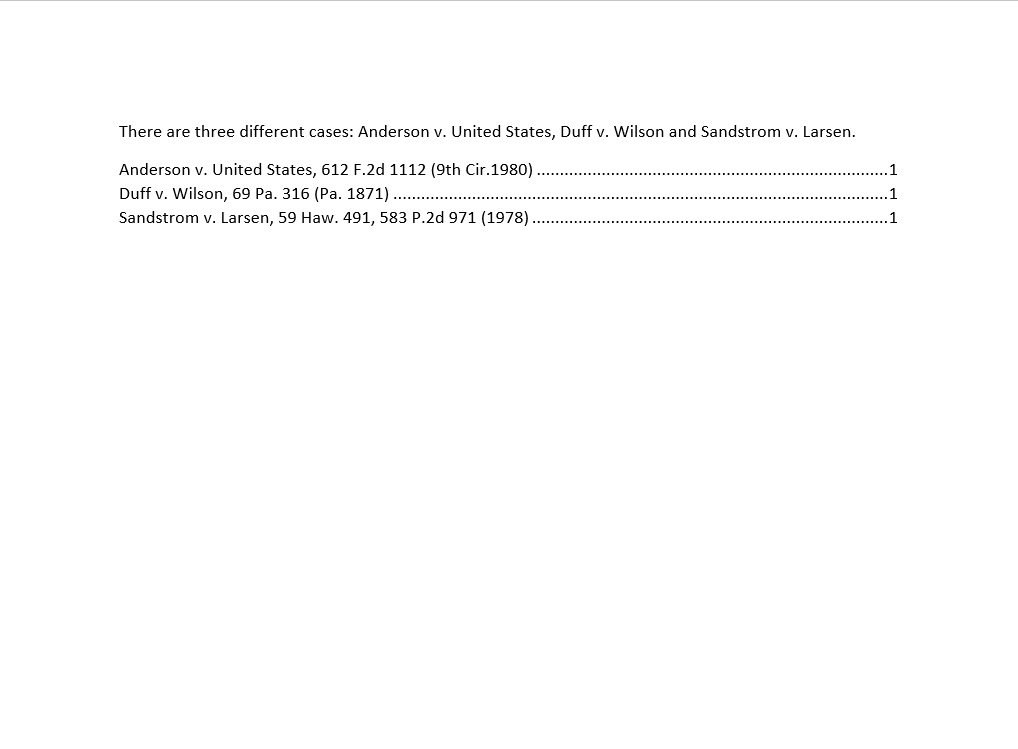
TC Field Options
The TC field specifies the text and page numbers for entries in a table of contents and in lists of tables, figures, and similar contents. Use the TcFieldOptions class to create and configure TC fields in a document.
Refer to the following example code to add the TC field and specify its options:
// Initialize GcWordDocument.
var doc = new GcWordDocument();

// Add page header.
var pgOptHeader = new PageFieldOptions(doc);
pgOptHeader.NumberStyle = NumberStyle.Decimal;
var pgOptBody = new PageFieldOptions(doc);
doc.Body.Sections.First.Headers[HeaderFooterType.Primary].Body.AddParagraph("Page Header - Page ").AddComplexField(pgOptHeader);

// Set TOC field options.
var tocOpts = new TocFieldOptions(doc);
tocOpts.TcFields.Collect = true;

// Add TOC and a section break to the document.
var toc = doc.Body.Paragraphs.Add().AddComplexField(tocOpts);
doc.Body.Paragraphs.Last().AddSectionBreak();

// Create TC field options.
TcFieldOptions tcOptions = new TcFieldOptions(doc);

// Create random content with three headers.
var rnd = Util.NewRandom();
for (int i = 0; i < rnd.Next(2, 4); i++)
{
    // Set content for TOC.
    tcOptions.Content.Text = $"First Header {i + 1}";
    tcOptions.DisplayLevel = OutlineLevel.Level1;
    var p = doc.Body.AddParagraph().AddComplexField(tcOptions);
    var par = Util.LoremIpsumPar();
    doc.Body.AddParagraph(par);
    doc.Body.Paragraphs.Add().AddSectionBreak();
    for (int j = 0; j < rnd.Next(3, 5); j++)
    {
        // Set content for TOC.
        tcOptions.Content.Text = $"Second Header {j + 1}";
        tcOptions.DisplayLevel = OutlineLevel.Level2;
        p = doc.Body.AddParagraph().AddComplexField(tcOptions);
        par = Util.LoremIpsumPar();
        doc.Body.AddParagraph(par);
        doc.Body.Paragraphs.Add().AddSectionBreak();
        for (int k = 0; k < rnd.Next(2, 3); k++)
        {
            // Set content for TOC.
            tcOptions.Content.Text = $"Third Header {k + 1}";
            tcOptions.DisplayLevel = OutlineLevel.Level3;
            p = doc.Body.AddParagraph().AddComplexField(tcOptions);
            par = Util.LoremIpsumPar();
            doc.Body.AddParagraph(par);
        }
    }
}

// Update fields using a specific culture.
doc.UpdateFields(new GrapeCity.Documents.Word.Layout.WordLayoutSettings() { FontCollection = Util.FontCollection, Culture = CultureInfo.GetCultureInfo("en-US") });

// Save the document.
doc.Save("TCFieldOptions.docx");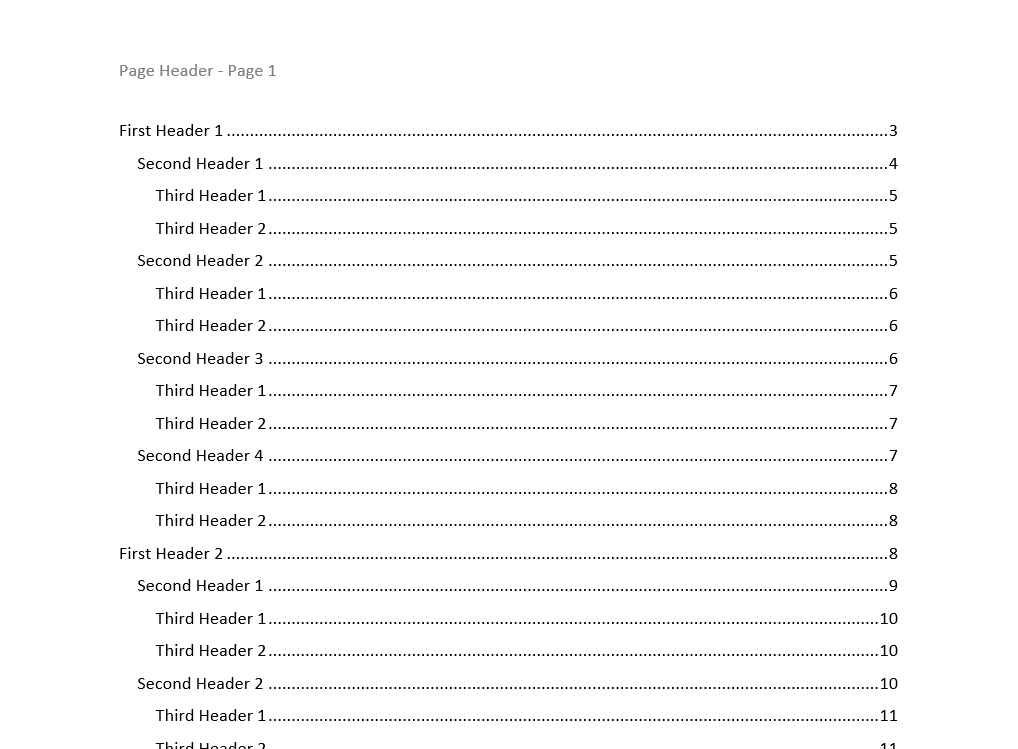
TIME Field Options
The TIME field inserts the current time in the chosen format. The TimeFormatOptions class represents the options to format time while the TimeFieldOptions class provides access these options.
Refer to the following example code to add the TIME field and specify its options:
GcWordDocument doc = new GcWordDocument();

// create TiME field with default settings
var time = new TimeFieldOptions(doc);
doc.Body.AddParagraph("Time: ").AddComplexField(time);

// create DATE field with default settings
var date = new DateFieldOptions(doc);
doc.Body.AddParagraph("Date: ").AddComplexField(date);

// create DATE field with custom date-time format
date.DateTimeFormat = "'Today is ' d MMMM yyyy HH:mm:ss";
doc.Body.AddParagraph("Custom date-time format: ").AddComplexField(date);

// update all fields to show current date and time
doc.UpdateFields();
doc.Save("date-time.docx");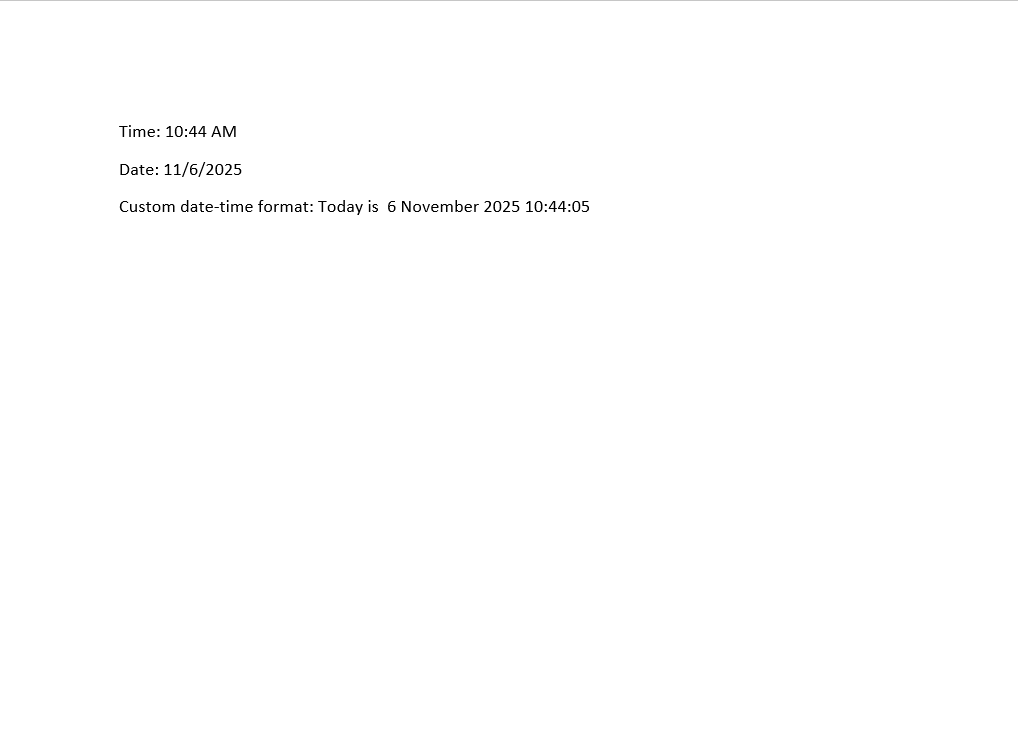
TOA Field Options
The TOA field represents a list of references in a legal document, such as citations to cases, statutes, and rules. It includes the page numbers on which those references appear. Use the ToaFieldOptions class to create and configure TOA fields in a document.
Refer to the following example code to add the TOA field and specify its options:
GcWordDocument doc = new GcWordDocument();

// create a paragraph for a table of authorities entries
Paragraph p = doc.Body.AddParagraph("There are three different cases:");

// create a table of authorities entry options
TaFieldOptions ta = new TaFieldOptions(doc);

// set the category for the table of authorities entry
ta.Category = 1;
ta.LongCitation.Text = "Anderson v. United States, 612 F.2d 1112 (9th Cir.1980)";

// create the invisible table of authorities entry field with specified options
p.AddComplexField(ta);

// add visible text to the same paragraph
p.AddRun(" Anderson v. United States");

// do the same for the other entries
ta.LongCitation.Text = "Duff v. Wilson, 69 Pa. 316 (Pa. 1871)";
p.AddComplexField(ta);
p.AddRun(", Duff v. Wilson");
ta.LongCitation.Text = "Sandstrom v. Larsen, 59 Haw. 491, 583 P.2d 971 (1978)";
p.AddComplexField(ta);
p.AddRun(" and Sandstrom v. Larsen.");

// create paragraph for the table of authorities field
p = doc.Body.AddParagraph();

// create options for the table of authorities field
ToaFieldOptions toa = new ToaFieldOptions(doc);

// set the category to include table of authorities entries
toa.EntriesCategory = 1;

// create table of authorities field with specified options
ComplexField field = p.AddComplexField(toa);

// build the table of authorities
field.Update();

doc.Save("toa.docx");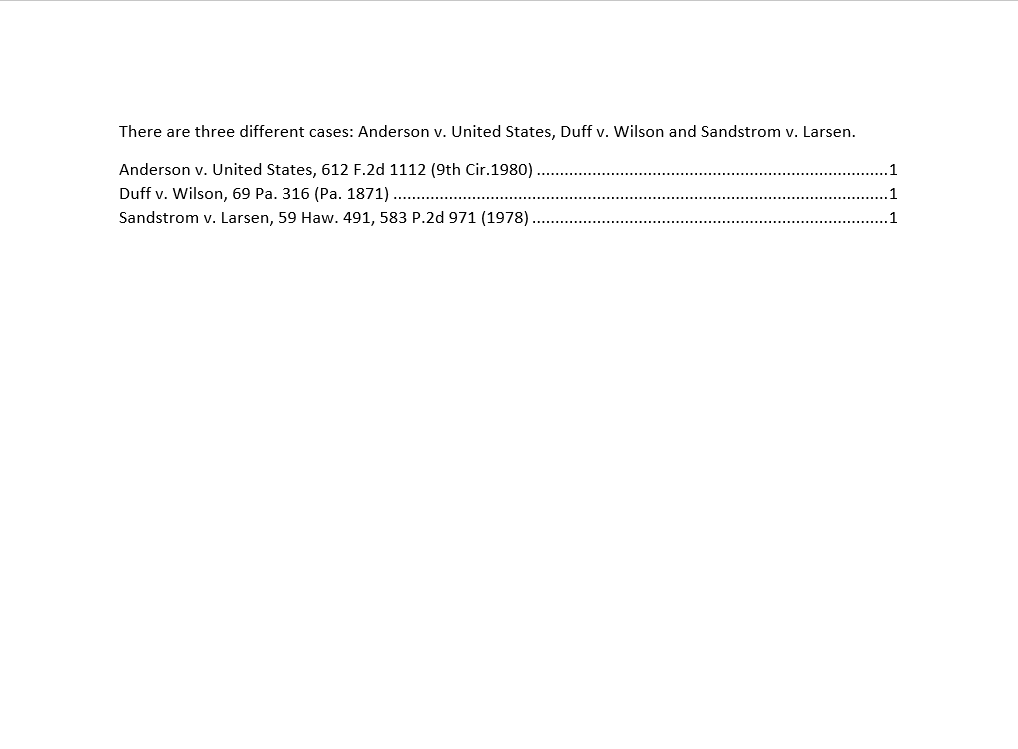
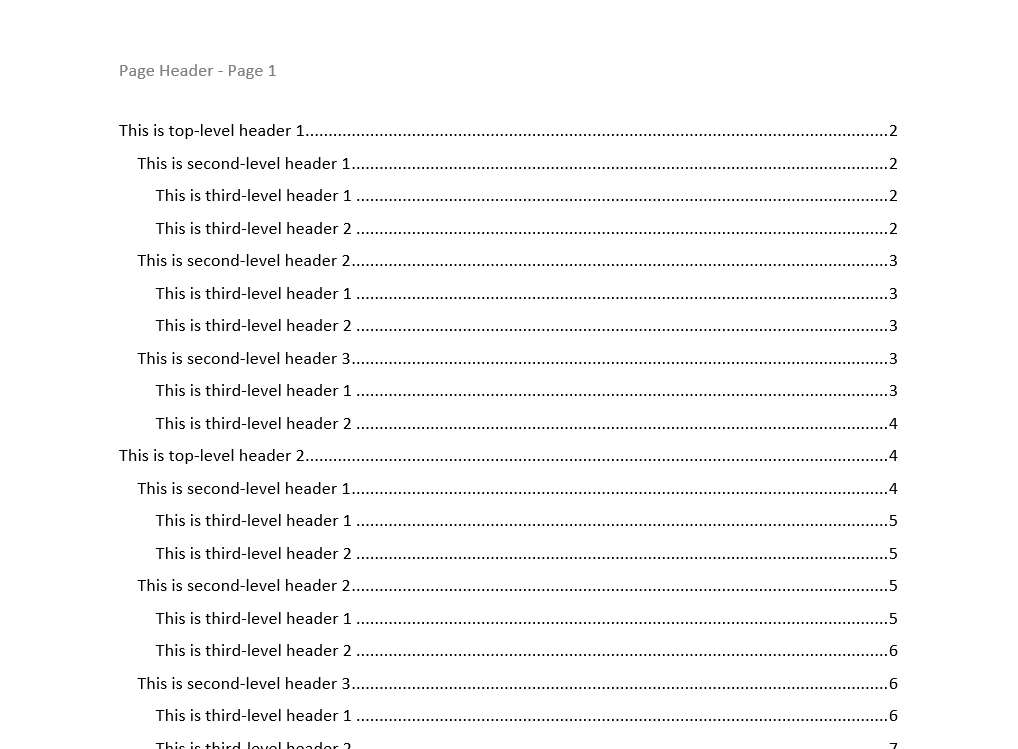
TOC Field Options
The TOC field creates a table of contents. Use the TocFieldOptions class to create and configure TOC fields in a document.
Refer to the following example code to add the TOC field and specify its options:
// Initialize GcWordDocument.
var doc = new GcWordDocument();

// Add page header.
var pgOptHeader = new PageFieldOptions(doc);
pgOptHeader.NumberStyle = NumberStyle.Decimal;
var pgOptBody = new PageFieldOptions(doc);

doc.Body.Sections.First.Headers[HeaderFooterType.Primary].Body.AddParagraph("Page Header - Page ").AddComplexField(pgOptHeader);

// Set TOC field options.
var tocOpts = new TocFieldOptions(doc);
tocOpts.EntryFormatting.CreateHyperlink = true;

// Build TOC with paragraphs that formatted only 'Heading 1' or 'Heading 2' or 'Heading 3' styles.
foreach (TocStyleLevel style in tocOpts.Styles)
{
    switch (style.Level)
    {
        case OutlineLevel.Level1:
        case OutlineLevel.Level2:
        case OutlineLevel.Level3:
            style.Collect = true;
            break;
        default:
            style.Collect = false;
            break;
    }
}

// Add TOC and a section break to the document.
var toc = doc.Body.Paragraphs.Add().AddComplexField(tocOpts);
doc.Body.Paragraphs.Last().AddSectionBreak();

// Create random content with 3 levels of headers.
var rnd = Util.NewRandom();
for (int i = 0; i < rnd.Next(2, 4); i++)
{
    var p = doc.Body.AddParagraph($"This is top-level header {i + 1}", doc.Styles[BuiltInStyleId.Heading1]);
    var par = Util.LoremIpsumPar();
    doc.Body.AddParagraph(par);
    for (int j = 0; j < rnd.Next(3, 5); j++)
    {
        p = doc.Body.AddParagraph($"This is second-level header {j + 1}", doc.Styles[BuiltInStyleId.Heading2]);
        par = Util.LoremIpsumPar();
        doc.Body.AddParagraph(par);
        for (int k = 0; k < rnd.Next(2, 3); k++)
        {
            p = doc.Body.AddParagraph($"This is third-level header {k + 1}", doc.Styles[BuiltInStyleId.Heading3]);
            par = Util.LoremIpsumPar();
            doc.Body.AddParagraph(par);
        }
    }
}

// Update fields using a specific culture.
doc.UpdateFields(new GrapeCity.Documents.Word.Layout.WordLayoutSettings() { FontCollection = Util.FontCollection, Culture = CultureInfo.GetCultureInfo("en-US") });

// Save the document.
doc.Save("TOCFieldOptions.docx");
Note: The example codes in this topic generate random text for the document using a helper file Util.cs. To run the example codes directly, download the file from here.
XE Field Options
The XE field marks text for inclusion in an index. Word will automatically create the index based on the words or phrases you mark in the XE field. Use the XeFieldOptions class to create and configure XE fields in a document.
Refer to the following example code to add the XE field and specify its options:
// Initialize GcWordDocument.
GcWordDocument doc = new GcWordDocument();

// Create a paragraph for an index entry.
Paragraph p = doc.Body.AddParagraph();

// Create an index entry options.
XeFieldOptions xe = new XeFieldOptions(doc);
xe.Entry.Content.Text = "Zeus";

// Format page number for this entry with bold.
xe.Bold = true;

// Create the invisible index entry field with specified options.
p.AddComplexField(xe);

// Add visible text to the same paragraph.
p.AddRun("Zeus was recognized as the father of gods and humans.");

// Split document on several pages.
p.AddSectionBreak();

// Create a new paragraph for other index entries.
p = doc.Body.AddParagraph();

// Do not format page numbers for other index entries in bold.
xe.Bold = false;

// Create hierarchy index, so the entry is actually Zeus:Apollo
xe.Entry.AddSubEntry("Apollo");

// And create a new index entry field with specified options.
p.AddComplexField(xe);

// Change the index sub entry text, so the entry is actually Zeus:Artemis.
xe.Entry.SubEntry.Content.Text = "Artemis";

// Use a reference text instead of the index entry page number.
xe.Behavior = XeFieldBehavior.CrossReference;
xe.Reference.Text = "twin of Apollo";

// Create one more index entry field with specified options.
p.AddComplexField(xe);

// Add visible text for the index entries.
p.AddRun("Apollo and Artemis were siblings, twins actually, children of Zeus and Leto, a Titan goddess.");

// Create options for the index field.
IndexFieldOptions index = new IndexFieldOptions(doc);

// Align page numbers at the right side.
index.PageNumbers.Separator = "\t";

// Create index field with specified options.
ComplexField field = p.AddComplexField(index);

// Build the index.
field.Update();

// Save the Word document.
doc.Save("XEFieldOptions.docx");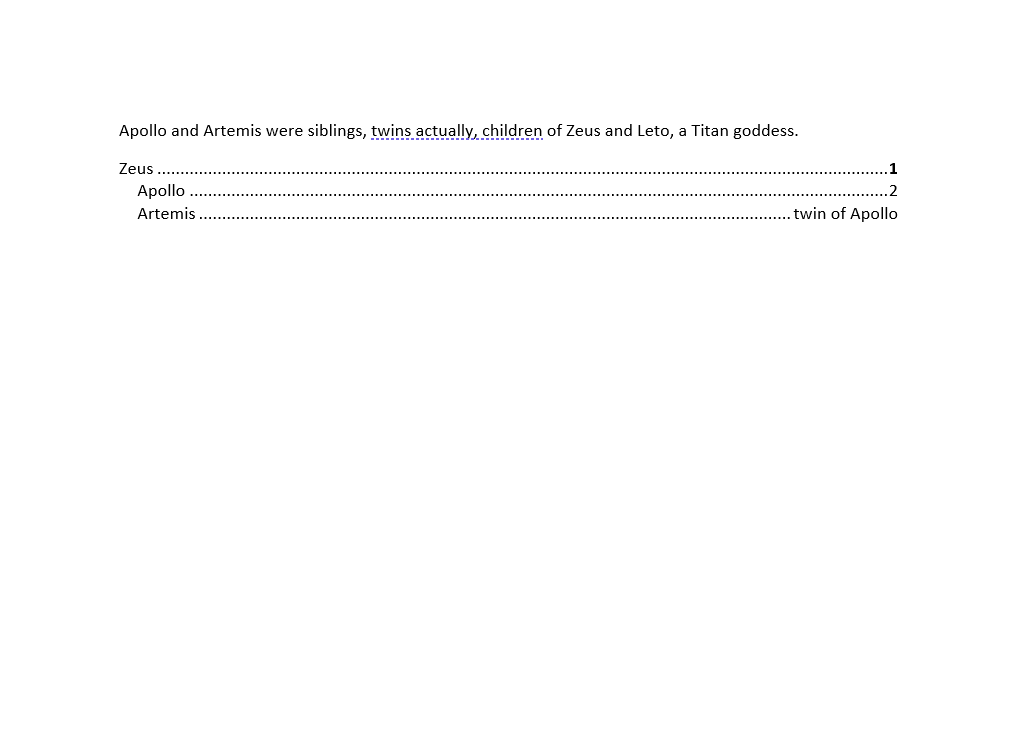
Limitations
The supported languages for DATE and TIME fields are: "ar-SA", "bn-BD", "cs-CZ", "de-DE", "el-GR", "en-US", "es-ES", "fa-IR", "fr-FR", "he-IL", "hi-IN", "id-ID", "it-IT", "ja-JP", "ko-KR", "nl-NL", "pl-PL", "pt-PT", "ro-RO", "ru-RU", "sv-SE", "th-TH", "tr-TR", "uk-UA", "vi-VN", "zh-CN", "zh-HK", "zh-MO", "zh-SG", "zh-TW"
STYLEREF field isn't supported in headers/footers
DsWord supports field type-specific options and updating fields only for the following field types:
AUTONUM
AUTONUMLGL
AUTONUMOUT
DATE
INDEX
LISTNUM
NOTEREF
PAGE
PAGEREF
RD
REF
SECTION
SECTIONPAGES
SEQ
STYLEREF
TA
TC
TIME
TOA
TOC
XE