


SpellCheck Using Merged Dictionary
The C1SpellChecker provides 21 international dictionaries in addition to the English - US dictionary that is built into the control. However, you may want to merge two dictionaries into one. To do this, you can use a C1SpellChecker Dictionary Editor called C1DictionaryEditor.exe that allows you to create and maintain dictionary files (.dct). For instance, you can merge Spanish and French dictionaries into one dictionary and perform a spell check in an application.
Creating a Merged Dictionary
Type C1DictionaryEditor 4.8 in the Start menu to open the application. The C1SpellChecker Dictionary Editor appears.
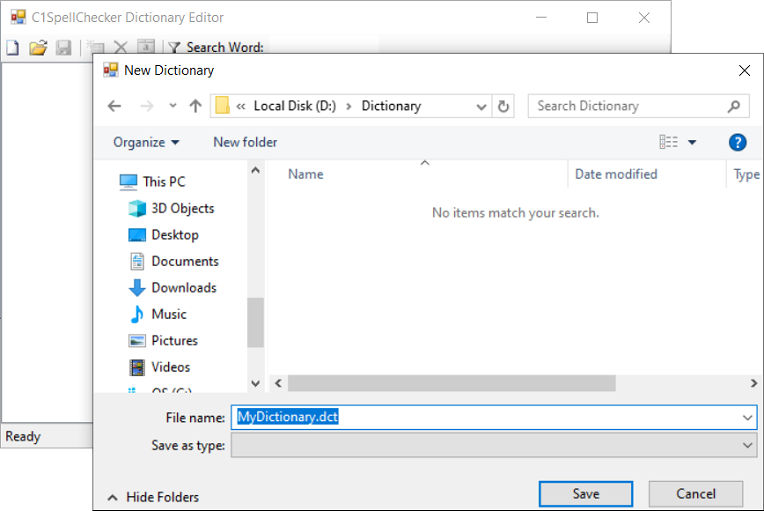
Create a new dictionary by using the New Dictionary option in the editor with the name MyDictionary.dct.
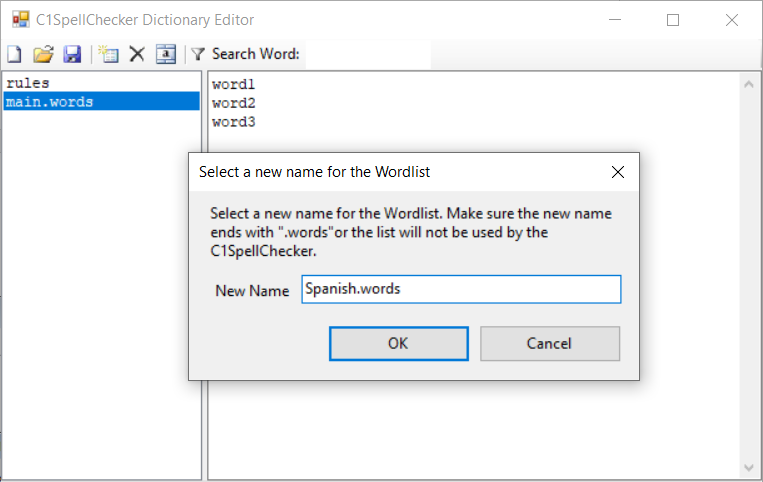
When a new dictionary is created, it contains two files -- rules (containing the rules of a language) and main.words (containing the words in a dictionary).
Name the word list as Spanish.words.
Open another instance of C1DictionaryEditor to open the Spanish dictionary file.
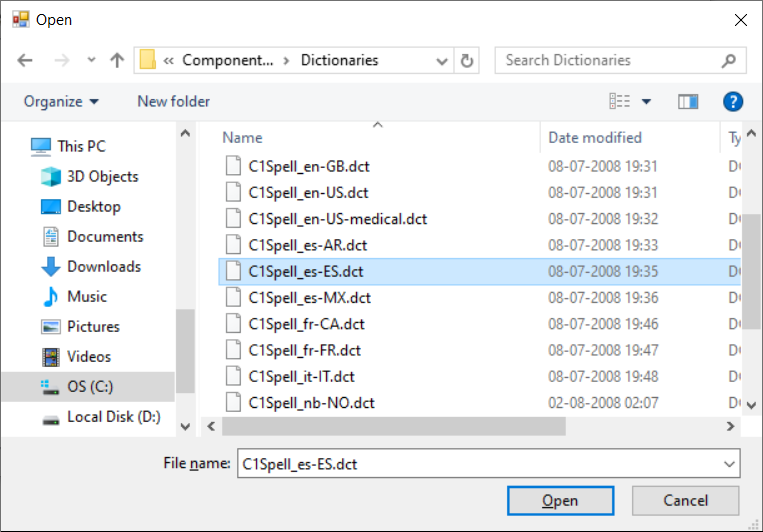
Open the C1Spell_es-ES.dct dictionary. This dictionary is installed in C:\Program Files (x86)\MESCIUS\ComponentOne\Dictionaries when the WinForms Controls are installed.
Open the es-ES.words wordlist and select all words.
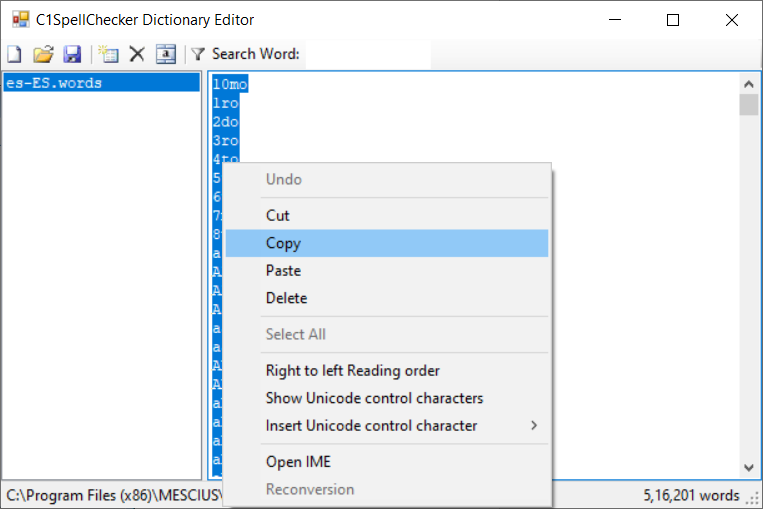
Right-click on the selected list and select the Copy option from the context menu to copy all the words.
Switch to Dictionary Editor Window of MyDictionary, Now, click the Spanish.words list, and right-click the content. Select the Select All option, and then select the Paste option to paste the copied words from Spanish dictionary.
Add a French wordlist in MyDictionary. To do this, click on the New Wordlist button and then rename the wordlist as French.words. Likewise, open the C1Spell_fr-FR.dct dictionary and copy the word list and paste it in French.words list in MyDictionary.
Copy the rules from the French dictionary and paste them into rules for MyDictionary.
Save the changes in MyDictionary. You now have a dictionary that contains both French and Spanish and French words along with rules.
Using Merged Dictionary
Now, create a .NET application to use the merged dictionary for spell-checking the Spanish and French words. In the application, use the c1SpellChecker1, label, and richtextbox controls in which the first instance of C1SpellChecker uses C1Spell_es-ES.dct, the second uses C1Spell_fr-FR.dct, and the third uses MyDictionary.dct. The texts in richtextboxes are spellchecked by these spellcheckers, and the content is spellchecked according to the selected dictionary. The third spellchecker spell-checks both French and Spanish text. Now, perform the following steps to create the application:
Create a new .NET WinForms application.
Install the following Nuget packages from the NuGet Package Manager:
C1.Win.C1SpellChecker.4.8 (.NET Framework) or
C1.Win.SpellChecker (.NET)
Add three c1SpellChecker1, label and richtextbox controls in the application.
Set the following properties of the three c1SpellChecker controls:
Control Name
Property Name
Value
c1SpellChecker1
FileName
C:\Program Files (x86)\MESCIUS\ComponentOne\Dictionaries\C1Spell_es-ES.dct
c1SpellChecker2
FileName
C:\Program Files (x86)\MESCIUS\ComponentOne\Dictionaries\C1Spell_fr-FR.dct
c1SpellChecker3
FileName
D:\MyDictionary.dct
Set the Text property of each label control appropriately.
Set the SpellChecking on c1SpellChecker1 property of each richtextbox control to True.
Add the following code in the Load event of the Form. The SetActiveSpellChecking option enables you to spell-check to the textBox as-you-type when sets to true.
c1SpellChecker1.SetActiveSpellChecking(richTextBox1, true);
c1SpellChecker1.SetActiveSpellChecking(richTextBox2, true);
c1SpellChecker1.SetActiveSpellChecking(richTextBox3, true);
c1SpellChecker1.SetActiveSpellChecking(richTextBox1, True) c1SpellChecker1.SetActiveSpellChecking(richTextBox2, True) c1SpellChecker1.SetActiveSpellChecking(richTextBox3, True)Run the application.
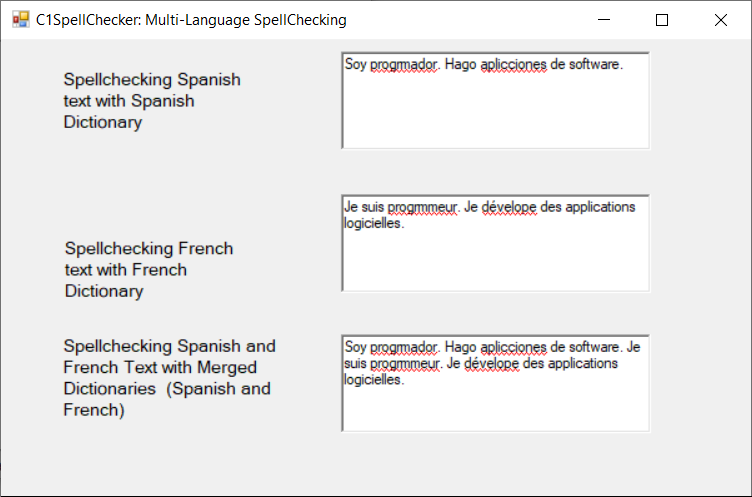
Enter the Spanish, French and both language words in first, second and third richtexboxes respectively.
You can see that incorrect words in each RichTextBox control are highlighted with a red wavy underline.