


Edit Dictionary File
To edit the contents of an existing dictionary file (.dct), complete the following steps:
Double-click the C1DictionaryEditor.4.exe to open the C1SpellChecker Dictionary Editor. By default, it installs to C:\Program Files (x86)\ComponentOne\Apps\v4.0 directory.
Click the Open Dictionary
 button and browse for the .dct file to edit. You can find the available dictionary files at the following location on your system:
C:\Program Files (x86)\ComponentOne\Dictionariestype=note
Note: You can also find the list of .dct files for different languages that ship with C1SpellChecker, see the Multi-Language Support topic.
The editor shows all the entries in the .dct file:
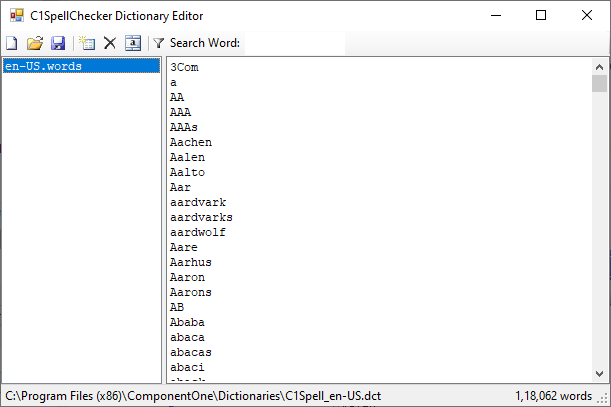
The entries appear as items on the list box on the left. Selecting an entry shows its contents on the editor that appears on the right pane.
You can edit the contents of the .dct file using the following methods:
- Typing or pasting words into the existing word list on the right.
- Selecting the Add Wordlist button and creating a new word list to add:
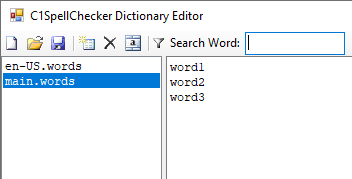
To rename the word list, select the Rename Wordlist button
 and change the default "main.words" name: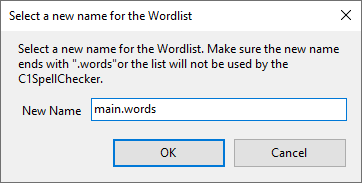
type=info
Tips: When creating a word list, note that case is important. Lowercase entries in word lists match regular words (for example, "word" matches "word", "Word", and "WORD"). Entries that start with an uppercase character do not match lowercase words and should be used for names (for example, "Paul" matches "Paul" and "PAUL", but not "paul").
Also note that the words in word lists don't have to be in any specific order. The words will be sorted automatically when the file is saved.Once you are done making changes, save the file.