


Working with Cells
A cell is the smallest unit of a grid. Although most operations occur at the row or column level, some scenarios require cell‑level operations such as retrieving, assigning, or clearing data.
Set Value in Cell
FlexGrid provides two ways to assign a value to a cell:
Specify the row and column indexes to identify the cell.
The following example demonstrates how to assign a value to a cell:
// Use indexes to set data
c1FlexGrid1[2, 3] = "2nd col 3rd row";
// Use SetData method to set data
c1FlexGrid1.SetData(2, 4, "2nd col 4th row");
' Use indexes to set data
c1FlexGrid1(2, 3) = "2nd col 3rd row"
' Use SetData method to set data
c1FlexGrid1.SetData(2, 4, "2nd col 4th row") Set Values in Cell Range
Assign a value to a cell range by using the CellRange.Data property or the SetData method.
First, create a CellRange object that represents the required range. Assigning a value to the range applies the value to each cell in that range.
// Get the cell range
C1.Win.C1FlexGrid.CellRange cr = c1FlexGrid1.GetCellRange(2, 3, 5, 6);
// Approach 1: Use data property to set data in the cell range
cr.Data = "Cell Range";
// Approach 2: Use SetData method to set data in the cell range
// c1FlexGrid1.SetData(cr, "Cell Range");
' Get the cell range
Dim cr As C1.Win.C1FlexGrid.CellRange = c1FlexGrid1.GetCellRange(2, 3, 5, 6)
' Use data property to set data in the cell range
cr.Data = "Cell Range"
' Use SetData method to set data in the cell range
' c1FlexGrid1.SetData(cr, "Cell Range") Set Images in Cell
Display an image in a cell by using the SetCellImage method. To assign an image to multiple cells, use the CellRange.Image property.
By default, a cell displays both its text and image. Set ImageAndText to false to display only the image.
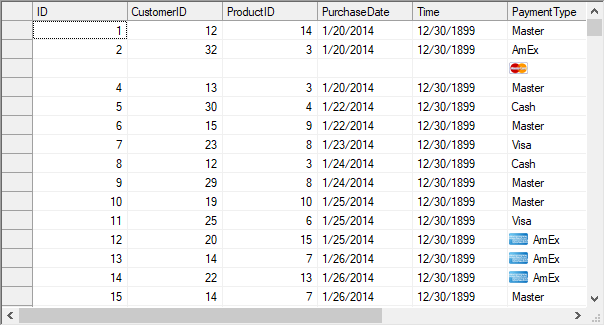
The following example demonstrates how to assign an image to a cell:
// Set image in cell (3,6)
c1FlexGrid1.SetCellImage(3, 6, Image.FromFile("master.png"));
// Set image in cell range (12,6) to (14, 6)
C1.Win.C1FlexGrid.CellRange cr;
cr = c1FlexGrid1.GetCellRange(12, 6, 14, 6);
cr.Image = Image.FromFile("amex.jpg");
// Display image without text
c1FlexGrid1.Rows[3].ImageAndText = false;
' Set image in cell (3,6)
c1FlexGrid1.SetCellImage(3, 6, Image.FromFile("master.png"))
' Set image in cell range (12,6) to (14, 6)
Dim cr As C1.Win.C1FlexGrid.CellRange
cr = c1FlexGrid1.GetCellRange(12, 6, 14, 6)
cr.Image = Image.FromFile("amex.jpg")
' Display image without text
c1FlexGrid1.Rows(3).ImageAndText = False Clear Value from Cell (Range)
Clear the contents of a cell or range programmatically by assigning an empty string through the Item property or the SetData method.
Set AutoClipboard to true to support keyboard operations such as pressing Delete to clear selected cell contents.
// Allow user to perform keyboard operations like pressing Delete key to clear cell content
c1FlexGrid1.AutoClipboard = true;
// Clear data of a particular cell through code
c1FlexGrid1.SetData(3, 4, "");
' Allow user to perform keyboard operations like pressing Delete key to clear cell content
c1FlexGrid1.AutoClipboard = True
' Clear data of a particular cell through code
c1FlexGrid1.SetData(3, 4, "") Display Tooltip in Cell
Set the ShowCellLabels property to display partially hidden cell content as a tooltip.
To display additional information in a tooltip, handle the MouseEnterCell and MouseLeaveCell events. Use MouseEnterCell to display the tooltip for the active cell and MouseLeaveCell to hide it when the pointer leaves the cell.
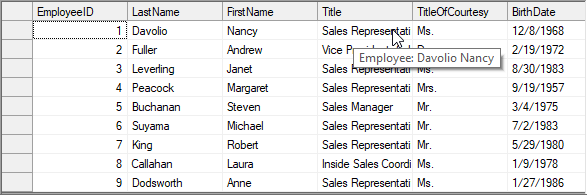
The following image shows additional employee information displayed in a tooltip:
The following example demonstrates how to display a tooltip for a FlexGrid cell.
private void Form1_Load(object sender, EventArgs e)
        {
            // TODO: This line of code loads data into the 'c1NWindDataSet.Employees' table. You can move, or remove it, as needed.
            this.employeesTableAdapter.Fill(this.c1NWindDataSet.Employees);
            for (int i = c1FlexGrid1.Rows.Fixed; i < c1FlexGrid1.Rows.Count; i++)
            {
                c1FlexGrid1.Rows[i].UserData = "Employee: " + c1FlexGrid1[i, 2] + " " + c1FlexGrid1[i, 3];
            }
        }
        private void C1FlexGrid1_MouseEnterCell(object sender, C1.Win.C1FlexGrid.RowColEventArgs e)
        {
            if (e.Row >= c1FlexGrid1.Rows.Fixed)
            {
                string tip;
                tip = c1FlexGrid1.Rows[e.Row].UserData.ToString();
                // Display the tooltip
                toolTip1.SetToolTip(c1FlexGrid1, tip);
            }
        }
        private void C1FlexGrid1_MouseLeaveCell(object sender, C1.Win.C1FlexGrid.RowColEventArgs e)
        {
            // Hide the tooltip
            toolTip1.SetToolTip(c1FlexGrid1, "");
        }
Private Sub Form1_Load(ByVal sender As Object, ByVal e As EventArgs)
' TODO: This line of code loads data into the 'c1NWindDataSet.Employees' table. You can move, or remove it, as needed.
Me.employeesTableAdapter.Fill(Me.c1NWindDataSet.Employees)
For i As Integer = c1FlexGrid1.Rows.Fixed To c1FlexGrid1.Rows.Count - 1
c1FlexGrid1.Rows(i).UserData = "Employee: " & c1FlexGrid1(i, 2) & " " + c1FlexGrid1(i, 3)
Next
End Sub
Private Sub C1FlexGrid1_MouseEnterCell(ByVal sender As Object, ByVal e As C1.Win.C1FlexGrid.RowColEventArgs)
If e.Row >= c1FlexGrid1.Rows.Fixed Then
Dim tip As String
tip = c1FlexGrid1.Rows(e.Row).UserData.ToString()
' Display the tooltip
toolTip1.SetToolTip(c1FlexGrid1, tip)
End If
End Sub
Private Sub C1FlexGrid1_MouseLeaveCell(ByVal sender As Object, ByVal e As C1.Win.C1FlexGrid.RowColEventArgs)
' Hide the tooltip
toolTip1.SetToolTip(c1FlexGrid1, "")
End SubRetrieve Cell Values
FlexGrid provides multiple methods and properties for retrieving cell values. Retrieve raw or formatted data from an individual cell or from a cell range, depending on the required format and scope.
Requirement | Method/Property | Usage |
|---|---|---|
Get the raw data | Item property (indexer) | Returns the underlying value from a cell identified by its row and column indexes. Example:
|
GetData() method | Returns the underlying value from the specified cell. Example:
| |
Get the formatted data | GetDataDisplay() method | Returns the formatted text displayed in the specified cell. Example:
|
Get values of a cell range | Clip property | Returns the values from the current cell selection in a clipboard-compatible format. Example:
|
GetCellRange() method | Returns a Example:
|