


Working with Columns
A grid consists of rows and columns. Columns typically contain a specific type of information, while rows represent records for individual items.
FlexGrid manages columns through the ColumnCollection class, which is accessible through the C1FlexGrid.Cols property. This section describes common column-management operations.
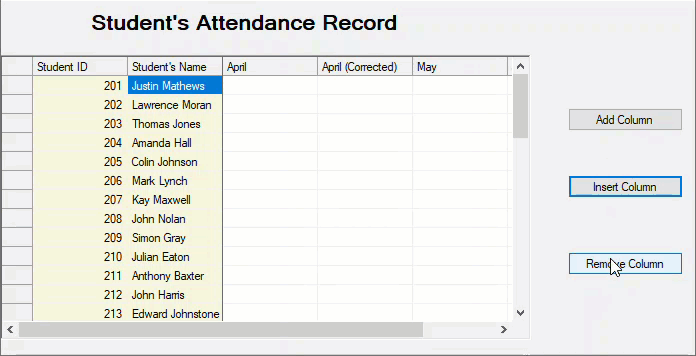
Add Column
FlexGrid provides two ways to add columns through the ColumnCollection class:
When a column is added to a bound grid, FlexGrid creates it as an unbound column.
// Approach1:
// Use Add method of the column collection
    C1.Win.C1FlexGrid.Column c;
c = c1FlexGrid1.Cols.Add();
c.Caption = "New Column";
//Approach2:
// Change Count property of the column collection
    c1FlexGrid1.Cols.Count += 1;
c1FlexGrid1.Cols[c1FlexGrid1.Cols.Count - 1].Caption = "New Column";
' Approach1:
' Use Add method of the column collection
Dim c As C1.Win.C1FlexGrid.Column
c = c1FlexGrid1.Cols.Add()
c.Caption = "New Column"
'Approach2:
' Change Count property of the column collection
c1FlexGrid1.Cols.Count += 1
c1FlexGrid1.Cols(c1FlexGrid1.Cols.Count - 1).Caption = "New Column" Delete Column
Remove a column by using the ColumnCollection.Remove method.
In an unbound grid, decreasing ColumnCollection.Count removes columns from the end of the collection. To remove multiple columns, use ColumnCollection.RemoveRange.
// Approach1:
// Delete 2nd column using the Remove method of column collection
   c1FlexGrid1.Cols.Remove(2);
// Approach2:
// Delete the last column by changing the Count property
   c1FlexGrid1.Cols.Count -= 1;
// Approach3:
// Delete four columns starting from 2nd by using the RemoveRange method
   c1FlexGrid1.Cols.RemoveRange(2, 4);
' Approach1:
' Delete 2nd column using the Remove method of column collection
c1FlexGrid1.Cols.Remove(2)
' Approach2:
' Delete the last column by changing the Count property
c1FlexGrid1.Cols.Count -= 1
' Approach3:
' Delete four columns starting from 2nd by using the RemoveRange method
c1FlexGrid1.Cols.RemoveRange(2, 4) Insert Column
Insert a column at a specified position by using ColumnCollection.Insert. To insert multiple columns, use InsertRange.
These methods create unbound columns even when FlexGrid is bound to a data source.
C1.Win.C1FlexGrid.Column c;
// Approach1:
// Insert a column at the 2nd position using the Insert method
   c = c1FlexGrid1.Cols.Insert(2);
c.Caption = "Inserted Column";
// Approach2:
// Insert three columns at 2nd position using the InsertRange method
// c1FlexGrid1.Cols.InsertRange(2, 3);
Dim c As C1.Win.C1FlexGrid.Column
'Approach1:
'Insert a column at the 2nd position using the Insert method
c = c1FlexGrid1.Cols.Insert(2)
c.Caption = "Inserted Column"
'Approach2:
'Insert three columns at 2nd position using the InsertRange method
'c1FlexGrid1.Cols.InsertRange(2, 3) Set Column Count
When FlexGrid is bound to a data source, the number of columns corresponds to the number of fields in the data source.
In unbound mode, set the number of columns by assigning a value to the ColumnCollection.Count property.
// Set column count
 c1FlexGrid1.Cols.Count = 4;
' Set column count
c1FlexGrid1.Cols.Count = 4 Set Data Type
In a bound FlexGrid, column data types are derived from the data source.
In unbound mode, set a column data type by using the Column.DataType property. The data type can also be configured at design time from the Column Tasks menu.
After a data type is assigned, cells in the column accept input that matches the specified type.
// Set data type of first column
 c1FlexGrid1.Cols[1].DataType = typeof(int);
' Set data type of first column
c1FlexGrid1.Cols(1).DataType = GetType(Integer)Set Fixed Column
Fixed columns remain visible on the left side of the grid and cannot be edited.
Use the ColumnCollection.Fixed property to specify the number of fixed columns.
// Set one column as fixed
c1FlexGrid1.Cols.Fixed = 1;
' Set one column as fixed
c1FlexGrid1.Cols.Fixed = 1 Set Frozen Column
Frozen columns remain visible during horizontal scrolling and can still be edited.
Use the ColumnCollection.Frozen property to specify the number of frozen columns.
// Set first four columns as frozen
c1FlexGrid1.Cols.Frozen = 4;
' Set first four columns as frozen
c1FlexGrid1.Cols.Frozen = 4