


Print Tools
C1EditorRibbon provides optional built-in printing tools for document printing workflows.
The printing integration adds a ready-to-use Print tab and optional Quick Access Toolbar (QAT) print buttons, allowing applications to expose common printing functionality without manually creating ribbon commands or print UI logic.
The feature is designed to provide a familiar document-printing experience similar to standard office applications.
Supported workflows include:
Standard document printing
Print preview
PDF export
Quick printing to the default printer
Printing commands integrate directly with the associated C1Editor instance.
Print Tab
C1EditorRibbon can display a dedicated Print tab containing common document-printing commands.
The Print tab is hidden by default and must be enabled explicitly.
Print Tab Commands
Command | Description | |
|---|---|---|
| Opens the standard operating-system print dialog | |
| Displays a print preview window | |
| Exports the current document to PDF | |
| Prints directly to the default system printer | |
The Print tab behaves like standard ribbon tabs and can participate in normal ribbon customization workflows.
Enable the Print Tab
c1EditorRibbon1.ShowPrintTab = true;When the Print tab is enabled, the ribbon automatically displays the tab header row even if ribbon tab headers are otherwise hidden.

This behavior ensures that print commands remain accessible to users.
Quick Access Print Toolbar
C1EditorRibbon can also expose print commands through the Quick Access Toolbar (QAT).
QAT integration provides fast access to frequently used printing commands without requiring users to switch ribbon tabs.
Supported QAT commands include:
Print Preview
Quick Print
QAT print buttons are also hidden by default and must be enabled explicitly.
Enable QAT Print Buttons
c1EditorRibbon1.ShowPrintButtonsInQat = true;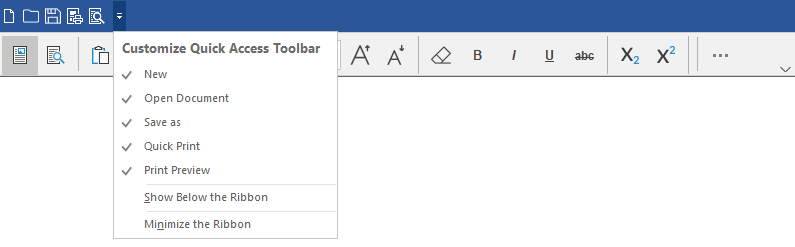
Display the Print Dialog
Applications can open print-related dialogs programmatically through C1Editor.
This allows applications to integrate printing workflows with custom UI commands, keyboard shortcuts, or application-specific logic.
Show the Print UI
await c1Editor1.ShowPrintUIAsync();ShowPrintUIAsync also supports an optional dialogKind parameter:
await c1Editor1.ShowPrintUIAsync("Browser");
await c1Editor1.ShowPrintUIAsync("System");
The dialogKind value must be either "Browser" or "System", which correspond to the option names of CoreWebView2PrintDialogKind.
The print UI uses the underlying browser and WebView2 printing infrastructure. Depending on the selected dialogKind, the method displays either the browser-based print dialog or the system print dialog.
Ribbon and Editor Integration
C1EditorRibbon print commands operate against the associated C1Editor instance.
Applications should ensure that:
A valid
C1Editorinstance is connected to the ribbonThe editor contains loaded document content before printing
The editor is initialized before invoking print operations
Applications that invoke print commands before editor initialization or before document loading completes may encounter incomplete print output or unavailable print functionality.
Limitations
Limitation | Description |
|---|---|
Environment-dependent print behavior | Available print features can vary depending on the installed browser environment, print capabilities, and active printer implementation. For example, if the default system printer is a PDF printer, canceling the print process in the Save File dialog can produce either a “The document was printed successfully” notification or a “Printing was cancelled” notification, depending on the PDF printer application in use. |
Print UI disabled by default | Applications must explicitly enable the Print tab and QAT print buttons |