


Editor Backstage View
C1EditorBackstageView provides a ready-to-use backstage interface for applications that use C1EditorRibbon and C1Editor. It supports common document workflows, including creating, opening, saving, and printing documents and managing recent files. It is intended for document-centric applications and integrates with ComponentOne themes for a consistent look.
Integration with C1EditorRibbon
C1EditorBackstageView is designed to work with C1EditorRibbon and C1Editor. Together they provide a unified editing and document-management experience for applications such as word processors, rich text editors, and document-based productivity tools.
Before using the backstage view, associate it with the corresponding editor and ribbon components.
Built-In Features
C1EditorBackstageView includes predefined backstage commands, built-in Open and Save As tabs, recent file management, favorites support, date-based grouping, printing integration, theme support, and runtime customization.
These features allow applications to provide a complete backstage experience without building document-management UI manually.
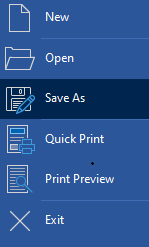
Built-In Commands
The backstage view includes predefined commands for common document workflows.
Command | Description | |
|---|---|---|
| Creates a new document | |
| Opens an existing document | |
| Saves the current document | |
| Opens print preview and printing options | |
| Prints directly using default settings | |
| Closes the application or workflow | |
Applications can add, remove, or customize backstage items as needed.
Open and Save As Tabs
The Open and Save As tabs provide built-in file-management controls.
These tabs support browse actions, recent file lists, favorites, and optional date grouping. Recent entries display the file name and file path, and the list is ordered by last updated date in descending order to help users access the most recently used files first.
Favorites
Favorites are enabled by default and allow users to pin commonly used files for faster access.
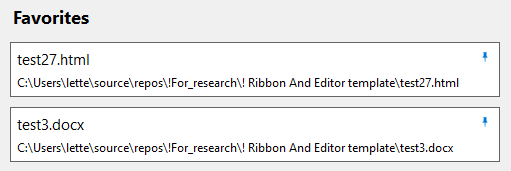
editorBackstageViewOpenTab1.ShowFavorites = false;Applications can hide the favorites section when pinning is not needed.
Grouping
Recent files can be grouped by date. Supported groups include Today, Yesterday, This Week, and Older.
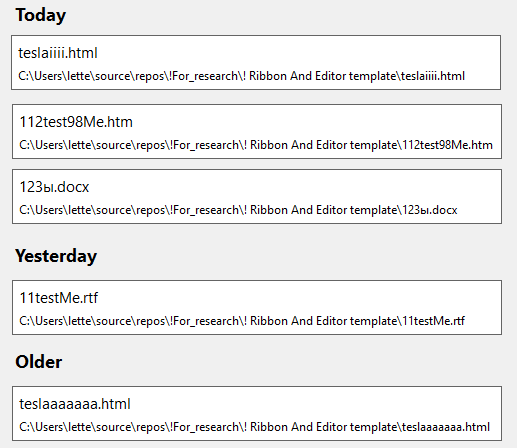
editorBackstageViewOpenTab1.GroupByDates = false;Recent Files
The backstage view maintains recent file lists for Open and Save As operations.
Recent file data can be persisted between sessions and restored when the application starts. This allows applications to preserve document history across sessions without implementing a separate recent-file system.
Data Format
Recent file data is stored as a JSON string. The stored structure contains file path, last updated timestamp, and favorite state information, as shown in the following example.
[
  {
    "FilePath": "C:\\Projects\\Docs\\Ver3.rtf",
    "LastUpdated": "2026-07-16T15:30:00",
    "IsFavourite": false
  },
  {
    "FilePath": "D:\\Documents\\Reports\\Q2_Financials.html",
    "LastUpdated": "2026-07-15T10:15:45",
    "IsFavourite": true
  }
]
Maintenance Behavior
When a tab is opened, entries that reference files that no longer exist are removed automatically. Additional entries are removed if they have not been used within the last three months or if the stored list contains more than 50 entries.
This automatic maintenance helps keep the recent file list relevant and prevents it from growing indefinitely.
Customization
Applications can customize the backstage view by adding or removing items, modifying the navigation panel, configuring recent file list appearance, and applying custom theme settings.
The built-in structure remains fixed, but the available commands and visual behavior can be adapted to application-specific workflows.
Theme Support
C1EditorBackstageView supports ComponentOne themes and integrates with ThemeDesigner.
Its appearance can be customized through ribbon themes, ThemeDesigner, and application-wide ComponentOne theme settings so the backstage view remains visually consistent with the editor and ribbon.
Limitations
Limitation | Description | |
|---|---|---|
Designed for | The backstage view is intended for use with | |
Built-in tab controls are predefined | Runtime behavior can be configured, but the built-in Open and Save As tab controls cannot be replaced | |
Sample Code
The following sample shows one way to persist and update the Recently opened files and Recently saved files lists.
In this approach, recent file lists are stored as JSON strings. No preconfigured file is required because the JSON content is created automatically when the form is first used. The JSON data can be stored in a file, in application settings, or in another application-specific storage location.
Use editorBackstageViewOpenTab1.RecentFilesJson and editorBackstageViewSaveAsTab1.RecentFilesJson to read or update the current recent file lists. To persist changes, update the locally stored value when the FileListUpdated event is raised.
private void Form1_Load(object sender, EventArgs e)
{
    SetupRecentFilesLists();
}

private void Form1_FormClosed(object sender, FormClosedEventArgs e)
{
    UnsubscribeRecentFilesListsUpdated();
}

#region Load and update recent files lists

private readonly string _recentlyOpenedFilesConfigPath =
    Path.Combine(
        AppDomain.CurrentDomain.BaseDirectory,
        "RecentlyOpenedFiles.json");

private readonly string _recentlySavedFilesConfigPath =
    Path.Combine(
        AppDomain.CurrentDomain.BaseDirectory,
        "RecentlySavedFiles.json");

private void SetupRecentFilesLists()
{
    editorBackstageViewOpenTab1.RecentFilesJson =
        LoadRecentFiles(_recentlyOpenedFilesConfigPath);

    editorBackstageViewSaveAsTab1.RecentFilesJson =
        LoadRecentFiles(_recentlySavedFilesConfigPath);

    editorBackstageViewOpenTab1.FileListUpdated +=
        EditorBackstageViewOpenTab1_FileListUpdated;

    editorBackstageViewSaveAsTab1.FileListUpdated +=
        EditorBackstageViewSaveAsTab1_FileListUpdated;
}

private void UnsubscribeRecentFilesListsUpdated()
{
    editorBackstageViewOpenTab1.FileListUpdated -=
        EditorBackstageViewOpenTab1_FileListUpdated;

    editorBackstageViewSaveAsTab1.FileListUpdated -=
        EditorBackstageViewSaveAsTab1_FileListUpdated;
}

private void EditorBackstageViewSaveAsTab1_FileListUpdated(
    object sender,
    EventArgs e)
{
    SaveRecentFiles(
        _recentlySavedFilesConfigPath,
        editorBackstageViewSaveAsTab1.RecentFilesJson);
}

private void EditorBackstageViewOpenTab1_FileListUpdated(
    object sender,
    EventArgs e)
{
    SaveRecentFiles(
        _recentlyOpenedFilesConfigPath,
        editorBackstageViewOpenTab1.RecentFilesJson);
}

private string LoadRecentFiles(string path)
{
    if (string.IsNullOrWhiteSpace(path) || !File.Exists(path))
        return string.Empty;

    try
    {
        return File.ReadAllText(path);
    }
    catch (Exception)
    {
        return string.Empty;
    }
}

private void SaveRecentFiles(string path, string content)
{
    if (string.IsNullOrWhiteSpace(path))
        return;

    try
    {
        File.WriteAllText(path, content);
    }
    catch (Exception)
    {
    }
}

#endregion